Part 1 - iPhone Breathalyzer - Blender
Key Takeaways
Design and model an iPhone Breathalyzer using Blender, a 3D creation software, and learn the basics of 3D modeling and texturing for app design and development.
Full Transcript
[Music] hello Gary Simon of designc course.com today is January 24th with our 24th video of the year and we're going to begin the Mega tutorial and actually get to work in blender by modeling our breath lizer so as always if you need access to the final project file that is available for free in the description below this video and also please check out the designcourse tocom if you haven't yet and subscribe here on YouTube all right let's get started okay so if you never used blend blender before to select objects it's right- clicking to hold shift you can select multiple objects to move around in the viewport you use your middle Mouse button or the third Mouse button and to zoom up use your scroll whe and to pan you use shift and your middle or third Mouse button all right so file new I'm going to just reload that so we're looking at the same thing we're going to stick with this Cube so we have to make some adjustments um let's go ahead and zoom up a little bit hold s hit Z to scale it down on the z-axis and I'd say right around there we'll move it up a little bit and we want to keep this thing basically a square so we're not going to change uh anything else other than that and so now what we want to do is make the corners beveled so to do that we'll drag out this over here and we'll click on the modifiers add modifier bevel width in segments is basically what you have to deal with here for your uh options now width we're going to leave there segments I'm going to leave at nine looks fine to me all right and then I'm going going to go ahead and add a subdivision surface B basically just makes things uh smooth I'm going to increase the view to two all right okay so so far so good now what I want to do is hit apply for this bevel and now what we want to do is add the circular breathing part that you would put your mouth on for the breathalyzer okay so I'm going to click right right around here this is the origin Point basically wherever you click is where the object will be added uh shift a brings up this menu or you could just go to add so I'm just going to hit shift a mesh and we want to add a circle and I'm going to going to hit rx90 so oops sorry it's r y 990 there we go and basically R is for rotate and then you have your axises right here which you can uh make them rotate on those by hitting that key and I want to hit hit s for scale can scale this thing down quite a bit we can see it's like not in the correct position so we can just use these and position it now hit five for orthographic we're in perspective mode right here up here so if you hit five on your number pad we can go to Ortho makes it makes modeling a lot easier okay so I'm going to scale this down just a little bit more I'm going to hit one oh actually we're on our uh that's not the front technically so I'm just going to hit three and we're on the right side all right pretty much in the center and then we're going to go to edit mode so object mode you can select object you move them you can scale them you can't actually edit the uh the form so if you hit tab you can go into edit mode now you can see we have three different uh options here we can have we have the vertex mode which is what we're currently in we have the side or the edge and and then we have the face we want to go to Edge and hit a to select all and then we want to extrude this so we're going to hit e and we're going to extrude it on the x axis X and we want it just to be right around there not quite connecting uh with that area all right so now what we want to do is join these two objects so we're going to get of edit mode so we'll hit tab we'll hold shift and right click on this now we have them both selected we hit control J now we can see this changed this uh circle into something that looks like a lot smoother Circle that's because of this subdivision modifier so now we need to go uh back into edit mode and we need to connect this to this but there's an issue we have four sides here and we have eight here so we need to create eight edges basically that will allow us to connect these two things together so the way we'll do that is we'll come in here and we'll hit controlr and that gives us uh an edge Loop this purple thing and we left click once and then we have to drag it wherever we want it so I'm gonna put it right here for now and then I'm G to hit three to move this on my number pad to move this over here correctly I'm going to hit control R again left click bring it right about there actually I may want to move these out just a tab it so I'm going to hit uh alt rightclick to select that edge move that out all right and I'm going to hit controlr on this uh to create a horizontal and then contrl R again right there and then contrl r one more time and then click twice so we have I let's see how many edges we actually have we have 1 2 3 4 five six well we need another one so control R and then click twice so now we have to get rid of the actual faces so we're going to go to face select mode right click hold shift and select these four hit delete and select faces all right so now we're ready to connect this thing up so the way we do that we go to Edge mode right click this shift right click that and then hit F now we got to do this for all eight edges uh oh select the wrong one all right now sometimes you can't see the edge so you can go to wireframe there it is and go back to solid all right so this is how yours should look right now so now I'm going to create some Edge loops controlr I'm going to create one and push it up here and then left click contrl R do another one around here now I'm going to select all these edges and then extrude them so to select them alt and right click so if you just right click it gives you the one but alt click we'll select all the ones on the same path we'll go ahead and hit e and then s for scale right around there and I'm going to hit e to EXT extrude again and I'm going to hit s to scale just real tiny and then e again and then X to push it all the way in it doesn't matter where just so it's further up there all right so far so good now we're going to go ahead and add the back piece and the back piece is where the actual you know power connector thing will go so this can be tricky if you don't do this correctly so what we want to do is basically add a cube so I'm going to get out of edit mode and I'm going to go to shift a mesh Cube now it's real big so we're scale this down I'm going to move it up real quick scale it down hitting s and move it over here and just move this down I'm going to hit three now right now that gives us the uh the right but to go to Left hit control 3 and then we want to go to the front so we can see the side we're going to hit s and Z to scale this down a little bit bit all right control 3 again we're going to hit s and Y to go on the Y AIS say right around there we also got to move this over all right so far so good that's a pretty well s and X just a tad bit it doesn't need to be that thick all right so now what I want to do is going to Tab out of here or wait no we're in edit mode so that's okay if I select this and go back to edit mode with tab we need to kind of figure out how we're going to join basically need remember we need an even number of edges to connect this to okay so what I think I'm going to do is take all of these the faces back here and I'm going to separate them from this object and then take that resulting object and connect it to this or join them rather so the way we'll do this is go to Edge mode we real quickly I'm going to right click and just pull this back tab out we'll go back right click and hit tab to go back there I'm just going to select all these now once they're all selected I'm going to hit p and that just Bas basically separates whatever object or whatever selection from your object so now if we go to edit mode we have they're different objects I'm going to move this back right around there looks pretty decent and I'm going to select both of them make sure you don't select this and make sure it's just this thing that's outlined and then we're going to go ahead and hit control J to join now subdivision modifier created this little funky looking thing so let's hit tab okay so uh basically I'm going to hit controlr and add an edge Loop right there and then pull out just a little bit wider than this area control R pull out right around there okay so now I'm going to hit controlr and basically kind of recreate how many edges there are from the back piece so yeah I'll just do this left click once put this right here contrl R left click this will just make it kind of quick and easy control R to do one right there okay so you just left click twice now we have to get rid of and this is very important get rid of the edges so I want to take this temporarily not the edges the faces rather I'm going to take this temporarily and hit contrl L that will select only this separate object even though they're both the same because if you hit a and then a you would select everything so crl L oops just select one any random thing on here and then hit contrl L I'm going to back it up had an issue had to back up but I basically we want to select these faces hold shift right click hit delete and make sure you don't hit faces you want only faces because I I did faces when I was doing the tutorial and it got rid of the damn edges too so I had to back up so just make sure it's only faces and then I'm going to scroll around this one we'll hit delete we'll hit faces it keeps the edge intact now we want to get rid of these inner edges uh what I didn't want to lose was the top one so we get to Edge right click all these hit delete edges all right so now I want to connect these things up together so I'm going to kind of keep them far away for now just because I want to see uh be able to easily select these edges so those two right there we'll hit F there one here and here f f f right click shift F right click shift F and then finally come down here and finish finish this up this is what yours should look like there should be no funkiness going around when it comes to this connecting part all right so let's hit seven I want to hit uh a to deselect everything hit B sorry B left click drag and let's get this thing oops Yeah that's an issue sometimes I me I forget about that you have to click on this that way it'll select everything beneath so h b maybe right around there all right so now we want to start defining this so it looks a little bit better so I'm going to go back well we're in age mode so I'm going to H controlr and I want to add some at the top left click once and drag this up right around there pretty close to the other one hit control R again and we can drag this in right around there and then I want to hit controlr right around here control R do the same thing all right so far so good now we want to do the next piece which is going to be its own object uh we don't have to merge it we're just going to push it into there and that's going to be that metal connector piece uh that we see so for the iPhone so I'm going to Tab out and we'll go ahead and start by this time we're going to do a a new technique to model this um little connector and we're going to do a mirror modifier so we're going to click around here for our orig Point hit shift a mesh Cube hit s to scale and I'm going to drag this up hit three control 3 rather hit s to scale on the Z hit Z right around there get this in here all lined up hit s and Y and we'll move this forward right around there then what we want to do is h control 3 again we going to zoom up here we're going to hit controlr oh I wasn't in uh edit mode sorry about that hit tab to go to edit mode hit control R and click once and then twice then what we want to do is hit seven hit a hit B and that gives us the option to it's kind of like the lasso tool in Photoshop and we want to select actually it's switch to uh vertex mode B select those and then hit delete vertices and then we want to go back here to Tab and to object mode and in here we want to select mirror and then choose y now it mirrors everything over here and when we start modeling it'll automatically duplicate what we're doing so that's a very handy tool probably should have done it for this over here so that these edges are correct but well oh well no big deal all right so let's go into tab to edit mode and it's probably worth having a reference image uh to know how to model this thing correctly so I'm going to pause this and find that real quick and this is basically what we're dealing with here um pretty much there is quite a bit of detail we're not going to get to all of it but we will do this here and um let me see there's one that I know there's a few that have like a perspective view you can kind of see how there's like a ridge here here on the edge so I'm just going to click back to there and we'll maybe go back and forth a couple times so the first thing I want to do uh let's go to Edge mode we'll go ahead and I'm going to take all these edges here hold alt right click I hate when it doesn't do that just holding shift selecting them I'm going to extrude those so I'm going to hit e and then Y and we'll put it right uh actually pretty close and then I want to take the top one top Edge and push that down then I'm going to take all these edges and then hit e and Y all right now I want to go back to that reference image real quick I pause it real quick we can see it just kind of goes down a slow slopes down so I'm going to pull it out just a little bit more take that top Edge pull it down right around there and as you can see everything is still mirroring okay and now what I want to do is I believe on the side it has I know I saw it uh when I was doing this initially you know I could do is go to search tools size large get some other ones so we could see there's kind of like a kind of like a a notch thing here so let's go ahead and do that and the way I'm going to deal with this is hit controlr let add an edge Loop left click drag it right around here controlr add one at the top control R add one right there we'll go to face mode right click and then just delete the face all right see the same thing over here all right so now what I want to do is add in those top notches and the way this will work is me switch back here sorry I should be scrolling around terrible tutorial all right right here this is what we want to create so yeah I thought I'd get a bigger view of that all right so what I want to do is add Edge Loops up here so I'm going to hit controlr we're add a bunch of these things so control R again and roughly right around maybe right there and then you know looking back at our reference image we're going to need one two 3 4 all right so control R again right there all right and looking back here it ends it starts like right around here it's pretty close to the edge and then ends you know kind of like in the midpoint so this Edge Loop is already pretty good for the distance so I'm not going to mess with that now I'm going to add an edge Loop right here and it was just right around here I'm going to add another one though right here actually before I do that I want to look real quick at that reference image the there's a part it it kind of sticks up right here so and it's kind of back further it's not exactly in the middle so we'll add a edge Loop there wait a second make sure this is working properly what is going on oh I think it it didn't do that initial Edge Loop let me see here yeah it added one at the bottom but not the top so that that's what that that craziness is going on me pull that out hit control r again to add it right around here okay and it's a little bit confusing now we're going to go to face mode right click shift select those four hit delete faces then we're going to take into Edge mode right click this and pull it up all right so it looks like you can't see anything but that's because it's the same color down here uh but yeah that's basically correct if I'm looking at it correctly the shading will provide so if we want to go to rendered there we go let me zoom out here all right that's a lot better okay so now we have have to get rid of obviously the faces in the middle here so I'm going to go to solid face mode probably should have got rid of these initially but that's okay so I didn't have to do so many but I'm just holding shift and right clicking oops likeed one in the back you don't want to do that oops this one make sure nothing else got selected there delete faces all right so we're not going to be getting like extremely close up on this so I think that is definitely sufficient all right so I'm going to hit uh Tab and I want to to go ahead and add a plane here and kind of set some other stuff up so we're going to select just around the center somewhere hit shift a mesh plane s for scale 10 to multiply the scale by 10 and push it down just to write around there okay and then I want to change this to Cycles render I'm going to go to the world Tab and change the background to like a gray we're going to go over there to this tab and this is where we control the materials and right now the plane is selected so I'm just going to hit new we're going to choose diffuse and make it a gray color all right so we have separate objects here and what we want to do is make sure that this this and that one up there which is still the same this part of this same object has the same material so what I want to do is Select uh both of them and we're going to give these materials so if I click use notes I can change this color or rather change this surface to a mix Shader mix basically allows you to add two two different shaders and control which one is uh shown more or not and then want to make the uh top one uh is diffuse and I'm going to choose like a gray bottom one the bottom Shader down here will be uh where's that this one right here and I'm I'm just kind of experimenting right now we'll see what this looks like here in one second I I also want to I know I'm going to want to lighten the scene up but real quick let's go over here to rendered okay and I'm going to go here to render uh I'm going to change the device to GPU compute makes it a lot faster and then I'm going to come down here for sampling render is at 10 that's a very low just for now I'm going to hit 100 100 and preview 100 as well the preview is this view right here so oops so if I move around the quality be a lot better I also want to lighten the scene up so I'm going to go here to solid mode just so I can see what's going on I'm going to click around the camera or maybe around here and I'm going to shift a a plane RX 45 and we're going to give it a new material of emission where is it at here it is leave the color white I'm going to change this to 20 so now if we go into rendered mode we can start seeing what this thing looks like pretty cool okay so I this one over here this object doesn't have a material so if you right click on it you can't see if it's clicked because we're in rendered mode but you know we have it selected because it just changed to nothing over here in the material so if we hit new we can go ahead and change that color to or that surface to on I I haven't even attempted to really uh pronounce that so I'm not going to and let's see here what we could do I want to take this color right back here or not color the uh plane right click it you see the uh and also if we go to the world we can see how things can really just adjusting things can really affect the appearance of their overall scene come back here and also quickly duplicating the emission plane so if we go back to solid shift d x and then maybe taking both of these shift d y and then r x and just flip them around go back into rendered now these are all pretty bright so if I select them well let me switch back to solid here we can change the strength here to 10 rendered can also change the B positions by hitting G I'm just kind of putting out there all right now I want to select on this and we can start experimenting with uh how this ultimately looks and I'm going to switch to perspective view so hit five on the number that way those lights aren't getting in our way all right so roughness if you take that down all the way to zero you can see it makes everything really smooth and remember this fac value if it's at zero it's going to go 100% diffuse but if you go all the way up it's going to go to 100% uh anti Tropic someone's going to call me out on that uh so as you can see it it significantly affects the appearance of of everything so real quick let me go back here I'll right click on this one and the roughness that's a little bit more realistic all right I pause that just to make sure I want to do the next step correctly so I let's go to solid right click it make sure this is selected go to our modifiers for the mirror we're done modeling it so we can hit apply so now it's no longer a mirror it's one big one solid mesh so add modifier and solidify because before we saw it was like paper thin so now if we go back into rendered and we have the thickness here we can control how thick this thing is and you can see I think right there would be fine right there all right all right so now this thing is way too glossy looking so if you right click it we come over here to materials yeah I want to make sure our final view that we get everything kind of uh in the same shot and I'm going to play with these colors yeah maybe right around here roughness we want to turn up for sure and this color I think right around there is decent so we have a little bit of you know it's not solid as it was before and then real quickly uh I'm going to do a little some more detail over here so uh with this object selected let's hit Tab and and go hit five on the number pad get through our different view I'm going hit seven for top view going to hit control R right or left click put one real close right around there and then another one controlr there it is and put it right there I'm going to zoom up alt right click that middle one and then I'm going to rotate around I'm going to hit s to scale that in all right so now if I hit rendered you see there's just like a little lip around there all right and I think I did want to do the same thing for the edge along here so let me go to solid controlr H as long as we can do it on this side actually you know what I'm not going to do that I think it'll end up screwing things up so now I think this is good to go for now okay so let's go back um get out of edit mode go to rendered we'll hit five all right I'm going to right click on we're just about done I'm still experimenting with stuff um yeah we want this to be down just a little bit all right so far so good um I just right clicked the back of this plane I don't want that to I want that to be a lot bigger so S5 that way when we're wanting to see what we want to work with this we have that's not cut off up there all right H let's see here let's go to world yeah I think what I'll do is leave that back there if I just yeah that's good so I'm going to end the modeling and the texturing part right here so I think we did enough to where tomorrow we can come in and get our final renders of this and then begin to design kind of you know what we want to go here in this Center area for the uh the animation all right so go ahead and make sure you save your file and tomorrow look for that next tutorial all right I will see you then goodbye [Music]
Original Description
http://goo.gl/BBse40 - Design + Code a Professional Android App from Scratch
Project Files - http://www.designcourse.com/videos/iphone-breathalyzer-blender-modeling-tutorial-part-1/32
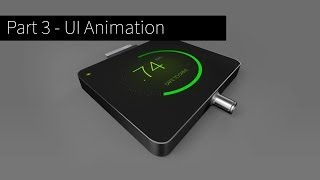
Part 1 of the iPhone Breathalyzer mega tutorial! We'll model the actual breathalyzer in Blender. Note: The texture at the end of this tutorial is not the final texture. ;)
Follow us:
Facebook: http://www.facebook.com/designcourses
Twitter: http://twitter.com/designcoursecom
Google+: http://plus.google.com/+DesignCourse
Dribbble: http://dribbble.com/designcourse
- - - - - - - - - - - - - - - - - - - - - -
Subscribe for NEW VIDEOS weekly!
My site: https://designcourse.com
My personal FB account: http://fb.com/logodesigner
Coursetro FB: http://fb.com/coursetro
Coursetro's Twitter: http://twitter.com/designcoursecom
Join my Discord! https://discord.gg/a27CKAF
^-Chat with me and others
- - - - - - - - - - - - - - - - - - - - - -
Who is Gary Simon? Well, I'm a full stack developer with 2+ decades experience and I teach people how to design and code. I've created around 100+ courses for big brands like LinkedIn, Lynda.com, Pluralsight and Envato Network.
Now, I focus all of my time and energy on this channel and my website Coursetro.com.
Come to my discord server or add me on social media and say Hi!
Playlist
Uploads from DesignCourse · DesignCourse · 45 of 60
1
 2
2
 3
3
 4
4
 5
5
 6
6
 7
7
 8
8
 9
9
 10
10
 11
11
 12
12
 13
13
 14
14
 15
15
 16
16
 17
17
 18
18
 19
19
 20
20
 21
21
 22
22
 23
23
 24
24
 25
25
 26
26
 27
27
 28
28
 29
29
 30
30
 31
31
 32
32
 33
33
 34
34
 35
35
 36
36
 37
37
 38
38
 39
39
 40
40
 41
41
 42
42
 43
43
 44
44
 ▶
▶
 46
46
 47
47
 48
48
 49
49
 50
50
 51
51
 52
52
 53
53
 54
54
 55
55
 56
56
 57
57
 58
58
 59
59
 60
60

Photoshop Pen Tool Tutorial (Tattoo Design)
DesignCourse
How to Design the Microsoft Logo in Photoshop
DesignCourse
Photoshop Gradients Video Tutorial
DesignCourse
Your Guide to Layer Styles
DesignCourse
Layer Masks in Photoshop
DesignCourse
iOS App Icon Design Tutorial in Illustrator CS6
DesignCourse
Illustrator CS6 Logo Design Tutorial - Archfold
DesignCourse
Photoshop CS6 3D Tutorial - Magic Tent Illustration
DesignCourse
How to Design a Tshirt Tutorial - Adobe Illustrator
DesignCourse
Types of Logos - Lettermark & Monogram Logo Type
DesignCourse
Banner Design in Photoshop CS6
DesignCourse
How to Design a Logo in Illustrator CC
DesignCourse
Designing a Logo in Photoshop CC
DesignCourse
1. Launch & Market a Web Based Business - Introduction
DesignCourse
2. Launch & Market a Web Based Business - Logo Design
DesignCourse
3. Home Page Mockup in PS : Part 1
DesignCourse
4. Home Page Mockup in PS : Part 2
DesignCourse
5. Home Page Mockup in PS : Part 3
DesignCourse
6. Home Page Mockup in PS : Part 4
DesignCourse
7. Home Page HTML & CSS - Part 1
DesignCourse
8. Home Page HTML & CSS - Part 2
DesignCourse
Using Photoshop to Showcase Mobile Projects
DesignCourse
Flat Icon Design Tutorial in Illustrator CC
DesignCourse
Illustrator CC Logo Design Tutorial - A Logo That "Pops"!
DesignCourse
Logo Design Follow Along 1: Emblem Logo Design
DesignCourse
Showcasing Logos in 3D with Blender
DesignCourse
How to Design an Effective Lettermark Logo
DesignCourse
Squeeze Page Design Tutorial in Photoshop (Part 1)
DesignCourse
Squeeze Page Design Tutorial in Photoshop (Part 2)
DesignCourse
Mobile GUI Element Design in Adobe Photoshop CC (Part 1)
DesignCourse
Mobile GUI Element Design in Adobe Photoshop CC (Part 2)
DesignCourse
Flat Mobile App Design in Photoshop CC - Weather App
DesignCourse
Create Reflective 3D Text in Blender (Beginner)
DesignCourse
Animating a Logo with Adobe After Effects CC (Beginner)
DesignCourse
Design a Game Website Mockup in Photoshop CC (Part 1)
DesignCourse
Design a Game Website Mockup in Photoshop CC (Part 2)
DesignCourse
Photo Manipulation Tutorial in Photoshop CC (Beginner)
DesignCourse
Advertising Illustration Tutorial in Photoshop CC
DesignCourse
Perspective Warp Tool Tutorial in Photoshop CC
DesignCourse
Free Giveaway Contest. (WiseBanner Banner Maker).
DesignCourse
Design an Animated Loading/Download Icon (GIF)
DesignCourse
Contest Winners (WiseBanner)
DesignCourse
Model & Animate a 3D Push Button in Blender (Beginner)
DesignCourse
Mega Tutorial - iPhone Breathalyzer - Project Introduction
DesignCourse
Part 1 - iPhone Breathalyzer - Blender
DesignCourse
Part 2 - iPhone Breathalyzer - Rendering & GUI Design
DesignCourse
Part 3 - iPhone Breathalyzer - UI Animation in After Effects
DesignCourse
Part 4 - iPhone Breathalyzer - Website Design in Photoshop CC
DesignCourse
Part 5 - iPhone Breathalyzer - HTML Part 1
DesignCourse
Part 6 - iPhone Breathalyzer - HTML/CSS Part 2
DesignCourse
Part 7 - iPhone Breathalyzer - HTML/CSS Part 3
DesignCourse
Part 7 - iPhone Breathalyzer - Finishing Touches
DesignCourse
Square Space Logo Maker - C'mon People.
DesignCourse
Design a Bloody Knife in Photoshop CC
DesignCourse
Typographic Poster Design Tutorial in Illustrator (Part 1)
DesignCourse
Typographic Poster Design Tutorial in Illustrator (Part 2)
DesignCourse
Modern Business Card Design in Illustrator CC (Part 1)
DesignCourse
Modern Business Card Design in Illustrator CC (Part 2)
DesignCourse
Parallax Tutorial using Parallax.JS
DesignCourse
Interview: Andrew Price of BlenderGuru.com
DesignCourse
More on: AI Productivity Tools
View skill →







Related Reads
📰
📰
📰
📰
How AI Is Changing Video Creation for Beginners
Dev.to AI
GoPro llegó a valer 12.000 millones de dólares. Ahora la compran por 285 millones y busca su futuro en la IA y la defensa
Dev.to AI
I Went Looking for a Fan RPM. I Ended Up Inside My Laptop’s Firmware.
Medium · AI
Otter vs MeetingMinutes: Which AI Meeting Recorder Should You Choose?
Dev.to AI
🎓
Tutor Explanation

 DeepCamp AI