JUNE REAL MIS- 2
Key Takeaways
The video demonstrates various Excel functions and techniques for data analysis, including using the SEARCH function, IF function, SUM function, MAX function, MIN function, COUNT function, CONDITIONAL FORMATTING, LOOKUP function, array functions, and data validation. It also covers practical applications of these functions in real-world scenarios, such as finding maximum and minimum values, counting numbers, and highlighting cells based on conditions.
Full Transcript
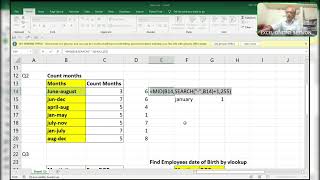
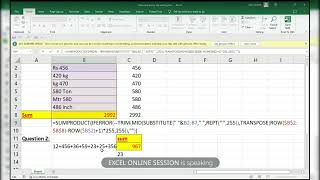
hi friends Excel Guru and I got this query 6:00 like that so I solve it totally now I will show you this to do okay coming to here what is actually what they saying here the 40 could come under that name ex come is there Excel is there R 18us I change the values it's viation of the rules for for that reason now I'll show you how to do that I all the things all these things now what I'll do first of all search of this I'm locking the row but not the column Lo the row but not the column column here I'm locking the here I'm locking the column now where it finds it finds it will show us the numberal so you can use enter or control enter whereever it find it shows as the okay now you got number now what you'll do if I'm not using anything guys if is number not three all I I I complete with this I'll show you if it is so what you'll do mid of this F2 I'm blocking the column comma starting number from where do you want to start want back from atate how how we will find atate so we will use sear function theate a24 okay we got theate okay the position very good but I don't wantate I want from adate but notate so I will add one here comma 25 character I don't know how many are there but I'm giv 25 characters okay think yes okay now it's a normal function okay it's not an see it aligns to that means it's a text number line to left means it's a text number so you have to convert text number into a number by adding zero the text number let's see what will happen all value so you are not supposed to use Z there is some values there for that reason you not supposed to I show you another meod can F5 special form I don't need I don't need logic I don't need I need only numbers okay f for only numbers take that numbers so why I'm using form nothing but the values okay now coming to here is C see like this okay how you'll do this one okay very interesting okay start from actually I'll show you this so it will give you some character okay what I do okay form here you find at 64 you find 45 65 c yeah till z Capital One so I use this format to to get this value this type of one okay what I use of4 + 1 so what it will give us a formula to give only the a now I want BB also what I'll do here9 B9 okay so it will add automatically okay now you got 50% okay you got a b c d right now what I'll do here repeat of function text this text how many times same formula R B9 on B this is very very important question maximum companies ask questions simply okay now if you have any doubt ask me in the comment box or if anybody wants to join in my telegram please let me know and here is a query that as for these two conditions find February and know how many are voted on okay or Sal something like this okay whatever you sales or like okay January is there s is there so what you do here equal to I simple form that some product4 = so whereever whereever it finds this recover it will show True remaining are Fales same function I'll use if anything anything F4 equal to no F4 simply I'm typing F4 I'm not draging formula anywhere and now4 that's it guys F9 see will show you wherever it finds the value it will show you the number and whereever it is not found it will show you the zeros so we are not interested in zeros we interested in numbers only what you'll do simply add by using some product why I'm using some product some product can handle AR without control just enter okay and now coming to this part it's very very important we have to find maximum number minimum number and total can for this values I try to find it out equal to subtitute this one comma I'm keeping comma and old text comma only common and the new text will be repeat space how many how many 255 times can post paresis and starting number will be here is the mag you have to get starting number for every starting number indirect not indirect starts with one how many characters do you need to start length of length of this F4 okay I'm loing everywhere okay not to you can understand very 2 25A number of characters 25 every character it give you all the numbers including SP extra spes okay not fit in the cell for that not unable to show what I do I use Tri only of Extra Spaces F9 it is giv only 35 why should not do 3 where I went from where I went from from where I went from not only to only two digits right text text so what I'll do in adding comma over here I will Adda here now let me check F9 C okay all are text number also text what you will do double that's it that's so we are not interested in values we interested in numbers okay what you will do here if error if you find any error IM it BL F9 so values err will go and num will keep like that only simply you can use max of this whole thing it will ignore the blanks F9 shift andent okay and for minimum you have to use min or maximum and minimum and if you want to add those numbers some product ma me and if you want to count also see count count all numbers let's see what will happen F9 Max mean total and count 14 okay and if you have any doubts please let me know in the comment box and if anybody wants to join in my telegram group please mention for email ID so that I will send my tegram group or Whatsapp number any anything to communicate with me I will send my telegram link to you thank you guys thanks for your support hi friends your Guru rajant bit whenever I get a pries for the post of amas I'll post immediately because I'm not having time to gather all the questions and post at once for that reason whenever I get the question I will post 10 so here it is for what I do I Del this one I'll will show you here is the names see here is the different different names okay some names are duplicates but Cas is like that some is like this okay first letter is small and the next time second letter is small so we have to find the age of the person is having this criteria okay so first of all I'll will tell you one thing begin begin so if I'll do such like this such like this it will say it true say the position it's a true okay when I when I try to find like this say because it's a small letter and it's a big capital letter so find is a case sensitive okay it should find the capital A only then only it will get that one okay so based on this I will show you the solution okay equal to find of this fora in this expecting a single within text print expecting a single value but I'm doing more than one so it consider as an array F9 see where where it finds the position it pick up the one all fces so we need one for look up for look up you have to enter maximum number which Excel allow in one cell that is 9307 not a scientific notation so it will not go and it will not show you the number very big number okay so here we have to find this one so it's a number it is also a number so it will find that number and the area the result Vector will be this one it can hand this is an array okay this is an array but look up can handle array enter see it right can guys what I mean to say conditional format for this alt HLN down equal to this both rows and columns are log so I want only the column log to not check the C to only the a a 3 a 4 a 5 a 6 only a sorry b equal to this should not move anywhere it should not move anywhere so it will be like that only okay I make it bold B any anyone with new color but it's a see capital A is there here small a is there so it will pick up this one only but only this okay to make you clarify for that Reon I condition format and now coming to second one to three are there com second one okay you have to find the vend as for this okay you have to find the vendor as for this okay what we'll do the text search if in this whole range okay here you'll find the number right F9 okay position in 13th position in second Val 0 1 we count 1 2 3 4 4 5 6 7 8 9 10 11 13 okay so what we'll do we don't need uh numbers okay we'll try like this first of all 9.9 + 307 biggest two number Excel okay this first one I'm first time I'm doing this one let's check the answer will come or not is coming because here we are giving the biggest number here it is some numbers are there like this and will ignore the value ARR will ignore the value ARR it will pick up only the number if it is found okay 13 I biggest number not a duplicate duplicate we get a problem in that it is another position another method in there previous video I explain that one so here it is whenever it find the number pick up that position and it will show you here Z and now I'm coming to another one I change1 to okay clear all okay6 sorry 106 is6 okay and coming to another one it's very very easy I did in two method but I'll show you only one method I don't want to make to confus for that reason see what I'll do I search this name over here F4 F9 so it is also an array okay is also an array but here lookup will not will not work here getting TR meod is will not work here so what you'll do simply if we want only one TR okay or me it will Pi up the true so many TRS and falses are there but it will Pi up only one true okay if anything if anything true is there then okay sorry I did reverse is equal to here okay F9 all truth and Fales if or anything true there then pick up Nam that's it so simple formula an array we have to use control and enter and here okay so here I'll explain you second okay control shift enter okay second one second now it's a date of it's a name now you have to find the date okay everything is okay I'll copy this whole formula from here contr C2 contr V in place of v We take this one see to shift and enter it's in a general format see you can see here converting to G format shift hash okay 3 to 7 let see come the problem with this yes 15 8 4 come three right guys only with this you understand if you have any doubt in the com thank you guys thanks for your support so I'm Excel gr can't here I'm traing the you say okay okay now I'll explain you they are actually I don't want to reveal the company name it's valuation in rules Okay so here okay so I will explain you of all I'll explain the quiz and let I'll explain the solution and right now here are flights are there okay here the ranges the meters how much met will go like this okay so for 45 flight range 45 flight range what will be the name the flight flight is flight range is 45 M okay you have to keep Con on this okay you have to keep concent on this with flight will go till 45 M okay so here I'll explain you one second one second okay here explain you the procedure okay I'll remove this one okay here of all here is the text we need two digit numbers from left side left of is range F4 comma 2 but if you will have more than two numbers from the left so what you will do so it will get some problem in large data so you have to use search of hyph comma in this R 4 minus one so let us check how many the positions will be correct or wrong by pressing function key F9 3 3 3 3 3 3 no no no no here extra space is there after 20 M extra space is there now take it2 F9 all we'll do this one F9 3 3 3 3 3 by 3 let me check it should be two should be two F9 yes now okay F9 see it is called a text numbers but not a numbers okay it's a text number but not a number okay I will Zoom a little bit okay it t numbers but not in number how can you say the text number simply it is in double quotes So convert text numbers by doing any mathematical operator that is double negative F9 see now double double quotes are gone from the numbers what you'll do simply use lookup function look up open the bracket take this one as a lookup value and you found anything here is not there is no duplicates okay here there's no duplicates for select the range duplicate it will pick up the last occurring value okay is duplicate in previous uh session I explain this one okay now I'll press only enter five yes if I change to 50 it will show you 6 if I change to 51 6 only if I change to 65 only till 70 but not 70 till 70 it will pick up the previous one if it is equal to then it pick up the exact I press if I press 20 it will pick up one till 24p 2 25 will pick up this okay how it will works of all we go to formula evaluated bying t t UF evaluate first it will pick up this one B3 so it is 25 okay now the underline will EXP I me expand see all it will expand evaluate evaluate now it becomes the text numbers in Array automatically text numbers will convert into a number by using mathematical operator okay now coming to next topic what I said who reached for the Target 80% 1500 is the target who reached greater than or equal to 1500 I me say 80% sorry okay I will show you how to read this one is equal to what will do first of all this whole thing F4 divided by Target F4 now evaluate and check F9 see it's it's s percentage it's in percentage okay control Z is greater than or equal to 80% 80% or greater than 80% okay here I'll type F4 should not move anywhere as n it will show you some true and some falses now what I'll do simply small if if comma Row open the bracket if it is if it find anything true row of this F4 minus row of this F4 + one okay it will pick up the position of the true why I'm taking this one because I need 1 2 3 4 5 like this okay you can't hardcode it with this because I'm making it formula as a dynamic if I take the K value one what will happen we pick up first four 1 2 3 four what the smallest here the smallest values I will show you are a F9 see 4 6 7 9 10 these many are there if I type one it will pick up first smallest if I type two it will pick up the second smallest if I type three it will pick up this third smallest like that okay so I don't want to hardcode when I drag formula it should become 1 2 3 like this so row F 16 I'm inan F6 I'm locking the row but not the column right now highlight it will pick up four but it is a one is one F9 C okay now we want index part index of what you need say representative F4 comma the row number will be four F9 okay if I press F9 it will show close the parenthesis F9 control shift and enter it's an array function to rid of Errors you have to use if error to find any error in this function so give me the blank I run this formula as it is control shift and enter so any doubt ask me here is the amazing thing here amazing thing what I said con join the first and last name by using V look up and make it up as a proper like this like this it has to make it okay like this so what I'll do I'll remove and I will show you the magic okay equal to we look at this one amp space amp sign this one this one there is a delimeter that is space ampers and this one F4 I have to lock this one also table ARR F4 okay Z F4 SP is a delimited okay column IND next number will be one comma 0 so press Center see what will happen because here we are using array in Cas of taking one table we have concatenate two ranges in one formula St consider an array function so what you'll do here you have to press control shift and enter and to make it proper there a proper function first letter of the first name will be Capital second letter of the first name is the capital control shift and enter is it right and what is it when I press any number over here should repeat that many times okay if I type one see if I type two if I type six as much as it is okay I'll show you Columns of dollar C 43 for Lo c43 what will happen let us Che I lock I'm locking the column but not the row will increase the number 1 2 3 like this see we count how many are there from here is loged it will count how many are there 1 2 three now what we will do we will make Dynamic by using IF function if in if I trag these columns if anything finds greater than six F4 to lock all sides because I'm dragging the formula in column way okay then if it is more than six give me the blank or else we have to repeat this one it's a normal function it's not an array function it's nor noral function control enter okay so drag formula till end 1 2 3 4 5 when I type three when I type one I type zero 10 this is not here only okay okay now here is the ultimate Dynamic way okay okay dynamic dynamic I don't know so many people ask this one some group also okay first of all you you have to find the total of three pro1 sr1 W1 this one rest sr1 this one both are there okay so if I count both what will happen it will show you Pro there it is1 S1 here it is now it will count 489 see how I do I'll explain you okay first of all what you'll do index of take the whole table which include which is having only only the numbers comma I want Total column total columns I need like this total so I skip that one so IND will understand that uh with a formula we need total columns now math of West comma column4 comma Z parenthesis close parenthesis now see what will happen if I highlight F9 will pick up all the numbers from the West F9 C 230 1342 2607 719 all number see some if there two conditions so some if and some range all right this criteria range one criteria range one F4 comma criteria this one comma criteria to this one F4 comma criteria 2 this one F4 CL parentheses format as like this means you have to use control shift toer if I change west to east what will happen North it will change automatically the north one okay sr1 okay sr2 sr2 r one r one r one sr2 take this one o one sr2 take add this both it will get this one okay see I like to do conditional format for this okay let's try it let's try B so what I'll do just I'll copy the whole thing C and I'll Pi exactly opposite to this will be and I delete all the things from what I'll do is equal to there are three conditions region product and sales represent so I will use and from here I'm starting and pro one F4 F4 So Pro one in row wise so I'm locking the column but not the row equal to this one okay I locked this one sorry I did F4 I I'm locking this one also sides and this one only the column comma another condition sr2 F4 equal to this one has to it has also to check uh column wise sorry rowwise comma and another thing is that not F4 equal to this I'm locking the row here let's check it and see if I drag formula what will happen let me see here two is there only one two came one the intersection of this is not working one two okay working let me do here what I'll do use match match of North F4 comma F4 let's try Okay contr C C it's not an ARR function right okay just copy this formula from here F2 contr C Escape go to the table select the table table Al xln page down go to end control V format B fill with uh any color will be the I change one to my mouse I don't know what happened to my mouse and okay it to show you to understand better okay here another thing is that you have to match with list one to list two okay so everyone thinking that match can look up look up but I will give more than one okay look up in this range F4 comma in this range F4 comma 0 F9 so we are we are interested in errors we interested in errors so what what you will do is error to find any error in this function not if error it is is error so it will show you the true and F index of f4 comma s the same function which I which I used to use regularly wait a minute error oh5 F4 + one comma Rose open the bracket F4 f64 72 7 F9 see control shift enter and I want to check which is not available in this Sage okay is not is not there here see is there if you want to find which is available here which is not available so what I'll do I'll copy this form from here and place over here F2 what I'll do in of e ER you have to find e number to find the things which is matching both sides okay now coming to here this is last thing you find the total commission for the say for the month of Jan to mon March April so total of that okay we will do it that one yeah duplicate F4 equal to this very easy guys very easy you have bit of concentration on that and into adding commission to those persons that's it now use some products to calculate all the things product and and control sorry guys my my mouse is not I don't know why what's happening with okay my Cur is also moving touching my MTH my Cur is moving okay thank you guys if you have any please mention Below in the comment box and thank you guys thanks for your support questions from the recuited companies recuited companies by the HR I I have gathered this queries more than 100 plus questions are there nearly totally Hyderabad companies nearly 50 companies I collected this queries from 5050 companies this prod and some of the people who I know only for the post of Mis by using X coming to this topic here this is the first part part and in you look up I'm having more than two parts this the first part I'm going to teach you now we look up from different sheet in same workbook we look up from different workbooks right so here see this is the data I have draw data and the head said it should be a dynamic whenever you change the name con contct number okay I did not mention this one actually dat of birth also there Control Plus randomly I'll take dat see now see how I will take the data Bo now D data I want to take data see how I'm going to take the date of bir is equal to some some date okay just mention some date okay date M DD mm y 19 complate actually I should not keep this equal sorry for that control enter double click okay sorry now see F2 I will make it this as a general format control shift p F2 is a general format is equal to land between bottom one is this and upper part is 30,000 I'll take 30,000 control and take double click and now I'll go to short date this are the data birs okay the H ask that whenever you change the names or date of birs or contact numbers so automatically login ID and password should change not only that if anybody want if new employe will join in the company so it should be automatically join and it should be display in the extracted data right guys so here this is the login ID F2 this is the login ID by taking this one so I will take password from this one not from this one from dat of birth okay I have taken this right B3 this one name and login ID is last four digits of the of the confirmed person's phone numbers 1 2 34 okay guys now I will take like this not B3 I'll just change it to this but don't blindly enter because it will show you the serial number but not the date they need the last four digits I mean to say the year part should be in password here only year part in password so it will take only the serial number but not the exact here what it it it is displaying okay guys so X convert into Y open the bracket and close bracket now it will take only the ear part double click it will take only the ear part see okay and it should be a dynamic whenever the employees done new employees will join then it should be display in the extracted data for that reason what you have to do select the data and make sure that around there should be no data for it is it is from value over in the top so for that reason I have selected if I not selected see what will happen if I press control P so it is also selecting so I don't want to select this one only this part I have to select so control shift to right arrow down arrow control T and I'm having headers in my table my table address yes name date of birth contact numbers login IDs and password okay now I don't like this filter so I'm I'm removing filters control shift L and I don't like this type of so I'm making to change this type and now I want to name the table alt GT logins only logins okay so it should be a friendly name and relevant to this table only otherwise you will you will get a confus for that if you if you keep any of the name which is not relevant to this table then you'll get a confus for that reason you have to keep friendly name which is relevant to this table only then it will be better okay understood now you understood this part now I will show you in what I said from different sheet we look up from different sheet you have to do we look up but make sure that this should be a data validation because no one has to change this data okay all B tab tab is equal to indirect actually it is a I'll show you logins logins square bracket it won't take okay guys it won't take this one it will get you error so for that reason you have to convert this into a text and and make it as indirect indirect IND open the bracket go to and close that now it is converted into a range whichever you want the data validation you have to change the field names login is the table name and names is the field name okay guys now press okay see I written this now I will take any of the name of the employee is equal to V look V look will be having four of the we look up 1 2 3 4 this is the optional okay R look up will be the optional one look up value this one look up table are guys don't go back again why because it is already converted into a table you can use the table content in any of the 255 sheets in one workbook okay that is login login you can see here and press tab comma fourth column name date of birth phone numbers login adds and password so we need four comma it's exact match to close the plus Z and enter if you drag it won't work actually I should log this one it should not move anywhere it should this table over there only you move it will show the same value so change this into four I will show you another method in next question okay this is the name this is the login ID and this is the password for the person GSL Excel on b error elect it's a this stop over here this will be it is having options but use only stop because no one has to change the value in the cell select select from drop down drop down list for changes ad okay if can anybody wants to change see I want to change a name which is not in the range the different name list for changes ad okay you have to write that easily should understand okay you understood this okay this is the exact Mach we look up I next question I'll show you approximate and it is a interview question guys very important okay from now different sheet how can you take a a range in data validation drop down list from different workbook it won't work in that so you have to take from different workbook okay guys a different workbook you have to keep that in this from different workbooks data validation all D settings value list here all tab data validation it is not working Advan filter see to select this R it won't work guys now it won't work okay it is considered as a r but it won't work so you have to make it as a range by same like that indir first of all I'll use double clot over front and back starting and ending of this range indir open the bracket
Original Description
presented by Excel Guru
#excel guru
#Excel challenges
#ms excel
#mis challenge
#excel challenges
MNC company interview questions
#mid
#left
#right
#vlookup
#frequently asking Excel interview questions
#Real excel interview questions
telegram group link:-
https://t.me/iamExcelGuru
WhatsApp channel link
https://whatsapp.com/channel/0029VaLlQ4y5q08VYttYW41m
Watch on YouTube ↗
(saves to browser)
Sign in to unlock AI tutor explanation · ⚡30
Playlist
Uploads from ExcelGuru · ExcelGuru · 0 of 60
← Previous
Next →
1
 2
2
 3
3
 4
4
 5
5
 6
6
 7
7
 8
8
 9
9
 10
10
 11
11
 12
12
 13
13
 14
14
 15
15
 16
16
 17
17
 18
18
 19
19
 20
20
 21
21
 22
22
 23
23
 24
24
 25
25
 26
26
 27
27
 28
28
 29
29
 30
30
 31
31
 32
32
 33
33
 34
34
 35
35
 36
36
 37
37
 38
38
 39
39
 40
40
 41
41
 42
42
 43
43
 44
44
 45
45
 46
46
 47
47
 48
48
 49
49
 50
50
 51
51
 52
52
 53
53
 54
54
 55
55
 56
56
 57
57
 58
58
 59
59
 60
60

Total Sumproduct Session By Excel Expert Mr.Sanjeev kaushik
ExcelGuru
Uses and Technics of Transpose in 3 Methods
ExcelGuru
Query Solved ExcelExpert
ExcelGuru
counting numbers and text with creteria lenngth
ExcelGuru
For Reverse Looking Fing age By Using Database Function
ExcelGuru
MIS INTERVIEW QUESTION EXTRACTING FIRST AND LAST NAME WHICH IS NOT HAVING DELIMETER
ExcelGuru
finding Unique count of sales between Dates
ExcelGuru
counting 2 lookup values as per dupicates
ExcelGuru
Reverse Vlookup to get DOB
ExcelGuru
17-04-2022 Sridevi Marriage Celebrations
ExcelGuru
INTERVIEW QUERIES WITH ANOTHER QUERY
ExcelGuru
finding maximum sales of product when duplicate products
ExcelGuru
QUERY ASKED IN GROUP
ExcelGuru
MIS TEST WITH AMAZING SOLUTION BY JR.BILLGATES(ANAND)
ExcelGuru
query to count not saled products after saled products
ExcelGuru
Explanation about birla mandir at Hyderabad
ExcelGuru
counting specific weekday in between dates
ExcelGuru
Extract Data As per Creteria with power Query
ExcelGuru
Extracting data as per creteria in different sheets
ExcelGuru
SOLUTION FOR INPHOSYS MIS-1(1-4)
ExcelGuru
solution for inphosis mis 2(12-13)
ExcelGuru
INPHOSIS MIS SOLUTION-3(5-10)
ExcelGuru
LOGICAL MIS INPHOSIS-4(17-18)
ExcelGuru
MIS INTERVIEW QUESTION
ExcelGuru
MIS INPHOSIS -5(19-21)
ExcelGuru
MIS INPHOSIS - 6(23-25)
ExcelGuru
extracting pin codes or number from text string
ExcelGuru
finding maximum sales in one value
ExcelGuru
finding how many months are there between months
ExcelGuru
Quarter sales by month
ExcelGuru
Finding rate with 2 conditions by using vlookup
ExcelGuru
how to find max length word from text string
ExcelGuru
Group query To find sales and Quantity With 2 conditions by using VLOOKUP
ExcelGuru
my angels birthday celebrations
ExcelGuru
Group Query Adding total sales when it is having random delimiter like inches,kgs,Ton
ExcelGuru
Seperating first and last Name by space using function
ExcelGuru
Finding Total Goals from different tables Team members
ExcelGuru
Group Query To Extract Team members Names
ExcelGuru
Extracting data in a single column
ExcelGuru
converting one column data into table interview question
ExcelGuru
MIS INTERVIEW QUESTION-100
ExcelGuru
MIS INTERVIEW QUESTION -101 FINDING VALUE AS PER CHARACTERS LENGTH BY VLOOKUP
ExcelGuru
chi.shreyansh
ExcelGuru
MIS INTERVIEW QUESTION-102(SORT BY LENGTH)
ExcelGuru
query to extract last words from sentence
ExcelGuru
MIS INTERVIEW -103(EXTRACT MAXIMUM CHARACTERS WORD IN A CELL)
ExcelGuru
group query
ExcelGuru
without len function count of characters
ExcelGuru
MIS QUERY
ExcelGuru
mis interview questions part -1
ExcelGuru
Real MIS Query-1
ExcelGuru
real mis interview questions-1
ExcelGuru
finding the value as per length of characters
ExcelGuru
real mis -2
ExcelGuru
real MIS -3
ExcelGuru
REAL MIS -4(PART A)
ExcelGuru
group query
ExcelGuru
tech mahindra mis
ExcelGuru
courier company MIS
ExcelGuru
tech Mahindra (UPDATED)
ExcelGuru
More on: ML for Analytics
View skill →









Related Reads
📰
📰
📰
📰
I Built My First Web Scraper in Python — Here’s What Broke Immediately
Medium · Data Science
Building multi-Region visualizations with Highcharts in Amazon Quick
AWS Machine Learning
When Data Science Makes Us Sad: The Story of an Overbooked Flight
Towards Data Science
The Loudest Stock of the Week Got 1,363 Mentions. The Best Signal Got 75.
Medium · Data Science
🎓
Tutor Explanation

 DeepCamp AI