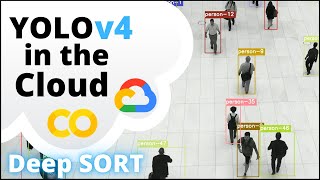
YOLOv4 in the CLOUD: Build Object Tracking Using DeepSORT in Google Colab (FREE GPU)
Key Takeaways
This video tutorial demonstrates how to build an object tracking application using DeepSORT and YOLOv4 Object Detection in Google Colab, leveraging its free GPU for efficient processing. The tutorial covers setting up the Colab notebook, installing dependencies, converting the YOLOv4 pre-trained model, and running the object tracker on a video.
Full Transcript
what is going on everybody welcome back to another video in one of my previous videos for yolo v4 deepsort a bunch of you were commenting how do i run this in collab how do i run this in collab you ask and you shall receive so for this video i'm going to be showing you guys how to run an object tracker in the cloud using google collab it's totally free i'm going to be showing you guys how to enable gpu within your notebook so that you can run it in super fast processing speeds and we're gonna be using deepsort a state of the art object tracking system that will be built off the backbone of our yolo v4 object detector i'm going to be showing you guys how to get the object detector so don't worry about that and then we're going to be able to run it extremely fast all within google collab with under 10 clicks of a button you heard that right it's going to take less than 10 minutes to get your own object tracker fully set up and operational within google collab and it's going to be doing crazy object tracking so i hope you guys enjoy this video if you do hit that like button it means a lot let's hop right into it [Music] alrighty then so there's gonna be two ways you can open the club notebook in order to run your deepsort object tracker with yolo v4 detections the first is going to be a link to the notebook in the description you can go ahead and just click the link the second is to go over to my github repository the ai guys code yolov4deepsort and i've added a little button down here right in the readme we can just open it in collab either one will bring you to this next page so it's going to go ahead and open up google collab and what you're going to want to do in order to run the notebook as yourself and not my my notebook you're going to want to go ahead and click this copy to drive button if the copy of drive button is not here there's going to be an open in playground either of those two buttons will get the job done so you're just going to go ahead and click on the copy to drive button and it's going to go ahead and open up your very own version of the notebook so once you've gotten the notebook copied over you're just going to go ahead and first things first we're going to want to enable the gpu within our notebook in order to run the object tracker almost 100 times faster than if we were going to run it on just straight cpu so how to do this is you can either follow the steps there's pictures in here but it's just go to edit notebook settings and then you're going to change this it'll be on none by default you're going to go ahead and change it over to gpu and then just hit save and now the gpu gpu is enabled within your collab notebook so that you're going to be able to run the rest of the tutorial with your gpu enabled so once you've gotten that done you're going to go and scroll down the next step is just cloning over my github repository into the vm into the notebook so you're just going to go ahead and run the cell and that's just going to quickly clone over my code so that you can access it within the notebook so once that's done you're just going to go ahead and run the next cell just to step in to the repository so we're going to go ahead and run that so now we are actually in the folder where the code is so that we can now run the next the third step is install dependencies by default you should already have all of the actual dependencies already pre-installed on your google collab workstation so they should already come downloaded onto your collab notebook if for some reason you are getting errors in the preceding steps all you're going to want to do is come here uncomment this line and then run this cell because depending on what region of the world you're in the cloud notebooks might come with different dependencies pre-installed so you might have an issue but i don't think you should and if there is you're gonna go ahead and run this cell but we don't need to because the region i'm in north america it has all the dependencies already downloaded the next step is we're going to go ahead and get the yolo v4 pre-trained weights so our object detector is going to be running with the yolo v4 pre-trained model that's trained on over 80 classes so it can detect over 80 types of objects so i'm going to show you a couple examples on people on cars and i'll show you how to filter that later on in the video so if you only want to detect one or two of the classes or however many you want i'll show you guys how to filter the pre-trained model to only show and only track the classes you want so that's pretty cool so we're going to go ahead and run this and it's going to download the pre-trained weights of the model of the object detection model into our collab notebook so that we can access it there we go now our fifth step is to convert the yolo v4 dark net weights into a tensorflow model because our deep sort tracking is going to be running off of a tensorflow model so we're going to convert the yolo v4 pre-trained weights from their darknet style that they come pre-trained on over into a tensorflow model so once again you're just going to run this cell and this cell could take a minute or two as it is a pretty large model file that we're converting over so just bear with it and it'll take a minute or two so once it's done converting the model into a tensorflow model it should look like this you'll just see the total params and then that's going to give you the signal that it successfully converted the model over into a tensorflow and then we can go to running the deep sort with yolo v4 so it's that easy it's just a couple cells to enable you to get set up and ready to run the object tracking in your own collab notebook it's crazy how you can run this in a sequence of five cells or so and then have a fully functioning object tracker um so i'm going to show you guys just how it runs by default by default it's going to run on all 8 track all 80 of the classes that are found in the pre-trained model so i'm going to show you that and then i'll show you how to filter it for specific classes of your choice so we're going to go ahead and run this line right here and what it does is it's grabbing a test video inside of this repository my repository that you've downloaded test.mp4 of a bunch of people walking on a busy street and then it's going to go ahead and output the video save it showing the objects being tracked to tracker.avi you can specify wherever you want it to be saved but if we go into the files yolov4deepsort it's just by default this command will save it right here into this output tracker.avi so you can see it's currently writing to the file and where you're going to access the video is in data the data folder video these are two test videos that you have but you can easily just go here this button right here and this button right here will allow you to upload any video of your choice to practice your object tracker on so if you want to try on your own video that you have a really cool video you're going to go ahead and upload it here and then if you want to download the video afterwards you can just go right here and download the saved video so you'll see that it's running and it's getting trackers it's going to output to the screen the fps the frame number along with some information on each of the objects being tracked so you can see we're tracking people and bicycles those are two of the 80 classes that are found within the frame one unfortunate event or series of events that cannot happen in google collab is unfortunately google cloud does not do well with outputting live video um while it's being processed so unfortunately we cannot output the objects being tracked as the video is being processed we have to process the entire video save it to that tracker.avi file that you see right here and then it's going to go ahead and we're just going to open that video within collab and i'll show you how to do that and by default all this detections all the extra info being printed to the console about the objects being tracked um is not defaulted so what allows us to run this in and get this output is this dash dash info flag if you want to run a little bit faster but don't and don't want the detections or trackers to be tracked in the output then you can just remove this flag and this don't show flag is what allows the video that's being processed not to be outputted and cause it to fail within the cloud notebook so that don't show flag is the key here it suppresses the video from outputting as it's being processed so that it does not fail so if we scroll on down we're going to just go ahead and run this cell right here to run this helper function that is going to go and actually show us the video after it's being after it's been run within our collab notebook so that's what allows us to do it so now we're going to go ahead and actually convert the saved.avi file into an mp4 file so that's kind of what happens and if we go down here we can see it's being saved to the outputs calling it output.mp4 with the width of 960 so you can specify the width right here if you want it to be bigger or smaller and then if we go ahead we can run it here and see our objects being tracked so you can see that it's tracking all of the people as well as the bicycles and those are the classes in the image that are within the 80 trained classes and now i'm going to show you if we scroll on down this demo video was only 10 seconds so that's why it's so short but you can upload a longer video if you want as you can see it does a really great job of tracking the people as they cross one side of the street to the other side of the street so it's pretty cool how fast you can get deep sort and yolo v4 working together within collab with just a couple quick clicks of the button you can have your own object tracker running so now i'm going to show you guys how to filter out unwanted classes so what you're going to do is you can either follow along with the images within the cloud notebook if you click this link right here coco classes it'll show you a website that shows you the 80 classes that the model is trained on so if you're wondering what can i track with this pre-trained model go to that link and have a scroll through and play around with whatever classes you want your object tracker to track but i'll show you right here so you step into yolo v4 deep sort and then if you double click on object tracker dot pi you double click it's going to open it up the code file just expand it a bit and then you're going to want to scroll down to about line 160 line 160 is where the action takes place so if we scroll on down to line 160 we have this line right here allowed classes so by default this reads in all 80 of the classes but if you want to filter certain classes all you have to do is comment out this line and uncomment the line on 163. so if we were to do it just like this it would only allow persons or people to be getting tracked so if you want an object tracker purely for people this is the way to go the other demo video i have has cars in it so i'm just going to change this to car so that we can purely track cars within the image or within the video sorry and now we just go ahead and exit that and i scroll on down and now i can run it again here and this is now running on the cars.mp4 video that you also have from the repository and it's saving it in the outputs folder as custom.avi so this one's being saved as custom.evi and the previous one was tracker.avi so just some naming conventions and as it runs here it's going to go ahead and i've hidden that info flag so it's not going to show you the actual objects being tracked detailed info on the screen it's just doing the frames and fps and as you can see we're averaging around 18 frames per second which for deep sort is extremely fast and um probably the fastest object tracker you're going to be able to get so i recommend deep sort if you're trying to figure out which one to use and yolo v4 is a great object detection that works hand in hand with deep sort so we've gone ahead and run this it's finished running and now we're just going to do this exact same command again that uses our helper function to convert the dot avi file into an mp4 and this time we're going to save it as result.mp4 so that we don't overwrite our other video of the people on the busy street so it's just processing in the video and then you'll see that we'll have a nice object tracking video with deep sword and yellow v4 on a bunch of cars driving on a road and you'll see how accurate it is when we filter out other classes so when it's finished processing and loading in the video you'll see we have this video of cars and if we run the deep sort video we can see that deep sword and the yellow v4 are working hand in hand in order to track these cars as they drive down the busy street and you can see that up top there car 13 we had lost it for a couple seconds there if we rewind but that because of deep sort it actually keeps the id the same and it's remembered that this object right here this car in particular is car 13. so that's how deep sort works with deep association metric um overall it's an extremely complex system but it seems very simple and easy to run when we do it like this so that's really it for this tutorial uh it's a super short one and super easy one for anyone to be able to run deep sort with yolo v4 enabling gpu for extremely fast processing times and being able to run it in the cloud with google collab so if you enjoyed this video please click on this button right here to subscribe to the channel and make sure you're up to date with all the new content that i post on a weekly basis and please if you love if you like the video please smash that like button it helps the channel grow and it means a lot until next time see ya [Music] [Applause] [Music] you
Original Description
Learn how to build and run your very own Object Tracker in Google Colab! This tutorial walks you through the process of building an object tracking application using DeepSORT and YOLOv4 Object Detection in the Cloud on Google Colab's FREE GPU! Get it up and running with only a few clicks of a button. This tutorial covers it all.
#yolov4 #deepsort #cloud
THE GOOGLE COLAB NOTEBOOK: https://colab.research.google.com/drive/1zmeSTP3J5zu2d5fHgsQC06DyYEYJFXq1?usp=sharing
YOLOv4 is a state of the art algorithm that uses deep convolutional neural networks to perform object detections. We can take the output of YOLOv4 feed these object detections into Deep SORT (Simple Online and Realtime Tracking with a Deep Association Metric) in order to create a highly accurate object tracker.
GET THE CODE HERE: https://github.com/theAIGuysCode/yolov4-deepsort
In this video I cover:
1. Setting up the Colab Notebook and Enabling GPU
2. Cloning the code and installing dependencies.
3. Converting YOLOv4 pre-trained model into TensorFlow model.
4. Running Object Tracker on video.
5. Filtering allowed classes to track.
6. Adding info flag to see detailed information on tracked objects.
-------------------------------Resources-------------------------------
Run DeepSORT Object Tracker on Local Machine: https://youtu.be/FuvQ8Melz1o
Learn to Convert to TFLite and TensorRT: https://youtu.be/iPwepy-SVCQ
Configure to Run with Custom YOLOv4 Detector: https://youtu.be/nOIVxi5yurE
Train Custom YOLOv4 Detector in Cloud: https://youtu.be/mmj3nxGT2YQ
The Official YOLOv4 paper: https://arxiv.org/abs/2004.10934
If you enjoyed the video, toss it a like! 👍
To Subscribe: https://www.youtube.com/channel/UCrydcKaojc44XnuXrfhlV8Q?sub_confirmation=1
Thanks so much for watching!
- The AI Guy
Playlist
Uploads from The AI Guy · The AI Guy · 25 of 28
1
 2
2
 3
3
 4
4
 5
5
 6
6
 7
7
 8
8
 9
9
 10
10
 11
11
 12
12
 13
13
 14
14
 15
15
 16
16
 17
17
 18
18
 19
19
 20
20
 21
21
 22
22
 23
23
 24
24
 ▶
▶
 26
26
 27
27
 28
28

How to Setup a Machine Learning and AI Environment
The AI Guy
Introduction to Machine Learning | | Learning ML with Scikit | Iris Dataset
The AI Guy
Introduction to Machine Learning | Learning ML with Scikit | Iris Dataset | Part 2
The AI Guy
How to Install OpenCV on Windows | OpenCV Python Tutorial | Setting up Computer Vision
The AI Guy
How to Build and Install OpenCV from Source | Using Visual Studio and CMake | Computer Vision
The AI Guy
YOLOv3 Object Detection with Darknet for Windows/Linux | Install and Run with GPU and OPENCV
The AI Guy
Creating a YOLOv3 Custom Dataset | Quick and Easy | 9,000,000+ Images
The AI Guy
Train YOLOv3 Custom Object Detector with Darknet | Aimbot and Security Camera | Fast and Easy
The AI Guy
Create Labels and Annotations for Custom YOLOv3 Google Images Dataset | LabelImg Tutorial
The AI Guy
How to Build an Object Detection Classifier with TensorFlow 2.0 on Windows/Linux
The AI Guy
YOLOv3 in the CLOUD : Install and Train Custom Object Detector (FREE GPU)
The AI Guy
A.I. Learns to Play World's Hardest Game (QWOP)
The AI Guy
How to Build Object Detection APIs Using TensorFlow and Flask
The AI Guy
Getting Started with Azure Machine Learning Studio
The AI Guy
Real-time Yolov3 Object Detection for Webcam and Video (using Tensorflow)
The AI Guy
How to Build an Object Tracker Using YOLOv3, Deep SORT and TensorFlow
The AI Guy
YOLOv4 in the CLOUD: Install and Run Object Detector (FREE GPU)
The AI Guy
YOLOv4 in the CLOUD: Build and Train Custom Object Detector (FREE GPU)
The AI Guy
YOLOv4 Object Detection with TensorFlow, TensorFlow Lite and TensorRT Models (images, video, webcam)
The AI Guy
How to Build a Custom YOLOv4 Object Detector using TensorFlow (License Plate Detector)
The AI Guy
Counting Objects Using YOLOv4 Object Detection | Custom YOLOv4 Functions with TensorFlow
The AI Guy
Object Tracking Using YOLOv4, Deep SORT, and TensorFlow
The AI Guy
Crop and Save YOLOv4 Object Detections | Custom YOLOv4 Functions with TensorFlow
The AI Guy
License Plate Recognition Using YOLOv4 Object Detection, OpenCV, and Tesseract OCR
The AI Guy
YOLOv4 in the CLOUD: Build Object Tracking Using DeepSORT in Google Colab (FREE GPU)
The AI Guy
How to Use Webcam In Google Colab for Images and Video (FACE DETECTION)
The AI Guy
Real-time YOLOv4 Object Detection on Webcam in Google Colab | Images and Video
The AI Guy
Getting Started with Agent Development Kit Tools (MCP, Google Search, LangChain, etc.)
The AI Guy
More on: CV Basics
View skill →




Related Reads
📰
📰
📰
📰
Don’t Read Another 30-Page Paper Until You Try This
Medium · AI
6.5% of the Neuro-Symbolic Literature Can Be Reproduced from Its Published Artifacts, a Six-Stage Audit Framework and First Instantiation
ArXiv cs.AI
Research Publications, Patents & Innovation Output at Quantum University
Medium · Machine Learning
Every Researcher Should Start Managing Research Intelligence Assets™
Medium · AI
🎓
Tutor Explanation

 DeepCamp AI