# Tutorial 1 || Machine Learning for kids | Image Classification example | Girl and boy
Skills:
AI for Young Learners90%
Key Takeaways
Demonstrates image classification using machine learning for kids with a girl and boy example
Full Transcript
hello everyone welcome back to my channel code for kids so today we will start our new playlist which is machine learning okay so even you can access our previous playlist which is about your game development the second playlist is about your app development then we did some python project also and now we started our new playlist which is machine learning and artificial intelligence okay so first thing what is the meaning of machine learning why they are using the machine learning so first of all i will explain you what is coding see why we are using the coding because nowadays we have lots of devices device in the sense we have our laptop we have our computer we have our mobile phones right so if you want to give any instruction to your computer or to your laptop you can give but with the help of your instruction right and this is instruction we will give in the form of coding okay so let's start our today's video which is about your machine learning so why we are using the machine learning nowadays we have devices like alexa we have siri so here whatever you will say like hey alexa please play this song or hey alexa i want to do this thing so what is happening behind that whatever you are speaking so with the help of your speak recognization that will translate into machine and based on your query machine will give you the output right nowadays we have our automatic car drivers right so all this thing you can create with the help of your machine learning so here we have to make our machine more intelligent okay with the help of some training we have to make our machine intelligence we have to give the intelligence to our machine okay so now i will explain you which platform you have to access if you want to learn the machine learning okay so as you can see in this project what we have if i will click on this flag so whatever dog we have it will recognize as a dog whatever cat you have that will recognize as a cat so see this is cat so that will recognize like a this is stock or this is cat like that and based on that it will change the position see this is the cat so you will get cat here you will get dog here like that okay now say if you want to access your machine learning you need to just search for machine learning for the kids praise your enter button you will get this link so i will give you this link into your description box you can just copy that okay over here we need to click on get started it will ask you three things so if you are a first time user you need to click on sign up over here click on a parent or teacher now click on sign up so it will ask you you have to create one user name your email address and then you need to just click on create account okay or is if you are already registered here so you can directly log in it will just show you what is your username you have to put your password and click on login we have third option which is try it out try it out miss without creating your username and password you can create your project okay so over here you will get this screen and once you will login you will also get a same screen okay over here we need to click on add a new project now it will ask you what is your project name which recognization type you will select here suppose i want to write my project name as now i will classify girl and boy okay so here i want to write girl and boy so we have to give some image here based on that image it will classify who is skull and who is boy okay now recognization type here we have four text images number sound but in our project what we have a need images because based on image we have to classify this right now we need to just click on create button see now what will happen it will create one project for you which is goal and boy recognization type as a image so we need to just click on this box here it will show you three option train learn and test and make so train means what suppose if you have your stage performance like dance or singing so first you have to give training to yourself right so here also if we want to create a machine so for that machine you have to give some training so we have to click on train over here it will ask you what is your label so you need to click on add new label our first label is called click on add our second label is boy so you need to click on boil see click on add now so here we have two labels gold and boy now it will show you three things either you can use your webcam you can capture the photo or you can draw or you can use your url or is we have a next option directly we can drag and drop so what we have to do now we will open one new browser like this we will minimize this one also so you have to adjust this little bit like this now here we will search for first boy rs we have first girl so we will search for girl press the enter button go to your images search for girl images so see we have lost lots of image so we need to just drag and drop like this so this is my first image this one is your second image this one is the third suppose i want to add this one also fourth so you need to add at least six to seven images here this one is the fifth sixth i want to add this one seven same we will search for boy image scroll down here so here we have boy so once you will scroll down you will get some boy images so suppose i want to add this image this one is the sick you can add any boy image even if you are a girl so your image you can add inside the girl and if you are a boy so your image you can add inside the boy tab so we can add lots of images okay and uh okay now i added all these images right okay after that what you have to do you need to just go to back to your project see already we did the train train means you have to collect some example of what you want like the computer have to recognize now we will just come to loan and test here we have to test our model so what have you done here we have collected examples of images for computer to use to recognize when images are girl or boy so we collected seven example of call eight example of poi right so we need to click on train new machine learning model after that again we have to go to your project now we will start our project we will click on make a project okay so already see you will get a same screen come to back to project click on make so once you will click on make it will give you three option use your machine learning model for scratch or for python or for app inventor so i want like a we want to open in a scratch so you need to click on scratch again you will get open in scratch 3 so it means now we have to develop our project in scratch 3 and over here you will get all the things which is your goal and boy recognization type so first thing we have to add backdrop so what we will do so over here see we have this option which is choose a backdrop and i want to paint that backdrop so here we have this square so whatever color you want you can just drag your square here even you can increase this from here also you can increase now i want one more color in a part so first change your color then draw one more square or rectangle miss whatever color you want based on your choice you can add the color wait from here we can just increase this now this is perfect we have two color now i want to write this is goal so first you need to change the color and this one is the boy so this is our backdrop right after that we have to add some sprite which is girl and boy so click on choose a sprite search for boy so who is boy here see this one now for this boy we have to add a costume so how we will add the costume we can make this boy size as a 20 because now this is perfect we want to put our boy to a zero zero position that is i want to put here middle now you need to just go to your costume click on choose a costume now here you have to add some girl costume also suppose she is girl again abby's the girl again we can add some girl see here we can add some boy also this pain so like that we can add lots of costumes okay now we have to start the coding part here so how we will start the coding so always we have to start from even like a when flag is clicked okay so say when flag is clicked so what we want to add here we have to use our machine learning right so how we will add that so when flag is clicked so this is my event right when flag is clicked so what you want to do here first we need to go to some position which is minus 424 so you need to go to motion go to this position then we have to repeat this for every costume right so we need to just go to control take your repeat now here we have to add some conditions which type of condition like if your recognization type is girl so we have to go to one particular position and your second condition is for if the recognization type is a boy so we have to go to one position right so here we have to check our condition so how we will check that go to the operator take this equals to sign okay means if our recognization image this image so here we will take our costume image because see we added our costume right so we need to just go to images you will take your costume if that image is girl so where you will get a girl this one so it has to be say this is girl so go to the looks take this say and put it here here we can write shea skull or this is girl this is girl okay after that what we have to do so we have to go to in a girl right so what is this position we have to just go to the motion we will take go to this position and then we have to show our sprite so where we will get the show inside the looks once you scroll down you will get your show block so we need to just scroll down here we have this show after that we have to wait for some second means we need to just go to the control we have to wait for suppose one second then we will broadcast one message why why we have to broadcast because like we want our another image right so we need to broadcast our message one same we have to do for our boy so no need to write entire thing again we can just duplicate and here we can add this so now see if our recognization image is boy so instead of girl we have to add this as a boy okay if this is a boy so it has to be say this is boy and we need to first change the position so here we have to add minus 4 and what is this minus 21 so you need to write minus 21 minus 21 okay now now see if i will run this is boy so you will get here but we have to change the costume because we added lots of costumes so see we broadcast this so when we will receive our broadcast so where we have this receive in your event we have this when you will receive your broadcast so what will happen we have to change our costume right so where is that cost you in the looks you will get next costume and again we have to go to our zero zero position which is go to instead of minus 1 we will write 0 and 0 now see if you will run this is boy this is boy this is boy see this is recognizing perfectly this is boy wait now we can add one real life girl image okay so how we will do that how we will add our real life call image you can download any image suppose i will search girl image suppose i want to download this image save image download to now come to your scratch okay what we need to do in a sprite we need to just go to the costume upload costume so here we will take our all files see this is the girl image open you will get that now see this is so small we have to make it around 50. now if you will run see this is girl so you will get girl poor json right so in this way we can add our image recognization about the machine learning okay so please like share and subscribe our channel and press the bell icon if you want more latest update even in a comment section whatever project you want you can just mention that and i've in the next video you will get that project okay but thank you so much and please share this video with your family member with your friends with anyone okay so thank you so much have a great day bye see you in the next video
Original Description
# Tutorial 1 || Machine Learning for kids | Image Classification example | Girl and boy
https://machinelearningforkids.co.uk/ is a very powerful platform to teach kids machine learning. a free tool for school children to learn about artificial intelligence and machine learning by making their own machine learning-powered projects
This video includes information on:
• How machine learning works
• How machine learning is used
• The future of machine learning
query solved
machine learning activities
scratch machine learning
artificial intelligence for kids
scratch machine learning extension
machine learning for kids.co.uk login
machine learning for beginners
artificial intelligence activities for students
teachable machine
Playlist
Uploads from Code For Kids · Code For Kids · 53 of 60
1
 2
2
 3
3
 4
4
 5
5
 6
6
 7
7
 8
8
 9
9
 10
10
 11
11
 12
12
 13
13
 14
14
 15
15
 16
16
 17
17
 18
18
 19
19
 20
20
 21
21
 22
22
 23
23
 24
24
 25
25
 26
26
 27
27
 28
28
 29
29
 30
30
 31
31
 32
32
 33
33
 34
34
 35
35
 36
36
 37
37
 38
38
 39
39
 40
40
 41
41
 42
42
 43
43
 44
44
 45
45
 46
46
 47
47
 48
48
 49
49
 50
50
 51
51
 52
52
 ▶
▶
 54
54
 55
55
 56
56
 57
57
 58
58
 59
59
 60
60

#Scratch Tutorial 1 | How to create your own Scratch account #codeforkids #scratch #Game Development
Code For Kids
#Scratch Tutorial 2 ||How to enable Share Button option in Scratch #codeforkids #scratch #game
Code For Kids
Fish Moving inside an Ocean 🌊🌊 #codeforkids #scratch 🥰
Code For Kids
Scratch Programming | Fish Aquarium game | #codeforkids #scratch #game
Code For Kids
Draw the circle in scratch#codeforkids #scratch #game
Code For Kids
Draw Circles in Scratch || How do you draw shapes on Scratch? #codeforkids #scratch #game #coding
Code For Kids
How to Make a Dino Jump Game in Scratch | Tutorial #codeforkids #scratch #game
Code For Kids
Scratch Tutorial || How to Make a Catch Game in Scratch.|| Scratch Tutorial for absolute beginer
Code For Kids
Scratch Tutorial || Day 1
Code For Kids
Scratch Tutorial || Day 2 (DJ System , Dance and Story writing)
Code For Kids
How to Make A Maze Game in Scratch 3.0 | Scratch 3.0 Tutorial |Scratch Tutorial for begineer
Code For Kids
Scratch Tutorial || Day 3
Code For Kids
Scratch Tutorial || Day 4
Code For Kids
Scratch Tutorial | Cat And Mouse Game | Scratch Tutorial for Beginner
Code For Kids
Scratch Tutorial || Day 5
Code For Kids
how to make dress up game on scratch || Scratch Tutorial for Beginner
Code For Kids
How to Make a Pong Game in Scratch || Scratch Tutorial for Beginner
Code For Kids
Scratch Tutorial || Day 6(part 1)
Code For Kids
Scratch Tutorial || Day 6( Part 2)
Code For Kids
Scratch Tutorial || Day 7
Code For Kids
Scratch Tutorial || Day 8
Code For Kids
How to Make Piano Game || Learn to Use Music Extension || Scratch Tutorial || Day 8
Code For Kids
How to Make Piano Game || Learn to Use Music Extension ||Scratch Tutorial for beginner
Code For Kids
Scratch Tutorial || Day 9
Code For Kids
Scratch Tutorial || Draw Shapes #shorts #codeforkids #youtubeshorts
Code For Kids
Scratch Tutorial |How to Draw Shapes in Scratch #scratch #scratchtutorials #codeforkids
Code For Kids
Day 10|| Scratch Tutorial
Code For Kids
Scratch Tutorial || Archery Tutorial
Code For Kids
#1 || Thunkable Beginner Tutorial Platform Overview
Code For Kids
App Development ||Tutorial 2 || how to add button in Thunkable || Thunkable for beginner #codeforkid
Code For Kids
App Development || Tutorial 3|| Beginner Tip "Change screens with a button click" in Thunkable
Code For Kids
Scratch Tutorial ||
Code For Kids
Thunkable Tutorial || Using Camera and Image Recognition components with Thunkable
Code For Kids
Build a Translator App with Thunkable ||Thunkable App Development || Tutorial 5||
Code For Kids
Thunkable Beginner Tutorial #6 || Web Viewer|| Redirecting App
Code For Kids
#1 World in Python || Python Tutorial || Python Programming || Google Colab
Code For Kids
#2 Python Tutorial for Beginners | User input in Python | Command Line Input | Python Variable
Code For Kids
#3 Python Comments | How To Write Comments In Python | Python Tutorial For Beginners |
Code For Kids
#4 Python Tutorial for Beginners | Data Types in Python
Code For Kids
#5 Numbers & Typecasting in python | Python Tutorial
Code For Kids
#6 Strings Tutorial | How To Use Strings In Python | Python Tutorial | Python Training |
Code For Kids
#7 Slicing And Other Functions In Python | Python Tutorials For Absolute Beginners.
Code For Kids
#8 Boolean in Python | Python Tutorial for Begniner
Code For Kids
#9 Python Tutorial for Beginners | Operators in Python
Code For Kids
#10 Lists And List Functions | Python Tutorials For Absolute Beginners
Code For Kids
#11 Tuple in Python | Python Tutorial
Code For Kids
#12 In Python | Python Sets Tutorial | Python Tutorial for Beginners | #python #pythonprogramming
Code For Kids
#13 If Elif Else Statement in Python || Python Tutorial for Beginners |
Code For Kids
#14 While Loop in Python ||Python Tutorial for Beginners
Code For Kids
Python Tutorial for addition of 2 numbers #shorts #youtubeshorts #codeforkids #pythonprogramming
Code For Kids
Python Tutorial for absolute Beginner|| While loop #pythonprogramming #shorts #youtubeshorts
Code For Kids
Machine learning for the kids with Scratch || Machine Learning for kids ||Day 1
Code For Kids
# Tutorial 1 || Machine Learning for kids | Image Classification example | Girl and boy
Code For Kids
#15 For loop in Python || Python Tutorial for Beginner
Code For Kids
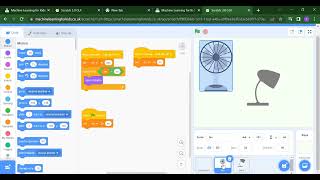
# Tutorial 2 || Machine Learning for kids | Smart Home Automation | Turn On the Fan
Code For Kids
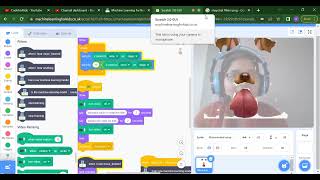
#Tutorial 3 || Snapchat Filter in Machine Learning|| Machine Learning for the kids ||
Code For Kids
#Tutorial 4 || Image Identification || Machine Learning for the kids|| Tiger , Elephant, boy
Code For Kids
Scratch Tutorial || Apple Catcher Game || Fruit Catcher|| catch game in Scratch
Code For Kids
Scratch Tutorial || How to record audio in Scratch || Scratch Tutorial for beginner ||
Code For Kids
Scratch Tutorial || how to translate language in scratch || Scratch tutorial for beginner
Code For Kids
More on: AI for Young Learners
View skill →



Related Reads
📰
📰
📰
📰
Best platform for teaching young kids to code for free
Reddit r/learnprogramming
12 Scratch Project Ideas for Students to Learn Coding the Fun Way
Dev.to · Danieldsouza
Why Building a Virtual Pet Game in Scratch Is the Perfect Coding Project for Kids
Medium · Programming
Scratch for kids
Reddit r/learnprogramming
🎓
Tutor Explanation
 DeepCamp AI