Scratch Tutorial || Day 7
Skills:
Visual / Block Coding90%
Key Takeaways
This video tutorial covers the basics of Scratch, a programming language designed for kids, and guides viewers through creating a game using Scratch tools and techniques.
Full Transcript
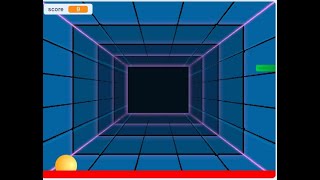
good afternoon everybody good afternoon good afternoon simon good afternoon rameen good afternoon prop guy how are you all happy day and america to everyone can you hear me properly okay okay so in our previous session what we did did you remember that and put rameen how are you how was the day so see in our previous class we created one video sensing game right case so anyone tried that yes we did the bubble motion sensor very good simon you are not able to see my screen wait let me check first my screen is visible yes everyone my screen is visible okay so today we are going to create ping pong game so do you know this game ping pong game yes everyone do you know this game ping pong see if you will search in your play store you will get this game okay like uh see if you will search in your play store about your ping-pong game so what will happen you will get that okay or else you can directly search in your google see so this is your ping pong game so we have lots of game which is related to your ping pong okay like this so do you know this so today we are going to create a ping pong tape okay so are you excited are you ready for that yes everybody it's like your table tennis game okay okay so let's start that so first what i will do i will run this project i will show you okay how you will create this game so let me start this first so what will happen first it will show my video also okay so here as you can see the transparency is 80 what i will do i will make it 60 now you will get my uh photo right you will get my video so what will happen now if i will run this game okay so we have three things here we have a ball we have a paddle we have a sprite so what i will do i will run this project see [Music] how you can play this project see how you can play this game and see your color of the ball see this and this paddle will follow your mouse okay [Music] see even you will get a voice also [Music] okay [Music] in this way we can play this project so what happened if ball will touch to this red color means it will stop here okay so this is all about your project so anyone have any doubt how you will play this game do you have any doubt case anyone have any doubt how we will play this game again i will show you see now as you can see what is this 425 if i will click on the flag you will get s4 0 okay [Music] see it is like your table tennis okay but the game name is ping pong okay see [Music] you will get this [Music] okay now we will start our project so now tell me what is the first step how you will create your new project yes everyone how you will create your new project what is the first day yes we need to just click on the file and you have to click on new so what will happen you will get new project here okay so what i will do i will show you how you will open the scratch okay so first thing you need to just search for scratch okay you will get the links scratch.mit.edu okay so click on that link so this is your scratch website okay very good simon very good okay so now what we will do we have to just click on create so what will happen you will get one new project okay so as you can see this is creating a project okay so first thing this is your scratch website okay so here you will get lots of colors right and each color have it's like a different meaning we have a motion loop sound so this all are the blocks okay after that this area is called as your script area okay and this is your stage area where you will develop your game and here you will start your coding part okay so first thing how you will add your background for your pop ping pong game okay so how you will add your background so as you can see on the right side bottom part you will get choose a backdrop option okay so we need to just click on that so what will happen if you will click on choose a backdrop you will get lots of backdrop so whatever you want for your project you can just click on that suppose i want this neon tunnel so what will happen you need to click here so you will get that backdrop here okay okay so after that how you will add your sprites okay uh diddy uh are you getting my background noise let me check that yes are you getting the voice how you will add your sprites okay so as you can see we have choose a sprite option so you need to first click here so for sprite we want ball okay so what will happen once you will click on that you will get your ball right after that how you will add your pattern so once you will click on choose a sprite if you will search for paddle we have that okay so what will happen you need to just click on this so you will get your title also so what is our first sprite we have ball and we have our second sprite as a pattern okay after that we want our third sprite which is line okay so search for line you will get line also so where you want to put this line here so this is our design part okay so as you can see we added one ball one paddle and one line okay so till now anyone wants to ask any question how you will design your ping-pong game yes everyone do you have any question very good yogis perfect here so see you need one backdrop so you have to add one backdrop for your ping pong game and you have to add three sprite okay two and three sprite first sprite is your ball second sprite is your paddle third sprite is your line yes yes teddy you will easily get that see if you try it if you will see you have a ball if you want like um the next sprite is our paddle so just search for paddle you will get that and after that we want like so once you will search for life you will get that okay so no need to create that easily you will get that okay okay dear okay no issue so after that now we will start our coding part okay so anyone can tell me how you will start your coding what is your first blog you have to add yes everywhere so very good rameen very good simon perfect so always you have to start from event okay like when you will click on the flag or is whatever event you want you can add here so once you will click on even block you will pay you will see when flag is clicked or when you will click on space so in the space also you will get up arrow down arrow right arrow left arrow or any key right or else when this sprite is played so we have a lots of events so you can add any event here okay understood everywhere okay so now we will start when flag is clicked so when flag is split so what position we want for our ball so see if you want to do the coating in the ball so always first you have to select your ball see so once you will select your ball first thing we will add when flag is clicked okay see when flag is clicked so what position we want for our ball okay suppose we want to start from here okay suppose we want this ball here so what is the position of this ball x and y 29 120 so where you will get your x and y position inside your so you need to just click on motion you will get this okay so what will happen if i will take my ball here if i will shrink you will get your ball here okay so this is your go to x and y position okay angle we want for our ball where you will get that angle in point in direction see so once you will click on this number you will get so you want this angle or do you want this angle which is 0 then we have a 90 if you want this angle 45 you can take that one okay after that how we want to move our ball so first we have to move that so you need to just add this move tense step okay after that we want this continuously so always whenever you want anything continuously so you have to add this forever okay forever means again and again continuously if you want to move your ball okay now in scratch we have some edges like as you can see we have this 4h right if you want your ball will return back so we have to add the age also okay so where you will get your age inside your motion you will get if h on so now see what will happen see your ball is moving by 45 degree see angle so anyone have any doubt how you will move your ball yes everywhere do you have any doubt how you will move your ball yes rameen simon everyone do you have any doubt okay so in this way we can after that so this is our first step how you will move your ball okay now we will see our second state okay so what is our second state how you will change the color and how you will add the sound right okay so this is our second step how you will change the color of the ball so how we will do that again we have to add some ebits so where you will get your email inside your event section when flag is clicked okay so when flag is clicked again we want to change the color forever we want some sound also forever so what will happen we will add some forevers okay like this means when flag is clicked inside your forever what we want okay so what we want if this football will touch to this blue color so what will happen okay means if this ball will touch to this straight line so what will happen so we have to put some condition here okay so by using which block we can give some condition if else which is this if where we will get the color inside your sensing okay if touching to the color but as you can see this is purple color right but we want red color how you will add your red color you need to just click here click on this pane take your mouse here so you will get a color okay wait because this line is so small so here you will get your red color so what will happen if ball will attach to this red color so we want to decrease the score okay so for that we need to create one score variable and what is variable inside your variable we can store anything because variable is just like a container okay so we will give score what is the variable name here's 4 click on ok so here you will get your var table so anyone have any doubt how we will create a variable yes anyone have any doubt how you will create your variable perfect so you need to just click on make a variable write down your variable name whatever you want okay after that see if touch to the red color so we want to decrease the score okay so how we will decrease that score so we have a change option right we want to change the score so instead of my variable we will select our variable which is score so now instead of what we want minus 1 why because we want to decrease the score by minus one okay after that if you want to start the sound so where you will get your sound as you can see we have a three tab scored costume and sound so once you will click on the sound click on this choose a sound whatever sound you want you see this is your alert we have a line [Music] okay we have lots of sound so according to your choice you can select that okay so click on that come to your code where you will get your sound tab okay so where you will get your sound tab click on sound you will get star sound okay so till now anyone have any doubt how you will add your variable how you will add a sound yes everyone rameen yogesh yes anyone have any doubt if you have any doubt you can ask me okay yes hamsa anyone have any doubt okay so now see what will happen see when ball will touch to this red color you will get one alert message see and see your score it is decreasing okay after that now this is our second step right how you will decrease your score once ball will attach to this red color okay now how you will increase this four yes anyone do you have any idea how we will do that once ball will touch to this green paddle we need to score a point okay so how we will do that yes everyone what logic we will use yes lofty tune what logic we will use if ball will touch to this spider so what will happen we want to increase our score we want to score a point right yes very good i'm so good dear very good simon perfect so now we will start that okay so just perfect rameen very good very good lofty tune we need to slide up perfect hamsa so what will happen again we will add some events okay when flag is clicked so see when flag is clicked so what will happen first we will start our score 0 because see now we have a 24 okay minus 24 so how you will start with 0 you need to just click on pick my variable instead of my variable we will add score now see what will happen you will get a 0 after that again we want that continuously so what we will add we will add forever okay forever means again and again if you want anything okay perfect loafy tune good yeah after that what will happen if ball will touch to this spider we want this logic so where you will get that see this if ball will touch to this spider okay so where you will get paddle touching paddle inside your sensing we have touching mouse pointer so you need to take this mouse pointer and once you will click on this arrow you will get pattern okay means if ball will attach to this spider so what will happen if you want to change a ball color so where you will get your change color okay so every costume related part every background related part we will get inside the looks okay so inside the loop if you will scroll down you will get change color see understood where you will get that inside the loops just little bit scroll down you will get change color effect okay after that what sound you want a ball will attach to this green paddle okay what we can do you need to just click on sound tab click on this choose a sound whatever sound you want [Music] okay suppose i want this song click on that so now what will happen we will start sound okay now see what will happen if i will run and see your ball color you will get a different color right understood everyone so till now anyone have any doubt very good everyone given the answer perfect okay so anyone have any doubt okay so now see if you want to rotate your okay so how we will do that so again you will get that inside your motion okay so instead of obtain you can put any angle okay suppose if i will take 50 so what will happen if ball will touch to this green pattern see you will get a rotation okay after that suppose you want to wait for a second to change your score by one so where you will get your weight block inside the control we have this fade okay so wait for one second we will change our score by one okay so change instead of my variable we will take score by one so see what is the difference here if ball will touch to this straight line we want to decrease the score and see sound is different okay and if ball will touch the screen paddle so we want to increase the score okay okay okay ramen i will explain you okay just wait okay see we have two logic if ball will touch to this red line we want to decrease the score okay and we want different sound and if ball will touch to this green paddle so we want to increase the sound increase the score and and what the second thing we want to change the sound also okay so how you will do that so we have first we will take one if condition if ball will touch to this red color so what will happen we want to change this four by minus one okay and a ball will touch to this green paddle which is your touching paddle paddle means this green color okay so what will happen suppose we want to change a color okay after that whatever sound you want you can add then whatever turn degree you want you can add and then you can just change your score okay understood so this is our ball party but as you can see paddle is not moving okay so what will happen now we will start our pattern so what will happen what you have to do first click on the pattern okay so once you will click on the paddle so again from where we will start so we have to start from when flag is clicked okay always you have to start from your event so event is your first step okay so when flag is played so we want this paddle will follow our mouse uh okay so what will happen once you will run this flag and this pattern will follow your mouse pointer so how you will do that again that we want continuously so we will add forever and just you need to go to the motion scroll down you will get mouse pointer okay so what will happen you need to just take this go to random position instead of this we will take mouse pointer now see this spider will follow your mouse pointer okay [Music] after that how many you want to play this game even we can set that one also okay how you will do that when flag is clicked okay so how many minute you want to wait so see in one minute we have a 60 second if you want to play this game two minute so we need to 60 plus 60 is your 120 if you want to play this game three minute so 60 plus 60 plus 60 you can wait for either 60 second or 120 second or 180 second so this is just okay so what will happen you need to take weight instead of 1 we can write 180 means we can play this game three minute okay after that we will broadcast one message means after three minutes we want to stop this game from that first we have to broadcast one message okay where you will get your blocked broadcast inside your event you will get broadcast okay and where you will receive this broadcast in the ball okay so again come to your ball so what we will do now when you will receive message one so we have to stop everything means we will stop this game see it means okay see it means in a paddle in a paddle what will happen first we will decide how many minutes we want to play this game okay so suppose we want to play this game three minutes so you have to write one it means 60 plus 60 plus 16 okay after that we need to broadcast one message and in the ball we will receive that message so till now anyone have any doubt yes prop simon hamsa and luffy yes follow me till now anyone have any doubt anyone have any questions see 180 means what here this is second as you can see so in one minute we have 60 second okay so if you want to play this game for three minute so 60 plus 60 plus 60 so you will get 180 second okay for line what you will do yes anyone yes anyone do you know what you will do for your life what is the use of this line we see if ball will attach to this red line we want to stop the game okay so how you will do that yes how you will do that if ball will touch to your line so how we will stop the game anyone do you know do you know see again we will start from the event when flag is clicked and we want this forever okay so we will take the forever after that what logic we will use if this line will touch to this fall so where you will get your if here inside or like your forever we have a if condition where you will get touch ball inside the sensing we have touching mouse pointer so you need to just state that instead of mouse pointer we will add ball means if that will touch to your ball so we want to stop everything so in the control we will get stop all see simple logic we will use for your line sprite okay now see if i will run a ball will touch to red color see game is stop okay and here you will get your and as you can see this green line is following your mouse pointer see okay so by using this mechanism by using this method we can create ping pong game okay so in this game if you want to do some changes if you want to do some addition features we can say additional feature what you can do as you can see we have this plus sign which is add extension okay so once you click on add extension you will get choose an extension window so here we have a music we have a pane if you want to add a video what you will just click on that so what will happen you will get my video see after that again just click on add an extension if you want text to speech if whatever you will write that will speak so just click on that speak hello okay so what i want in a ball it will speak hello see now hello are you able to hear the sound hello see hello instead of hello we can try it hello my name is now see what will happen hello my name hello my name is hello my name is okay so this ball is stretching to this line so we will start from your weight so how you will modify this take this here put it here again we will start from here again when flag is clicked so we want to speed this hello my name is shada so after that again you can click on this text to speech what language you want okay set language instead of english if you want french germany hindi we will try for hindi hello my name is so here mostly uh we have a english so you can select english hello my name is sharda okay so like that if you want say twice instead of alto we can take a swing hello my name is shada okay so like that you can modify your project okay okay simon i will take that one so whatever you want language you can select from here we have a lots of languages also hello my name is shada see so like that whatever additional feature you want you can add here suppose you want to add some music click on that you will get that play drum suppose i want to play the drum also meow meow meow meow [Music] so uh instead of this 0.25 we can play 10 bits okay like that so even you can change a tempo you can set a tempo you can set the instrument also like instead of piano if you want organ guitar electric data bars so whatever you want you can add here okay after that we have a translator so miss whatever you will write that will translate into another language okay if you will click here you will get means translate hello into instead of danish you can select any other language like a arabic or whatever language you want we have a see chinese also we have a english so as you can see we have a lots of languages so what will happen that will translate us okay so by using all this extension by your project okay by using translate mechanism by using music pain video sensing text to speech okay so till now anyone have any doubt anyone wants to ask any question so what we learned today yes everyone what we learned today okay good so today we created ping pong game so here you can rename your project so you can write ping pong okay and how you will share your project you need to just click on the share button and click on copy the link copy this link and share this link with like a where you want okay so tomorrow also we will i will take a class i will give you the time and link okay in a whatsapp group okay very good very good for me pink yeah very good loafy tune okay i will give you the source for okay no issue in a whatsapp i will give you or else uh after this class i will upload this video in the youtube and in a comment section you will get that okay so anyone have any doubt okay so bye everyone have a great day so tomorrow tomorrow also i will take a class and i will give you the link and time in your whatsapp okay thank you so much have a great day thank you so much for joining this class bye dear have a great day yes yes you have to also perform this project and you have to send me the link okay after the class i will upload this video on youtube again if you want you can watch this video one more time you have to practice this and tomorrow you have to show me so how you will show that in a comment section you can just paste your project link okay okay so now we will make tomorrow okay so bye everyone have a great day bye bye see you soon bye
Original Description
#scratch
#codeforkids
#scratch
#game
#coding
#bestscratchproject
Playlist
Uploads from Code For Kids · Code For Kids · 20 of 60
1
 2
2
 3
3
 4
4
 5
5
 6
6
 7
7
 8
8
 9
9
 10
10
 11
11
 12
12
 13
13
 14
14
 15
15
 16
16
 17
17
 18
18
 19
19
 ▶
▶
 21
21
 22
22
 23
23
 24
24
 25
25
 26
26
 27
27
 28
28
 29
29
 30
30
 31
31
 32
32
 33
33
 34
34
 35
35
 36
36
 37
37
 38
38
 39
39
 40
40
 41
41
 42
42
 43
43
 44
44
 45
45
 46
46
 47
47
 48
48
 49
49
 50
50
 51
51
 52
52
 53
53
 54
54
 55
55
 56
56
 57
57
 58
58
 59
59
 60
60

#Scratch Tutorial 1 | How to create your own Scratch account #codeforkids #scratch #Game Development
Code For Kids
#Scratch Tutorial 2 ||How to enable Share Button option in Scratch #codeforkids #scratch #game
Code For Kids
Fish Moving inside an Ocean 🌊🌊 #codeforkids #scratch 🥰
Code For Kids
Scratch Programming | Fish Aquarium game | #codeforkids #scratch #game
Code For Kids
Draw the circle in scratch#codeforkids #scratch #game
Code For Kids
Draw Circles in Scratch || How do you draw shapes on Scratch? #codeforkids #scratch #game #coding
Code For Kids
How to Make a Dino Jump Game in Scratch | Tutorial #codeforkids #scratch #game
Code For Kids
Scratch Tutorial || How to Make a Catch Game in Scratch.|| Scratch Tutorial for absolute beginer
Code For Kids
Scratch Tutorial || Day 1
Code For Kids
Scratch Tutorial || Day 2 (DJ System , Dance and Story writing)
Code For Kids
How to Make A Maze Game in Scratch 3.0 | Scratch 3.0 Tutorial |Scratch Tutorial for begineer
Code For Kids
Scratch Tutorial || Day 3
Code For Kids
Scratch Tutorial || Day 4
Code For Kids
Scratch Tutorial | Cat And Mouse Game | Scratch Tutorial for Beginner
Code For Kids
Scratch Tutorial || Day 5
Code For Kids
how to make dress up game on scratch || Scratch Tutorial for Beginner
Code For Kids
How to Make a Pong Game in Scratch || Scratch Tutorial for Beginner
Code For Kids
Scratch Tutorial || Day 6(part 1)
Code For Kids
Scratch Tutorial || Day 6( Part 2)
Code For Kids
Scratch Tutorial || Day 7
Code For Kids
Scratch Tutorial || Day 8
Code For Kids
How to Make Piano Game || Learn to Use Music Extension || Scratch Tutorial || Day 8
Code For Kids
How to Make Piano Game || Learn to Use Music Extension ||Scratch Tutorial for beginner
Code For Kids
Scratch Tutorial || Day 9
Code For Kids
Scratch Tutorial || Draw Shapes #shorts #codeforkids #youtubeshorts
Code For Kids
Scratch Tutorial |How to Draw Shapes in Scratch #scratch #scratchtutorials #codeforkids
Code For Kids
Day 10|| Scratch Tutorial
Code For Kids
Scratch Tutorial || Archery Tutorial
Code For Kids
#1 || Thunkable Beginner Tutorial Platform Overview
Code For Kids
App Development ||Tutorial 2 || how to add button in Thunkable || Thunkable for beginner #codeforkid
Code For Kids
App Development || Tutorial 3|| Beginner Tip "Change screens with a button click" in Thunkable
Code For Kids
Scratch Tutorial ||
Code For Kids
Thunkable Tutorial || Using Camera and Image Recognition components with Thunkable
Code For Kids
Build a Translator App with Thunkable ||Thunkable App Development || Tutorial 5||
Code For Kids
Thunkable Beginner Tutorial #6 || Web Viewer|| Redirecting App
Code For Kids
#1 World in Python || Python Tutorial || Python Programming || Google Colab
Code For Kids
#2 Python Tutorial for Beginners | User input in Python | Command Line Input | Python Variable
Code For Kids
#3 Python Comments | How To Write Comments In Python | Python Tutorial For Beginners |
Code For Kids
#4 Python Tutorial for Beginners | Data Types in Python
Code For Kids
#5 Numbers & Typecasting in python | Python Tutorial
Code For Kids
#6 Strings Tutorial | How To Use Strings In Python | Python Tutorial | Python Training |
Code For Kids
#7 Slicing And Other Functions In Python | Python Tutorials For Absolute Beginners.
Code For Kids
#8 Boolean in Python | Python Tutorial for Begniner
Code For Kids
#9 Python Tutorial for Beginners | Operators in Python
Code For Kids
#10 Lists And List Functions | Python Tutorials For Absolute Beginners
Code For Kids
#11 Tuple in Python | Python Tutorial
Code For Kids
#12 In Python | Python Sets Tutorial | Python Tutorial for Beginners | #python #pythonprogramming
Code For Kids
#13 If Elif Else Statement in Python || Python Tutorial for Beginners |
Code For Kids
#14 While Loop in Python ||Python Tutorial for Beginners
Code For Kids
Python Tutorial for addition of 2 numbers #shorts #youtubeshorts #codeforkids #pythonprogramming
Code For Kids
Python Tutorial for absolute Beginner|| While loop #pythonprogramming #shorts #youtubeshorts
Code For Kids
Machine learning for the kids with Scratch || Machine Learning for kids ||Day 1
Code For Kids
# Tutorial 1 || Machine Learning for kids | Image Classification example | Girl and boy
Code For Kids
#15 For loop in Python || Python Tutorial for Beginner
Code For Kids
# Tutorial 2 || Machine Learning for kids | Smart Home Automation | Turn On the Fan
Code For Kids
#Tutorial 3 || Snapchat Filter in Machine Learning|| Machine Learning for the kids ||
Code For Kids
#Tutorial 4 || Image Identification || Machine Learning for the kids|| Tiger , Elephant, boy
Code For Kids
Scratch Tutorial || Apple Catcher Game || Fruit Catcher|| catch game in Scratch
Code For Kids
Scratch Tutorial || How to record audio in Scratch || Scratch Tutorial for beginner ||
Code For Kids
Scratch Tutorial || how to translate language in scratch || Scratch tutorial for beginner
Code For Kids
More on: Visual / Block Coding
View skill →




🎓
Tutor Explanation

 DeepCamp AI