How To Install Kali Linux On Windows 10 - Windows Subsystem For Linux
Skills:
Linux & CLI80%
Key Takeaways
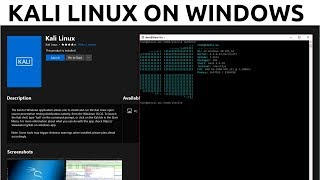
The video demonstrates how to install Kali Linux on Windows 10 using the Windows Subsystem for Linux, with steps including downloading a pre-built Kali Linux image and setting up the subsystem using Python scripts and Linux commands.
Full Transcript
[Music] hey guys hackersploit here back again with another video and in this video i'm going to be showing you how to install kali linux on the windows subsystem for linux all right so we've talked about the windows subsystem for linux before it allows you to run uh linux distributions as a subsystem on on windows which is awesome all right and as i've said many many times this is a fantastic feature that i don't think you know gets enough credit on windows uh that being said let's get started so uh before we get started i just want to just tell you that we have some prerequisites uh for this uh tutorial and the the first one is obviously that you have to be running the latest version of windows 10 all right and that's because this feature only exists in windows 10 it's actually a fairly new feature it's about a year old and i've been using it ever since the only thing is that okay not a lot of people seem to be using it which is quite weird because it allows you to essentially emulate linux in a subsystem environment right so uh you need to have the latest version of windows 10 or with updates installed preferably okay the next thing is you need to have python 3 version 3 installed all right now when i mean installed i really mean i mean really really installed in the sense that you can access it from the command line uh which means you have set the path uh and the home uh the envir the environment of variables what i mean is after you've installed it you should be able to check the version in the command prompt as i've just done so as you can see i'm running python 3.6.4 uh the last prerequisite is um is to to have git installed on windows all right now you can you can do this the other way by actually downloading the files from the repository manually and then extracting them which is what i have here uh but we'll be looking at that in a second um now as i said i already have gate installed so i'll also be using that method as well so uh let's get started now uh remember by default the windows subsystem for linux is going to be disabled so to enable it it's really very simple all you have to do is just go into your control panel and you want to go into programs and you are going to turn windows features on and off click on that and now it's going to give you this little dialog box that will allow you to turn windows features on and off depending on what they are so for example we have internet explorer we have uh net framework through 4.7 and 3.5 very very important so i tend to leave those ones always on and you want to scroll all the way to the bottom to the bottom and you'll find the uh windows subsystem for linux right here all right so by default it will be unchecked if this is your first time doing it but for me it's already checked because i already have it and i use it quite a lot so uh just check it and just hit okay now if that is your first time uh checking it it's gonna start downloading some files the required files and once it's done we can move to the next step all right now uh once you've uh you've checked that and you've enabled it the next thing you need to do is you need to install a base distribution and you need to configure your username and password so the way to do that is to go into your command prompt and run it as administrator all right so you want to run it as administrator and now you need to run the command lx run which is linux run and you want to hit install forward slash install and once you hit enter it's going to give you this little option saying uh lx run is only used to configure the legacy windows subsystem for linux distribution distributions can be installed by visiting the windows store so what this means is uh the version i'm showing you installing it through the command prompt is considered the legacy version of how to install the windows subsystem for linux all right now the distributions can be found on the windows store which is quite awesome i actually saw them on the windows store there was ubuntu fedora and open source which are awesome you know that is really great flexibility uh but sadly there wasn't any kali linux version uh but this is a way of actually getting the kali linux uh getting to install canon x as a subsystem all right so it's gonna prompt you here this will install ubuntu on windows distributed by canonical and license under its terms available here type y to continue now i already have it installed so it's probably just going to tell me that it's installed so hit yes and as you can see yes the legacy windows subsystem for linux distribution is already installed now for you it's going to start downloading ubuntu it should take less than 20 minutes and then it's going to ask you to enter your unix username and password that's very very important that you configure that all right so once that's done you have successfully uh configured and you have enabled the linux the windows subsystem for linux all right now the next step is to download the the windows subsystem for linux switcher all right which is can be found in the github repository here which i will leave in the description section so you can check it out for yourself all right so as you can see it's the windows subsystem for linux distribution checker here and its main purpose is to uh is to let you easily download and install new linux distributions under the windows subsystem for linux and seamlessly that's a keyword there seamlessly switch between them so i've used this tool for a long time now and i was shocked not many people know about this and not many people knew that you can install any distribution uh under the windows subsystem for linux all right so the uh windows subsystem for linux distribution switch is a fantastic tool that allows you to do this and it makes it really really easy to do all right so as i said you can do this uh with two ways because windows is not native to get uh you can just go to clone and or download and just download the zip or you can go and copy uh the link right here and just copy it all right so now what i'm going to do is i'm just going to create a new folder on my desktop right and i'm just going to call it uh test i'm just going to call it test there we are and i'm just i'm going to open up my command prompt now this time you don't need to be an administrator or actually before we do that i want to open up git because we need to clone the repository so i'm just going to open up git bash what i would recommend you do if you have downloaded the file directly just copy to your desktop and extract it there so i'm going to open up git bash now all right and this is fantastic tool it allows me to do all the linux commands that i would get to do so it emulates it really really well all right so i'm going to change my directory into my desktop and i'm going to change it further more into my test folder which is where we're going to be doing all of this all right so test and now i'm going to hit git clone and i'm going to paste the link there and once it's pasted oops for some reason i did not uh for some reason that did not paste there so let me just copy this again right and i'm just going to hit git clone again and paste there we are yeah fantastic so i'm going to hit enter and it's going to start cloning the repository give it a few seconds the file is not large at all all right so we're done so i can close git now and i can just open up my command prompt and head over to my desktop and into the test folder all right so we're in the test folder if i look at the directories i have in the test folder we should have the wsl distribution switcher all right so i'm going to change my directory into that into that directory so wso distribution switcher and now let me just clear that and let's see what files we have in here so as i mentioned we need to have python 3 pre-installed uh it's a prerequisite for this because you will need it so the first command we're going to need to use is the getprebuilt.python file right here that's the most important file uh which will allow us to fetch the kali linux docker files you then want to use the install.python file here which we will use to install the docker file or the docker archive all right so as i said i've already done this before which uh you know to save time and to show you how it all works really really well uh i have it in this kali folder here so as you can see i in the cali fold i have the wsl distributions which are uh you know you know the same directly uh the same directory as i have in the test folder so if i open this up the file that we want to download the docker file is the kali linux docker latest.tar right so that is the file you want to download and install and that can be done really simply so to get it installed what you want to do is use the python command so python because you want to run a python file and then we say get pre-built get pre-built we want to use this python file right here get pre-built and now we specify the name of the of the docker file which in this case is the kali linux all right kali linux so it's actually going to download this file so kali linux all right so it's going to get this file and download it now as i said i've done this before so it's already downloaded and the file i'm talking about is this one right here so it's about 234 megabytes so again you know if if you don't have the file uh it will take a while to download that's all i'm going to say there so just hit enter and it's going to start downloading the file so in my case i already have the file so i'm just going to show you what to do next so once you've downloaded the file let me actually just copy it into the test directory so i can show you exactly what to do so i'm just going to copy it and i'm just going to move it into my test directory here which is the one we are currently working in so i'm just going to paste it in there all right fantastic so now if i list the files inside once it's done downloading you should see it in here so the root fs uh kali linux kalinx docker latest.com.gz all right now we need to actually install it so we use the python command python and we select the install.python file here so install dot python file like so all right and after you've hit install.python now we need to select the name of the file that we're installing which is the kali linux docker file so we just select it right there or you can just type it in so root fs and i can just use the tab button to auto complete and just hit enter now once you hit enter it's going to start the installation process it's going to start extracting and installing uh the kali linux docker once that is once the installation is done what you want to do is just close up this command prompt here because again i'm not going to do it because i've already done it so just close this command here and now you want to go into your command prompt again and you want to run it as administrator okay now once you've run it at as many as administrator you you need to set the default username so we can do this using the lx run command so let's do that right now all right so to set the default username we use the lx run forward slash set default user set default user and then we select the default username which is root all right so essentially we are creating uh we're setting the default user as the root which is fantastic because we do not need to create a non-root account here all right so once that is done just hit enter and it's going to say found unix user root uh the default use unix user is sent to root fantastic now once that's done we can just hit bash and voila we should have kali linux active excellent there we are that is fantastic so now we are in the subsystem now uh we are actually using whoops i forgot i'm actually on linux now so uh you might be asking well how do i know i'm actually in in kali linux well the easiest way to know that is if we check the issue file uh so that can be done uh with the issue so cat we can just display cat etc and issue all right and as you can see here kali linux gnu rolling okay it's linux rolling rolling release so again uh you're running kindly linux now and the first thing i would recommend that you do is you just update it so apt-get update uh you can also up update the distribution and furthermore you can then install because this is the this is the docker file or the docker installation you can then install all the packages that you require for example nmap the metasploit console all the essentials that you require all right so that is how to get kali linux installed as a subsystem on the windows subsystem for linux on windows 10. so i hope you guys found value in this video if you did please leave a like down below if you have any questions at all any at all just leave them in the comment section or hit me up on my social networks or you can hit me up on kik and thank you so much for watching i'll be seeing you in the next video peace [Music] you
Original Description
Hey guys! HackerSploit here back again with a Kali Linux video, in this video we will be looking at how to install Kali Linux On Windows 10 as a subsystem.
Kali Linux is a Debian-derived Linux distribution designed for digital forensics and penetration testing. It is maintained and funded by Offensive Security Ltd.
Commands:
- Github Repo: https://github.com/RoliSoft/WSL-Distribution-Switcher
- cd WSL-Distribution-Switcher
- python get-prebuilt.py kalilinux/kali-linux-docker
- python install.py rootfs_kalilinux_kali-linux-docker_latest.tar.gz
- lxrun /setdefaultuser root
I Hope you enjoy/enjoyed the video.
If you have any questions or suggestions feel free to ask them in the comments section or on my social networks.
🔗HackerSploit Website: https://hsploit.com/
Support The Channel✔️
Pure VPN Affiliate Link:
PureVPN: https://billing.purevpn.com/aff.php?aff=33288
Patreon: http://patreon.com/hackersploit
Get Our Courses✔️
📗 Get My Courses at $10 Only!
The Complete Deep Web Course 2018:
https://www.udemy.com/the-complete-deep-web-course-2017/?couponCode=DWCBP2017
✔️SOCIAL NETWORKS
-------------------------------
Facebook: https://www.facebook.com/HackerSploit/
Instagram: https://www.instagram.com/alexi_ahmed/
Twitter: https://twitter.com/HackerSploit
Kik Username: HackerSploit
Patreon: http://patreon.com/hackersploit
--------------------------------
Thanks for watching!
Благодаря за гледането
感谢您观看
Merci d'avoir regardé
Grazie per la visione
Gracias por ver
شكرا للمشاهدة
देखने के लिए धन्यवाद
Playlist
Uploads from HackerSploit · HackerSploit · 48 of 60
1
 2
2
 3
3
 4
4
 5
5
 6
6
 7
7
 8
8
 9
9
 10
10
 11
11
 12
12
 13
13
 14
14
 15
15
 16
16
 17
17
 18
18
 19
19
 20
20
 21
21
 22
22
 23
23
 24
24
 25
25
 26
26
 27
27
 28
28
 29
29
 30
30
 31
31
 32
32
 33
33
 34
34
 35
35
 36
36
 37
37
 38
38
 39
39
 40
40
 41
41
 42
42
 43
43
 44
44
 45
45
 46
46
 47
47
 ▶
▶
 49
49
 50
50
 51
51
 52
52
 53
53
 54
54
 55
55
 56
56
 57
57
 58
58
 59
59
 60
60

How To Install Kali Linux 2.0 On Virtual Box
HackerSploit
100 Subscriber Q&A! - How I Learned Ethical Hacking
HackerSploit
BlackArch Linux Review - Better Than Kali Linux?
HackerSploit
How to Access the Deep Web Safely | Deep Web Starter Guide 1.0
HackerSploit
Wireshark Tutorial for Beginners - Installation
HackerSploit
Wireshark Tutorial for Beginners - Overview of the environment
HackerSploit
Wireshark Tutorial for Beginners - Capture options
HackerSploit
Wireshark Tutorial for Beginners - Filters
HackerSploit
Complete Ethical Hacking Course - Become a Hacker Today - #1 Hacking Terminology
HackerSploit
Complete Ethical Hacking Course #2 - Installing Kali Linux
HackerSploit
Parrot OS 3.5 Review | The Best Kali Linux Alternative
HackerSploit
Nmap Tutorial For Beginners - 1 - What is Nmap?
HackerSploit
Katoolin | How To Install Pentesting Tools On Any Linux Distro
HackerSploit
Nmap Tutorial For Beginners - 2 - Advanced Scanning
HackerSploit
Nmap Tutorial For Beginners - 3 - Aggressive Scanning
HackerSploit
Zenmap Tutorial For Beginners
HackerSploit
How To Setup Proxychains In Kali Linux - #1 - Stay Anonymous
HackerSploit
How To Setup Proxychains In Kali Linux - #2 - Change Your IP
HackerSploit
How To Change Mac Address In Kali Linux | Macchanger
HackerSploit
How To Setup And Use anonsurf On Kali Linux | Stay Anonymous
HackerSploit
Ubuntu 17.04 "Zesty Zapus" Review - Bye Unity
HackerSploit
VPN And DNS For Beginners | Kali Linux
HackerSploit
Tails OS Installation And Review - Access The Deep Web/Dark Net
HackerSploit
Steganography Tutorial - Hide Messages In Images
HackerSploit
The Lazy Script - Kali Linux 2017.1 - Automate Penetration Testing!
HackerSploit
Best Linux Distributions For Penetration Testing
HackerSploit
Netcat Tutorial - The Swiss Army Knife Of Networking - Reverse Shell
HackerSploit
Gaining Access - Web Server Hacking - Metasploitable - #1
HackerSploit
Web Server Hacking - FTP Backdoor Command Execution With Metasploit - #2
HackerSploit
How To Install Kali Linux On VMware - Complete Guide 2018
HackerSploit
Q&A #1 - Best Cyber-security Certifications?
HackerSploit
Terminator - Kali Linux - Multiple Terminals
HackerSploit
Shodan Search Engine Tutorial - Access Routers,Servers,Webcams + Install CLI
HackerSploit
Q&A #2 - Mr Robot?
HackerSploit
Metasploit Community Web GUI - Installation And Overview
HackerSploit
Linux Expl0rer - Forensics Toolbox - Installation & Configuration
HackerSploit
QuasarRAT - The Best Windows RAT? - Remote Administration Tool for Windows
HackerSploit
Metasploit For Beginners - #1 - The Basics - Modules, Exploits & Payloads
HackerSploit
Metasploit For Beginners - #2 - Understanding Metasploit Modules
HackerSploit
Kali Linux Quick Tips - #1 - Adding a non-root user
HackerSploit
Metasploit For Beginners - #3 - Information Gathering - Auxiliary Scanners
HackerSploit
Spectre Meltdown Vulnerability - How To Check Your System
HackerSploit
Metasploit For Beginners - #4 - Basic Exploitation
HackerSploit
ARP Spoofing With arpspoof - MITM
HackerSploit
WordPress Vulnerability Scanning With WPScan
HackerSploit
Generating A PHP Backdoor with weevely
HackerSploit
Nikto Web Vulnerability Scanner - Web Penetration Testing - #1
HackerSploit
How To Install Kali Linux On Windows 10 - Windows Subsystem For Linux
HackerSploit
Stacer - System Optimizer And Monitoring Tool For Linux
HackerSploit
Kali Linux 2018.1 - Kernel Updates & Patches
HackerSploit
MITM With Ettercap - ARP Poisoning
HackerSploit
Password Cracking With John The Ripper - RAR/ZIP & Linux Passwords
HackerSploit
How To Detect Rootkits On Kali Linux - chkrootkit & rkhunter
HackerSploit
Channel Updates - How To Post Questions & Video Suggestions
HackerSploit
Web App Penetration Testing - #1 - Setting Up Burp Suite
HackerSploit
Web App Penetration Testing - #2 - Spidering & DVWA
HackerSploit
Cl0neMast3r - GitHub Repository Cloning Tool
HackerSploit
Kali Linux On Windows 10 Official - WSL - Installation & Configuration
HackerSploit
DoS/DDoS Protection - How To Enable ICMP, UDP & TCP Flood Filtering
HackerSploit
Web App Penetration Testing - #3 - Brute Force With Burp Suite
HackerSploit
More on: Linux & CLI
View skill →





![b00t2root19 CTF: Groot (3/3) [LINUX Post-Exploitation]](https://i.ytimg.com/vi/RmGl1mje1Ho/mqdefault.jpg)



Related Reads
🎓
Tutor Explanation

 DeepCamp AI