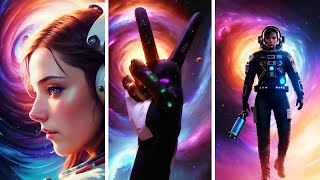
Stable diffusion video input tutorial. How I made this music video singing animation.
Key Takeaways
This video tutorial demonstrates how to create a singing animation using Stable Diffusion for video input, with post-processing in Premiere Pro and color grading using Runway.ml. It covers the process of converting video input into Stable Diffusion animation using the Hugging Face model.
Full Transcript
Hello friends today we're going to look at how I made this music video where this character actually sings the song and it's all fully animated in stable diffusion let's play a bit the creep enough from the heathens God will got fight got Prague got reason if they wanna go away then you know I'm gonna feed them if you're coming for me hope you're ready for a demon I got eyes in the back of my head I'm seeing take me for granted and you know I'm like okay so what happens here is it's actually a video input of me singing and then that has been translated into animation by stable diffusion so what you first need is record someone or yourself singing now in my example this is the original and what you need to do with this now is add color and the effects to it because it's easier to do that in inputs than in stable diffusion so what I did is I round it into premiere add the lumetri color effect [Music] check the curves here and change the Hue so we're going to change these skin tones which are around here into something like this and my end result looked like this here when I was done with it let's go with something like this and we're gonna also up the saturation there we go so now it's a completely different input now you have the singing and you have some interesting colors going on now this looks all messed up but stable Fusion is gonna take this and turn it into beautiful animation now if you don't have a video editing software you can use runway.ml so here we are you need to create an account but it's free for the most basic settings I'm going to drag our file into here and then we're going to drag that down here let's go here effects and then you can go either type color ramp here you're gonna check color and you have lots of options here depending on what you want now the color ramps are in in the bottom um recommend the light spectrum the heat map is pretty cool but this color palette seems to be very sweet for this project so let's use that this time I can see it's similar to what I created in premiere after you've added the effect let's check the size here so we have 675 by 1080. so let's press outside here we just press escape and let's change the scene 675 but um yeah that was default and now let's export this now the free version only offers 720 but we don't need higher that because we're going to be work in lower resolution in stable diffusion anyway so let's export this now you can see here that our file is exporting and when that's finished we're going to be able to download it now you can see your file here you can't download it straight from here so let's go to export up here we have our file here and here we can right click and download or you can also click over here now let's go into the forum so this is where we're gonna convert our video input into stable Fusion animation let's run all these cells you can also press runtime run all here but I prefer doing it manually because then I don't need to stop the cells further down for rendering this is now if you haven't used the Forum before you're gonna need to download the model and you can go to hugging face download the model and put it in your Google Drive slash AI slash model I'm going to paste the link below for that this is the folder for your model now we're going to change this animation mode to Value input now you don't need to worry about the max frames because when you use video input it ignores this value we don't want any zoom in this animation I'm just going to put this back to one since this is a multiplier one is no Zoom we don't want no movement here so we're going to put this to zero and the rest are just 3D values so we can ignore them now here's where you're gonna input your video so if you press this files here then you're gonna go find your video input take this one that we used from Runway earlier and then drag that in here now while that is uploading we can copy path here paste that in there now this is how many frames of the animation we're going to use if your video was filmed in 30 FPS and you set this to one you're going to have 30 frames extracted let's set two here we're just going to use 50 frames per second for now now I have prepared a prompt that I'm going to put in here we're gonna just remove these because we don't want the prompt changing the letter frames we just want the man mouth close-up portrait singing and then we have our art styles so remember to run these the settings and the prompt now we're going to change this this is a vertical image we want the vertical video so let's put something like 320 by 512 we're going to upscale this later anyway in an upscaler like a gigapixel we're going to keep this seed at random because we can't prepare to see it anyway from the video input klms is great for sampler 50 steps is up the scale a little bit to 12 just to keep it more coherent to the prompts change this to FX tutorial now here's seed Behavior you need to change this to fixed because if you don't every new frame the case rendered gets a new seed which results in a vastly different image for coherence's sake we need to set this at fixed and when you're working with animations in the Forum mostly you're going to look at strength schedule value which is up far up here but since we're using a video input we actually we're actually working with this value here I'm going to set this to 0.45 and now we'll press run now it's starting to export our video frames from from our video inputs so it's half the frames getting used and after that it's going to start rendering our animation now depending on your input image and the settings the renders here can can closely resemble your input or vastly differ now how you change this is playing with the strength settings so let's say you have this at the one then you would make no changes to your inputs let me just quickly show you that so here you can see our original video inputs and stable Fusion makes no effort to do anything with this now if you you would put the strength at zero it will totally change your video inputs and the results would be unrecognizable and as you can see here we have nothing left of our video inputs so I'd recommend playing with a value between 0.4 and up to its highs possibly 0.6 so play around and see what works for your input image I used 0.45 from my video input and that worked fine that might not work for you 0.55 might be better for you so again you need to play around with that I can't give you an exact number that will work for your inputs when all your images have been rendered what I did was upscale them in gigapixel and then I put all those frames in as an image sequence in Premiere here I have all my frames upscaled after running them through gigapixel and what's important is that you keep them numbered so just start with the first one have image sequence clicked in open and then it's important that you change this frame rate depending on what you want so you can right click this modify interpret footage and change the frame rate here then just drag it in and that would correspond to our original video if you don't want to import these as an image sequence or you don't have a video editing software you can just unclick this here skip video for run all change the fps to your desired frame rates and let's run this and you get the file so I hope this helped you to create your own animations in stable diffusion and how you can creatively work with video inputs now I'm going to show you the end result after everything I did in post as well [Music] I got reason if they wanna go away then you know I'm gonna feed them if you're coming for me hope you're ready for a demon I got eyes in the back of my head I'm seeing take me for granted and you know I'm leaving imma take what's mine with the webs I'm weaving I could take this crap from seeing to believe and gotta tasteful blood and my tongue keeps bleeding from the words I spit so sharp so freezing so cold be cold frostbite they feeling I could pay you apart or I could go heal them don't believe in faith don't believe in ceilings in my mind starts feeling I don't Pace myself I grind on Neil and got enough for a change I just love the feeling now I ain't gonna give up got too little time imma live up head down push forward through the tough times cause anything we're doing is a tough climb I ain't gonna give up drop too little time push forward through the tough times always have a vision I go by at night I'll be in my feelings [Music] I always have a vision I go by at night I'll be in my feelings [Music]
Original Description
In this stable diffusion tutorial I'll show you how to make the singing animation I made for the music video for Neffex - Winning
Links:
https://runwayml.com
https://colab.research.google.com/github/deforum/stable-diffusion/blob/main/Deforum_Stable_Diffusion.ipynb
https://huggingface.co/CompVis/stable-diffusion-v-1-4-original
Chat with me in our community discord: https://discord.com/invite/dFB7zuXyFY
Support me on Patreon to get access to unique perks!
https://www.patreon.com/sebastiankamph
Ultimate Stable diffusion guide
https://youtu.be/DHaL56P6f5M
The Rise of AI Art: A Creative Revolution
https://youtu.be/Ujpr62w7qcU
Ultimate Animation guide in Stable diffusion
https://youtu.be/lztn6qLc9UE
Dreambooth tutorial for Stable diffusion
https://youtu.be/Z-hyKADmHmE
5 tricks you're not using
https://youtu.be/-5TaeHvnVxE
Avoid these 7 mistakes
https://youtu.be/b8xWjrzTAPY
How to fix live render preview:
https://youtu.be/_4rY0oPbUYA
CHAPTERS
0:00 Introduction
0:50 Option 1 (paid) - Premiere
1:47 Option 2 (free) - Runway
3:33 Deforum
7:00 Rendering
8:20 After render
9:27 Final result
Watch on YouTube ↗
(saves to browser)
Sign in to unlock AI tutor explanation · ⚡30
Playlist
Uploads from Sebastian Kamph · Sebastian Kamph · 14 of 60
1
 2
2
 3
3
 4
4
 5
5
 6
6
 7
7
 8
8
 9
9
 10
10
 11
11
 12
12
 13
13
 ▶
▶
 15
15
 16
16
 17
17
 18
18
 19
19
 20
20
 21
21
 22
22
 23
23
 24
24
 25
25
 26
26
 27
27
 28
28
 29
29
 30
30
 31
31
 32
32
 33
33
 34
34
 35
35
 36
36
 37
37
 38
38
 39
39
 40
40
 41
41
 42
42
 43
43
 44
44
 45
45
 46
46
 47
47
 48
48
 49
49
 50
50
 51
51
 52
52
 53
53
 54
54
 55
55
 56
56
 57
57
 58
58
 59
59
 60
60

How to install stable diffusion tutorial (automatic1111)
Sebastian Kamph
Inpainting in Stable diffusion for beginners.
Sebastian Kamph
OpenAI NEW Whisper is AMAZING!
Sebastian Kamph
Tutorial - Free AI Game assets in Stable diffusion. Episode 1: Sword
Sebastian Kamph
Game assets in Stable diffusion. Ep 2: Jewelry
Sebastian Kamph
Stable diffusion Animation tutorial with AUTOMATIC AUDIO SYNC. Make your own AI music video!
Sebastian Kamph
Stable diffusion img2img tutorial.
Sebastian Kamph
Stable diffusion tutorial - AI Game assets. Episode 3: Treasure chest
Sebastian Kamph
Stable diffusion animation tutorial. Deforum ALL settings explained. Make your own AI video!
Sebastian Kamph
Dreambooth tutorial for stable diffusion. Quick, free and easy!
Sebastian Kamph
Dreambooth to CKPT. NEW VERSION! Dreambooth locally on potato pc.
Sebastian Kamph
Stable diffusion tutorial. ULTIMATE guide - everything you need to know!
Sebastian Kamph
AI music video. Neffex - Winning
Sebastian Kamph
Stable diffusion video input tutorial. How I made this music video singing animation.
Sebastian Kamph
Stable diffusion color grading tutorial. Quick trick!
Sebastian Kamph
Prompt Editing and Alternating Words in Stable Diffusion.
Sebastian Kamph
Stable diffusion gui most important setting. Live render preview.
Sebastian Kamph
NEW Voice2img prototype! This AI assistant is using Stable diffusion!
Sebastian Kamph
Prompts and FREE ONLINE stable diffusion. OpenArt AI tutorial
Sebastian Kamph
Stable diffusion Halloween concept art tutorial.
Sebastian Kamph
Stable diffusion GTA 6 style image tutorial. Quick and EASY!
Sebastian Kamph
Stable diffusion prompt tutorial. NEW PROMPT BOOK released!
Sebastian Kamph
Stable diffusion GTA 6 style image tutorial. Quick and EASY!
Sebastian Kamph
How to install Deforum locally. Stable diffusion animation.
Sebastian Kamph
Dreambooth in Automatic1111. Cpu only & gpu option.
Sebastian Kamph
Nvidia's NEW text to image AI eDiff-I. Will it dethrone Stable diffusion?
Sebastian Kamph
NEW VR in Stable diffusion? The future is now!
Sebastian Kamph
Motion capture workflow implementation with Stable diffusion
Sebastian Kamph
Don't make these 7 mistakes in Stable diffusion.
Sebastian Kamph
Stable diffusion up to 50% faster? I'll show you.
Sebastian Kamph
Stable diffusion 2.0 Released
Sebastian Kamph
Top 5 Stable diffusion tips for newcomers.
Sebastian Kamph
3 AMAZING Stable diffusion models that will change your life!
Sebastian Kamph
Best NEW AI tool? InvokeAI tutorial for Stable diffusion.
Sebastian Kamph
Monetize your AI art on Creative Fabrica with CF Spark.
Sebastian Kamph
NEW Stable diffusion 2.1 RELEASED!
Sebastian Kamph
Stable diffusion 2.1 is GREAT. At this one thing. 2.1 install tutorial.
Sebastian Kamph
Your face in AI images? The EASY way.
Sebastian Kamph
3 FANTASTIC Stable diffusion models you don't know about!
Sebastian Kamph
Unstable diffusion JUST GOT BANNED! 😲
Sebastian Kamph
The end of AI Art? Lawsuit against Stable diffusion
Sebastian Kamph
Stable diffusion TIER LIST. Best GUI ranked.
Sebastian Kamph
Google's ChatGPT rival Bard. Is it better?
Sebastian Kamph
7 Secrets in ChatGPT (Don't tell your boss!)
Sebastian Kamph
How to ChatGPT? Chat GPT explained!
Sebastian Kamph
How to ChatGPT in 20 seconds!
Sebastian Kamph
Midjourney 4C Features
Sebastian Kamph
NEW ControlNet for Stable diffusion RELEASED! THIS IS MIND BLOWING!
Sebastian Kamph
Revealing my Workflow to Perfect AI Images.
Sebastian Kamph
LIVE Pose in Stable Diffusion's ControlNet.
Sebastian Kamph
Control Light in AI Images
Sebastian Kamph
Multi-ControlNet tutorial.
Sebastian Kamph
Control Text in AI Images
Sebastian Kamph
Full AI Art Workflow. ControlNet & Stable diffusion.
Sebastian Kamph
ControlNet Guidance tutorial. Fixing hands?
Sebastian Kamph
Illuminati Model with Noise Offset & Weekly AI Art Challenge
Sebastian Kamph
Paint&Text2Image - MultiDiffusion Region Control.
Sebastian Kamph
Style2Image in ControlNet (T2I)
Sebastian Kamph
Gen-1 AI Animation is WILD
Sebastian Kamph
Famous Scenes Remade by ControlNet AI
Sebastian Kamph
More on: CV Basics
View skill →




Related Reads
📰
📰
📰
📰
The AI Can't See What It Drew
Dev.to · John
I Built My First AI App Without Knowing How to Code — And You Probably Can Too
Medium · Startup
Product Discovery Is Broken. AI Isn’t Replacing Product Designers; It’s Replacing Broken Workflows.
Medium · AI
Product Discovery Is Broken. AI Isn’t Replacing Product Designers; It’s Replacing Broken Workflows.
Medium · UX Design
Chapters (7)
Introduction
0:50
Option 1 (paid) - Premiere
1:47
Option 2 (free) - Runway
3:33
Deforum
7:00
Rendering
8:20
After render
9:27
Final result
🎓
Tutor Explanation

 DeepCamp AI