Setting up Conversion Tracking Pt 1: Google Ads Tutorials
Skills:
AI Marketing60%
Key Takeaways
Setting up conversion tracking in Google Ads account by creating a conversion action and installing Google tag on website
Full Transcript
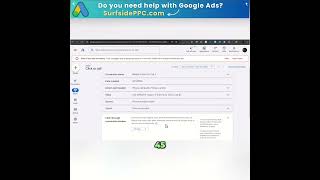
in this video we are going to show you how to set up conversion tracking within your Google ads account setting conversion tracking helps to measure how well your ads are performing by measuring conversion relevant actions users take on your website this information can help you optimize your campaigns to achieve your overall advertising goals such as increasing sales generating leads or driving traffic to your website there are two steps to set up conversion tracking one create a conversion action in your account two install the Google tag on your website to create a conversion action you need to go to goals then conversions click the add new conversion action button to create a new conversion action you can decide what you want to track an action on your website app or a phone call you can also upload conversions that you have previously collected we will be focusing on website conversions enter the URL and click scan you'll see two options to create a conversion action you may either create a conversion action based on URLs from your website or create conversions with the advanced option using Code Snippets the easiest option is to create conversion actions using your website's urls this option still requires installing the Google tag across your website however this is an easier solution because you can rely on your one Google tag to measure conversions just add the Google tag once and create all your future conversions without any coding you should use this option if you want to track page loads for specific urls however if you want to track Dynamic conversion values transaction IDs or other custom parameters or if you want to track clicks on links or buttons you should use the manual option if you have more advanced measurement needs and prefer to use Google tag manager you should also use the manual option click save and continue to proceed to the next step for more information visit the Google ads help center foreign
Original Description
Learn how to set up a conversion action within your Google Ads account, step 1 of 2 in setting up Conversion Tracking. You will ...
Watch on YouTube ↗
(saves to browser)
Sign in to unlock AI tutor explanation · ⚡30
Playlist
Uploads from Google Ads · Google Ads · 0 of 60
← Previous
Next →
1
 2
2
 3
3
 4
4
 5
5
 6
6
 7
7
 8
8
 9
9
 10
10
 11
11
 12
12
 13
13
 14
14
 15
15
 16
16
 17
17
 18
18
 19
19
 20
20
 21
21
 22
22
 23
23
 24
24
 25
25
 26
26
 27
27
 28
28
 29
29
 30
30
 31
31
 32
32
 33
33
 34
34
 35
35
 36
36
 37
37
 38
38
 39
39
 40
40
 41
41
 42
42
 43
43
 44
44
 45
45
 46
46
 47
47
 48
48
 49
49
 50
50
 51
51
 52
52
 53
53
 54
54
 55
55
 56
56
 57
57
 58
58
 59
59
 60
60

Google Ads Tutorials: Creating responsive display ads
Google Ads
Creative Excellence on Search: Responsive Search Ads | Google Ads
Google Ads
Creative Excellence on Search: Ad Extensions | Google Ads
Google Ads
Creative Excellence on Search: Overview | Google Ads
Google Ads
Creative Excellence on Search: Optimizing your Ad Rotation | Google Ads
Google Ads
Offline Conversion Tracking Implementation: Webmaster | Google Ads
Google Ads
Offline Conversion Tracking Implementation: CRM Admin | Google Ads
Google Ads
Google Ads Help: About the ad review process
Google Ads
Google Ads help: Learn why your ad doesn't show up in Google Search results
Google Ads
Google Ads Help: Fix a disapproved Google Ad
Google Ads
Google Ads Help: How to Sign into Google Ads
Google Ads
How to use the Help Center to meet your support needs | Google Ads
Google Ads
Google Ads Help: Change the payment profile for your client account
Google Ads
Google Ads Help: Ensure the best performance with high-quality image
Google Ads
Google Ads Help: Change how often you're charged
Google Ads
Google Ads Help: Reactivate a cancelled Google Ads account
Google Ads
Google Ads Help: Pause, remove or resume campaigns
Google Ads
Google Ads Help: About promotions
Google Ads
Google Ads Help: How to configure your shipping options
Google Ads
Google Ads Help: Unauthorized Google Ads Charges - Part 1
Google Ads
Google Ads Help: Unauthorized Google Ads Charges - Part 2
Google Ads
Google Ads Help: Link Google Analytics properties to your Google Ads account
Google Ads
DMEXCO 2020 Keynote -- Accelerate your digital marketing | Google Ads
Google Ads
Stay connected to your campaigns on the go with the Google Ads mobile app
Google Ads
A year in privacy | Privacy Week at Google
Google Ads
Google Ads Help: Simplify product feed management
Google Ads
Google Ads Help: How to set up remarketing list sharing
Google Ads
Google Ads Help: Reactivate a Google Ads account suspended due to age requirement
Google Ads
Google Ads Help: How to report an ad
Google Ads
OCT - Offline Conversion Tracker | Google Ads
Google Ads
Google Ads help: Choose the right option for adding products to Merchant Center
Google Ads
Google Ads Help: Submitting an ad for review
Google Ads
Google Ads Help: How to appeal policy decisions using Policy manager
Google Ads
Google Ads Help: How to appeal policy decisions through the Ads and extensions table
Google Ads
Google Ads Help: About the ad approval process
Google Ads
Product Deep-Dive: Keywords | Google Ads
Google Ads
TV in Reach Planner: Adjusting the plan and saving | Google Ads
Google Ads
TV in Reach Planner: Access | Google Ads
Google Ads
TV in Reach Planner: Methodology & Overview | Google Ads
Google Ads
TV in Reach Planner: Reviewing the forecast | Google Ads
Google Ads
TV in Reach Planner: Setup | Google Ads
Google Ads
Adidas: Driving customer loyalty with apps | Google Ads
Google Ads
Google Marketing Livestream Keynote
Google Ads
Google Marketing Livestream Keynote
Google Ads
Be Ready for What's Next with Google
Google Ads
Highlights from Google Marketing Livestream 2021 in under 3 minutes
Google Ads
Generate High Quality Leads at Scale | Google Ads
Google Ads
Win Customers in the New Online Consumer Journey | Google Ads
Google Ads
Amplify Awareness with Smarter Tools and Products | Google Ads
Google Ads
Increase In-Store Sales with Your Online Ads | Google Ads
Google Ads
Tap Your App to Build Brand Love and Grow Your Business | Google Ads
Google Ads
Power Tools for Powerful Performance | Google Ads
Google Ads
Marketing in the Age of Automation | Google Ads
Google Ads
Inside Google Marketing - Brand Measurement
Google Ads
Protect Privacy and Drive Performance with Google Marketing Platform
Google Ads
Get the Customer Insights You Need with Google Analytics
Google Ads
Measurement in a Changing Ecosystem | Google Ads
Google Ads
Future of Finance | Google Ads
Google Ads
Future of Auto | Google Ads
Google Ads
Future of Travel | Google Ads
Google Ads
More on: AI Marketing
View skill →






Related AI Lessons
⚡
⚡
⚡
⚡
How to Create a Second Version of Yourself Inside Obsidian Using AI (Step-by-Step Guide)
Medium · ChatGPT
How to prepare for Spain civil service TIC exam using AI in 2026
Dev.to · David García
Going Viral! How I Created AI Kissing Videos Step by Step Easily Using AIAI.com
Medium · AI
How to prepare TIC teacher exams in Spain with AI (oposiciones 2026)
Dev.to AI
🎓
Tutor Explanation

 DeepCamp AI