Best AI Agents for Project Management 2026 (Zapier Builds Them All)
Key Takeaways
The video demonstrates how to use Zapier to build AI agents for project management, including creating a supervisor agent, adding tools and sub-agents, and configuring prompts for task automation and workflow coordination. It also covers the use of various tools such as Google Docs, Slack, and Monday.com for project management and automation.
Full Transcript
All right. I've seen this often in projects where the project managers even myself is copy pasting tickets from one system to another. And so what I want to show here is how you can start the foundation of building Zapier agents to go further to assist you in these processes that can be easily taken care of by AI. In this video, you'll get a great foundation. and I'm going to build it with you, show you all the little tips here on how to build this so you can build your own agents in this case to manage projects, but you'll see how it can apply to so many other things. So, let's dig in and watch how to do this. All right, so we're going to start with the big picture here. We're going to make this supervisor agent. You're going to really get a chance to see how to bring it together. What are tools? Where are the sub aents living as they live in the tools area which is confusing at first and then how to use the right tools in the right agents. It's going to be intimidating with the word agent and sub aents but it really will get easier. All right. So on the left we're going to have all of the existing agents I've made and on the right we're going to build our agents. Eventually, by the time we're done, we'll have these tools and we'll get a sense of why they're here and how they work. We're gonna first build this prompt. So, I'm going to go over here into this other window and create a new agent and get going here. Now, how did I get to all of this? I'm going to link to some videos below to get started with the Zapier dashboard and how to use it, but I started with the assets area so I can get at everything, Zaps, agents, tables, and more. And so under the agents area, we got to this particular place where I could see my agents. And then I made a folder to just stay a little bit organized. So now, if we add a new agent and we're going to create a new agent, you'll get a help screen with templates. And this is great, but I don't want to do this right now because I really want to walk you through the process. And we're just going to start from scratch. With any of these agents, the hardest part is the prompt. to be honest with you, the technology is getting easier and easier, but you being able to explain to the agent or the AI what you want for your business goals is key. So, here I have this prompt on the left that's working, but it didn't I didn't type all of this out. Okay, I went to the AI I use, which could be any AI outside of Zapier, and I just said, "Okay, I'm trying to do something here. I'm trying to make a prompt for Zapier supervisor agent. It's trying to do some work. Help me write a project management assistant. So, it built the prompt for me and then I pasted it in here. So, I'm going to go paste my prompt over. But as we work through this, if the prompt fails, I'll bring it back into that area and say, "Hey, great. Thanks for the prompt. It didn't work here. What can I add to the prompt?" And I'll keep going back and forth. So now that we have our prompt to start with, we can start adding the tools and then the sub aents. This agent is going to be focused on orchestration and communication. It's going to get a request from you, the user through different what we call triggers, scheduled tasks like I said earlier, and it's going to do something with that by giving it to your sub agent to get the job done. So the leadership report, it's time for a leadership report. It gives it to that agent. It builds up the report and then it the main agent will save that to the Google doc. Typically an agent should only do that task of writing the report. It shouldn't be concerned with saving it or other things or Slack. Leave the sub aents very focused. Okay. So now I'm going to add a tool here for Google Docs to create a document from text because that's all it is. It will walk me through connecting Google Docs. It's just a few clicks and you're done. and then I'm going to add it to Slack. Now I just want the send channel message option and we could do direct message as well. So now let's look at something here. I'm not going to configure this to be limited to a particular channel or anything because I want the AI to choose from the message coming in what channel. I might suggest a default channel which I think I do in my prompt but overall I wanted to choose based on the incoming request. So in this case I'm going to go here and so we've added our two new tools but I don't want to just throw them like here. So let's remove this for a moment. Okay. What I'm going to do is go under the prompt I pasted in there which is this text and I'm going to say forward slash this is your tool. Now I'll do it here as well. Now, if I did not do this, it should still work, but I want to just help this agent get its job done. I want the prompt to be as clear as possible to help it know what tools to use for that job. And you can review the prompt below. I'm going to share that as well. And so, that's it. This agent now, this supervisor agent, I'll call it, now has some tools to get the job done, but it doesn't have the ability to create a leadership report. I don't want that to be in its prompt, in its brain. I wanted to know that it can delegate that to that leadership report agent. Now that we've built this, let's go build the leadership agent sub agent and then let's see how we bring that into here because that's very important. All right, let's go do that. All right, so just like before, we're going to go to our add agent, create a new agent, and we're going to start from scratch. I have the already cooked version of this agent here. And again, just a prompt, this agent is very focused on leadership report. Its job is to use our monday.com to find items, but it can work with any project system and then make a report out of them. It's all about finding the right items and formatting. So, it stays very focused. If I look at the activity here, we can see that I've ran this before. And we see here what came out of Monday. And there's all this weird text here. And the reason I want to show you this is if I take this content here, I can test the prompt really quickly. like I was trying to explain earlier in the video that if I had a prompt that AI built for me and I want to see if it works, then I could paste it here. So, let's say I made this prompt. I can then take that data it gave me and paste it here. So, right away I can now build this very focused agent. I don't have to hit the monday.com data which can take time to test it. I could put it here as that weird looking formatted JSON data and let my prompt and that data come together quickly to then see what the output looks like. If I'm not happy with it, maybe I want more emojis, I can then change the prompt and do it again and again, get it the way I like it and then put it back here. So keep that in mind as you try to iterate that you that you take it out of here for a moment and go into that system. So here I'm going to add the trigger like I did before. Trigger via Zap and MCP. This will make sense in a moment and add trigger. Now notice I'm not going to use a schedule one. I'll talk about that later. We're not going to schedule here. We're going to schedule somewhere else. And that will make sense after I show you. We're going to add that trigger. So this guy now has a trigger and a prompt. And it needs the Monday tool. It doesn't need this tool, but it just needs the Monday tool. So, I'm going to do a Monday find items, but you could use Jira, you could use ClickUp, you could use linear. I'm not so worried about that. But unlike before, I'm going to now configure this to help it out. I might have 20 boards, but I'm going to select a specific board that I want it to work on. Column of search. I'm going to tell, hey, just go for everything because I really want it to get a sense of everything there. All right. So now in order for me to then connect this agent, I need to publish it. So this is our weekly lead report. Now just for demo sake or training, I'm going to call this training. You'll see why in a moment. So when I publish this particular sub aent becomes available to be connected somewhere else. Okay. So, if we go back one and we go to the non-published project manager I was working on with you, we'll call this training as well because we're in this training video. I can now go here and add that agent as a tool. Very confusing, but now we have our weekly leadership report generator agent as a tool here. and it just randomly puts it where my mouse was, but I'm going to scroll down and say, "Okay, this is your leadership reporting tool. Use that." And I think I also tell it to go into a default room here if all if it's not sure what to do. All right. So, we've connected our supervisor to the sub agent, but how do we trigger that sub agent? So, let's go look at how to start. This is the important part. How do you get this thing to do things for you? So, let's go trigger that. All right. So, we went back to our assets zap and we're going to create our first trigger. This will be auler that happens every Friday. It will trigger the leadership report to get a sense of what happened that week. All right. So, I'm going to create my first zap here for this. And it's going to be I don't want to do the co-pilot just yet. I want to walk through it. Okay, so the trigger is going to be the theuler. So we're going to schedule secular zap. So we're going to set up theuler to do every week. And then we're going to configure that to be a Friday. And we're going to say just it could be anytime. I would say maybe because I still have to review the report. I'll give myself some time after lunch. Okay. Now one day the report will be automatic. I'll really like the writing style and I'll know I'll trust the AI. At first we're going to have that human in the loop moment where I review it. And then so Friday 12:30 we're going to continue and we're going to test just to move to the next step and it found a record which is just the fact that it's just test data there. Now at this point I want to connect to my agent but we have not enabled that agent. So, let's go back and do that. And this one agent here, I'm going to just publish because it's okay. I'm going to just keep working on it. So, I'm going to do what it says. I'm going to add that trigger, which I thought I did already. And then I'm going to publish it. So, this gu is just sitting there. It's available to be used in a lot of different ways. Okay. So, now if I go back to the main Zap here and I go to here, I should be able to see that. Now, I might have to reload my browser. Let's see what happens. I want to do an agent trigger and I want to find my agent. We're going to configure it and I'm going to choose my agent. So, let's see if we can find it here. Training project management workflow coordinator. Yep, this is the guy. Now, this is the part that's really important. In this case, we want this input. This is like the user input that you do when you're doing a chat in regular chat where you're saying, "Hey, I need you to do." So, if I just say here, I'll type it out. It has a default Slack room. I could put a room in here if I want or channel, but I'm going to leave it alone over there. But that's the nice thing. If I put a room in this trigger or channel, it's going to use that. So, my Slack for my supervisor is free to use any room it wants. It has a default set up in the prompt. I'll leave that as is. Pause this Zap until the agent. Yeah, I don't want this zap to be done until the agent's done. Not that that matters in this case. I could say no, honestly, but I'm going to leave it as is. And then the output fields I don't need because I don't want to do that right now. I want the supervisor agent to take this do the job and do the outputs. So, I'm going to click continue. And then we're going to test with real data. So, it's going to go trigger that agent which we've enabled, gave it Monday, and the supervisor agent which has it and knows how to use it. All right. So, it says it succeeded. Now, if I really want to see if it succeeded, I'd really have to dig into the deeper agents there. For example, I could go into Slack and see the output, of course. But what I'm going to do first is to open up the agent and then um we're going to see what that agent did as we look at its activity. So, this is important because you learn how to track what went wrong because it will go wrong sometimes. But you can see here it did the Google doc. It talked to a Slack channel. It actually went to the wrong channel. So I'm going to have to just be better at my prompt. And I'll fix that right now. But I want it to always go to that default Slack channel and it just didn't. So it's interesting. So we have our action generate a leadership report and then responded to the Zap. So it did the job and it used the correct tools to get it done. If we scroll up here, we see we triggered it and then we see the correct tool. And then now it even, this is nice, it even goes deep enough to show you what that tool did, just so you can get a sense of that as well. All right. So, if we go into the training project management workflow, I'm going to go fix that. So, we're going to go configure it. And I didn't like that it went into the wrong Slack. So, I'm going to just be more clear here that it needs to do that. And again, I could ask the AI to fix this for me. Help me understand how to fix it. I'm going to just keep it simple and just do what I usually do. I'm going to use the word always to emphasize that. I'm going to make sure that there's no other room names in here. So, we have that fixed. Now, I'm going to publish that. Again, it's going to be V2. Just a nice way to iterate or remember where you are. You can do V3 and keep going. Give us some comments. All right. So now we have our supervisor, our leadership prompt. We can now add our sub agent for end of day report. We can add one for the for the morning task list. So you can see how these can change. We'll do those in a moment. And then finally, we'll end off with a Slack slash command so we can trigger our supervisor agent from Slack. Let's go do that. All right. So the last agent we're going to build is like the scheduler, but it trigger is going to be Slack. So as I did before, I'm going to look over on the left here and go look at this agent I built earlier, and then we'll rebuild it. So this is a feature request agent. So we'll add a new agent, create new agent, and we'll do it from scratch just to keep learning here. And we're going to call this the training just so I remember where it is. Feature request agent. And we're going to set the trigger to be uh trigger from Zaps just because we want to use this inside the supervisor. And again, I made a prompt. I went to the AI system that I showed you earlier, just cloud chat, and I made the prompt there. This gu is going to have a couple of tools. This is a little bit more complicated. It's going to have a tool to find items in Monday. And so find items because I wanted to see if there's any duplicate items in here. So this is going to allow people to in slack say forward slash feature request in we call it lazy feature request because I don't have to do much is put a blurb in there a sentence and it will figure out how to make a ticket if it exist and everything. So we want to limit it to our board. So if we look over here I did some configuration this time. We want it to be part of our new SAS product board. So here we are in our board specific board project board. And that's it. And then we want to add another tool, but we're adding Monday again. So now we're going to say, hey, Monday is a tool, but Monday, like all these tools have different subtools, and too many of these can really not be good. So you don't want a 20 of them. You want maybe five. So now this agent will do this. use that board. Now, do I have this thing do anything else here? Nope. Just a specific board ID. And that's it. Lastly, I can let it create an item. Again, I don't want to have it figure out which board to use. That's just a waste of time. It's always going to be the same board. So, we'll figure that. And we'll do that and then we'll do that. Okay. I don't think I did anything else here. Let's see. I let the agent do a lot of work here. And I make the owner me because I want to as the project manager be the person who reviews all of these feature requests. All right. Now, if we look, I just did a Monday board with a bunch of fake developers or builders or whatever we are nowadays and some that are done for the leadership report in different states. So now this agent this this lazy feature agent will get a feature and look for it and as an existing item or create a new item. So let's go copy that prompt over by the way. Let's do that now that I have all the tools there. Now these little graphical things are you don't want to copy those around honestly. So just be careful about that. Not that you would be doing all this copy pasting but if you are just be careful. So, in this case, we have tools, the agent area called your tools. So, let's go find that. Here we go. And I'm going to make sure that these are the correct tools that we see below. So, we're going to say Monday get board values, Monday find items, and then Monday create item. Okay. So, now it has its tools. I'm going to publish it because it has to be published to use. And remember, I gave it a trigger so I could then use it. Now, when I go back to my supervisor, the main agent, I can now go add that tool. And so I can say it's actually on the top, but just so you can see, I could just type agent. So I want to call an agent, and I want to use the feature request agent. And now we have reference to it down here. Right here. I just want to make sure he knows what tool to use. All right, so we still need to build these other agents. Rinse and repeat. Everything we keep doing, we do again. But this agent's a little bit more interesting because we're going to call to it, not through a schedule, but through Slack. So, let's do that. And then let's go look how I did this in Slack. Okay. So, if we go back to my Zaps, not my agents, to my Zaps, you're going to see I have a lazy feature request Zap. Now, I used a web hook. So once I connected my Slack to the system here, I'm able to go into Slack and create a an app. And so the docs and Zap here, the links will tell you how to do this. AI will tell you to do this. But when you make a app in Slack underneath your Slack account, you can then go through the process of making a slash command. And then in making the slash command, I can make a lazy ticket slash command and give it the web hook we're about to create. So when I made the web hook for Zapier, my trigger when I made the trigger for Zapier, my trigger was a web hook. And then when I make a web hook, it will give me this URL. And so I can paste that URL into the Slack request URL, give it a description and all that. Now, what this is going to give me, let me show you right here. So once I make that, I can use that as a command. So now in this case as a user I could send that slack. Now I don't like this JSON we get. So I just quickly interrupt it with a message saying hey we're working on this. We get the message. It's doing the work of everything we just talked about. So now what does that mean? So if we go back to our lazy web hook feature creating Slack. If we were to look at its current activity, we would see it running. So that would be two days ago. But if we look again, we're seeing it running now. Delay just means it's in the middle of running as it waits for the agent. But we can see that it went through here and then here and then eventually will come out to our agent. And so the agent is the agent we worked on. Now look at the message here. the web hook will come in and it will say something. It will say I want a to upload an image and then I just say really quickly, hey, I'm working on it. I'll get back to you in a moment as you saw. But down here, just like we did before, we configured this agent input to have the input from Slack. So from the web hook. So if I go edit this and we click on this, we can see right here that I said the user is requesting a new feature, the channel, the ID, the user ID just in case I want to keep it for later. This is their request coming in via the text of that that input beforehand. So the input beforehand is everything we see coming in through the web hook. Okay. So the web hook has a lot of data coming in that we can see here. So, if I go here and click for a moment, just like we were doing before with that that forward slash, you get the stuff that came in before. And from here, I can just say, you know what? I want this. And now I have that right there as a nice widget. So, I'm going to get rid of that because I don't need that because I already did that down here. So just like the scheduler, we created a input for the user to then have the context of what came in from the web hook to then go to the agent, the supervisor agent who then will pass that on to the sub agent, it has to deal with the lazy feature request. And if we look, let's see. So it's done. It's completed. And if we look at the Slack again, one moment, we see, hey, I create a new feature. it will give me a link to that ticket and it added a backlog with medium priority and PM can review just yeah so basically added it I can do more there give it a better message that's all up to the sub agent all right so now we see that it was another way to communicate with our agent all right that was a lot let's wrap this up and hopefully it will help you to be inspired to move forward all right so hopefully you start to see a foundation here for a lot of automations. I know there's some new concepts here. Supervisor agents, sub agents, tools, prompting techniques, but basically if you start to use these patterns, you can start to see how quickly you can add more automations or things to assist you in your day-to-day work. And truly, they might become full automations. like that leadership report could get so good or those day-to-day work task reports, they just get sent to the team in Slack and you don't have to worry about it. So, comment below, ask questions, and again, there's a link below that will help support the channel as you use that to learn more about agents inside of Zapier, who was a sponsor of this video. All right, thank you and I really hope this helped you a lot. Follow me on Substack as well and LinkedIn to just keep learning about how to use Zapier and AI in your day-to-day. Thank you.
Original Description
#zapieragents #zapierautomation #aiagents #projectmanagementautomation #nocodeautomation
Try Zapier Agents and start building your own automations:
👉 Learn more https://bit.ly/4qIWvx6
🚀 Zapier getting started in the dashboard:
https://youtu.be/JtdUgJGI_Oo?si=Dawy2SUE4rGX1DXX
🚀 All the prompts
https://docs.google.com/document/d/1BETCuuMcMORhzJYdATmBG3OYXEN0eLr9rmqSI92RfhU/edit?usp=sharing
Tired of copy pasting tickets between systems? In this video I build a full Zapier agent setup from scratch — a supervisor agent that delegates work to sub-agents for leadership reports, daily tasks, and even lazy feature requests straight from Slack. You'll see how to write prompts with AI, wire up tools like Monday.com, Google Docs, and Slack, schedule automated reports, and trigger agents from a Slack slash command. Whether you're a project manager or a developer, these patterns will save you hours every week.
Read the related article here
https://dailyaistudio.substack.com/p/stop-copy-pasting-reports-let-ai
#zapieragents #zapierautomation #aiagents #projectmanagementautomation #zapiertutorial #supervisoragent #subagentszapier #mondaydotcomautomation #slackautomation #nocodeautomation #aiprojectmanagement #zapieragentstutorial #automateprojectmanagement #zapierslashcommand #aiworkflowautomation
=== Chapters ===
00:00 Intro — Why You Need to Stop Copy Pasting
00:55 Big Picture Overview
01:10 Building the Supervisor Agent
01:20 Agents + Schedulers
02:00 Using AI to Build the Prompt
04:00 Let AI Choose the Slack Channel
04:30 Putting Tools into the Prompt
05:15 Next Let's Build the Sub Agent
05:50 Building the Leadership Sub-Agent
06:50 Testing Your Prompt More Quickly
07:30 Leadership Report Agent
09:45 Scheduling the Report
11:50 Trigger Has User Input
12:45 Checking What Worked and What Didn't
13:50 Fixing the Prompt
14:50 Slack Lazy Feature Request Agent
23:30 Wrapping It Up
Watch on YouTube ↗
(saves to browser)
Sign in to unlock AI tutor explanation · ⚡30
Playlist
Playlist UUZa3QWzy1z1G9FIw02pytdA · DailyAi.Studio · 30 of 45
1
 2
2
 3
3
 4
4
 5
5
 6
6
 7
7
 8
8
 9
9
 10
10
 11
11
 12
12
 13
13
 14
14
 15
15
 16
16
 17
17
 18
18
 19
19
 20
20
 21
21
 22
22
 23
23
 24
24
 25
25
 26
26
 27
27
 28
28
 29
29
 ▶
▶
 31
31
 32
32
 33
33
 34
34
 35
35
 36
36
 37
37
 38
38
 39
39
 40
40
 41
41
 42
42
 43
43
 44
44
 45
45

Build an Event-Driven AI Backend with Supabase & N8N
DailyAi.Studio
Softr Vibe Coding, Docker’s AI Fix, & The Rise of Dify (Week 49)
DailyAi.Studio
Stop Manual Work: OpenAI & Zapier PDF Invoice Automation
DailyAi.Studio
N8N Tagging Execution History!
DailyAi.Studio
NoCode News - Softr Vide Coding 🤔
DailyAi.Studio
NoCode News - Docker MCP Solution 🤔
DailyAi.Studio
Tried Olares for my Local AI Server... Here is the Good and the Bad.
DailyAi.Studio
No-Code News: Private AI Infrastructure, Microsoft Foundry, & GPT 5.2
DailyAi.Studio
Softr AI Tutorial: Build a No-Code CRM & Workflow Automation
DailyAi.Studio
N8N Queue Vs Non Queue
DailyAi.Studio
No-Code 2025 Finale: Xano vs N8N, OpenAI App Store & The Rise of Agents
DailyAi.Studio
Remote Desktop TailScale!
DailyAi.Studio
NoCode News 2026: Notion AI Agents, n8n Security & On-Prem AISupport the channel and join
DailyAi.Studio
Notion the new No-Code Agentic Platform 🤔
DailyAi.Studio
No-Code News - Apple Clusters and Exo
DailyAi.Studio
On-Premise Episode 3 - Email to Ai Agent and Back!
DailyAi.Studio
🔥 Open-Source On-Prem Server Olares 🔥
DailyAi.Studio
No-Code News: Zapier Acquires Panda, N8N Security Patch, & AI Wearables (WK 2-2026)
DailyAi.Studio
No-Code News - Best Automation Platform 2026?
DailyAi.Studio
No-Code News 🔥 Agentic Desktops!
DailyAi.Studio
On-Prem: From "Stuck" to "Deployed" with AppSmith & Coolify 🚀
DailyAi.Studio
Zapier Agents: What, Why, and How! (No-Code AI Automation Tutorial)
DailyAi.Studio
Can open-source models handle real business tasks? #llm #onpremise #ai #n8n #opensource
DailyAi.Studio
Can Open Source LLMs Models Perform Common Business Tasks?
DailyAi.Studio
Private LLMs & Infra From Scratch – Episode 1: The Why, The Setup, The Stack #n8n #coolify #ollama
DailyAi.Studio
No-Code News WK 3-4 2026 #claudecode #mcp #aiagents #n8n
DailyAi.Studio
Vibe Coding a Real Business: Meal Planning App Start to Finish
DailyAi.Studio
🔥 One Prompt + My Phone = A Working Game #gaming #automobile #smartphone
DailyAi.Studio
No-Code News, Open-Source Ai and More - 2026 Week 5
DailyAi.Studio
Best AI Agents for Project Management 2026 (Zapier Builds Them All)
DailyAi.Studio
I Automated My Meeting Notes With Granola.ai — Here's How
DailyAi.Studio
Granola's AI Notepad Recipes & How It Can Easily Save You Hours A Week #granolaai #productivity
DailyAi.Studio
Stop waiting on API calls just to tweak your prompt #zapier #zapieragents
DailyAi.Studio
No-Code and Ai News - Interview with Noloco Founder Darragh Mc Kay
DailyAi.Studio
No-Code and Ai News - 2026 WK 9
DailyAi.Studio
How to Get Business Reports From a Database (No SQL Required)
DailyAi.Studio
Supabase AI Queries Your Data So You Don't Have To #supabase #businessautomation #ai
DailyAi.Studio
No-Code and AI News for Your Day to Day Work | Part 1 of 3 #AINews #nocode
DailyAi.Studio
No-Code and AI News for Your Day to Day Work | Part 2 of 3 #ainews #nocode #technologynews
DailyAi.Studio
No-Code and AI News for Your Day to Day Work | Part 3 of 3 #ainews #technologynews #nocode
DailyAi.Studio
No-Code & AI - Interview - Stuart Mason - AI and Changing with the Times #ai #developer #nocode
DailyAi.Studio
Part 1 of 3 - No-Code News and AI - Interview changing with AI
DailyAi.Studio
How I Chat With Supabase using Claude Desktop and Connections
DailyAi.Studio
Chat with your Data - Supabase and Claude Destkop #shorts #supabase #claudedesktop #ai
DailyAi.Studio
I Built an iOS App in 8 Minutes (No Code, No Developer)
DailyAi.Studio
More on: AI Tools for PMs
View skill →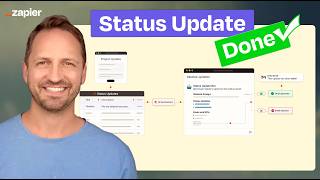









Related Reads
Chapters (17)
Intro — Why You Need to Stop Copy Pasting
0:55
Big Picture Overview
1:10
Building the Supervisor Agent
1:20
Agents + Schedulers
2:00
Using AI to Build the Prompt
4:00
Let AI Choose the Slack Channel
4:30
Putting Tools into the Prompt
5:15
Next Let's Build the Sub Agent
5:50
Building the Leadership Sub-Agent
6:50
Testing Your Prompt More Quickly
7:30
Leadership Report Agent
9:45
Scheduling the Report
11:50
Trigger Has User Input
12:45
Checking What Worked and What Didn't
13:50
Fixing the Prompt
14:50
Slack Lazy Feature Request Agent
23:30
Wrapping It Up
🎓
Tutor Explanation

 DeepCamp AI