React Leaflet Tutorial for Beginners (2025)
Key Takeaways
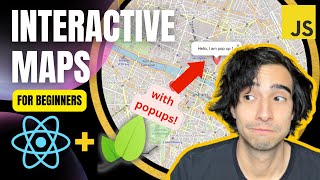
This video tutorial demonstrates how to create custom interactive maps in React applications using Leaflet and React Leaflet, covering topics such as map rendering, marker clustering, and customization. The tutorial provides a step-by-step guide on how to install and import necessary libraries, set up map containers, add markers and pop-ups, and customize cluster icons.
Full Transcript
good morning everyone how's it going today my name is Alejandro and I'm a software developer working from France um in today's video I'm going to show you how to develop a react leaflet application or reactively flick component actually and actually I'm just showing you pretty quick the end result of what we're going to be building today so basically you have a an interactive map you have um you have some markers right here and each one with its own pop-up and also something pretty interesting about it is that when you zoom out these markers that were pretty close uh together they get clustered together into one single marker one single icon displaying the number of markers behind it so that's what we do with the with the leaflet marker cluster and I'm going to show you how to do this in react um pretty quick pretty simple so let's get right into it okay mm-hmm now for this video I'm going to be using Code sandbox um it's basically just so that we are um so we have this project already set up with react but you can also follow from a local environment if you create your app using feed or create react app Etc okay I'm just going to show you pretty quick the environment right here we have our app.js which is where we're going to be building our map we have index.js as well which is the root of our application and also of course we have our index.html which is the HTML page where our react tab is going to be included um let me show you something pretty quick as well we have some styles.css that are imported into our application and I'm actually going to change some things here pretty quick um just some standard things let's set the Box sizing to border books like that then let's set the margin to zero and then let's add the padding to zero so that we have actually full control of our sizing and our Styles in this application um second of all we have that our application is going to be running on the div with the ID of root and I'm just going to set it a height of 100 VH all right so that's something that's all that we're going to be doing here on style.css and let's get right into building our application all right so what are we going to start by doing first of all actually we're going to install leaflet and react leaflet and to do that we're going to have to install them right here adding the dependencies so I'm just going to look for leaflet like this and I'm going to look for react leaflet um leaflet like lift lit like this okay just so you know what I'm doing right here when I'm adding dependencies is pretty much the same thing as as if I was just doing npm install leaflet npm install react leaflet okay as you can see um after what I just did right here they just appear in my package the Json um right here leaflet and react leaflet just as if I had installed them using npm install Okay so that's how it works now let's go back to our application right here now that we have installed and there's dependencies that we need and let's start importing our components okay the first component that we're going to need to import it comes from react uh react react leaflet and it is map container like this that container from react leaflet okay now this is actually not a default export so we're going to have to import it like this and let's just replace whatever is inside here with this new component that we have imported so it's going to be map container like that and it's actually going to have an opening tag and a closing tag as well because we're going to put a lot of things inside it all right there we go now in order to initialize it we're going to have to actually set it um Center like this and for this video I'm actually going to center it in the city of Paris and the coordinates for the City of Paris I actually have them right here so let me just copy them and paste them like this okay so these are the coordinates where your map is going to be centered on and then you also need to pass in a second um param which is going to be the zoom level okay I don't remember exactly which are the zoom levels available on leaflet but I mean if you want to see the entire city from a distance a zoom of 13 usually works pretty well okay now there you go now we have our map container the problem is that the map doesn't have anything inside of it and in order for our map to have something inside of it we need to actually show the map tile layer okay and that's very easy to do if you saw my previous video on I mean pretty much the same tutorial about leaflet but without using react just using vanilla JavaScript you know that we have to use tile layer but right here we actually flip creates a very very convenient component that we can just add like this now this is going to be a self-closing tag and inside the tile layer which is going to be the actual component that is going to show the the tiles of our map um the first thing that we're going to want to add is the property of attribution we're going to be using openstreetmap which is a free map provider and I mean it would be pretty nice if at least we just attribute it to them um it's already free so it doesn't cost us a lot this right here what we're adding right here is basically what you can see down here at the bottom open street map contributors just so I mean just to to attribute it we're already getting it for free so so next we're going to add the actual URL of the tile um and to do that actually we can go to oops leaflet JS and here we have a map tile layer that they use for their tutorial and it looks pretty good so we're just going to use it ourselves too like that there you go now if we if we hit save we should have our map working but the problem right here actually you know what I'm going to just add it like this hmm all right so the the problem right here is that we already have our map and it's supposed to be loading and everything's supposed to be working correctly let me just reload this so that you see that we don't have any errors in the console but the problem is that our map really doesn't look very good um the tiles are all over the place and it doesn't seem to be loading correctly for some reason but I mean at least we're getting something um all right so the problem with this happens is that you leaflet actually consists of um a JavaScript site and of a CSS site and now when we do npm install we're getting both of them but we're actually for the moment we're just importing the JavaScript type because we're only importing the the JavaScript components the react component so what I'm going to do right here is actually import the CSS just like that and I'm going to say that it comes from leaflet and if I'm not mistaken the path to the actual CSS is this Dot and then leaflet dot CSS there you go all right so now we have leaflet being loaded into our application but another problem again um the map is gone um and why is this happening um the problems actually that the map is actually loading let me show you pretty quick if we inspect this map right here we have the ID root and we have our leaflet container right here but the problem if you see is that it has a let me show you problem is that it has a height of zero for some reason and actually the reason is that we actually have to set a size for this container to do this we're just going to go back to our Styles and this is pretty important every time you work with leaflet we're just going to set the sizing off map container and the map container is called leaflet container by default and let's just set a height of a hundred keyboard height there you go so now we're going to get a full screen map I'm just going to refresh it so that you see what's going on and there you go we have our working mat centered in Paris as we wanted it to be at the beginning so there we go um what else can we do right now um all right so we have added our map container our tile layer let's just add some markers to it okay all right so how do we add some markers I'm going to I'm going to make it as though we were actually importing the markers from an API so I have here just an array of markers that way you're going to be able to use um it's every marker and I mean in this like mock API that I'm supposed to be testing returns a geocode with the location of the marker and it also has some HTML test for the pop-up okay so each marker is going to have its own pop-up and its own location so let's do that now in order to show you how to do it I'm going to map through all of these elements okay um so first of all we're going to call the markers and then we're going to use the map method around it and we're going to say that for each marker right here we're going to be returning we're going to be returning our a marker element like this um now as you can see I imported marker from leaflet by default but we actually don't want it from leaflet we want it to come from react leaflet so let's add it like this there you go and now here let's create our marker there you go now this is supposed to work if I'm not mistaken there you go and in order for your marker to actually work you you're gonna want to set it at position set a position to it and the position of our marker in this case actually comes from our element right here and it's going to be dot marker.geocode okay so let's just write it down here marker Dot geocode there you go so all right so now we have our three markers and it's working pretty good um the problem is that we don't have an icon for these markers um of course leaflet comes with a default marker icon that you can use and you can activate it if you call back um the core of leaflet but actually this is a pretty good opportunity to show you how to create your own custom icon okay so to do this what we're going to do is we're going to actually create our custom icon like this now that we have imported the markers right here a little bit down here I'm going to create my custom icon like this there you go and actually to do this I'm going to have to create a new icon and this one right here actually is not um a react component but this one actually comes from leaflet so I'm just going to say import new icon and this one actually comes from leaflet so I'm just going to save it like this and this instance actually to initialize it we require two things okay the first from if we require is icon URL like this and the second one is this size okay so for the icon size we're just going to set it to very standard 38.38 pixels this is going to be the size of the icon there you go and now this right here is going to be the icon URL that we're going to load in order to actually show something right here um there are several things that you can do for example let's say that we want an icon from Flat icon all right let's say that we want let's say which one do you want we can actually use we can use this one how about that yeah we can use this one so one possibility is that you can download it and import into your application that works pretty good and another possibility is that you can just copy the the URL of this image and it sometimes works let me see if this works this time so let's come back to our application right here and let's just paste it right here and let's see if that works um well for some reason that's not working um oh wait sorry actually this is obviously not going to work because we're not using our custom icon yet um actually another element that we have to add right here is the icon so in order to add an icon you just said you set an icon param here and you're going to pass your custom icon and my custom icon is custom icon like this and actually it works so there you go you have our three icons that come from our um flat icon CDN directly or another possibility of course is that you can basically just download it and or use your own icon that you designed in an SVG or a PNG format okay so let's say I want I want this one instead so what I'm going to do I'm just going to download it and once it's downloaded I'm going to add it here to my project and I'm going to add it to image there you go oops gonna put it inside an image folder and I'm going to rename it I'm just going to say that the name is going to be marker icon like that so this is the one that we're going to be using now and in order to actually make it work we're going to want to import it right here so instead of calling the actual URL like this I'm just going to comment this out and I'm going to add a new icon URL paramet here and I'm going to require the icon that I have just added to my image folder okay so it's right here and it's inside image and the name of the file is marker icon dot PNG Lambda is taken and here we're missing a comma there you go so now our marker is working correctly um be sure that actually you have set the icon size because if we remove this thing the actual size of the icon is going to be the actual size of the image which you probably don't want right so yeah be sure to set the icon size to like a pretty standard size is 38 by 38 or you can also add something different like uh 40 or something I mean but there you go I mean this is pretty pretty important thing to do um so there you go so that was how to create custom icons we created our element from the leaflet library and then we just imported it here as a param to our marker component so there you go um then how about we actually add the pop-up to our to our draw markers so to do that basically we're just going to want to add a pop-up element and since this one right here is a react component we're just also going to have to import it from react leaflet so now that we have imported it right here we can use it down here and let's do pop pop like that and inside right here we can add any pop-up and it's going to be bind bound to the marker in question okay so and inside right here actually you can add any HTML that you want that's why leaflet pop-ups are so so good I mean it's just a space where you can add your own HTML so let me see let's just add an H2 and let's say hello I'm uh there you go and then we can check here right here and there you go we have three pop-ups but the problem is that the three pop-ups right here are identical and we want each of them to have their own pop-up so remember that we imported our markers right here and we are pretending that they come from an API and the actual pop-up comes with I mean the actual marker comes with an attribute property called pop-up and this is supposed to be some HTML and so it's obviously going to be different for every marker so we can just call this property right here instead of coding it this hard-coded we can just add marker pop up like that and there you have it now each pop-up each marker has its own pop-up pop-up one iron pop-up two and right here I am pop-up three so there you go um all right so that's how to add markers and how to make your map work in react looking pretty good something pretty important as well let's just have them cluster together because I mean so far if you move if you zoom out they just like become like too crowded and in the in that very little space very small space so what we're going to do is we're going to wrap it all the markers in a different layer that is going to be the marker cluster layer and that's very simple to do but we're going to need another dependency right here so let me add this dependency it's going to be called react leaflet react leaflet cluster like that there you go remember this is exactly the same as if you had done npm install okay so right now what I'm going to do is I'm going to import this new component called marker cluster group from react leaflet cluster like that there you go and this is the one that we're going to be using to actually create our cluster okay so let's see how we can do that um basically this is a react component that we're going to add right here then we're going to wrap all of our markers around it like this there you go um so I mean basically now it's supposed to be there you go there you have it if we zoom out we have this new cluster group it's displays the number of elements that are behind it as you can see I mean you probably cannot see it because it's very faint I'm gonna try to zoom in a little bit more but yeah I mean you can see that here it's a three and then if you click you yeah I mean it zooms in and it displays the three um the three markers that are behind it um but right now what I'm going to show you how to do is to modify that that icon right here to make it your own okay um but first of all something pretty important that you're gonna want to do is right here inside Mark your cluster grip you're going to want to pass a couple of of um attributes and the first one is going to be chunked loading which basically is going to make it allow react to load each layer each marker um one by one instead of loading them all together I mean this is basically just to help with performance and the second one is actually going to be our custom icon for the cluster so this one's going to be icon create function like this and we're going to set it to our custom function so let's call it create custom cluster icon there you go and now that we have actually um assigned it we're gonna have to actually um declare that function so let's say we're going to declare it like this and it's going to be a function that is going to take hmm one second it's going to be it's going to take a cluster a cluster argument and here we go and it's about the only thing that you have to remember about this function is that it's supposed to return a div icon element and what is a div icon element well it's an element that comes from leaflet so we're going to have to include it right here let's include Def icon like this um I think it's actually with like that there you go um so actually we're going to want to return this thing right here um or let's yeah return our new div icon like that there you go and then this one right here we're actually initializing an instance of active icon and it takes several problems the first one is the HTML which is actually just what it's going to be displayed and this um in this icon and I'm just going to say that it's going to be a div for me um it's going to be a diff for me and there you go and I'm just going to give it a class of um cluster icon like this there you go and inside of it we're going to want to actually display the number of markers that are inside that cluster and to do that actually what I'm going to do is just call this cluster element that I imported right here I'm going to call the method get child count like that so now you have the now you're going to be able to display the count I mean if I zoom out um right there's problem going on right here um let's see what's going on I'm going to add just an icon size maybe that's the problem that's going on an icon size I'm going to say that it's going to be a point 33 33 and true right here in the end there you go let's see if that works um there is something going on right here um let's just add this class name probably let's see if that works all right there's something going on right here comes custom cluster icon I can create functions supposed to be this one hmm we're written create icon and it's causing a problem for some reason let's see uh each child in the list you have a unique key prop yeah I mean of course you're you're going to want to deal with that at some point I don't know what's going on just a moment ago but there you go I mean it's working right now um so right now we have our right now we have our cluster div right here if you can see this is a cluster this is our cluster icon right here and it's displaying the number three which is the number of markers that are behind it and there you go so I mean we have the class cluster icon which is actually the class that we're gonna want to edit in order to to actually style it neatly right and I'm going to do it right here in styles.css there you go um what are we going to do with it so let's say we're going to want to make it a circle all right so let's give it a height of um 3 REM and a width not widows but width of 3 REM 2. now in order to make it a circle we're going to have to set a border radius of 50 like that and let's add a background color background color um let's set it to let's set it to White let's see what happens there you go so now we have our Circle right here and it's supposed to display our number of markers inside of it the problem is that the number of markers is very small and it's actually all the way up here and if you see what's going on actually the marker Center is up here and our div is over here so what we're going to want to do is we're going to have to Center this thing up here and that's very simple to do we just trans slate no transform if I'm not mistaken and then translate it there you go minus fifty percent and minus 50 percent let's see how that works now if we move it up there you go um um yeah there you go I think maybe it's still maybe it's not supposed to be 50 here I don't know I mean it's weird minus 25 probably yeah this seems to actually be the center I don't know why it's 25 I thought it was minus 50 but well there you go I mean the idea is to center it over the actual cluster and then let's just Center our number right here so let's say display uh Flex and let's just Center everything inside of it align item Center and justify content Center and then let's just add some color to it I mean the color is black let's just leave it like that and let's just add a font weight of 900 and a font size of two Rems let's see how that works um let's make it 1.5 there you go so now you have your actual icon um and then if you click on it you have the different markers so there you go um so that was how to create your custom cluster icon and how to make it show your markers with their pop-ups behind it um now finally let's I'm just as a bonus I'm going to show you how to actually change the look and feel of your map and to do that we're going to actually change this I mean because right here as you can see it's a very very um standard kind of map so in order to actually change how your map looks you're gonna have to add a skin to it or change I mean change the provider right here we're using openstreetmap but we can use other providers so let's say to actually find different providers you can use you can just Google for leaflet skins and I think it's this one right here yeah so right here you so right here you will find several um skins that you can use for your map and be sure to choose one that you that you know that you can use in order to know if you can use them you can go to their GitHub page and right here they have the instruction for each of the providers right here so I mean for example let's say you're interested in this one right here here you have the instructions you have the plain JavaScript that you can use and you have the actual provider and here the provider is openstreetmap dot bzh let's see what do we need for visit h b said h um visit H um nope it's not here actually probably that one's free um let's use let's see another one like oh my here for example this darker one this one looks pretty good and the provider for that one is stadia so let's see first Dahlia what are the requirements so for stadium yeah stadia there you go for stadia maps for stadia maps in order to use Stadium Maps you must register and once register you can whitelist your domain within your account settings yeah I mean so not all of these maps not all of these games are going to be completely free or completely available right out of the box but I mean you have the instructions on how to use them in their calendar GitHub page I just for the sake of the demonstration I'm just going to take up like the simplest and most um um in most um and I see a free one let's say I suppose it's um watercolor I remember that's the one that I used for in the other video I know that this one's free so I'm just going to copy the actual tile layer right here um you know I'm just going to copy all of this and let's go back to our our app right here and in order to actually import it I'm going to need this part right here there you go there you go and this right here is basically just if we were using plain JavaScript for our app so what I'm going to do here is I'm going to add another tile layer remember that this one is self-closing and just as before a very regular attribution stamina watercolor and then our URL right here is going to be DRL we just download it there you go I think that is how it's supposed to work um let's remove this one right here let's reload it and there's some problem going on right here um yes what's going on here oh yeah it's because I mean for some reason I needed to add an extension right here but it's jpeg uh yeah I mean if it's not working for you just do that I mean the default um the default website usually just adds extension as a variable but I'm just going to use jpeg like that and now there you have it you have your custom skin that is working pretty good and you have your marker that's working and remember to add our skin we just added a different tile layer which is the the component that is charged of actually importing and loading the tiles for our map and yeah I mean if you want to use the basic one from from openstreetmap you can just comment this one out and then go back to the basic one there you go so that was how to create your react leaflet map I hope you found it useful I hope you liked it and if you enjoyed it please subscribe and and yeah leave a like and yeah I stay up um I'm just like uh yeah follow and active enable notifications so that you're um notified wherever I publish new videos so there you go hope you enjoyed it and I will have a good one I'll see you next time [Music] [Music] thank you
Original Description
In this React Leaflet tutorial, you will learn how to create custom interactive maps in your React applications. By using the power of React and Leaflet.js, you can create dynamic, interactive maps with ease.
👉 Source code: https://codesandbox.io/s/react-leaflet-with-marker-cluster-8kb8b0
Starting with the basics, we'll show you how to set up your React Leaflet map and add markers with popups. You'll learn how to use marker clusters to group markers and keep your map uncluttered. And, you'll discover how to change the style of your map using skins and different tile providers.
By the end of this tutorial, you'll have a solid understanding of how to use React Leaflet for your next project. Whether you are a beginner in React development or an experienced React developer, this tutorial will give you the tools and knowledge you need to create amazing maps.
Don't miss out on this opportunity to take your React development to the next level. Watch this tutorial on React Leaflet now and learn how to add popups to markers, use marker clusters, and change the style of your map with skins and different tile providers!
⏰ Timestamps:
0:00 Intro
1:05 Setup
2:45 Install Leaflet and add MapContainer
5:26 Add TileLayer
10:18 Add markers
12:25 Custom icons for markers
18:00 Add Popups to markers
20:15 Marker Cluster
23:00 Custom icon for Marker Cluster
30:50 Change the skin of the map
Watch on YouTube ↗
(saves to browser)
Sign in to unlock AI tutor explanation · ⚡30
Playlist
Uploads from Alejandro AO · Alejandro AO · 8 of 60
1
 2
2
 3
3
 4
4
 5
5
 6
6
 7
7
 ▶
▶
 9
9
 10
10
 11
11
 12
12
 13
13
 14
14
 15
15
 16
16
 17
17
 18
18
 19
19
 20
20
 21
21
 22
22
 23
23
 24
24
 25
25
 26
26
 27
27
 28
28
 29
29
 30
30
 31
31
 32
32
 33
33
 34
34
 35
35
 36
36
 37
37
 38
38
 39
39
 40
40
 41
41
 42
42
 43
43
 44
44
![Multimodal RAG: Chat with PDFs (Images & Tables) [2025]](https://i.ytimg.com/vi/uLrReyH5cu0/mqdefault.jpg) 45
45
![Advanced RAG with LlamaIndex - Metadata Extraction [2025]](https://i.ytimg.com/vi/yzPQaNhuVGU/mqdefault.jpg) 46
46
 47
47
 48
48
 49
49
 50
50
 51
51
 52
52
 53
53
 54
54
 55
55
 56
56
 57
57
 58
58
 59
59
 60
60

Linear Regression in R - Full Project for Beginners
Alejandro AO
Configure Webpack 5 in Wordpress (2025) with Typescript and SASS
Alejandro AO
R Programming 101 - Crash Course for beginners
Alejandro AO
Convert HTML template to WordPress Theme (2025) - Full Course
Alejandro AO
Javascript Interactive Map with Leaflet EASY (with Marker Clusters & Popups)
Alejandro AO
Vanilla JS Project: Multi Step form in HTML, CSS & OOP Javascript
Alejandro AO
How to do AJAX in WordPress correctly (2025)
Alejandro AO
React Leaflet Tutorial for Beginners (2025)
Alejandro AO
Linear Regression in Python - Full Project for Beginners
Alejandro AO
Logistic Regression Project: Cancer Prediction with Python
Alejandro AO
Display Equations in ChatGPT
Alejandro AO
Create a Chrome Extension (Manifest V3) for ChatGPT
Alejandro AO
Full-Stack Project | ChatGPT API, React, Node.js, Express
Alejandro AO
Streamlit Python Course: Build a Machine Learning App to Predict Cancer
Alejandro AO
Langchain PDF App (GUI) | Create a ChatGPT For Your PDF in Python
Alejandro AO
LangChain Memory Tutorial | Building a ChatGPT Clone in Python
Alejandro AO
Chat with a CSV | LangChain Agents Tutorial (Beginners)
Alejandro AO
Create a ChatGPT clone using Streamlit and LangChain
Alejandro AO
Chat with Multiple PDFs | LangChain App Tutorial in Python (Free LLMs and Embeddings)
Alejandro AO
Full Python Environment Setup for AI (or other) Apps + Virtual Environments
Alejandro AO
Langchain + Qdrant Cloud | Pinecone FREE Alternative (20GB) | Tutorial
Alejandro AO
LangChain Version 0.1 Explained | New Features & Changes
Alejandro AO
Create a RAG Chain using LangChain 0.1 (New version)
Alejandro AO
Tutorial | Chat with any Website using Python and Langchain (LATEST VERSION)
Alejandro AO
Deploy Your AI Streamlit App for FREE | Step-by-Step (Heroku Alternative)
Alejandro AO
What is Google's Gemini 1.5 Pro | 10 Million Token Window
Alejandro AO
Chat with MySQL Database with Python | LangChain Tutorial
Alejandro AO
Stream LLMs with LangChain + Streamlit | Tutorial
Alejandro AO
Chat with MySQL Database using GPT-4 and Mistral AI | Python GUI App
Alejandro AO
#1 Harrison Chase: LangChain and The Future of LLM Applications | Alejandro AO
Alejandro AO
CrewAI Step-by-Step | Complete Course for Beginners
Alejandro AO
Python: Automating a Marketing Team with AI Agents | Planning and Implementing CrewAI
Alejandro AO
Build a Web App (GUI) for your CrewAI Automation (Easy with Python)
Alejandro AO
Early days of RAG and LlamaIndex - Jerry Liu
Alejandro AO
LlamaParse: Convert PDF (with tables) to Markdown
Alejandro AO
#2 Jerry Liu - What is LlamaIndex, Agents & Advice for AI Engineers
Alejandro AO
CrewAI + Exa: Generate a Newsletter with Research Agents (Part 1)
Alejandro AO
#3 Joe Moura | Multi Agent Systems and CrewAI
Alejandro AO
Python: Create a ReAct Agent from Scratch
Alejandro AO
New Groq Models: Best for Function-Calling Agents
Alejandro AO
Introduction to LlamaIndex with Python (2025)
Alejandro AO
LlamaIndex: How to use LLMs
Alejandro AO
LlamaIndex: How to Get Structured Data from LLMs
Alejandro AO
Multimodal RAG: Chat with PDFs (Images & Tables) [2025]
Alejandro AO
Advanced RAG with LlamaIndex - Metadata Extraction [2025]
Alejandro AO
Learn MCP Servers with Python (EASY)
Alejandro AO
Create MCP Clients in JavaScript - Tutorial
Alejandro AO
Create an MCP Client in Python - FastAPI Tutorial
Alejandro AO
How to Build an MCP Client GUI with Streamlit and FastAPI
Alejandro AO
Vibe Coding For Engineers (make it ACTUALLY work)
Alejandro AO
LlamaExtract Tutorial: Convert PDF & Images into JSON
Alejandro AO
Local MCP Servers for Cursor (Step by step)
Alejandro AO
Anthropic: How to Build Multi Agent Systems
Alejandro AO
Deploy Remote MCP Servers in Python (Step by Step)
Alejandro AO
GPT-5 for Developers: API Changes, Pricing, Model Router & Security
Alejandro AO
Tutorial: Auth for Remote MCP Servers (Step by Step) | OAuth 2.1 with ScaleKit
Alejandro AO
Generate UI Tests with TestSprite MCP Server + TRAE
Alejandro AO
#4 Allan Guo | 19-yo YC Founder - Willow Voice
Alejandro AO
RAG Project: Build an AI Onboarding Chatbot with Streamlit, LangChain, and ChromaDB
Alejandro AO
MCP Security | Malicious MCP Servers (Protect Yourself)
Alejandro AO
More on: Prompt Craft
View skill →








Related AI Lessons
Chapters (10)
Intro
1:05
Setup
2:45
Install Leaflet and add MapContainer
5:26
Add TileLayer
10:18
Add markers
12:25
Custom icons for markers
18:00
Add Popups to markers
20:15
Marker Cluster
23:00
Custom icon for Marker Cluster
30:50
Change the skin of the map
🎓
Tutor Explanation

 DeepCamp AI