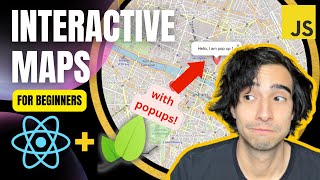
Javascript Interactive Map with Leaflet EASY (with Marker Clusters & Popups)
Skills:
Prompt Craft80%Tool Use & Function Calling80%Prompt Systems Engineering70%Prompting Basics60%
Key Takeaways
This video tutorial demonstrates how to create an interactive map with Javascript, HTML, and CSS using the Leaflet library, including adding marker clusters and popups, and customizing the map with different skins and designs. The tutorial covers various tools and techniques such as Leaflet.js, OpenStreetMap, npm, and CSS.
Full Transcript
good morning everyone how is it going today welcome to my channel my name is Alejandro and we're here to talk about web development and a little bit about data science as well because it has become a popular culture already today we're going to be building a JavaScript map and and it's going to be an interactive map and we're going to be building it with vanilla JavaScript which means that we will not be using any Frameworks such as react or angular and we're going to be making it very customizable okay so this is the end result that you see right here as you can see we have several markers right here and you will be able to add as many as you want as long as you have the coordinates every marker you can assign a pop-up to it and every marker can have a different pop-up in this example it's just the same one but every marker can't have a different pop-up we're going to be using a library called leaflet.js which is a free library and we're going to be using openstreetmap as our map provider okay so that's going to be a free map so you won't have to to worry about paying a Google API Etc the map is also pretty customizable as you can see e because here we have a different skin I just chose a watercolor skin but you can choose any different design that you want or just a very sober traditional map style it's also possible okay and last but not least there is also the possibility of adding clusters to your map and this is what we're going to be seeing so when you zoom out if there are many markers that are at the same place we're going to be able to Cluster them in just one icon that shows the amount I mean the number of markers that are in that position and by clicking on it we're going to zoom into the markers okay so as you can see as well this is a div and we're going to be able to just embed it whatever you you want okay since this is a div you can also use it as a full full screen map or you can use it as a very simple embedded map at some point in your in your new website okay so let's get right into it thank you [Music] foreign books because it's pretty much just a front-end project if you're not familiar with code sandbergs I just really recommend it for your front-end project but I'm going to be explaining the differences between code sandbox and your local environment along the way okay so that you can follow either in code sandbox or in your local environment with your machine okay so there we go so let's just take a look at the file folder structure right here so we have our index.html which is the page that in the template that's being loaded here we have our HTML file and we have a div called app okay and then we're importing our index.js here at the bottom um after that if we go see our index.html it's actually replacing the content inside the app element with this right here and this is exactly why we see this right here so what I'm going to do is I'm just going to replace it with hello world how are you and here we have hello world that's being loaded then we're also importing styles.css inside our JavaScript file and styles.css has a font family sunserve and that's all we got okay so it's a very simple folder structure and let's get right into it to start building our our application okay how does that look so there we go as I mentioned before we're going to be using leaflet JS which is a free library and if you feel like it you can also check out their documentation they have a very good and very detailed documentation um but for now let's just code it right ourselves okay um so first of all I'm not going to be using this part right here and right here this one right here I am going to rename it to map okay so this div is going to be map and right here what I'm going to do is I'm going to install leaflet first okay here my dependency list is pretty much the same as doing npm install okay so if I look here for leaflet it's pretty much just the same as doing in npm install leaflet okay so as you can see I am working with the version 1.9.3 but I mean hopefully this will be um you won't have any problems if you're loading a another version okay a newer version so first of all what we're going to do is we're going to import our leaflet Library so what we're going to do is we're going to do import everything as l from the flat there you go and now we can use l as our leaflet element okay so for the first thing we have to do is we have to initialize the map okay and how do we initialize it so we have to create our variable that's going to be a map and the map is going to be an instance of L and we're going to call it oops map like this and right here this this method right here what it does it is it requires you to load to tell it which HTML element is going to be filled with your map okay and the HTML element that we won't filled with our map is the one that we named right here so we're going to pass the ID of this one right here right there okay so the ID of this div is map so what we're going to do is we're going to pass in right here it's going to be map and then just add another method right here that's called set View set view to tell it where we want the map to be centered at the beginning so I'm just going to say it's going to be in London and the coordinates for London and our 51.5 like Arctic Monkeys and negative 0.09 and the second argument that takes is the zoom that we want this to have and we're going to set it to 13 so that we have a City View if you want to know a little bit more about the zoom levels that you have you can just Google leaflet zooms and here you have leaflet Zoom levels basically the higher it is the closer it is to the city and the lower it is the closer it is to the world view okay so I encourage you to test the zoom levels if you want to to try it out for yourself okay so now that we have initialized the map the second thing we have to do is we have to add a map layer to it okay this means that we already have our map but we have to add our map layer um to it and what we're going to do is we're going to call leaflet again and we're going to say tile layer like this and we're going to say which style layer we want to load here here we want to load our map provider okay and the map provider that we're going to be using is openstreetmap um because it's free and so you just have to load it like this right here and then tie layer also takes a second argument which are the parameters that you want to that you want to add to your map okay um and the params uh there are many but I'm just going to set it a maximum zoom level to 19 so that people don't go like very very deep into our zoom and also it's convenient to add an attribution um part to it this attribution part is basically what you see right here there you go um let me just zoom in I cannot zoom in right here so it's basically this pretty this part right here okay so I mean when you use openstreetmap you you kind of have to attribute it to to openstreetmap okay so I'm just going to add this part right here um there you go so my attribution is going to be a copy open street map open street map there you go now you have it and once we have we have already created our layer okay but now we have to actually add it to our map so to do that we are going to use another method that's going to that's called add to and it just takes us an argument the actual map element that we have just created and it is map as we decide as we defined it up here okay so now if I save and I refresh as you can see we have some problems going on right here the map is crazy for some reason and also like um it's like all over the place and we don't seem to see an actual size of the map okay when you see this problem it basically means that you are having problems with your CSS okay so as you can see we have imported the JavaScript part of leaflet but we haven't imported the CSS part of leaflet so what we're going to do to fix this is we're going to go to their tutorials or the docs whatever and we're going to add their CSS okay so include the CSS from leaflet in the set head section of your document um I am going to do it like this but if you are using um uh npm what you can do is just do something like this import leaflet and then just import the CSS from here if I'm not mistaken I don't remember you you might want to check it in your note modules um directory but if I am not mistaken it's something like leaflet test and then leaflet.css if I'm not mistaken but I'm not sure about it um I'm just gonna all right let's try it like this and let's see how it works okay now we have another problem the other problem that we have is that our div I mean leaflet pretty much just fills in our div with the map but it doesn't tell the div what size it has to be it has to be okay so what we are gonna what we're the problem that we see right now is that we don't see anything and that is because our div has a height of zero so what I'm going to do right here is I'm going to set a height to 300 pixels and there you go so now we have our height of 300 pixels and our map is working because apparently this part right here actually worked as you can see if I remove um if I remove leaflet.css this is going to this is going to become crazy okay so this is what you do this I mean just to be to make this clear this right here this line right here only works because I am using leaflet from npm okay this right here calls the leaflet.css that's actually inside node modules note modules leaflet dist leaflet CSS okay so I mean this only works if because I'm using npm if you are not using npm you're going to have to you're going to have to come right here to index.html and add your CSS right here and as you can see it works again okay but since I am using npm I'm not going to add this one right here and I am going to just add it from here there you go so here we have our map seems to be working correctly and we already have a working map in just a few lines we just initialize our map and we added the tile layer uh so that's pretty good um let's see what do we want to do afterwards uh let's add the markers Okay add markers um so to add the markers what we're going to do is we're I mean we're also following just the documentation but what we're going to do to add the markers is pretty much you just set um a new marker you call it an add marker like that and you're going to set it equal to l from leaflet marker and this marker takes several arguments but the first one is basically just its position okay so I'm just going to set it somewhere in London 51.5 and minus 0.08 there you go and then the other argument the I mean that's pretty much all that we need and then once that you have your marker that has been created you just just as you did with the layer you add two map like this and then as you can see if I save this right here and I refresh this page right here my marker for some reason does not have the the icon I suppose because the icon actually comes from this part right here so let's say if I if I use this one does it work for some reason my marker is not loading correctly I'm not sure why um [Music] mm-hmm all right give me a couple of a couple of seconds I'm just going to figure out why this marker is not loading all right so I think I got why it wasn't working actually uh the problem is that we're importing it we're importing leaflet from up here and apparently the icon is only loaded if we imported it from the actual CDN right so the icon is not here but if we import it from here um but I don't know it's just some some kind of strange problem but the this is pretty useful actually because what I'm going to do is I'm going to show you how to load your own icon okay so what we're gonna do is we're going to be using this icon right here for my from Flat icons um so I just loaded flat icon and I just opened whichever icon I wanted I'm going to be using this one and I mean you would usually download it to your to your own file to your own folder and you would load it from there but I'm just like because I'm lazy I'm just going to copy the address from here and I am going to call to paste it right here all right so we're not going to be using this one we're going to stick to npm version like that and now we're going to as you can see we don't have the marker but what we're going to do is we're going to initialize a new marker a new icon okay for this marker I'm going to call it um custom icon and it's going to be a leaflet element I'm going to call you Call leaflet and then you call an icon and this this method creates an icon and it takes several parameters okay so the first one is the icon URL and right here you just paste the URL of your icon as I just copied it I'm just going to paste it right here and now what I'm going to do is I'm going to pass that one right here as um as a parameter for my new marker so right here I'm going to add parameters right here and I'm going to say icon and the icon is going to be custom icon okay like that all right so now our icon is loading as you can see the only problem is that it's huge all right so we probably don't want our icon to be this big so what we are going to do is we're going to add a new um uh parameter here to my icon and I'm going to call it icon size and this one right here takes just pretty much the size of the icon in pixel so I'm going to set it to 38 times 38 so there you go now you have this pretty little icon that's 38 pixels by 38 pixels okay and that's how it works if you want to create your custom icon I'm just going to add it right here my custom icon there you go so now we saw how to add markers uh let's add a couple more all right how about we add three more uh two more um I'm used to two vs code so uh uh all right so there you go I'm going to move this one just a little bit to the side and a little bit um down a little bit up and this one a little bit down so there you go so now you have your three markers right here and and there you go um all right so now you have your markers but what are we going to do right now let's see how about we create a cluster for them okay so right now you can see that we have our map that's working pretty good actually you know what I'm going to show you so that you see it like full screen I'm just going to set this one to 100 viewport height so that way you can see the map all all the way here okay there you go um so there you have it we have our three markers right here and what we're going to do right now is we're going to create a cluster for this okay and now there was another question how do we create this clusters all right because so far if we move too far away it's not working correctly because we're seeing just a bunch of cluster together I mean a bunch of markers together and we don't really see what's in there so we're going to replace this with a div that is going to display the the number of markers that are in that position and then when we click on that div it's going to zoom in and show us all the markers all right so that's how it works and to do this what we're going to do is we're actually going to use a new a new dependency that's actually a plug-in for leaflet and it's called leaflet leaflet marker cluster there you go and you can find it it's on GitHub it's this one right here and as you can see it works pretty good if you want you can follow the instructions right here or let's jump right into the code and I can show you how it works okay um so far um in case you haven't noticed leaflet Works um with layers okay so first we created our map element and then to that element we have added layers okay so first we added we created our tile layer which is the map the map itself that we have added to our map element and we have added it on top of the map element as a layer okay then every marker that we're creating is sort of a layer on top of that on top of that okay so what the cluster plugin does is that it creates a new layer on top of that marker on top of that map and then it's on top of this marker cluster layer that you add your markers and then all the markers that are inside this layer are going to be clustered together when they're closed and then shown separately when they're when they're dispersed okay so let's create this cluster layer okay so to create a cluster layer the first thing that you need to do is install this leaflet Market cluster dependency and to do this you can just do leaflet Mark your cluster I mean as I told you before when I search for dependencies right here it's pretty much as though you were importing them installing them with npm so I just what I made is pretty much equivalent to doing npm install leaflet marker cluster and I'm working with version 1.5.3 and leaflet is 1.9.3 now that I have installed it what I'm going to do is I'm going to import it right here I'm going to down import leaflet leaflet Market cluster there you go and this right here is going to extend this L element right here and it's going to give me access to a new part of it to a new method in this element and it's going to be marker cluster group there you go and basically this this pretty much allows us to create this new layer that is going to be the marker cluster group where we're going to put our markers um so I'm going to create that layer I'm going to call it my custom you know my cluster layer what's equal to that and this one right here actually takes in some arguments um but first of all we're having a problem right here and I want to show you how the why this is not working because you might run into some problems some of these problems here if you're using a npm and a bundler okay so for some reason the cluster plugin does add the marker cluster group function a method to the L element but the problem is that sometimes it doesn't recognize the actual L element from leaflet and it just creates a new one um so to access that new one you would actually have to access it through window.l that market cluster and if as you can see now we don't have an error um I think this is a bug from the plugin and I hope it's fixed soon but another way to look at it is that if you do console log and you check whether window dot l equals l then you're going to see that it actually that it actually I mean at least in my case it prints false which means that window.l and L are not the same thing so yeah I mean if you were having that problem just add a window in front of the L for mask for Mark your cluster group and you will be fine okay all right so let's continue creating our cluster layer this function actually takes in several arguments but the one that we're going to use right here or if we're going to add a function that creates the icon that we're going to see when we have a cluster okay so this phone this argument this parameter is called icon create function there you go and as the name suggests it takes in a function and the function takes in one argument which is cluster okay and this cluster is actually the cluster of the of your markers okay and this function what it does is it has to return your your your div okay so let's see um let's add return l dot div icon which because we're going to create an icon for this and inside this div icon we're going to add some HTML and the HTML is going to be a very simple div okay div and we're going to give it a class so that we can actually modify it later and the class is going to be cluster div like that now let's close our div like this there you go and let's add something inside here and inside here what we're going to do is going to add the cluster dot get child count which basically what it does is it Returns the number of of markers inside that cluster okay so that way what we're going to see right here when we see the cluster we're going to see a div with a class of cluster div and the content of that div is going to be the child count the number of Cl of markers that are inside it okay so that's how this goes uh so we have already created our cluster layer what we're gonna have to do right now is we're going to add this Mark is right here but instead of adding them directly to the map what we're going to do is we're going to add them to our layer to our cluster layer okay so first of all what I'm going to do is I'm going to you know what I'm going to do I'm actually going to take all of this I'm going to add them actually I'm going to create them after the cluster layer down here there you go and I'm not going to add them to the map like this like that there you go there you go and actually I mean this is ridiculous why did we have different names for different L as the same name for different elements so now we have different markers and I'm just going to actually use a is const instead of VAR there you go so now we have our three different markers each of them using our custom icon but we haven't included them in our layer so what we're going to do is we're going to add them on top of our cluster layer and to do that what we're going to do is we're going to call our cluster layer and basically we're just going to say add layer on top of it and we're going to add a layer for and we're going to add each marker as a layer to it so I'm going to add marker one there you go and then if I refresh I should actually see it over there what is going on right here [Applause] my cluster layer add cluster layer at layer my cluster layer what is going on right here Market 2 is assigned console is not working um what is going on right here oh yeah sure actually I mean we have we have successfully added this marker to our cluster layer but the problem is that the layer is not yet added it's not being added yet to our actual map all right so what we're going to want to do in the end after we have added our markers we're going to call our map and we're going to add the layer which is going to be our cluster layer there you go and now there's five if I save this now we have our marker that we have added to the cluster layer and ideally we would want to do the same thing for our marker 2 and our marker 3 and there you have it now we have our three markers working correctly and if we zoom out you can see that we have a div with the number three in there okay so that is pretty convenient we already have a div element which displays the number of items that we have and if we click on it we see the actual three markers over there but I mean of course that is pretty ugly so what we would ideally want to do is actually um like style it so that it actually is fun to see all right I mean I mean this obviously is pretty ugly so remember that we added the cluster Dave class for that one like this not like that like this there you go so what we're going to do is we're just going to restyle this right there so let's add a background color up background color to white why not let's uh let's set its height to 3 REM and it's with oops and it's with oh two three REM two um let's add a border radius to 50 so that we see an actual Circle and let's add a very cute box shadow box shadow of what's uh let's set it to the center zero pixels and four pixels there you go let's see how that looks like there you go uh it's looking pretty good the problem right now is that we're actually seeing it I mean it's displayed I mean it's all it's a little bit not where we want it to be we want it to be actually on top of the cluster and it's I mean only its upper corner is on in the center so what we're going to do to fix this thing right here is pretty much we're going to transform and we're going to translate it and we're going to say minus 50 percent and minus 50 percent there you go and now if we save this it should be there the problem is that our number three is very small over there so what we're going to want to do is we're going to actually Center it I'm just going to use this place on display flex and and Center it like this then what are we going to do let's add a font size of 1.5 REM so that's three and let's set it and it's font weight to bold so that it's a little bit easier to look at it there you go so now we have our number three and it's looking pretty good but remember that we can just like like modify this this the stiff with with our class that we have just added right here okay so I mean that hopefully gives you a lot of freedom to to modify your cluster divs and also remember that you can add as many cluster layers as you wish so that markers can cluster together independently so if you have I don't know some markers for members of of uh of um I don't know of a community or or for events or something and you want them to close to Cluster together and not like in the same cluster you can just add different cluster layers for those and add the markers separately okay now this is very um a little dirty because I mean you would you wouldn't actually do this like in real life you would actually call this into an array and then Loop through the array and then create your markers but that's how it works okay I mean this is just to show you how it works I'm just going to show you pretty quick as well how you add pop-ups to to your to your markers and this is this works pretty much like this to a marker element I mean like here we have our marker number one and to the marker number one we're going to add marker one we're going to add a math we're going to run a method that's called bind popup like that and right here it basically just takes any HTML that you want okay I'm going to say I'm going to add an H3 like this there you go I'm going to say I am a pop-up there we go um and as you can see this right here has created a pop-up in one of this which one is it it's this one okay as you can see this is pretty much entirely customizable as well because I just added whatever HTML right here and it was loaded inside my pop-up and as you can see you can add different pop-ups to different to different two different markers so I am pop-up for marker two there you go and then if I reload then I have my pop-up for marker 2 and this is my pop-up for Market one there you go all right um so now that we have seen how to create our map how to add our cluster groups how to add our pop-ups and how to actually change their icons what we can do now is I'm going to show you how to modify this style of the bag I mean of the actual net okay so so far we're actually just using a very simple tile layer um add markers to Cluster there you go so right now we're actually using a very simple tile layer that comes from from openstreetmap and it's actually very convenient if you want your map to be pretty sober but the idea is that if you want your map to be a little bit more different you can come right here and look for leaflet skins something like that and you will find that something called leaflet provider okay and it basically just allows you to choose many different schemes and some of them are some of them are like paid for some of them are free what I recommend is that you test them and see which ones are which one is free and which one works for you okay um to actually use it what I like to do is I want to go to GitHub right here and here you have the example of how to use this thing okay you can either include it with a script or you can install it with npm which is what I'm going to do myself and to install it you just add Leaf npm install leaflet providers like this one and now I have installed leaflet providers and let import leaflet oops leaflet providers like that there you go and now I can actually I am getting access to a new element in my in my L thing in my like L object and here I can add another tie layer like this one and instead of just opening this one right here I'm gonna be able to add a provider to it like this there you go and inside the provider I can just run whichever whichever map I want okay here you have the example and here you have the diff different Maps actually work differently so I really recommend that you take a look a quick look at this before you choose which skin you want to use I'm just going to use a very simple one which is free but some of them do require an API key okay so this is to include them as you see what I did is style layer provider then you say the name of your map sometimes you require an API key sometimes you don't I am just going to use a free one which is this one's name in watercolor and there you go and I'm just going to add it right here like that same in watercolor which is basically same in watercolor it must be somewhere around here I cannot find it but I mean once you find one that you like you can just check it it's ja WG so you come right here how this download goes all right so Joe G maps in order to use geology Maps you must register once registered Etc so you will get an access token okay so I mean depending on which one you choose you might want to come here to your documentation and check what are the requirements for that actual skin I'm just going to use this free one which is the watercolor one I'm going to paste it over there and the thing is that I have actually created my entire layer but this one right here is going to replace this one right here so what I want to do is I'm going to remove this one from the map right here and I'm just going to add this one instead so add 2 map there you go and if I save now I have my watercolor skin working okay and that's pretty much how it works now you have your cluster now you have your very sophisticated skin and style for your map you have different pop-ups four different icon for different markers you also learned how to change the icon of your markers and yeah I mean that's pretty much how to create maps for this I mean I could go all the way and actually just add um add the like just as I showed you before but I mean I think this is pretty clear all ready and as I mentioned before this is completely customizable you can just tweak pretty much all the parameters that I showed you and just like Center it somewhere else with a different with a different zoom and you can set it to default to Europe or to the United States Etc um there you go what else uh yeah so as I was showing you this actually comes all of it is inside this div which is div ID map so if you want to add this div like if you want to set it to full screen unless I like I did you can just set it to 100 viewport height but if you want to include it just in a section of your website you can just do that as well after all it's just a div and it's all in the JavaScript so I hope you found this this tutorial useful I hope you enjoyed it please subscribe if you want to see more of this kind of videos and like the video of course that helps me a lot for the YouTube algorithm and yeah I hope you have a great day and I'll see you next time [Music] [Music] thank you [Music]
Original Description
Do you want to create an interactive map with Javascript, HTML and CSS for your website? In this tutorial, I am going to show you how to use leaflet to create an interactive map. Leaflet is a framework for presenting map data. The web developers are required to give the data and base map layer. The maps include browser compatibility, built-in interactivity, panning and zooming, and are made up of tile layers.
Along with Leaflet's entire mapping functionality, you can also add additional custom layers and plugins. The majority of developers choose this mapping library since it offers great support and translates your data to map layers. It is an ideal JavaScript library for mobile and larger screen maps because it functions incredibly well across all popular desktop and mobile platforms.
Creating simple interactive maps with leaflet in a simple manner. Although having some prior knowledge of HTML and JavaScript is helpful, it's okay if you're a total beginner. With this JavaScript library, it's pretty simple, and I'll show you through each line of code as I make this beautiful, enlightening map. So let's show you how to create a beautiful and interactive map with HTML, CSS and Javascript Leaflet.
Time stamps:
0:00 Introduction
2:45 Folder structure
4:30 Install dependencies
5:45 Initialize map
7:50 Add map layer from OpenStreetMap
10:00 Import styles and set up size of div
13:30 Add markers
15:50 Add custom icon to markers
19:15 Add cluster for markers
33:55 Add pop ups to markers
35:24 Add skins to your map
39:40 Review and conclusion
Watch on YouTube ↗
(saves to browser)
Sign in to unlock AI tutor explanation · ⚡30
Playlist
Uploads from Alejandro AO · Alejandro AO · 5 of 60
1
 2
2
 3
3
 4
4
 ▶
▶
 6
6
 7
7
 8
8
 9
9
 10
10
 11
11
 12
12
 13
13
 14
14
 15
15
 16
16
 17
17
 18
18
 19
19
 20
20
 21
21
 22
22
 23
23
 24
24
 25
25
 26
26
 27
27
 28
28
 29
29
 30
30
 31
31
 32
32
 33
33
 34
34
 35
35
 36
36
 37
37
 38
38
 39
39
 40
40
 41
41
 42
42
 43
43
 44
44
![Multimodal RAG: Chat with PDFs (Images & Tables) [2025]](https://i.ytimg.com/vi/uLrReyH5cu0/mqdefault.jpg) 45
45
![Advanced RAG with LlamaIndex - Metadata Extraction [2025]](https://i.ytimg.com/vi/yzPQaNhuVGU/mqdefault.jpg) 46
46
 47
47
 48
48
 49
49
 50
50
 51
51
 52
52
 53
53
 54
54
 55
55
 56
56
 57
57
 58
58
 59
59
 60
60

Linear Regression in R - Full Project for Beginners
Alejandro AO
Configure Webpack 5 in Wordpress (2025) with Typescript and SASS
Alejandro AO
R Programming 101 - Crash Course for beginners
Alejandro AO
Convert HTML template to WordPress Theme (2025) - Full Course
Alejandro AO
Javascript Interactive Map with Leaflet EASY (with Marker Clusters & Popups)
Alejandro AO
Vanilla JS Project: Multi Step form in HTML, CSS & OOP Javascript
Alejandro AO
How to do AJAX in WordPress correctly (2025)
Alejandro AO
React Leaflet Tutorial for Beginners (2025)
Alejandro AO
Linear Regression in Python - Full Project for Beginners
Alejandro AO
Logistic Regression Project: Cancer Prediction with Python
Alejandro AO
Display Equations in ChatGPT
Alejandro AO
Create a Chrome Extension (Manifest V3) for ChatGPT
Alejandro AO
Full-Stack Project | ChatGPT API, React, Node.js, Express
Alejandro AO
Streamlit Python Course: Build a Machine Learning App to Predict Cancer
Alejandro AO
Langchain PDF App (GUI) | Create a ChatGPT For Your PDF in Python
Alejandro AO
LangChain Memory Tutorial | Building a ChatGPT Clone in Python
Alejandro AO
Chat with a CSV | LangChain Agents Tutorial (Beginners)
Alejandro AO
Create a ChatGPT clone using Streamlit and LangChain
Alejandro AO
Chat with Multiple PDFs | LangChain App Tutorial in Python (Free LLMs and Embeddings)
Alejandro AO
Full Python Environment Setup for AI (or other) Apps + Virtual Environments
Alejandro AO
Langchain + Qdrant Cloud | Pinecone FREE Alternative (20GB) | Tutorial
Alejandro AO
LangChain Version 0.1 Explained | New Features & Changes
Alejandro AO
Create a RAG Chain using LangChain 0.1 (New version)
Alejandro AO
Tutorial | Chat with any Website using Python and Langchain (LATEST VERSION)
Alejandro AO
Deploy Your AI Streamlit App for FREE | Step-by-Step (Heroku Alternative)
Alejandro AO
What is Google's Gemini 1.5 Pro | 10 Million Token Window
Alejandro AO
Chat with MySQL Database with Python | LangChain Tutorial
Alejandro AO
Stream LLMs with LangChain + Streamlit | Tutorial
Alejandro AO
Chat with MySQL Database using GPT-4 and Mistral AI | Python GUI App
Alejandro AO
#1 Harrison Chase: LangChain and The Future of LLM Applications | Alejandro AO
Alejandro AO
CrewAI Step-by-Step | Complete Course for Beginners
Alejandro AO
Python: Automating a Marketing Team with AI Agents | Planning and Implementing CrewAI
Alejandro AO
Build a Web App (GUI) for your CrewAI Automation (Easy with Python)
Alejandro AO
Early days of RAG and LlamaIndex - Jerry Liu
Alejandro AO
LlamaParse: Convert PDF (with tables) to Markdown
Alejandro AO
#2 Jerry Liu - What is LlamaIndex, Agents & Advice for AI Engineers
Alejandro AO
CrewAI + Exa: Generate a Newsletter with Research Agents (Part 1)
Alejandro AO
#3 Joe Moura | Multi Agent Systems and CrewAI
Alejandro AO
Python: Create a ReAct Agent from Scratch
Alejandro AO
New Groq Models: Best for Function-Calling Agents
Alejandro AO
Introduction to LlamaIndex with Python (2025)
Alejandro AO
LlamaIndex: How to use LLMs
Alejandro AO
LlamaIndex: How to Get Structured Data from LLMs
Alejandro AO
Multimodal RAG: Chat with PDFs (Images & Tables) [2025]
Alejandro AO
Advanced RAG with LlamaIndex - Metadata Extraction [2025]
Alejandro AO
Learn MCP Servers with Python (EASY)
Alejandro AO
Create MCP Clients in JavaScript - Tutorial
Alejandro AO
Create an MCP Client in Python - FastAPI Tutorial
Alejandro AO
How to Build an MCP Client GUI with Streamlit and FastAPI
Alejandro AO
Vibe Coding For Engineers (make it ACTUALLY work)
Alejandro AO
LlamaExtract Tutorial: Convert PDF & Images into JSON
Alejandro AO
Local MCP Servers for Cursor (Step by step)
Alejandro AO
Anthropic: How to Build Multi Agent Systems
Alejandro AO
Deploy Remote MCP Servers in Python (Step by Step)
Alejandro AO
GPT-5 for Developers: API Changes, Pricing, Model Router & Security
Alejandro AO
Tutorial: Auth for Remote MCP Servers (Step by Step) | OAuth 2.1 with ScaleKit
Alejandro AO
Generate UI Tests with TestSprite MCP Server + TRAE
Alejandro AO
#4 Allan Guo | 19-yo YC Founder - Willow Voice
Alejandro AO
RAG Project: Build an AI Onboarding Chatbot with Streamlit, LangChain, and ChromaDB
Alejandro AO
MCP Security | Malicious MCP Servers (Protect Yourself)
Alejandro AO
More on: Prompt Craft
View skill →








Related AI Lessons
⚡
⚡
⚡
⚡
Had my Frontend Developer interview with Capgemini (Application Developer) today, and I wanted to…
Medium · JavaScript
10 Frontend Developer Tools to Boost Productivity in 2026
Medium · Programming
10 Frontend Developer Tools to Boost Productivity in 2026
Medium · JavaScript
The US Frontend Engineer Market in 2026: A Data-Driven Reality Check (and the Bias That Stops Us Seeing It)
Dev.to AI
Chapters (12)
Introduction
2:45
Folder structure
4:30
Install dependencies
5:45
Initialize map
7:50
Add map layer from OpenStreetMap
10:00
Import styles and set up size of div
13:30
Add markers
15:50
Add custom icon to markers
19:15
Add cluster for markers
33:55
Add pop ups to markers
35:24
Add skins to your map
39:40
Review and conclusion
🎓
Tutor Explanation

 DeepCamp AI