Scratch Tutorial | Cat And Mouse Game | Scratch Tutorial for Beginner
Skills:
Visual / Block Coding90%
Key Takeaways
Builds a Cat and Mouse game using Scratch with variables, loops, and broadcast messages
Full Transcript
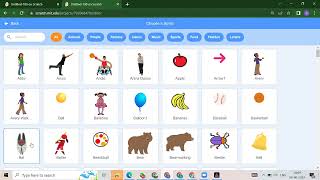
hello everyone welcome back to my channel code for kids so today we are going to learn about one different projects which is very good so the project name is cat and rat battle okay so if you want latest update please like share and subscribe our channel if you want more videos just whatever project you want in a comment box just write down that project name and in the next video i will show you okay so first thing now i will run this project i will show you okay see so if you want to move your right you need to just press it up arrow down okay so now let's see how we will create this project so first thing what we will do we will take my new project so instead of this pattern if you want another sprite even you can add that okay so this is just up to you which sprite do you want okay so now first i will take a new file so this is very simple you need to just click on file and new so here we need to take one back first we will delete this cat so which backdrop you want so this is up to you just scroll down you will get lots of backdrops so whatever you want you can just upload here okay suppose i want the simple filled admin mit okay after that whatever sprite you want you need to just click here on a chooser sprite so in the animal you will get all the animals sprite suppose if you want the same sprite you can take this cat suppose i want the same so i will take a cat after that you want one rat also so in the animal you will get that so here is our mouse see this so now we have two sprite and we added the backdrop also so this is our design part so instead of this sprite if you want to add other sprites also you can add that so this is very simple process you need to just click on choose a sprite and whatever sprite you want you can add from here okay so now this is our one part means how you would design any project okay after that i will show you how you will add your coding part it means how you will add a instruction okay suppose for this cat what instruction we want okay like um cat can move after that we want the sound also this all are the instruction we have to give to our cat okay so how we will do that so always in our every video i told you you need to first add your event okay so you need to just click on this when flag is split so wing flag is clicked we want to update our score also so score is our variable it is just like your container miss bring cat will touch to the red we want to increase our score okay so how we will add the variable in the variable section we need to just click on make a variable write down your variable name score click on ok so you will get a score variable so initially we will set our score to zero see initially we have a score 0 okay after that we want all the things continuously right so for that we will take out forever forever means if you want anything continue again and again so we need to take this forever okay now for the cat we want to take a turn right so where you will get your turn inside the motion we can take this right and or left and this is up to you but where we want to take return so we want one random value means not a fixed position we want one random position okay and where so as you can see right now what suppose i want the position suppose little bit this okay so what is this position in the x-axis so i will take around minus 30. okay we did the coding here so we have to do this here okay see so suppose i want here near about c so we can take it minus 30 because here we have a minus 20 here so lump sum we can take minus 30 and for y position what we want near about this so this is also a 30 so we can make it 30 okay now see if i will write see okay and we don't want this score here so we will remove this now in the cat so we have this random value suppose we want to move our cat also so we can take this more instead of 10 step if you want little bit less you can make it five step okay now we will give some condition which condition if it will touch to our mouse okay means the cat will touch to the mouse so what will happen so where you will get that condition inside your control you will get f okay so if where you will get your touch here so instead of this mouse pointer we will make it as mouse one so if that will touch to your mouse one so what will happen now we want to change our score by 1 initially we have a score 0 now we want to change the score by 1 so instead of my variable take this so first time you will get one second time you will get two then three and what sound you want you can add so where you will get sound inside the sound block you will get this star sound okay after that what will happen if mouse will touch if rad if this cat will touch to your mouse so we won't move but instead of pin we want as like a minus hundred why because we don't want to touch the mouse if cat will touch to the mouse we want or the little bit ins a distance between your cat and your mouse okay again when flag is clicked so this is our second instruction so in the first instruction what we did we need to set a score we have to take one random position we want to move again we given one condition if mouse will if this cat will touch to your mouse we want to change the score we want to set a sound and we want to move 100 step but in the opposite direction again this is our second instruction which flag is split so again we want this thing into forever so we can take a forever and now we will take our mouse pointer okay so where you will get your mouse pointer you will get here point towards your mouse pointer and again if you want to move you can move instead of 10 if you want to move only five step or three step so this is based on you now see so as you can see i'm not pressing anything so this cat is following my mouse okay suppose if i will take my mouse here even you will get sounders you see but for this mouse we didn't uh did anything here right so how you will create your mouse how you will add the scripting part for your mouse so this is our second task okay how you will do that so here we want only four arrows if we will click on up arrow so what will happen if we will click on down arrows of what will happen then left arrow then right arrow so how we will do that again you just go to the event we will take this four time because instead of space we want up arrow down arrow lift arrow right arrow so here i will take up down then left after that right see we have a four arrows here up arrow down arrow left arrow right arrow so how you will decide where you want to go once we will click on up arrow so again in the motion you will get your point in direction but as you can see here 90 once you will click here you will get a direction but as you can see this is your right direction we want up direction here so you need to just take it up so for the down again at the same thing but instead of 19 now we will take a down direction see same for left arrow instead of mouse pointer um wait we need to take this point in direction instead of 90 for left so this is the left direction okay and now we have right direction so already by default this is in right direction okay and here we want to just move so we will take move 10 steps as you can see see now if you see this cat is following my mouse as you can see the mouse is following the up arrow down arrow left arrow right arrow see okay so by using this method you can create a battle about like a cat and mouse petal or cat and red butter or if you want you can add other sprite cells okay and the next part how you will rename this project so you need to just remove untitled you can write cat and right button okay and how you will share your project you need to just press the share button copy that link and uh paste this link for so please like share and subscribe our channel please subscribe and in a comment box whatever project you want you just mention that and in the next video i will give you that project okay so thank you so much have a great day bye bye see you soon thank you so much
Original Description
In this scratch tutorial, we will learn how to make a "Cat and a Mouse" game.
Scratch project - https://scratch.mit.edu/projects/705488946
We will be learning these following concepts in scratch
- Variables
- Loops
- Broadcast messages
- Controlling sprite with your mouse
- Custom Block
query solved :
cat and mouse game online
scratch cat
scratch game
scratch chase game
cat scratch game
Playlist
Uploads from Code For Kids · Code For Kids · 14 of 60
1
 2
2
 3
3
 4
4
 5
5
 6
6
 7
7
 8
8
 9
9
 10
10
 11
11
 12
12
 13
13
 ▶
▶
 15
15
 16
16
 17
17
 18
18
 19
19
 20
20
 21
21
 22
22
 23
23
 24
24
 25
25
 26
26
 27
27
 28
28
 29
29
 30
30
 31
31
 32
32
 33
33
 34
34
 35
35
 36
36
 37
37
 38
38
 39
39
 40
40
 41
41
 42
42
 43
43
 44
44
 45
45
 46
46
 47
47
 48
48
 49
49
 50
50
 51
51
 52
52
 53
53
 54
54
 55
55
 56
56
 57
57
 58
58
 59
59
 60
60

#Scratch Tutorial 1 | How to create your own Scratch account #codeforkids #scratch #Game Development
Code For Kids
#Scratch Tutorial 2 ||How to enable Share Button option in Scratch #codeforkids #scratch #game
Code For Kids
Fish Moving inside an Ocean 🌊🌊 #codeforkids #scratch 🥰
Code For Kids
Scratch Programming | Fish Aquarium game | #codeforkids #scratch #game
Code For Kids
Draw the circle in scratch#codeforkids #scratch #game
Code For Kids
Draw Circles in Scratch || How do you draw shapes on Scratch? #codeforkids #scratch #game #coding
Code For Kids
How to Make a Dino Jump Game in Scratch | Tutorial #codeforkids #scratch #game
Code For Kids
Scratch Tutorial || How to Make a Catch Game in Scratch.|| Scratch Tutorial for absolute beginer
Code For Kids
Scratch Tutorial || Day 1
Code For Kids
Scratch Tutorial || Day 2 (DJ System , Dance and Story writing)
Code For Kids
How to Make A Maze Game in Scratch 3.0 | Scratch 3.0 Tutorial |Scratch Tutorial for begineer
Code For Kids
Scratch Tutorial || Day 3
Code For Kids
Scratch Tutorial || Day 4
Code For Kids
Scratch Tutorial | Cat And Mouse Game | Scratch Tutorial for Beginner
Code For Kids
Scratch Tutorial || Day 5
Code For Kids
how to make dress up game on scratch || Scratch Tutorial for Beginner
Code For Kids
How to Make a Pong Game in Scratch || Scratch Tutorial for Beginner
Code For Kids
Scratch Tutorial || Day 6(part 1)
Code For Kids
Scratch Tutorial || Day 6( Part 2)
Code For Kids
Scratch Tutorial || Day 7
Code For Kids
Scratch Tutorial || Day 8
Code For Kids
How to Make Piano Game || Learn to Use Music Extension || Scratch Tutorial || Day 8
Code For Kids
How to Make Piano Game || Learn to Use Music Extension ||Scratch Tutorial for beginner
Code For Kids
Scratch Tutorial || Day 9
Code For Kids
Scratch Tutorial || Draw Shapes #shorts #codeforkids #youtubeshorts
Code For Kids
Scratch Tutorial |How to Draw Shapes in Scratch #scratch #scratchtutorials #codeforkids
Code For Kids
Day 10|| Scratch Tutorial
Code For Kids
Scratch Tutorial || Archery Tutorial
Code For Kids
#1 || Thunkable Beginner Tutorial Platform Overview
Code For Kids
App Development ||Tutorial 2 || how to add button in Thunkable || Thunkable for beginner #codeforkid
Code For Kids
App Development || Tutorial 3|| Beginner Tip "Change screens with a button click" in Thunkable
Code For Kids
Scratch Tutorial ||
Code For Kids
Thunkable Tutorial || Using Camera and Image Recognition components with Thunkable
Code For Kids
Build a Translator App with Thunkable ||Thunkable App Development || Tutorial 5||
Code For Kids
Thunkable Beginner Tutorial #6 || Web Viewer|| Redirecting App
Code For Kids
#1 World in Python || Python Tutorial || Python Programming || Google Colab
Code For Kids
#2 Python Tutorial for Beginners | User input in Python | Command Line Input | Python Variable
Code For Kids
#3 Python Comments | How To Write Comments In Python | Python Tutorial For Beginners |
Code For Kids
#4 Python Tutorial for Beginners | Data Types in Python
Code For Kids
#5 Numbers & Typecasting in python | Python Tutorial
Code For Kids
#6 Strings Tutorial | How To Use Strings In Python | Python Tutorial | Python Training |
Code For Kids
#7 Slicing And Other Functions In Python | Python Tutorials For Absolute Beginners.
Code For Kids
#8 Boolean in Python | Python Tutorial for Begniner
Code For Kids
#9 Python Tutorial for Beginners | Operators in Python
Code For Kids
#10 Lists And List Functions | Python Tutorials For Absolute Beginners
Code For Kids
#11 Tuple in Python | Python Tutorial
Code For Kids
#12 In Python | Python Sets Tutorial | Python Tutorial for Beginners | #python #pythonprogramming
Code For Kids
#13 If Elif Else Statement in Python || Python Tutorial for Beginners |
Code For Kids
#14 While Loop in Python ||Python Tutorial for Beginners
Code For Kids
Python Tutorial for addition of 2 numbers #shorts #youtubeshorts #codeforkids #pythonprogramming
Code For Kids
Python Tutorial for absolute Beginner|| While loop #pythonprogramming #shorts #youtubeshorts
Code For Kids
Machine learning for the kids with Scratch || Machine Learning for kids ||Day 1
Code For Kids
# Tutorial 1 || Machine Learning for kids | Image Classification example | Girl and boy
Code For Kids
#15 For loop in Python || Python Tutorial for Beginner
Code For Kids
# Tutorial 2 || Machine Learning for kids | Smart Home Automation | Turn On the Fan
Code For Kids
#Tutorial 3 || Snapchat Filter in Machine Learning|| Machine Learning for the kids ||
Code For Kids
#Tutorial 4 || Image Identification || Machine Learning for the kids|| Tiger , Elephant, boy
Code For Kids
Scratch Tutorial || Apple Catcher Game || Fruit Catcher|| catch game in Scratch
Code For Kids
Scratch Tutorial || How to record audio in Scratch || Scratch Tutorial for beginner ||
Code For Kids
Scratch Tutorial || how to translate language in scratch || Scratch tutorial for beginner
Code For Kids
More on: Visual / Block Coding
View skill →




Related Reads
📰
📰
📰
📰
The 11 AI Tools Worth Learning in 2026 (And What Each One Is Actually For)
Medium · ChatGPT
LIFE BEFORE 2022 BC(before ChatGPT)
Medium · ChatGPT
AI Tools for Small Business Automation: One Bounded Job Before You Buy
Dev.to AI
From Zero‑Budget to Interview Calls: Leveraging Free AI Bots for Tech Job Hunts
Dev.to · Elyasians(elyasians.com)
🎓
Tutor Explanation

 DeepCamp AI