Beginner's Guide to Style References (sref)
Skills:
Image Generation Basics90%
Key Takeaways
Midjourney's Style References (sref) enable capturing visual styles from existing images and applying them to new creations, utilizing the Midjourney platform and Style Explorer tool.
Full Transcript
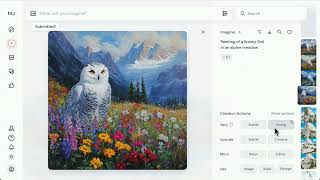
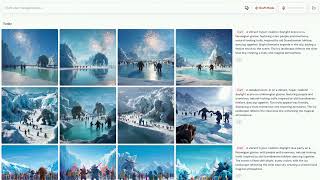
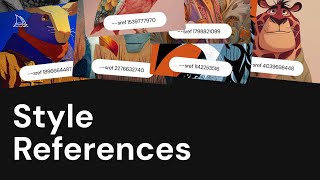
Style references in Midjourney are a powerful tool that let you guide your creations towards a unified style or visual vibe. It doesn't copy objects or people, just the overall style like colors, medium, textures, or lighting to help you achieve a consistent visual theme. Let's take a look at style references and begin to understand how we can use them in our prompts, how we can control the style intensity, how they balance with other parameters, and how we can blend styles together to create new and unique aesthetics. Style references, also affectionately called SREFs, help you develop a unique aesthetic that goes far beyond what text prompts alone can achieve. There are two ways that you can use style references. Imagebased references and style reference codes. To use an image as a style reference, simply drag and drop the image into the style reference section of the imagine bar. Add your prompt and run the job. Midourney will apply the style of that image, including its colors, textures, medium, and lighting, to your new creations and help you maintain a nice consistent visual style. You can also use style codes, which are a unique set of numbers that are tied to a particular style and aesthetic. To apply a random style code to your ideas, you can type d-sref random at the end of your prompt. Midin will randomly select a style and apply it to your prompt. Once submitted, you'll be able to see the reusable srf code that you can now add to the end of your prompt to generate things that match the unique style presented by that code. You can also use the style explorer on the explore page to find some inspiration, explore codes, and apply them to your ideas. Use the filter options on the top left to switch between random styles and more popular styles that have been favored by the MidJourney community. If you're looking for something specific, try using the search bar to narrow your results. When you find something you like, tap the like icon to save the style and use it in your future creations. You can find your favorites by clicking likes in the top left corner of the explore page. To see a style in action, type your prompt into the imagine bar and click the try style button while exploring. Return to your create tab to see the results. You can easily reuse any of your style codes by clicking the sref tag in your past prompts. Midini also allows you to control the level of influence your style reference has on your image generations. Both images and codes can be tuned by adding d-sw, which stands for style weight, followed by a value between 0 and 1,000. Let's take a look at the same prompt and same sref code with different style weight values applied. We'll start with the default of 100 and then push it to the highest setting of style weight 1,00. Next, we'll bring it all the way down to zero. We can also use a permutation prompt to quickly test a range of values between 25 and 900. Let's take a look at the results. Low style weight values will have a more gentle effect and balance more with the prompt and the base midenn aesthetic. While at higher style weight values, the style will be applied more intensely and become more prominent in your outputs. Let's take a look at a few more examples with different SREF codes. Some style references can be highly opinionated and override specific elements in your prompt, like the red bird in this example. As the style weight increases, we can begin to see this effect in action. Watch out for conflicts between your prompt and the references which you're using and experiment with different values of style weight for different types of imagery. Style references can also be balanced with other parameters in midjourney. Try pairing it with the stylized parameter to control how much artistic creativity is applied to your image. the chaos parameter to increase the variety between the images in your grid or pair it with your personalization profile or mood boards to further control the aesthetic of your creations. If you're looking for more photorealistic results, try combining a style reference with the raw parameter. Once you've mastered basic use of style references, you can go a step further by beginning to blend styles for multiple images or codes. create an entirely new and unique look. Blend codes together by typing d- sref and listing the codes you want to mix. By default, the two styles will be blended together at equal value. To change the balance between your blends, you can add a double colon followed by a number after a code to give it more influence. In this example, the second code has three times the impact on the results. And we can see that style more prominently in the output image. We hope you have fun exploring and sharing your favorite style references with your friends and colleagues. As always, visit our help center to discover even more ways to imagine in MidJourney.
Original Description
What is a Style Reference?
A Style Reference (sref) is a way to capture the visual vibe of an existing image and apply it to your new Midjourney creations. It doesn't copy objects or people, just the overall style—like colors, medium, textures, or lighting—helping you achieve a consistent visual theme.
Discover new style codes on our Style Explorer and find inspiration for your creations. You can browse styles, try them instantly, and even save your favorites for later at https://www.midjourney.com/explore
Learn more at https://docs.midjourney.com
Watch on YouTube ↗
(saves to browser)
Sign in to unlock AI tutor explanation · ⚡30
Playlist
Uploads from Midjourney · Midjourney · 4 of 14
1
 2
2
 3
3
 ▶
▶
 5
5
 6
6
 7
7
 8
8
 9
9
 10
10
 11
11
 12
12
 13
13
 14
14
Midjourney Web is Live
Midjourney
Introducing Draft Mode for Midjourney V7
Midjourney
Introducing Midjourney V1 Video
Midjourney
Beginner's Guide to Style References (sref)
Midjourney
How to Use Stylize Parameters
Midjourney
Create and Use Moodboards to Make Images
Midjourney
Get Better Images with Personalization
Midjourney
An Underrated Feature: Chaos / Variety
Midjourney
Create Your First Video
Midjourney
How to Organize Your Creations
Midjourney
Start Here: Making your First Image
Midjourney
Discover Different Creation Modes
Midjourney
5 Ways to Use Images in Midjourney
Midjourney
Midjourney TV 24/7
Midjourney
More on: Image Generation Basics
View skill →

![Qwen 2.5 AI: Complete Beginner Tutorial [100% Free and OpenSource]](https://i.ytimg.com/vi/kdSSgMDk_QE/mqdefault.jpg)



Related AI Lessons
⚡
⚡
⚡
⚡
FREE AI Sin City Photo Generator — Turn Any Photo Into High-Contrast Noir Art (2026)
Dev.to AI
Google makes Gemini’s personalized image generation free for all US users
The Next Web AI
Gemini’s personalized AI image generation is now free for U.S. users
TechCrunch AI
WebP's Compression Secret: How a 1MB PNG Becomes a 200KB WebP
Dev.to · swift king
🎓
Tutor Explanation

 DeepCamp AI