3D Car Racing Game Tutorial in Scratch || Free Scratch Projects|| Scratch Tutorial for beginner|
Key Takeaways
Creates a 3D Car Racing Game in Scratch for beginners
Full Transcript
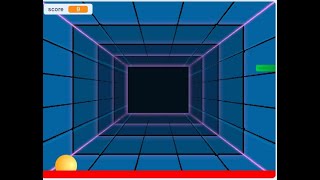
hello everyone welcome back to my channel code for kids how are you all how was your day I hope you are enjoying your day so today we are going to learn about one car racing game this is a 3D car racing game okay so for this game what we are going to do first I will run this project I will show you like what we are going to create today so we need to just just use our Arrow key okay so by using your left Arrow right arrow even you can move the car okay see like this so now I will explain you if you want to create this game for this what we will require so first we will require our first Sprite Which is car as you can see this is our car okay so we will require car after that this is our road it looks like a road so we want to add this Sprite also so so this is our second Sprite for this Sprite we have a first costume second costume then uh we will require this board as you can see so instead of uh here we have some obstacles so like this is our first obstacle which is house then we have a trees then uh this like your land then we have this light we have this costume okay so here we need to add some costume which is our obstacle then we have our fourth Sprite like this means here we need to select our costume then we have our next Sprite Which is this so here we have one car and we have this Sprite so this is our Sprite and then we have our Go Button okay so this is our Sprite like we have for sprite as our car then we have road then we have obstacle we have two obstacle next Sprite and then we have a go after that we need to add our backdrop so totally we have a two backdrop this looks here if you will add a road it looks like your sky and then we have one more like this okay so now we will see the coding part one by one so we will start with our Sprite one okay which is the car so when flag is click it means when I will run my project so first we need to switch our costume like see in a car we have a two costume first and second so which costume we want according to that we have to switch that you will get that inside the looks okay we will get that inside the look after that we will see the next part okay after that we will see the next part which is when flag is Clos so suppose if I will run this we want to move our car continuously so in the forever if that will touch to your age like if your car will touch to any H we need to switch the costume and we will play the sound and then we have to drop everything so uh where we will get this touch age we need to just go to the sensing we will you have to take that okay if that will touch to H like instead of mouse pointer we need to select each so this is our second part after that we have a third part which is when flag is clicked if in the forever if this will touch to your Sprite three which is this this red color so again we need to switch the costume and again we will play the sound okay after that we have a next part which is when flag is clicked so in the forer so now we have a arrow like if we will touch to left Arrow like if left arrow keys pressed and up arrow keys pressed then we will take a poin in Direction like this see like this okay so if simultaneously we will uh touch left arrow and up Arrow so what will happen you will move to the left Direction like here in this part okay again we will move to the 10 step next we have a next part like a which flag is clicked in the forever if right arrow key is pressed and up Arrow so you will move to this direction like this so we will move to the test Direction like if you will press right arrow and up Arrow after that we have a next part when flag is clicked in the forever if fuel is equal to zero so we need to just go to the variable where will create our fuel like make a variable WR on the name as a fuel so fuel is zero so again we will switch the costume and we will play the sound after that when up Arrow key is pressed we need to wait for 2 second and then we will change a fuel by minus one like this see we need to change a fuel here and when flag is clicked initially we have a fuel as a 100 and when we will click on up Arrow the fuel will change by minus one me you will get a decreased one see after every 2 second your fuel will decrease see okay like this so this is our first part which is main player okay then we will see Sprite to which is road we don't have much more here like when flag is clicked if we will press the aparo so we want to switch a costume we need to wait for some second again we will switch the costume because we have a two costume here in the road okay so when up arrow keys pressed we need to just wait for a second and then we will just switch the costume like like see when I will run it is like uh your car is running but no here we are just switching the road costume okay after that we have a third Sprite Which is light as you can see this light so for this light again if we will press the up Arrow so we want point in Direction which is your left one right one sorry right direction we need to just move 10 step and we will change the size like we want to change a size of this Sprite after that we have one next part when flag is clicked in the forer if we will touch to the H okay because in this scratch we have this hes okay if that will touch to your age we need to just go to in some Direction like we will just go to x in x position 18 in y position minus 4 42 and then we have to increase the size so here we have a 10 costume so it will pick randomly as you can see randomly you will get any costume it is not a fixed one okay after that for your Sprite for same thing we need to do like when we will press the up Arrow so now we want left here we have a right only we have a difference in your previous Sprite we have to do for right which is this but here we will do for the left okay which is your minus 90 we need to move and we have to change a size again if that will touch to your age we want this particular position we need to increase the size and again we have to swi select a random value okay after that we will do for our next one so what is this this what is this Sprite so this is your red color as you can see so what we need to do here so initially when flag is Click so initially we want this costume because here we have a two but initially we want this costume okay we have to go to this particular position which is in X position we have 112 in y we have minus1 07 and then when flag is clicked so what will happen if your flag is clicked we need to just wait for a second in the for if we will press the up Arrow so we have to show this and we will change y by minus 10 because this is our y position if you will see the this coordinate system this is y position and this one is our minus y so we want to change this down position it means your minus y and then we will Glide Glide means we have to Glide from here to here here to here like that okay and again when we will press the up Arrow we want this position which is 112 and Min -107 after that what we have the next part so here if we will press the up Arrow so again we need to just wait for some second we have to Glide as you can see this is gliding from one position to another and then we will switch the costume okay then we have our last Sprite Which is score so it is very simple as you can see when flag is clicked we need to show after one second we have to hide that after 1 second you will not get that okay so this this is all over our Sprite how you will add a Sprite and how you will add the coating part in that Sprite now we will see for backdrop which is your background like as you can see continuously the background is after some second you will get yellow one after some time again you will get blue and green like that so how we will do that so initially we want our first background which is green and blue and when flag is clicked when we will press the up Arrow we need to wait for 2 second and we will take a next backdrop you have to again wait for a second and you will add a next backdrop suppose now I have one more backdrop which is for example this okay now see if I will run after 2 second you will get yellow and again after 2 second you will get this third one so like that how many background you want you can add suppose after that I want to add this desert Also let's see now what will happen after every 2 second you will get your different background now this then you will get a desert like that we can add any number of backgrounds okay so in this way you can create your 3D car racing game so thank you so much for watching this video please like share and subscribe our Channel which is code for kids and press the Bell icon if you want more latest updates so thank you so much bye-bye take care
Original Description
hello everyone,
3D Car Racing Game Tutorial in Scratch || Free Scratch Projects|| Scratch Tutorial for beginner|
#games
#scratch
#scratchprogramming
#scratching
#beginners
#codeforbeginners
#education
#viral
Watch on YouTube ↗
(saves to browser)
Sign in to unlock AI tutor explanation · ⚡30
Playlist
Uploads from Code For Kids · Code For Kids · 0 of 60
← Previous
Next →
1
 2
2
 3
3
 4
4
 5
5
 6
6
 7
7
 8
8
 9
9
 10
10
 11
11
 12
12
 13
13
 14
14
 15
15
 16
16
 17
17
 18
18
 19
19
 20
20
 21
21
 22
22
 23
23
 24
24
 25
25
 26
26
 27
27
 28
28
 29
29
 30
30
 31
31
 32
32
 33
33
 34
34
 35
35
 36
36
 37
37
 38
38
 39
39
 40
40
 41
41
 42
42
 43
43
 44
44
 45
45
 46
46
 47
47
 48
48
 49
49
 50
50
 51
51
 52
52
 53
53
 54
54
 55
55
 56
56
 57
57
 58
58
 59
59
 60
60

#Scratch Tutorial 1 | How to create your own Scratch account #codeforkids #scratch #Game Development
Code For Kids
#Scratch Tutorial 2 ||How to enable Share Button option in Scratch #codeforkids #scratch #game
Code For Kids
Fish Moving inside an Ocean 🌊🌊 #codeforkids #scratch 🥰
Code For Kids
Scratch Programming | Fish Aquarium game | #codeforkids #scratch #game
Code For Kids
Draw the circle in scratch#codeforkids #scratch #game
Code For Kids
Draw Circles in Scratch || How do you draw shapes on Scratch? #codeforkids #scratch #game #coding
Code For Kids
How to Make a Dino Jump Game in Scratch | Tutorial #codeforkids #scratch #game
Code For Kids
Scratch Tutorial || How to Make a Catch Game in Scratch.|| Scratch Tutorial for absolute beginer
Code For Kids
Scratch Tutorial || Day 1
Code For Kids
Scratch Tutorial || Day 2 (DJ System , Dance and Story writing)
Code For Kids
How to Make A Maze Game in Scratch 3.0 | Scratch 3.0 Tutorial |Scratch Tutorial for begineer
Code For Kids
Scratch Tutorial || Day 3
Code For Kids
Scratch Tutorial || Day 4
Code For Kids
Scratch Tutorial | Cat And Mouse Game | Scratch Tutorial for Beginner
Code For Kids
Scratch Tutorial || Day 5
Code For Kids
how to make dress up game on scratch || Scratch Tutorial for Beginner
Code For Kids
How to Make a Pong Game in Scratch || Scratch Tutorial for Beginner
Code For Kids
Scratch Tutorial || Day 6(part 1)
Code For Kids
Scratch Tutorial || Day 6( Part 2)
Code For Kids
Scratch Tutorial || Day 7
Code For Kids
Scratch Tutorial || Day 8
Code For Kids
How to Make Piano Game || Learn to Use Music Extension || Scratch Tutorial || Day 8
Code For Kids
How to Make Piano Game || Learn to Use Music Extension ||Scratch Tutorial for beginner
Code For Kids
Scratch Tutorial || Day 9
Code For Kids
Scratch Tutorial || Draw Shapes #shorts #codeforkids #youtubeshorts
Code For Kids
Scratch Tutorial |How to Draw Shapes in Scratch #scratch #scratchtutorials #codeforkids
Code For Kids
Day 10|| Scratch Tutorial
Code For Kids
Scratch Tutorial || Archery Tutorial
Code For Kids
#1 || Thunkable Beginner Tutorial Platform Overview
Code For Kids
App Development ||Tutorial 2 || how to add button in Thunkable || Thunkable for beginner #codeforkid
Code For Kids
App Development || Tutorial 3|| Beginner Tip "Change screens with a button click" in Thunkable
Code For Kids
Scratch Tutorial ||
Code For Kids
Thunkable Tutorial || Using Camera and Image Recognition components with Thunkable
Code For Kids
Build a Translator App with Thunkable ||Thunkable App Development || Tutorial 5||
Code For Kids
Thunkable Beginner Tutorial #6 || Web Viewer|| Redirecting App
Code For Kids
#1 World in Python || Python Tutorial || Python Programming || Google Colab
Code For Kids
#2 Python Tutorial for Beginners | User input in Python | Command Line Input | Python Variable
Code For Kids
#3 Python Comments | How To Write Comments In Python | Python Tutorial For Beginners |
Code For Kids
#4 Python Tutorial for Beginners | Data Types in Python
Code For Kids
#5 Numbers & Typecasting in python | Python Tutorial
Code For Kids
#6 Strings Tutorial | How To Use Strings In Python | Python Tutorial | Python Training |
Code For Kids
#7 Slicing And Other Functions In Python | Python Tutorials For Absolute Beginners.
Code For Kids
#8 Boolean in Python | Python Tutorial for Begniner
Code For Kids
#9 Python Tutorial for Beginners | Operators in Python
Code For Kids
#10 Lists And List Functions | Python Tutorials For Absolute Beginners
Code For Kids
#11 Tuple in Python | Python Tutorial
Code For Kids
#12 In Python | Python Sets Tutorial | Python Tutorial for Beginners | #python #pythonprogramming
Code For Kids
#13 If Elif Else Statement in Python || Python Tutorial for Beginners |
Code For Kids
#14 While Loop in Python ||Python Tutorial for Beginners
Code For Kids
Python Tutorial for addition of 2 numbers #shorts #youtubeshorts #codeforkids #pythonprogramming
Code For Kids
Python Tutorial for absolute Beginner|| While loop #pythonprogramming #shorts #youtubeshorts
Code For Kids
Machine learning for the kids with Scratch || Machine Learning for kids ||Day 1
Code For Kids
# Tutorial 1 || Machine Learning for kids | Image Classification example | Girl and boy
Code For Kids
#15 For loop in Python || Python Tutorial for Beginner
Code For Kids
# Tutorial 2 || Machine Learning for kids | Smart Home Automation | Turn On the Fan
Code For Kids
#Tutorial 3 || Snapchat Filter in Machine Learning|| Machine Learning for the kids ||
Code For Kids
#Tutorial 4 || Image Identification || Machine Learning for the kids|| Tiger , Elephant, boy
Code For Kids
Scratch Tutorial || Apple Catcher Game || Fruit Catcher|| catch game in Scratch
Code For Kids
Scratch Tutorial || How to record audio in Scratch || Scratch Tutorial for beginner ||
Code For Kids
Scratch Tutorial || how to translate language in scratch || Scratch tutorial for beginner
Code For Kids
More on: Visual / Block Coding
View skill →




Related Reads
📰
📰
📰
📰
The Best AI Course Generator in 2026? I Tested 7 to Find Out.
Dev.to AI
Automate Spotify and YouTube Playlists - Chapter 2: Setting Up Spotify
Dev.to · Tawanda Nyahuye
Use a model route manifest before Dify, Cursor, and Node.js share Vector Engine
Dev.to AI
What 90 Days of Comments on AI Side Panels Taught Me About Distribution
Dev.to · AI Buddy
🎓
Tutor Explanation
 DeepCamp AI