Adding and linking an article in Joomla
Skills:
Tool Use & Function Calling80%
Key Takeaways
This video tutorial by Traversy Media covers the basics of adding and linking an article in Joomla, including creating a section, category, and article, and linking it to a menu.
Full Transcript
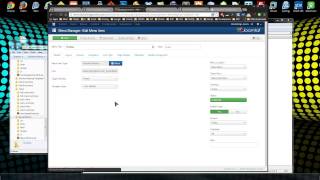
hi this is Brad travezy from Tech Guy Web Solutions uh this is an installment to my my 10 part Joomla beginnis video series I'm just going to be explaining the basics of Joomla uh if you if you're fluent in Joomla then you probably don't need this this is for the beginners um what I'm going to do in this particular video is I'm gonna create a article or a new page and also link it to a menu so this is a default fresh Joomla installation this is all the sample content um you can choose this to install the sample content or just have a sample content that comes with the Joomla installation in the default template as well so we're going to go to to the admin area if you're new to Joomla you want to type in whatever your site is.com slash administrator you can see I'm working on my Local Host here this isn't an actual website that's live um so you just want to you should have defined a password when you install Joomla either if you installed it either through Fantastico or so I'm just going to log in here and here we have the administrator interface also called the back end and what we want to do we're going to create the article in article manager but what I want to do is create a section and a category to put that article in and you do that you go to content you can go to section manager sections of the top of the the hierarchy sections the category to that section and then you can choose the article for that category and as you can see there's some sample ones here but we're going to create a new one so just go to new what new and you just want to give it a name what I'm going to do is um I'm going to create a frequently asked questions section so I'll just put FAQ save so we have the FAQ actually there already is an FAQ we'll ignore that um so now what you that was the section FAQ now you want to create a category and click new and we'll just say web design say that this is these uh frequently asked questions about web design and down here you'll see the section Right Now the default is about Joomla we don't want that section we want the FAQ that we created click save and you don't need to have sections and categories you can leave the Articles uncategorized if you have a lot of content it's a good idea to to um give it a section category so now what we want to do is go to content article manager and here you'll see all the sample articles that comes with the default Joomla installation so we're going to click new and we want to give it a name we'll say web design FAQ FAQs uh Alias you can leave that blank this this can pertain to the the URL if we just leave this blank it'll be something like all lowercase web design FAQ I just typed this in but this is what would come even if we left this blank it would it kind it mimics the title just all lowercase and no spaces so now we want to choose a section we want to choose FAQ which is the section we created and there's only one category in FAQ so it defaults to that to the web design category here we'll just this is the FAQ page or web design and obviously fill this up so that's it if you want it on the home page you can click yes to front page but we're not going to do that and make sure published yes and click save all right so now we have our page created but if you go to the front end it's nowhere to be found we have to link it to a menu we can link it to the main menu or maybe one of these side menus I'm just I'm going to link it to the top menu so what you want to do now is go to menus and click on you know you'll see all the menus available on the site we're going to click main menu and now what you want to do is click new and click articles and click article layout now what you want to do is give it a name we'll just say click design FAQ once again the ales if you leave a blank it'll make up it'll make one up for you and here you want to leave this as is if you want it to be a sub item of a main menu item you could do that here you could also set the access to registered or special admin users you can also choose if you want the the page to be opened in a new window with browser navigation or new window without it we're just going to leave it on parent window browser navigation now over here you want to you want to choose the article click select and you'll get a list of all the all the um articles on site so we're going to find ads which is web design FAQs just click that so we should be all set here so we click save thank you and you'll see down here it's at the bottom what the web design FAQ you can also change this position over here under order but we'll just leave it last on the list so now let's go to our home page and refresh all the oh I made a mistake the main menu is over here on the side I thought if this was but you'll see web design FAQ right here um you know what I'm going to create it on the top too so this is the top menu right yeah this is the top menus once again let's click new articles article layout web design FAQ select the article and Save all right so now we'll go to the front page reload and there it is web design FAQ click on it and we didn't put very much content in it but here it is I want to show you one more thing you can see that here it's it has the the page name and then under it it says written by administrator and then it has the date now this is if this is going to be an about us page or FAQ page you don't want this this is more for um blog and new style articles so what we're going to do is go into back to the article manager and what I do is make the default hide the date in the the written by line hide that by default so you want to click on parameters over here and you wanna click hide for author name create created date name I mean to create a date and time and modify date and time you want to put all that to hide and I also like to hide the icons the PDF icons the email icons so tied for all these every every Joomla installation I do I I hide all the icons so now if we go back and reload the page that's gone so now it's just a title and then the description um that's it for now and uh I hope you stick around for the rest of the series next I'll be talking about SEO so that's it thanks
Original Description
Tutorial on adding an article to your joomla site ans also linking the article to a menu
Watch on YouTube ↗
(saves to browser)
Sign in to unlock AI tutor explanation · ⚡30
Playlist
Uploads from Traversy Media · Traversy Media · 4 of 60
1
 2
2
 3
3
 ▶
▶
 5
5
 6
6
 7
7
 8
8
 9
9
 10
10
 11
11
 12
12
 13
13
 14
14
 15
15
 16
16
 17
17
 18
18
 19
19
 20
20
 21
21
 22
22
 23
23
 24
24
 25
25
 26
26
 27
27
 28
28
 29
29
 30
30
 31
31
 32
32
 33
33
 34
34
 35
35
 36
36
 37
37
 38
38
 39
39
 40
40
 41
41
 42
42
 43
43
 44
44
 45
45
 46
46
 47
47
 48
48
 49
49
 50
50
 51
51
 52
52
 53
53
 54
54
 55
55
 56
56
 57
57
 58
58
 59
59
 60
60

Changing Your DNS/Nameservers
Traversy Media
Create a MySQL database in cPanel
Traversy Media
Install & Uninstall Joomla Extensions
Traversy Media
Adding and linking an article in Joomla
Traversy Media
Create a Joomla Blog
Traversy Media
Import & Export A MySQL Database
Traversy Media
Use A Custom Font On Your Website Using CSS
Traversy Media
Connect Joomla Site With Dreamweaver
Traversy Media
Remove Phoca Gallery 3.2.3 Footer Text
Traversy Media
Drupal 7 Security Update 7.19 to 7.20
Traversy Media
Add An Addon Domain In Cpanel
Traversy Media
Pull A Heroku Rails App and Database
Traversy Media
Create a Custom Joomla 2.5 Module - Part 1
Traversy Media
Create a Custom Joomla 2.5 Module - Part 2
Traversy Media
Create a Custom Joomla 2.5 Module - Part 3
Traversy Media
Joomla SEO Tutorial - sh404sef Configuration
Traversy Media
Font Dragr
Traversy Media
Convert an HTML Template to Joomla 2.5/3.0 - Part One
Traversy Media
Convert an HTML Template to Joomla 2.5/3.0 - Part Two
Traversy Media
Rockettheme Rocketlauncher Joomla Site in Under 10 Minutes
Traversy Media
JQuery FAQ Slider Tutorial
Traversy Media
301 Redirect With htaccess File
Traversy Media
Convert HTML to Wordpress Theme - Part 1
Traversy Media
Convert HTML to Wordpress Theme - Part 2
Traversy Media
Easy JQuery Widgets
Traversy Media
Codeigniter App Part 1 - Creating the Database
Traversy Media
Codeigniter App Part 2 - Installation and Configuration
Traversy Media
Codeigniter App Part 6 - Login/Register System
Traversy Media
Codeigniter App Part 7 - Models List CRUD
Traversy Media
Codeigniter App Part 8 - Models Task CRUD
Traversy Media
Node.js Part 1 - Install NodeJS on Windows
Traversy Media
Node.js Part 3 - Building a Static Page Server
Traversy Media
Node.js Part 4 - NPM
Traversy Media
Node.js Part 2 - Install MongoDB in Windows
Traversy Media
Create a Joomla Quickstart with Custom Sample Data
Traversy Media
Install MongoDB in Ubuntu
Traversy Media
HTML5 Web Storage
Traversy Media
Create a Joomla Bootstrap Template From Scratch
Traversy Media
Ubuntu Server 14.04 Setup Part 1 - Installation
Traversy Media
Ubuntu Server 14.04 Setup Part 3 - Set Static IP
Traversy Media
Create A Wordpress Widget - Part 1
Traversy Media
Create A Wordpress Widget - Part 2
Traversy Media
Create A Wordpress Widget - Part 3
Traversy Media
Create A Wordpress Widget - Part 4
Traversy Media
Get Started With Sass on Windows
Traversy Media
Build An HTML5 Template With Bootstrap and SASS - Part 1
Traversy Media
Build An HTML5 Template With Bootstrap and SASS - Part 6
Traversy Media
Build An HTML5 Template With Bootstrap and SASS - Part 4
Traversy Media
Build An HTML5 Template With Bootstrap and SASS - Part 5
Traversy Media
Build An HTML5 Template With Bootstrap and SASS - Part 3
Traversy Media
Build An HTML5 Template With Bootstrap and SASS - Part 2
Traversy Media
Build An HTML5 Template With Bootstrap and SASS - Part 7
Traversy Media
Build An HTML5 Template With Bootstrap and SASS - Part 10
Traversy Media
Build An HTML5 Template With Bootstrap and SASS - Part 8
Traversy Media
Build An HTML5 Template With Bootstrap and SASS - Part 11
Traversy Media
Build An HTML5 Template With Bootstrap and SASS - Part 9
Traversy Media
Build An Audio Player Using HTML5 & jQuery - Part 1
Traversy Media
Build An Audio Player Using HTML5 & jQuery - Part 2
Traversy Media
Youtube Data API v3 & jQuery To List Channel Videos
Traversy Media
Using Bootstrap With Ruby on Rails
Traversy Media
More on: Tool Use & Function Calling
View skill →









Related AI Lessons
⚡
⚡
⚡
⚡
How to prepare TIC teacher exams in Spain with AI (oposiciones 2026)
Dev.to AI
This ChatGPT Prompt Replaced 3 Hours of PowerPoint Work
Medium · AI
This ChatGPT Prompt Replaced 3 Hours of PowerPoint Work
Medium · ChatGPT
How AI Assist Turns a Rough Draft into a Polished Document in Minutes
Dev.to · paperquire
🎓
Tutor Explanation
 DeepCamp AI