Convert an HTML Template to Joomla 2.5/3.0 - Part Two
Skills:
LLM Foundations80%
In this video we will convert a standard html template into a Joomla installable template
ATTENTION: bootstrapjoomla.com is down for a bit BUT you can still get these modules on Github - https://github.com/joomdigi
What You'll Learn
This video demonstrates how to convert a standard HTML template into a Joomla installable template, covering the process of creating a new template folder, copying CSS and images, creating an index HTML file, and defining module positions in the XML file. The video uses tools such as Joomla, Notepad++, and GitHub to achieve this conversion.
Full Transcript
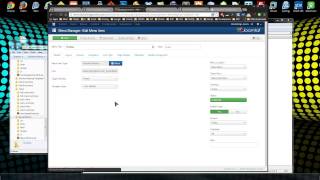
hey guys welcome to part two of the jumla 2.5 template series um what we did in part one is just set up the content on the default jumla installation um if you look at the design that we're going to be creating or the template we're going to be creating we have a menu we have two right side modules we have a footer right and a footer left module um and then we have a main image module and what we did was we went in uh created the modules we have the footer menu which we created a a we created a main menu and then just copied it you can see it has all the links we just copied it to a another menu called footer menu which we got to get rid of all these twos but um if you just want to create these modules if you didn't see the first part of the series um the login form doesn't really matter we don't have that on our new template um nor the breadcrumbs uh so we have the main image and then we have the two footer I'm sorry the two right modules so if you want to just create those if you didn't see the first part I'll go back and and watch the first part um so now we're going to get into actually creating the template so what I'm going to do is create a new folder on my desktop um I'm going to call it business design and this is going to be the the folder that holds all our template files so the first thing I'll do is go to the static HTML template and I'm going to put this I'm going to put the files for this in my description um hopefully if I don't forget if I do forget just leave a comment and I'll I'll do that um so what I want to do is grab both the CSS and the images folder I'm going to copy and put it into the jumla template so the images we just have the logo the big image and then the background image uh and we have one C SS file so it's a very minimal template um we don't we we're going to add an index HTML but it's not going to be the one with all this content it's just pretty much going to be be a blank file just so people can't access the template directly through the browser so if we have an index.html file that it stops them from doing that um the next thing we need is uh we need a an an index PHP file which I'll get to in a second but I'll just create it now um and we also need every template needs a template details XML file so we want to create a new um uh what is it template details. XML and this will have all the author info all the metadata that goes with the template um and I think that's I do want to create a favicon so we can do that uh with Dynamic what is it Dynamic Drive has a really good tool to generate a favicon which is the the little icon in the browser um so if we just want to choose the file I'm just going to choose the actual the logo and create the icon so we have this nice little um logo that will show in our browser window so I want to download that I'm going to download it to the just the folder that the template folder uh where is it all right so now we have the favon um so that's that should be good for our files what we need to do now is um add some content to this XML file get rid of that all right so what I'm going to do is actually drag in or paste in some content from a default file that I use when I create my templates so let me go grab that um extension no sorry I forget where I put things sometimes and we want this I'll open it with notepad++ and just copy this all right all right so we have the XML uh declaration doc type uh it's version 2.5 the Juma version uh it's going to be a template for the site client not the administrator um and we can add a name here I'm going to change that just to um business design and you can add your uh author info your name email URL copyright whatever um and then here's the description that'll show after we install it I'll just say this is the business design template and here we have to list all folders and files that are going to be in our root directory our root template directory which is right here let me shorten this a little so we don't have HTML folder uh an HTML folder would be used for overrides if you want to override your component or module uh layouts and we're not going to do that usually I'd have a blank HTML folder but if we do that we're going to get an error on installation so I'm going to get rid of that for now uh CSS folder images folder we don't have a JavaScript folder this template has no JavaScript so no need for it um we have these template pre previews if you wanted to you could create a template preview.png and a template thumbnail.png and this just shows in the back in the um in the template manager but we're not going to use that for this template we're also not going to use error or component so that's good for that now we have to we have to um declare all the module positions we're going to have so we're going to have a right uh if we look at the template that we're creating we're going to have a right a menu module um I'll call this a showcase the big image and then footer right and footer left so let's do that let's say menu um showcase and then footer right and footer left so that should be good okay save that and I think that should do it yeah all right so that's it for the XML file now what we need to do is create the index.php file so this is the main the main page of the template this is where you define all the the entire structure um as well as the head and the body tags um I'm going to actually get the the um original HTML file that came with the the static template and what I'm going to do is I'm going to grab everything in this index HTML file and I'm going to copy it and I'm going to paste it into the index PHP file and we're going to work off of this and the first thing the head the whole head the doc type and the head is going to be all replaced um so what I'm going to do is actually get rid of that and I'm going to paste in a couple things first I'm going to paste in just the comment block uh PHP comment block that just has the name of the template and then your copyright info um and then under that we need this line all templates should have this line in their index PHP um it just makes it so that the user can't access this your template through the browser they actually have to go to through the Juma site so it's this is a very important security measure all right so the next thing I'm going to add is the dock type and I'm going to put it right below that and it's just giv us the the XML version 1.0 and the um HTML dock type this template's actually going to be an xhtml 1.0 um standard you might be doing HTML 5 that's fine too if you just want to have just the doc type and then you wouldn't have this part for the xhtml uh and then we have the xmlns um with the HTML tag so this is the um the opening HTML tag and I'm sure you know um at least some HTML Basics we have the HTML tag then the head tag then the body tag um so that's for the doc type now we want to add the head the um head part of the template which opens with head and closes with head and what we have here is a j do include statement and this is what outputs all our Header information all our meta tags um stuff like that it goes through jumla and it gets outputed right here we do have to Define our CSS files um or any JavaScript files if we wanted to include those with our template um so what we have here is just a simple link to our style.css fold um file which has all our styling information and we do have some Dynamic variables here um you can see when we're pointing to the stylesheet we use this uh this base URL this is a variable that'll point us to whatever the URL of the current site is um so we don't have to hardcode it or anything like that uh same thing with here we have this template this template just points to whatever the name of this template is and then points to the CSS folder and then to the stylesheet so that's all we need for the head if we go down here uh the body the styling all the divs everything's going to stay the same as far as um the the layout and the the div tags what we need to change is the actual content uh we need to add in our module positions and we need to add our our main call for our for our component um so what we're going to do we have this static navigation here um we actually set up the the menu structure in the jumla back end uh let's go back yeah we're going to have to log back in here so we have our menus we have a main menu and a footer menu which have links uh and every menu is a module so if we go to module manager we have the main menu here and it's in well it's in the position seven here but this is these positions are for the the um default template and we want to actually change these positions our main menu the position we're going to give it is just menu so I'm going to get rid of that and if you remember in the XML file uh the template details. XML that's where we defined all these positions so let's save that let's actually check and see if these are all in the right position uh footer menu will be on the footer left footer right right right all right so everything's good login form we're not using so that doesn't really matter um so now we know that our main menu is in the menu position so let's go back to our template and actually just get rid of this unordered list and I'm going to type in um a j Doc it's going to be J doc include and this is how we insert a dynamic code um we can insert module positions a component uh as well as messages um and you saw here we did the head so J do include it just outputs certain aspects of the template that we need so here we want to do J J include and they all have a type uh and the type we want here is modules all right so the next attribute we need is a name and the name is just a position so like I said our main menu is in the menu position and then the last attribute we have is style which we're going to have is none now if you want to have a heading showing in your module uh then you would you could use the style xhtml right here and it would output that the actual heading if you use none it's just going to print out the the module content not the heading so now if we save that I'm actually going to BU build out the whole template before we install it so let's just get through this real quick uh here we have the the main div with the main content and this is all we pasted this all in one jumla article if we go to article manager we have the homepage and if I if we view the source you can see we have the H1 tag and we have up until the enjoy the design so that's what we have right here and that's what we want to get rid of and the main component will also be output outputed using um J do I'm sorry I can't type today I don't know what's going on here all right so include and we're going to have the type except this time it's going to be component and you'll only have one of these per template all right so that looks good so next we have the the right module position which here is going to be the the news section and we're not going to have let's copy this here this this module call um and place it in the the the news div except this is going to be right because that's going to be the position and we want uh you know what we'll actually keep the none I'm going to actually include the heading in the module content so we can leave this to none now we're not going to have two of these we do have two right modules but we're not going to have two of these we only need to to declare this once and every module that's assigned to the right position will just come one after another you don't have to have two of these because we're going to have two right modules uh if that makes any sense and if we go back to module manager we have module manager we have our two right position we have the copyright and then we have the other info so if we go back to our our design you can see those right here now there is one tricky part of this this template is that each block each block on the right is assigned a class called news item now if we just stick div class new new news item over this one position uh it's just going to have that that main div and then all the right modules will be in between it but we need this for each call each module so what we need to do is give it a a module class suffix uh so we'll go to the copyright module and what I want to do is click on Advanced and then add a a suffix here so I'm actually just going to take that I'm going to take this news item class and I'm going to put a it's going to be an underscore and then the news item and I'll show you why I did the underscore in a in a few minutes so let's save that and we also want to do it to the the other right module whenever we want to apply that design that yellow boxing uh we have to add this class suffix all right so now we can get rid of this now what else do we have we have the footer left and the footer right uh if we go to our module manager the footer menu is in the footer left position so let's copy this modules output and we're going to replace the entire unordered list and and this is going to be footer right and now we want to let's check out the credit module which is the footer right and we have the entire span so that's what we're going to replace and this is going to be foter left um yeah for the left so that's it we we've taken that uh static HTML layout and applied all the dynamic elements to it to make it a functional jumla template and you can see it's actually shrunk a lot in size because we instead of having the static content we just have these on line on line calls to uh different Dynamic aspects of the of the website so I'm going to save that now it seems like I think we have everything done we need we have our CSS images um let's just check the XML file and make sure we have everything favon XML PHP all right so that looks good we have our positions here oh the Showcase that's what we forgot to do now in this particular template the let me just go back and show you here this image here isn't a inline image it's actually a background image and it's the background image it's using the header div so what we did in the first part of we actually created a module if we can go back here and where is it main image this main image module we just put the div in here and the image will actually replace the div uh not replace it but it's the background image assigned to this div so I'm actually going to copy this module statement and replace the the div here and this is going to be the header position so if we go here you can see we chose the header position all right so now it looks complete so what we want to do is actually grab all this and wrap it up in a zip file I use wind ra but you can use uh whatever you feel like so now we have our ZIP file now this should just be able to uh simply install using the extension manager so we just want to navigate to that zip file and upload so it was installed successfully now what we want to do is go to template manager and we want to select the business design I don't know why all these are here like this uh let's see you know what I did install it before and I guess for some reason it didn't uninstall let's actually go let's uninstall these first um cuz I'm not sure which one is the right one so I'm going to go to manage extension manager manage and select type template and I'm going to uninstall both of these business design and then go back to extension manager and I'm going to upload it again and you most likely won't have to do this unless you installed it before uh so that looks good so now go to template manager and I'm going to select business design and I'm going to select make default so now if we go back and reload our front end you can see we have some styling issues but uh overall the the the layouts there the contents there uh what we need to do is take care of these right modules and make them look like this um and now I'll show you why I added that underscore I'm going to use the Google web tools to to view the source of these modules and you can see the div applied to each one is custom uncore news item now this what's J what jum is doing is adding this custom uh before whatever we had for the for the um the class suffixes so our actual div is called custom news item so what we need to do is just edit the the um CSS file and change news item to custom uncore news item and then the styling should show up so what I'm going to do is I'm not going to edit and reinstall the template I'm going to edit the actual template that's being used so I'm going to my jomer and installation I'm going to templates business design and I'm going to go to the CSS file and obviously if you're using a live site you want to do this through FTP or rssh or whatever it is you you access your site files with so where it says news item I'm just going to add custom underscore right there and right here so now that styling should show up so if I save that close that that out and if we go back to the site and reload now we have our styled uh styled right modules and the only other difference I see is the menu in the in the original template is all caps um I don't like to hardcode capitalize letters uh in templates so what I want to do is just add a CSS property that will upper that will turn the the that will make them all uppercase so I'm going to go back into that custom CSS I mean I'm sorry style CSS and I'm going to in the navigation we're going to add a text transform property and we want to do uppercase save that go back reload and now it's all uppercase so uh well one thing I do see down here is we have all these twos and this is also the design by site creative the footer right module is a little off let's go to the footer menu and actually delete a few of these links reload all right so something is putting that off I'm going to go check the I'm going to get out of all this and I'm going to go to the actual template that's on my site business design index PHP so we have footer left footer right if we go back to the module manager and for a right uh I'm not sure why that's off oh okay jumla actually adds a class menu to each menu and it's going all the way over as you can see as I highlight over it you can see that it's going all the way over what we want to do here um I'm just going to shorten that up a little so what I'm going to do is go back to the CSS file and I'm going to add in the UL menu UL with a class of menu and I'm going to say WID uh 60% and we'll float that I'm going to float the menu to the left all right so I'm going to save that I'm actually going to go back to index.php and since we're going to be floating the the left the foot or left position um I'm actually going to add in a clear just a div style uh clear both just so that div actually so that float clears so save and go back and reload and now the the right the footer right is now in place so everything looks good oh well you see what happened the actual main menu also went to 60% so when something like that happens uh you can add a menu class so if I go back to footer my footer menu in the advanced options I'm going to add a menu class of of footer menu so now if we go back and reload and open up the web tools you can see now we have a UL class well menu footer menu footer menu so I'm actually going to change that I'm just going to change it to underscore footer so now if we go and check that out again so now it's a UL class menu footer so now we just need to go to the CSS and change this to menu footer if we save that and reload now our menu our top menu is back and we still have the the right footer in place all right so we're just about done um let's see let's visit the about us page yep so you can see the image is now gone off the inner Pages um so the homepage is the only page that has the the main image because if you remember in the first part of this when we created the main main image module we made sure that we only clicked home so if if you wanted it on the on the about page you could just select the about us and then go back and reload and the image will be there so you can choose what what pages you want which modules uh so I think that's it um it looks pretty much identical aside from the twos in the footer menu but uh that's no big deal just go in the menu manager and delete them um so that's it for making a jumla 2.5 template um if you guys could subscribe I'd really appreciate that and I'll see you in the next tutorial
Watch on YouTube ↗
(saves to browser)
Sign in to unlock AI tutor explanation · ⚡30
Playlist
Uploads from Traversy Media · Traversy Media · 19 of 60
1
 2
2
 3
3
 4
4
 5
5
 6
6
 7
7
 8
8
 9
9
 10
10
 11
11
 12
12
 13
13
 14
14
 15
15
 16
16
 17
17
 18
18
 ▶
▶
 20
20
 21
21
 22
22
 23
23
 24
24
 25
25
 26
26
 27
27
 28
28
 29
29
 30
30
 31
31
 32
32
 33
33
 34
34
 35
35
 36
36
 37
37
 38
38
 39
39
 40
40
 41
41
 42
42
 43
43
 44
44
 45
45
 46
46
 47
47
 48
48
 49
49
 50
50
 51
51
 52
52
 53
53
 54
54
 55
55
 56
56
 57
57
 58
58
 59
59
 60
60

Changing Your DNS/Nameservers
Traversy Media
Create a MySQL database in cPanel
Traversy Media
Install & Uninstall Joomla Extensions
Traversy Media
Adding and linking an article in Joomla
Traversy Media
Create a Joomla Blog
Traversy Media
Import & Export A MySQL Database
Traversy Media
Use A Custom Font On Your Website Using CSS
Traversy Media
Connect Joomla Site With Dreamweaver
Traversy Media
Remove Phoca Gallery 3.2.3 Footer Text
Traversy Media
Drupal 7 Security Update 7.19 to 7.20
Traversy Media
Add An Addon Domain In Cpanel
Traversy Media
Pull A Heroku Rails App and Database
Traversy Media
Create a Custom Joomla 2.5 Module - Part 1
Traversy Media
Create a Custom Joomla 2.5 Module - Part 2
Traversy Media
Create a Custom Joomla 2.5 Module - Part 3
Traversy Media
Joomla SEO Tutorial - sh404sef Configuration
Traversy Media
Font Dragr
Traversy Media
Convert an HTML Template to Joomla 2.5/3.0 - Part One
Traversy Media
Convert an HTML Template to Joomla 2.5/3.0 - Part Two
Traversy Media
Rockettheme Rocketlauncher Joomla Site in Under 10 Minutes
Traversy Media
JQuery FAQ Slider Tutorial
Traversy Media
301 Redirect With htaccess File
Traversy Media
Convert HTML to Wordpress Theme - Part 1
Traversy Media
Convert HTML to Wordpress Theme - Part 2
Traversy Media
Easy JQuery Widgets
Traversy Media
Codeigniter App Part 1 - Creating the Database
Traversy Media
Codeigniter App Part 2 - Installation and Configuration
Traversy Media
Codeigniter App Part 6 - Login/Register System
Traversy Media
Codeigniter App Part 7 - Models List CRUD
Traversy Media
Codeigniter App Part 8 - Models Task CRUD
Traversy Media
Node.js Part 1 - Install NodeJS on Windows
Traversy Media
Node.js Part 3 - Building a Static Page Server
Traversy Media
Node.js Part 4 - NPM
Traversy Media
Node.js Part 2 - Install MongoDB in Windows
Traversy Media
Create a Joomla Quickstart with Custom Sample Data
Traversy Media
Install MongoDB in Ubuntu
Traversy Media
HTML5 Web Storage
Traversy Media
Create a Joomla Bootstrap Template From Scratch
Traversy Media
Ubuntu Server 14.04 Setup Part 1 - Installation
Traversy Media
Ubuntu Server 14.04 Setup Part 3 - Set Static IP
Traversy Media
Create A Wordpress Widget - Part 1
Traversy Media
Create A Wordpress Widget - Part 2
Traversy Media
Create A Wordpress Widget - Part 3
Traversy Media
Create A Wordpress Widget - Part 4
Traversy Media
Get Started With Sass on Windows
Traversy Media
Build An HTML5 Template With Bootstrap and SASS - Part 1
Traversy Media
Build An HTML5 Template With Bootstrap and SASS - Part 6
Traversy Media
Build An HTML5 Template With Bootstrap and SASS - Part 4
Traversy Media
Build An HTML5 Template With Bootstrap and SASS - Part 5
Traversy Media
Build An HTML5 Template With Bootstrap and SASS - Part 3
Traversy Media
Build An HTML5 Template With Bootstrap and SASS - Part 2
Traversy Media
Build An HTML5 Template With Bootstrap and SASS - Part 7
Traversy Media
Build An HTML5 Template With Bootstrap and SASS - Part 10
Traversy Media
Build An HTML5 Template With Bootstrap and SASS - Part 8
Traversy Media
Build An HTML5 Template With Bootstrap and SASS - Part 11
Traversy Media
Build An HTML5 Template With Bootstrap and SASS - Part 9
Traversy Media
Build An Audio Player Using HTML5 & jQuery - Part 1
Traversy Media
Build An Audio Player Using HTML5 & jQuery - Part 2
Traversy Media
Youtube Data API v3 & jQuery To List Channel Videos
Traversy Media
Using Bootstrap With Ruby on Rails
Traversy Media
More on: LLM Foundations
View skill →






![Run Any AI LOCALLY for FREE Forever! [100% Beginner Tutorial]](https://i.ytimg.com/vi/8GFPZRgtEn8/mqdefault.jpg)


Related AI Lessons
⚡
⚡
⚡
⚡
We ran an AI 'peer organization' (Claude + Codex + Gemini) for 7 weeks. Here is the operational record.
Dev.to AI
How Does ChatGPT Understand Your Question?
Medium · Machine Learning
How Does ChatGPT Understand Your Question?
Medium · Programming
AI Update — June 30, 2026: 5 Things That Just Dropped
Medium · LLM
🎓
Tutor Explanation

 DeepCamp AI