How to Use Google Classroom Mobile App on iPhone or Android
Key Takeaways
The video demonstrates how to use the Google Classroom mobile app on iPhone or Android devices, covering its functionality, features, and tools for classroom management and collaboration. It highlights the app's ability to create and attend virtual classes, share information, assign tasks, and facilitate student-teacher interaction.
Full Transcript
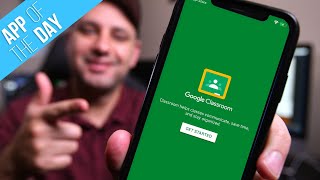
everyone in today's app added a video I want to show you Google classroom now it's an app for mobile devices on iPhone and Android and you could also access it on the website as well and it's a lot more powerful online so if you have access to it on the desktop I have an entirely separate video about Google classroom using a computer but this is gonna be focused just on the mobile app it's pretty much identical on Android and iPhone so I'm gonna show you from a teacher's perspective how to create multiple classrooms how to create assignments how to create quizzes basically everything you need to know about the Google classroom app and I'll show you as a student at how to join an existing classroom that a teacher might invite you and if you watch the video as a student you might also see how the classroom is created so I'm gonna make it easier for you to complete assignments and just use the app generally let's jump into the phone so I could show you Google classroom go ahead and look for Google classroom app in your iOS iPhone or your Android device and he actually has a far better rating in the Android because Google owns Android and they own Google classroom but it works fine on the iPhone they're pretty much identical on both platforms as far as the functionality of it and then I'm gonna go ahead and press open on the app here and here you have to press get started on the very first page I'm gonna go ahead and do that and then it's gonna take me to this choose an account now you have to choose a Google account so if you don't have a Google account if you don't have Gmail or YouTube you don't have one yet go ahead and sign up for one I already have one I have multiple I'm gonna make sure I choose the one where I want to join a class or create a class with this account this is very important because if you switch accounts the class wouldn't be there anymore you have to do everything under the same Google accounts so as your account here or choose from a list here if your phone recognized that you already had an account and this is basically the home page now if you're a teacher or a student you still get to the same page now what you want to do is press the plus sign right here and if you're a student you will click join a class and it's gonna ask you for the class code that your teacher should have provided you and as a teacher that's what I'm gonna show you now press the plus sign and instead press create class if you haven't set up your Google classroom if you set it up on the desktop all the information will be here already so you could actually jump in and edit right away but let's go ahead and just create a class from scratch it's gonna tell you that your school has to sign up for the G suite account here for education before you could use it so if you've done so and your school district has done this go ahead and agree and press continue and really the only thing you need to put here is your class name so let's say this was geography I could type in the name of the class and I could leave the rest blank you could always come back to this page and put additional information here I'm gonna press create on top and now my first class has been created and it's right there geography you could see it right on top and he already recognizes every time you put known words like science or math and he picks a background for you so it just chose a global background for me in this case and this app is basically the same as the Google classroom website where you have three main sections you have stream on the bottom classwork in the center and people on the bottom so let me show you what those do stream is basically a Facebook wall like a social media wall you could go ahead and share any information here with your class so you could say welcome to the class and just basically go ahead and post on top you see that airplane icon if I press that it's gonna post it on the stream so on this wall basically and my students are gonna be able to see what I said here when they joined this class and you could always press the three dots here and edit the post here and you can make sure all students could see it or if you had other students it will be underneath the all student mark so that's how you would edit it and only show this to specific students and if you have multiple classes they'll show up here too so you can make sure it's only being shared on that wall so that's kind of how you use this really for announcements this is what the stream is for welcoming people making announcements and just general information would happen on the stream then you have the class work icon let me go there and this is where most things are gonna happen so let me press the plus sign and I could add assignments here I could add questions material or I could reuse previous posts that I've created I could also press topic here and break up my class into different topics so let's say this was all about Europe so I'll type in Europe and this is the section about geography but we're only gonna cover Europe so it's kind of break it up like this and then I could press the + add another topic this time and I'll do a Shahir and I'll press done and it's gonna have multiple topics and this is just a good way you think of it that you have class as the big picture and then you have topics inside of that class now let's go ahead and add an assignment press + and add an assignment let's say this is just naming countries here I could assign points to it out of a hundred I could assign a due date and on their topics I'm gonna put it under your up here and I'll press save and I want to make sure on top is under the class geography that's selected I don't have any other classes yet and it's assigned to all students or I could assign it to individual students and I could press that airplane icon again on top and as you can see now under that category I have an assignment I could do the same thing with questions a material let's do material this time let's say I wanted to talk about I want to show them a world map here I could assign the topic again or leave it as no topic I could press save and on top I have an attachment icon this time I could press that and I could get access to using my camera to just uploading a file from my phone or you could use Google Drive which makes everything simple because everything is in your Google Drive so if you select this you could choose a Google sheet for example or one of these folders like I'll jump into this classroom folder and things will be here if I upload it here and you could use the Google Drive app or the Google Drive website to organize all your information on this page so you have everything there once you make that selection let's say in this case I just go ahead and use a link and type in a website URL let's say I put in google.com for example and I'll press add and it will have that website as the material and then the students in that case will see that as the material they'll go ahead and read that and then go ahead and complete this assignment here and I could press the airplane icon and posted on the assignment page and you could see that one is not on any category so it shows up right on top it wasn't inside of those two topics so that's the classroom icon and under the plus sign you could explore more the questions and reusing posts and then you finally have the people icon and here is going to show you the teachers where you could also add additional teacher by pressing the plus sign and adding their email so if you want to collaborate with other teachers inside of your classroom and you could here add the students by just inviting them via their name or email and if you do do it this way let me go back now let's say the classroom was complete and you put in all your coursework let's go back to the stream tab on the bottom and you could see every activity that I actually did on the other pages will show up here so you can't press these three lines and edit and remove them if you don't want it to be that way but let's press the gear icon on the top and on the bottom of this page under general that will show you the class code so you could actually go ahead and use this class code here to send it to your students when you invite them on their email so they just have to press join when they download the app or go on the website and put in this code and they will get access to all the classroom information that you put in there here is also where you could change the description and the section and the room the things we skipped when we created the geography class I'll press X and what if you wanted to add even more classes you press the three lines on the top left and you have some options here on their classes I'll show you that first it's gonna take you to this page where again the plus sign on the corner is gonna allow you to create another class again it's gonna walk you through the same things press Continue let's call this one biology and press create again and now i'm inside of this class where i could again have its own stream its own classwork and its own people so totally separate if i press the three lines on top i could now see that i have a biology and geography class and if i go to the classes icon I could see them here side by side and each class has the student number right here so I haven't invited anyone and it has the three dots here where you could edit or archive it if you don't want to have it here on your page and press the three lines again you have calendar which is going to ask you to either get the Google Calendar or do it via Safari again this is far easier on the desktop to use the calendar application to kind of see an overall picture of your Symonds and your due dates and you also have your classroom folder that gets created by default inside of Google Drive so again you could use it on a browser or get the Google Drive app to see everything inside a folder so I recommend getting multiple applications like Google Drive and Google Docs so you have a good functioning phone here with multiple different apps from Google and I'm gonna go ahead and add a student here so you see what happens when you add a student so I'll type in the other person's information and I'll press invite on top and the other person I had them sign up on the computer and you could see if i refresh this page now there's one student inside of the biology class and they just got an email it didn't even ask for them for a code since the email came right out of this class but they only joined that class each class is independent from the other class so you have to invite your students to each class and students have to press join or click on your email to join individual classes now if I go to people I have the teacher and I have the student I just used two different Google accounts it's both me I could go ahead and click their name here and I basically have three options on top I could press the three dots to mute the students I could press the three lines here to basically filter things so when they turn things in or see things that are missing in their assignment I could go ahead and see that on this page or I could press the little mail icon to basically send them a private message so it's really nice to be able to communicate with students one at a time here and that's the gist of using Google classroom here on the mobile app again I recommend you watch the desktop version of this because it will give you a lot more options that this is missing I'm gonna give this a four out of five just because I think it could be a lot more useful if it has a lot of the functionality of the desktop but I think for an app to bring a classroom in a virtual world it's very very powerful and between the classroom app and the classroom website from Google you have a great tool to work with thanks so much for watching and I'll see you next time
Original Description
Google Classroom app allows teachers and students to create and attend classes virtually.
Google Classroom is available on desktop and on iOS and Android devices. The classroom is linked to a Google account, so any changes on either device will be saved and usable on desktop versions of Google Classroom or the Google Classroom app.
I'll show you how to use Google Classroom to create virtual classrooms from scratch, how to create assignments, and how to invite students to each class.
If you want to learn about the desktop version of Google Classroom, check out this video.
https://www.youtube.com/watch?v=zUjU7xY-ZvQ
Thank you for watching this video
Watch on YouTube ↗
(saves to browser)
Sign in to unlock AI tutor explanation · ⚡30
Playlist
Uploads from Skill Leap AI · Skill Leap AI · 7 of 60
1
 2
2
 3
3
 4
4
 5
5
 6
6
 ▶
▶
 8
8
 9
9
 10
10
 11
11
 12
12
 13
13
 14
14
 15
15
 16
16
 17
17
 18
18
 19
19
 20
20
 21
21
 22
22
 23
23
 24
24
 25
25
 26
26
 27
27
 28
28
 29
29
 30
30
 31
31
 32
32
 33
33
 34
34
 35
35
 36
36
 37
37
 38
38
 39
39
 40
40
 41
41
 42
42
 43
43
 44
44
 45
45
 46
46
 47
47
 48
48
 49
49
 50
50
 51
51
 52
52
 53
53
 54
54
 55
55
 56
56
 57
57
 58
58
 59
59
 60
60

How to Use Endel - Personalized Mood Music to Help Focus & Relax
Skill Leap AI
How to Start Running with Zombie Run App - Gamify Running
Skill Leap AI
How to Learn New Creative Skill - Skillshare App Overview
Skill Leap AI
How to Use Khan Academy Mobile App
Skill Leap AI
How to Learn to Code - SoloLearn App Overview
Skill Leap AI
How to Use Google Hangouts Meet App on iPhone or Android
Skill Leap AI
How to Use Google Classroom Mobile App on iPhone or Android
Skill Leap AI
How to Develop Film Negatives on your Phone - Filmbox App Tutorial
Skill Leap AI
How to use Google Sheets Mobile App - Beginner's Guide
Skill Leap AI
How to Use Smule - Social Singing and Karaoke App
Skill Leap AI
How to Learn to Code - Mimo App Walk-through
Skill Leap AI
How to Use Microsoft Teams Mobile App (iOS and Android)
Skill Leap AI
How to Use Reddit Mobile app
Skill Leap AI
How to Use Thumbtack - Find Handyman, Plumbers and local professionals
Skill Leap AI
How to Use Cash App
Skill Leap AI
How to Use Linkedin Mobile App - Complete Beginner's Guide
Skill Leap AI
How to Use Amazon Alexa App
Skill Leap AI
How to Use Signal Private Messenger App
Skill Leap AI
How to Use Telegram
Skill Leap AI
How to Use Skype Mobile App for iPhone and Android
Skill Leap AI
How to Use Brave Private Web Browser
Skill Leap AI
How to use Coinbase to Buy and Sell Cryptocurrency
Skill Leap AI
How to Bring Pictures to Life using MyHeritage app Deep Nostalgia Effect
Skill Leap AI
How to Check Your Credit Score for Free
Skill Leap AI
How to Cartoon Yourself - Voila Ai Artist App Tutorial
Skill Leap AI
how to Use Acorns App - Investing For Beginners
Skill Leap AI
How to Live Stream from Your Phone - Melon App Tutorial
Skill Leap AI
How to Edit Videos on iPhone or Android - Filmr Tutorial
Skill Leap AI
Top 5 Social Media Apps You've Never Heard Of
Skill Leap AI
How to Use Google Pay
Skill Leap AI
How to Use Slack
Skill Leap AI
How to Send Messages in your own Handwriting on iPhone - Fontmaker App Tutorial
Skill Leap AI
How to Use Live Text on iPhone - iOS 15 Update
Skill Leap AI
How to use inShot Video Editor - Edit videos on iPhone or Android
Skill Leap AI
How to Check if iPhone is Refurbished or New or Personalized
Skill Leap AI
Oculus Quest 2 Unboxing, Setup and Review
Skill Leap AI
What is the Metaverse? Complete Beginner's Guide
Skill Leap AI
Oculus Quest 2 Must Have Accessories
Skill Leap AI
How to Buy Ethereum for Beginners - 2022 Update
Skill Leap AI
How to Buy Bitcoin
Skill Leap AI
ChatGPT for Beginners - Explained in 90 seconds
Skill Leap AI
Best prompts for chat GPT
Skill Leap AI
Chat GPT Plus is here!
Skill Leap AI
ChatGPT 4 is now live! 3 biggest upgrades #chatgpt #chatgpt4 #ai
Skill Leap AI
ChatGPT competitor from Google is live - Bard Ai #ai #bard #goolgeai #chatgpt
Skill Leap AI
How to Use Bing Ai App - ChatGPT Powered Search Engine
Skill Leap AI
How to Get ChatGPT 4 for Free with new Bing Ai
Skill Leap AI
How to Use Auto GPT God Mode Ai - Auto GPT got a Huge upgrade
Skill Leap AI
Top 10 Life Changing Ai Tools You Need to Know
Skill Leap AI
ChatGPT Plugins and Web Browsing - Everything You Need to Know
Skill Leap AI
Play games with ChatGPT #ai #gpt #chatgpt
Skill Leap AI
ChatGPT Just Got Web Browsing - HUGE UPDATE
Skill Leap AI
I Discovered The Perfect ChatGPT Prompt Formula
Skill Leap AI
ChatGPT iPhone App is finally here! And it can hear you! #ai #iphone #gpt #chatgpt #iphonehacks
Skill Leap AI
Google Ai for Gmail just ended email #ai #gmail #goolge #technology
Skill Leap AI
You Won't Believe this AI Combo
Skill Leap AI
Share ChatGPT conversations with just a link! #chatgpt #ai
Skill Leap AI
Top 50 ChatGPT Prompts You Should Use (including PDF download)
Skill Leap AI
Top 10 ways to use ChatGPT Code Interpreter
Skill Leap AI
Google Bard just got a Massive Upgrade
Skill Leap AI
More on: Tool Use & Function Calling
View skill →









Related Reads
📰
📰
📰
📰
EdTech Blogs vs. Vlogs: Which Helps People Learn Better?
Medium · Deep Learning
The Mission Behind Anitha Rises: Empowering Students, Women, and Lifelong Learners
Dev.to · Anitha
Why Marks Alone Are a Terrible Measure of Progress
Dev.to · jahnavi sharma
2–2–1: On Student Accountability and Punctuality.
Medium · Deep Learning
🎓
Tutor Explanation

 DeepCamp AI