How to Add "Pop Up Text" to Your Videos
Key Takeaways
The video demonstrates how to add pop-up text to videos using ScreenFlow, a Mac-only software, and its equivalent alternatives, to emphasize important moments in recordings. The video covers the steps to create and edit pop-up text, including adding text elements to the timeline, scaling, rotating, and changing colors, as well as using text properties and transitions to enhance the video.
Full Transcript
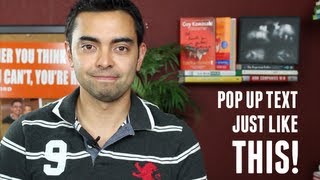
hey what's up everyone it's Pat Flyn from smartpassiveincome.com and in this video I'm going to show you how to add popup text to your videos just like [Music] this popup text and video is a great way to hold your audience's attention and really emphasize those important moments of your recordings and one way to do this is to screen capture yourself speaking over slides in keynote or in PowerPoint where each slide or each action within a slide reveals a new word so for example you could see I'm here in keynote right now and I've just set up a number of slides where each slide kind of reveals another word so all I have to do is just screen record using some software like screenflow or Camtasia and just simultaneously go to the next slide while saying those words with my arrow keys so for example I'm going to say popup text is awesome you know so that's how you do it and so let me zoom in for you so you can get the full effect popup text is awesome woohoo now the issue with keynote or PowerPoint is that it limits you in the way that you can only create popup text over some sort of static image or background and I don't think you can do popup text with any kind of moving elements again this is in keynote or in PowerPoint so how do you get pop-up text over your recorded videos moving stuff stuff that you film with your camera and that's all done in post production so you film the stuff first then you use software just like screen flow or Camtasia once again to add that text in there when you're saying those words and I'm going to show you how I do that in screen flow right now okay so here you are in screen flow and you're actually looking at the screenflow file for this exact video that you're watching right now we're here at the beginning at the intro which you've already seen at the top of this video this is the intro video there's the audio below it and then at the 5 to 5 and a half second Mark here you'll notice these text elements each one representing a different word that pops up at a different time on the screen I've already placed them I've already scaled them and stuff and I'll show you how to do that in a second but I'm going to show you what happens when I press play and this little red line moves from left to right I want you to notice what happens on the preview screen here uh when that line hits the beginning of each of these text elements so I'm going to press play for you now hey what's up everyone it's Pat FN from smartpassiveincome.com and in this video I'm going to show you how to add popup text to your videos just like this and really that's all you have to do is put text elements on the timeline where you want them to show up making sure they're above the layer that your video is on and they're going to show up where you want them to and you can scale them you can rotate them if you want you can change the colors and for each of the different words so I'm going to show you how to do this really quick so just as an example I'm going to add popup text when I say my name Pat Flynn at the beginning of this video so I'm just going to walk you through this so I'm going to rewind I'm going to press play hey what's up everyone it's Pat Flyn okay so it happens right around here so I'm actually going to zoom in so I can find the exact wavelength here in the audio file where I say my name it's easier to kind of find it that way you want to be pretty precise so it the pop-ups are crisp and clean so what you can actually do is kind of look at your face if you're speaking or kind of listen to see where exactly you start to say the word that you want to put a popup text for so if I look at my face P it's around right there that's when I first say my name so what I'm going to do at that point now that I'm hovered over this moment in time is click on the text properties box and then add text box as you can see that adds a text element here if I scroll all the way to the top of the timeline you'll see it added this uh element in the timeline for me I'm going to double click on that and change it to my name Pat I'm going to move it I'm going to use the text properties area to change the font here to franchise to match the rest change the font size here but you know I actually like doing it better in the scale area in the video properties section just because you can get a little bit more precise and then there's this kind of ugly background behind it so I'm going to go back to the uh text properties section and and just get rid of that backdrop setting so as you can see it says Pat there now if I zoom out and you'll see that when I start the video from the beginning it should come in at the precise moment that I say my name hey what's up everyone it's patlin from smartpassiveincome.com all right so that that's how it works now just to make it easier for you because I know you're going to do more than just one word what you can do to kind of shortcut your way there is to highlight the one that you just did copy it using you know contrl C or you can go to edit copy or whatever and then click command V or control V to paste and that automatically places another set of text the exact same one in the timeline above and you can kind of move that around and kind of guess where your other one is going to be uh you know you obviously want to be precise and we can do that in a second but um making sure that one is highlighted I'm going to change the text to my last name Flynn now it's obviously too big so I'm going to scale it down a little bit and I'm going to move it below my name there I'm not going to be totally precise with it right now but I just wanted to show you uh so let's see if let me guess that's it's going to happen right there and we'll try to play it everyone it's patl from smart too soon so what I could do is actually zoom in and you use the same technique P look at my face is so funny there probably right there so now let me start the video over and see if that works hey what's up everyone it's Pat Flyn from Smart passive income. all right so as you can see that that worked out now how do you finish this off now if I just leave it as is you'll see that Pat will end first and Flynn will end second if if this goes correctly and in this video I'm going to show you how to add popup text to your videos see that's kind of funny because that overlaps with some of the text I did there so you can actually shorten the length that these show up I'm going to match them up and screen flow makes it nice and snaps it for me and just to finish them off nicely I'm going to right click at the end of this time here and click on ADD ending transition and what this does is you can you're able to I'm going to right click again uh and add cross dissolve you know there's different types of transitions but I usually just do cross disolve and that what that does it kind of gives it a nice fading effect at this moment time so if I scroll over this you'll see see kind of how it disappears and it leaves room for those other ones that come in later so let's start it from the beginning and uh see what happens hey what's up everyone it's Pat Flyn from smartpassiveincome.com and in this video I'm going to show you how to add popup text to your videos just like this all right awesome and then it goes into my little bumper video intro there so that's how it works that's how you can add popup text to your moving videos using uh screenflow and you can also do the same thing with Camtasia uh Camtasia has both a Mac and PC version so you PC users can use Camtasia for that now there's one tip I want to give you don't overdo this I've seen videos before that do this on every single word and it's just that's crazy because it's going to take a lot of time and also it kind of decreases the impact of this effect you want to use this only at your most important parts of your video as you can see I use it at the beginning of my video when I asked the question uh or or I said what the video was going to be about or if you have a really important point in the middle of your video you know this is a great place to add that element don't overdo it it's just going to waste your time and it's going to decrease the whole effect of this particular technique so I hope you enjoyed that tip I can't wait to see what you come up with feel free to ask me any questions if you have any and I will do my best to answer them and I'll see you on the blog Please Subscribe and I'll check you out at smart passive income.com [Music]
Original Description
http://www.smartpassiveincome.com - In this video I show you how you can add Pop Up Text to your videos to emphasize those important moments of your recordings.
The app used in this video to record your screen is called ScreenFlow. It is a Mac only software, however there is an equivalent I like for PC that's virtually the same called Camtasia Studios.
-~-~~-~~~-~~-~-
New and updated: "Podcast Marketing in 2020 (Top 5 Podcasting Tips that Get More Downloads and Subscribers)"
https://www.youtube.com/watch?v=Y2nUb2YJT9s
-~-~~-~~~-~~-~-
Are you a YouTuber? Then check out Tubebuddy, my favorite YouTube add-on that helps me do keyword research, rank higher in search results, get more views, and gain more subscribers. Sign-up for a 30 Day Free Trial of TubeBuddy here: https://www.tubebuddy.com/freetrial?a=spi
Watch on YouTube ↗
(saves to browser)
Sign in to unlock AI tutor explanation · ⚡30
Playlist
Uploads from Pat Flynn · Pat Flynn · 54 of 60
1
 2
2
 3
3
 4
4
 5
5
 6
6
 7
7
 8
8
 9
9
 10
10
 11
11
 12
12
 13
13
 14
14
 15
15
 16
16
 17
17
 18
18
 19
19
 20
20
 21
21
 22
22
 23
23
 24
24
 25
25
 26
26
 27
27
 28
28
 29
29
 30
30
 31
31
 32
32
 33
33
 34
34
 35
35
 36
36
 37
37
 38
38
 39
39
 40
40
 41
41
 42
42
 43
43
 44
44
 45
45
 46
46
 47
47
 48
48
 49
49
 50
50
 51
51
 52
52
 53
53
 ▶
▶
 55
55
 56
56
 57
57
 58
58
 59
59
 60
60

Smart Passive Income - Camtasia | Bamboo | Omnidazzle
Pat Flynn
How to Create a Facebook Fan or Business Page
Pat Flynn
How to Build a Blog in Less than 4 Minutes and Write Your First Blog Post
Pat Flynn
The Over-The-Top Office of a 6 Figure Work at Home Blogger
Pat Flynn
Passive Income Streams 101
Pat Flynn
Is Your Website or Blog Optimized? Here Are 5 Questions You Can Ask
Pat Flynn
How to Make a Facebook Landing Page
Pat Flynn
5 Easy Tricks to Get Facebook Fans Fast
Pat Flynn
One Sneaky Trick to Get More Twitter Followers
Pat Flynn
Electronic Info Products (Ebooks) vs. Physical | Online Marketing
Pat Flynn
Strategies to Increase Blog Traffic in Less Time
Pat Flynn
Tricks to Get More Comments on Your Blog
Pat Flynn
How to Earn More Money Working 9 to 5 Versus Working For Yourself Online
Pat Flynn
InfoBarrel - Interview with InfoBarrel Owner Ryan McKenzie
Pat Flynn
Mastering Keyword Research and SEO Competition
Pat Flynn
How to Create a 3d Ebook Cover Image - Free and Non-Free Methods
Pat Flynn
SPI 1: SPI 001: Introduction | Show Formalities | What to Expect
Pat Flynn
Selecting a Niche Market - Pat vs. Tyrone Niche Site Challenge
Pat Flynn
Oops! The Niche I Selected Was Bad, And Here's Why
Pat Flynn
3 Cool Ways to Find Your Google Keyword Search Engine Ranking (SERPs)
Pat Flynn
Are You Optimizing Your Feedburner / Feedblitz Email RSS Subject Line?
Pat Flynn
I'm On The First Page of Google!
Pat Flynn
Backlinking 001 - Backlinking Strategy & Process Overview
Pat Flynn
Backlinking 002 - The Best Spinner - Article Spinning
Pat Flynn
Backlinking 003- Unique Article Wizard - Massive Backlinks
Pat Flynn
How to Create a Facebook Page (UPDATED!)
Pat Flynn
How to Create a Facebook Landing Page (UPDATED!)
Pat Flynn
Facebook Pages Update and Redesign
Pat Flynn
How to Create a Facebook Landing Page (HTML / iFrame Edition)
Pat Flynn
Green Screen Setup for Smart Passive Income
Pat Flynn
Passive Income Business Model
Pat Flynn
Keoni Movie Trailer
Pat Flynn
The SPI Blog Gets Reviewed - Conversion and Subscriber Optimization with Derek Halpern
Pat Flynn
How to Create a BRANDED Facebook Page (With Matching Profile and Banner Images)
Pat Flynn
Keoni MadPad Toddler Remix - SWEET!
Pat Flynn
Pat Flynn - How to Stand Out From the Crowd - Financial Bloggers Conference 2011
Pat Flynn
Traffic Isn't Everything - What You Need to Know About Conversions and Click-Through Rates
Pat Flynn
How to Be Everywhere - Building a Profitable BRAND by Thinking Outside the Blog
Pat Flynn
Add to Cart Button MADE EASY - The Magic Button
Pat Flynn
Are You Giving Instant Results? You Should, and Here's Why
Pat Flynn
Electronic White Board - How to Make One, Tips and Tricks
Pat Flynn
And this is what happens after Christmas.
Pat Flynn
5 Mini SEO Tips to Help You Get an Edge on the Competition
Pat Flynn
Create a Clickable US Map for FREE - Quick!
Pat Flynn
Thanks for the Support + Some Quick Announcements!
Pat Flynn
OptinSkin Demo, Review and Bonus!
Pat Flynn
Wireless Mic Test - Sony UWP-V6 Wireless Mic on Canon T3i DSLR
Pat Flynn
Facebook Timeline for Pages Tutorial - Getting Started
Pat Flynn
Facebook Landing Page (on TIMELINE)
Pat Flynn
How to Integrate Twitter and YouTube on Your Facebook Page & Timeline
Pat Flynn
How to Get More Traffic with Corbett Barr (in HD)
Pat Flynn
Do You Actually Need Passion to Profit Online?
Pat Flynn
Smart Passive Income Video Intro Bloopers
Pat Flynn
How to Add "Pop Up Text" to Your Videos
Pat Flynn
DIY Videoscribing - How to Create Video Scribe Videos Electronically
Pat Flynn
LeadPlayer Wordpress Plugin Demo and Review
Pat Flynn
Pat Flynn from SmartPassiveIncome.com on Fox 5 San Diego
Pat Flynn
The View - GoPro HD Hero Cam
Pat Flynn
How to Start a Podcast - Video 1: Equipment and Software
Pat Flynn
Podcasting Tutorial - Video 2: My Top 10 Recording Tips
Pat Flynn
Related AI Lessons
⚡
⚡
⚡
⚡
I Spent Weeks Looking for a Research Gap Before I Realized I Was Searching the Wrong Way
Medium · AI
ICMI 2026 Reviews [D]
Reddit r/MachineLearning
Workshop submission for main conference paper under review [D]
Reddit r/MachineLearning
Kept context-switching between arxiv, OpenReview, GitHub, and HuggingFace for every paper, so I built this. Chrome extension + website with everything inline, plus citation graph + SPECTER2 neighbors. 3M papers, free, feedback welcome [P]
Reddit r/MachineLearning
🎓
Tutor Explanation
 DeepCamp AI