How to Build a Personal Assistant AI Agent in n8n (Step-by-Step, No Code)
Key Takeaways
The video demonstrates how to build a personal assistant AI agent in n8n, a no-code automation tool, and showcases its capabilities in managing email, calendar, and other tasks. The tutorial covers setting up triggers, memory, and integrating with other AI agents and tools like Telegram and ElevenLabs.
Full Transcript
hey personal assistant can you please create a calendar event for tomorrow with Michael Scott at noon for a meeting and then can you email him to confirm if that time works and then finally can you grab all of my calendar events for the rest of today thanks okay so we just sent that off to telegram it's transcribing that audio it's now hitting the personal assistant and the assistant is going to take the contact information it's going to create that calendar event with Michael Scott now it's going to hit the email agent so that it can send out that email to confirm if that time works and then finally it should come back to us with a text message as well as a voice file or an audio file that's going to be telling us about what we asked for so here's the information the C rent was created the email was sent we've got our information about the remaining events for today and now as you can see that audio file is being created so let's listen to that real quick a calendar event has been created for a meeting with Michael Scott scheduled for tomorrow November 29th 2024 from 12:00 p.m. to 1: p.m. an email confirming the meeting time was sent to him today's remaining calendar events include a meeting with Michael Scott from 12:00 p.m. to 1:00 p.m. dinner from 5:00 p.m. to 600 p.m. and dinner with Michael Scott from 700 p.m. to 8:00 p.m. if further assistance is needed please let me know awesome so that's how this works that's so the agent that we we just saw right here we're going to be jumping into the build so let's get into the video all right so now we are going to get into the actual step-by-step tutorial for the demo you just saw of the personal assistant so we opened up a new workflow as you can see we've got personal assistant set by step and we are just going to start building out this agent so first thing we want to do obviously we're going to grab the actual agent so we're going to grab an AI agent here and we're going to leave this as a tools agent we'll get into the prompting of this guy sort of as we start to add more tools but that's all we got to do to start with so as you saw in the demo we were talking to this agent through telegram so we're just going to go ahead and get rid of this um this trigger real quick and we're going to add a telegram trigger so we've got different triggers we've got different actions but we are going to do a trigger of on message received so that way anytime that we text our telegram Channel it will basically start this workflow for a personal assistant just a quick reminder as always the workflow for this whole assistant and the other agents that we're building out today will be in my free school Community the link for that will be down in the description and then if you're looking to get a little more Hands-On you're looking to go further with a automations with n8n then feel free to check out my paid Community the link for that will also be down in the description and then finally if you're looking for some sort of assistant if you're looking for automations if you want me to build out some of the stuff for you or for your business then go to my website down Linked In the description and book in a call and let's chat anyways back to the build what we want to do now is add the chat model we have to add the brain for this um assistant so that it can you know think about what we're asking it it can think about what agent it needs to go to what tool it needs to go to and then it will ultimately give us a response so in this case I'm going to be using 40 just because um you know it's going to have a ton of different tools connected to it and we want these responses and you know the the sending of data across workflows to be as accurate as possible so I'm going to go with foro here now we're going to add memory that way when we're talking to this assistant it has context of previous messages so we'll click on this plus we're going to add window buffer memory because it's super easy it's going to store this memory in nadn and it's super easy to set up but one thing that you have to do here is we have to set up the session ID because if you leave it like this it's not going to work um because it's looking for basically this would work if you're chatting with it through a um a chat trigger so if we go to a chat trigger right here and we connect this if we chat with this agent through the trigger we just say this now it will go to the window buffer memory because we have it configured to take from the previous node automatically and in this case it's coming through as um you know Json do. text or something so or chat ID anyways if we're to do this with the telegram trigger so if I click um let's just get rid of this we hit test workow hello and then I pull up my telegram real quick and we just say hello it's going to go through but it's not going to actually store in the window buffer memory so we what we need to do is we need to see how the chat's coming through from our telegram we can see that it's coming through um right here let's go to schema actually and we can see it's coming through as the chat ID so all we need to do in here is instead of setting this from take previous note automatically we're going to Define it below it's going to be an expression and we're going going to be pulling that chat ID from the telegram trigger so we'll click on telegram trigger what we need to do is go to item. Json message. chat and then we go to ID so now we have that ID in there as you can see that is what's being stored as the key for our session ID we'll hit save test this workflow again we'll come into here in Telegram and say hello and oop no prompt specified okay we have to do this also we also have to Define where we're getting this from so the text that's coming into our agent is no longer the chat input that's coming from a chat trigger what we're wanting is the text that's coming in from telegram so chat. text down here we'll drag this in here and now we're getting the actual message we can hit test step now and we can see that it's being stored in the window buffer memory so the past videos I've I've had some people um ask questions about that that's all you have to do you have to define the agent where it's getting the message and then you have to Define for the window buffer memory what channel it's being stored in so that's how that works Works another thing I'll touch on real quick is with the actual telegram trigger if you're having trouble connecting your credentials once you create a new credential in here you basically just need to get your access token and then you can see you have this URL so in telegram all you're going to do is you're going to set up you're going to talk to let me pull up my telegram real quick if I just expand this a little bit more if I go back here you'll have your Bot father and so you'll go into your Bot father and that's how you can get your access token you'll have to plug in some credentials um it's not super difficult at all if you are having trouble you can click CLI on open docs right here it'll walk you through exactly how to set up your you know your API get your Bot access token you'll talk to botf Father you'll enter this command and it's super simple so then once you get that set up you'll just pretty much plug it in and then you'll be good to go for the rest of the time that you want to talk to telegram um in nadn all right we have the brain for the agent we have the memory for the agent and now we're going to start adding on the tools this is where the magic really happens so the first thing we want to do is we want to get a contact database into our agent so that it has access to different email addresses different phone numbers in case we want to send a text an email calendar invite that sort of stuff so in this case we're just going to be using a Google sheet you could do a contact database in air table you could do it into pine cone if you had a big um repository of contact information you could put that into pine cone a vector database in this case we're just going to be using Google Sheets to keep things simple and as you can see we have information here and this is what we're going to be giving our agent so that it can reach out to the correct people so we're going to click on this Plus for Tool we're going to grab a Google Sheets tool you'll have to connect your account here it's very simple you can also click on docs and you can figure out how to you know go to Google Cloud set up your your credentials your ooth consent screen all that kind of stuff um and I've also walked through that in other videos like the N Master Class other videos on my channel like that but anyways what we're doing here is we want to connect the right document so we're going to grab um this one's called Contact database the sheet there's only one sheet so now that it knows it's pulling the information from here we can leave all of this as is we're getting rows all that kind of stuff so we're just going to rename this our contact database Okay so we've got that information into here that's super simple to set up and now we just want to make sure that um all this information is working so let us really quickly test the workflow we'll basically just come back into our personal assistant and we will say um can you get me Nate herk email and so this is actually not going to send anything back to us in telegram because we haven't set that up yet as you can see but it went through the logic and then the agent would actually be responding Nate herk's email is Nate herk 88@gmail.com as you can see it sent over this query to the Google sheet and in here it pulled NK and it found its email and then sent that back to us so real quick what I'll do is we'll just set up the message that way for the rest of the time we're testing it's actually going to come back in telegram so we're going to add something after the agent because typically it's going to get a query it's going to figure out what it needs to do it's going to hit the specific tools and then it's going to output something over here as you can see one item was output and we want this output to go to telegram so we're going to grab telegram this time we're going to do an action so down here we will see message actions and we will see send a text message so at this point we have our Telegram account already connected so we're good to go here now we just need to configure what this note is going to do so we're going to be sending a message the resource is going to be a message as you can see there's files there's other stuff we can send we're sending a message and now we need to set up our chat ID and what the message is going to be so because we have our trigger connected it's really simple we'll click on telegram trigger over here in schema and we're going to be looking through this information and we're looking for chat ID so the exact same thing that we gave our window buffer memory we're going to give that to telegram so it knows what you know Channel it wants to send this message back to so we can grab right here chat ID we'll drag it right in there and it's as simple as that we are now set up and then we just need to configure what text is actually going to be coming through through the telegram so text right here all we have to do is we just want what whatever the agent's saying that's what we want so we're going to grab the output from the AI agent drag that into there and now we can see we have our Channel setup and we have our um text setup so if I hit test step pull up Telegram now we got that information Nate herk's email is nerk 88@gmail.com and then we also got this this message was sent automatically with NN what we can do is go to add field append nadn attribution and then just flick that off we'll test that again open up Telegram and now we got that message in telegram but we didn't get that attribution so it's really clean that's exactly how we want it and we've pretty much got this guy set up we'll just name this um response and now we can see we have our telegram trigger and then we have our AG agent and it will be actually responding to us in telegram so we've got this kind of foundation set up now let's continue to add more tools okay what we're going to add now is an email agent so what we're going to do is we're going to go open up a new tab we'll go back to the home screen of nadn then we're going to add a completely new workflow so once this loads up we'll click add workflow and this one is going to be an email agent so now we have an email agent that we're going to be plugging into our personal assistant so the first thing we have need to do is add the trigger which is going to be when called by another workflow so this workflow is going to be called by our personal assistant whenever we ask can you send an email can you get my emails that sort of stuff so this is the agent that's going to have all the actions within um our Gmail so we're going to add an AI agent once again um we are going to just call this guy the email agent it's going to be a tools agent we'll get rid of this chat trigger because that's not how we're going to be interacting with this agent and once again we're going to set up our chat model for this one we'll use 4 because it's only going to have a few tools um we don't need to give this guy any memory really and now we just have to add tools to this agent that is going to be a tool for the personal assistant so what we want to do is grab Gmail and this is really cool because within Gmail we have a ton of different actions we can take and we're going to keep this this agent very simple just like we did in the the personal assistant 2.0 video but still use cool use cases of what it can do so this first one let's just do sending an email so call this guy send email we've got our Gmail account connected um we want to be sending a message and now we need to configure the two the subject the email type and the actual message that's coming through so what we're going to do is we're going to use this cool expression called from AI if you want to go more in depth a little bit of how that's going to work you can feel free to watch my video I'll tag it right up here where I dive into this actual function but it's just a really cool way to have a interpret an incoming query and actually send out messages on our behalf filling in these fields automatically so um the first one we're going to do is the actual two field so in here we're going to grab um from Ai and we are going to put in the key of what what this from AI is looking for and this is just going to be we'll just say email address and then I want to Define actually we need we need to throw the quotes in there so we've got email address and then I actually want Define what that means just in case so the email um address we are sending to Okay so we've got that set up um we need to do the same a very similar thing with our subject so we're going to come in here also do from Ai and then this time we're just going to say subject and we can leave it as simple as that we want to change the email type to text and then in the message we are going to do once again from Ai and we are going to say um email body and so this really should work we will test this out of course first thing I want to do is we want to go to append attribution we want to turn that off and then in this case we can add a sender name so um let's say you know we're always going to be sending from from me because this is my personal assistant so I'll I'll put Nate in here um and this won't actually always sign off the email this is basically just saying when it comes through in Gmail who is it going to be sent for so we'll see that in action we'll save this and then real quick let's come in here and we'll just test out what this stuff's going to look like so if we come in here and we put in the query because when um when the personal assistant is going to be sending information to the email agent that we're building right now it's going to send off a query so we're just kind of putting in Sample information of what a query could look like so let's say that we asked can you send an email to um Nate herk and then also it would be giving that email because the personal assistant is grabbing the contact data and then it's forming a query to send over to the email agent in this case it's already gone and got my email so it would send that over as well and we'll just say asking what's up so that's the query that we're going to be testing we this data will be pinned so now we can come through and test this information um and we will pretty much just be testing this send email function so we can see how information is coming back we'll hit run um no prompt specified okay so once again we can't just be taking it from previous node we have to Define below and what we're grabbing is json. query as you can see now it's coming through and now we'll test up we'll see it's going to hit the send email tool okay so we're airing let's see what's going on here provided authorization okay so I just need to refresh my credential let me just log in and do that real quick so good learning opportunity right here if you have your off credential set as just a test app and you put in your information I think those credentials expire every you know few days so you just have to log in and do it again but if you publish your app then you should be good to go so anyways this information filled out automatically right so we got the query that was can you send Nate herk an email all this kind of stuff and so now this automatically filled that in so it grabs the the two which is Nate herk 88 it grabbed a subject it made a subject what's up and then it made an actual message which as we can see the message was hey Nate just wanted check in see what's up with you hope all is well best your name so the reason it signed off as your name is because we just haven't prompted it the sender name as you can see we filled out down here is going to be sort of a static sender name in our Gmail so let's open up the email um refresh this and we should see the email that we just sent off so we got what's up um so you can see right here this is this is the Nate that's what we put in the sender name but if we wanted to actually sign off we have to prompt the agent so um really quickly what I'm going to show you is a cool GPT that you can use if we come into here and we just say an agent who um sends or no who who takes action in Gmail it should sign off all emails from Nate never using placeholders okay so we we set that off really easy it's a super simple prompt shout out to Tyler um who showed me this gbt super awesome great work Tyler but anyways it's gonna make it a super cool Sim system prompt for you and it's going to be in markdown so the agent going to understand like you know the headers all this kind of stuff so we've got that really quick we'll copy that go into our email agent and we will add a system message and then we can come in here paste that in and so now it's going to be signing off as Nate so let's save that let's try this one more time it's going to send us another email I'm going to pull up the email in here refresh this and so now at the bottom you see it's signing off best regards Nate so that's sort of how that's going to work let's go back into the email agent and let's add another Gmail tool this time we are just going to be so you can see there's you can expand off this agent give it tons of different actions you can add labels you can delete messages you can Mark stuff as unre you have you could basically add a tool for all these functions in this case let's just get many emails okay so we have to set up the limit we have to set up um we want to be asking like who they're coming from so we'll say sender and as you can see there's different ways you could filter you know um you could filter by date you could filter by the status all this kind of stuff so you could you know configure this to say um if you wanted to get all emails from the past um you know five days you could come in here and you could set up the received after and the received before and you could have the from AI figure out what it needs to do as far as you know um what filters to put in here but for now we're going to keep it simple we're just going to do a limit and we're going to um do a sender so in the limit we're going to again use from AI okay let's get rid of all this we're going to be using from Ai and we're basically just going to be saying um limit and I think we should be good to go with that we'll test it out and we don't want this to be simplified because this is going to return a simplified version of response instead of the raw data so in our use case in this example video it should be fine but basically it's going to cut off emails so if you have long emails coming back and you don't want them to be simplified you want to get all the content of the email to come through then you're going to want to turn off simplify and then sender once again we'll make this an expression we will do um from Ai and then we're basically just going to be saying the sender we need to put the quotes sender email ended off with quotes and we should be good to go here and we'll just call this one get messages okay so we got this tool connected also and now let's come in here and change the query so um actually first what I want to do is I need to send some emails to this inbox so that we can actually get them back so give me a sec to do that we now have two emails in the inbox um they're coming from a different email as you can see in here they're coming from up at digital gmail.com which we have associated with Michael Scott so anyways that's why they're signed off Michael but they're coming through is Nate because my actual email is Nate anyways we have this email stuff coming back and now we're going to put a query in here that says can you grab my past emails from Michael Scott and it would also at this point be getting that email so up at digital gmail.com and this is just um something that I like to do when I'm testing out different workflows you put obviously the example query that would be coming through and then you can go ahead and test them so let's run this it's now understanding that it needs to get messages rather than send email and it should be giving us basically a summary of those couple emails that we just um got back so we'll come in here and we'll see your current emails from Michael Scott so it pulled all this information back and there's actually a ton so um because in here it's not just these these two we didn't set them as a filter to only pull back unread messages only pullback um messages from the past couple days and also if you remember in the query we just said past emails we didn't say like past two so if I say can you grab my past two emails from Michael Scott now we'll run this again and it should be grabbing that limit because we put in you know the limit of how many emails that we were asking for right here so now it says limit two from up a digital and now it's just basically making a summary of those email so right here we only have two emails email one was Project mountain and um email two was want to grab lunch so if you can see right here we have project mountain and want to grab lunch so now we see the limits working we see um that it's getting it from the correct email and then once you understand this concept you could come and start to add in more filters like if you only want to get you know certain dates if you want them to only be unread messages all that kind of stuff but this is just to give you an idea of the found foundations of how these tools work within agents and how this agent is a tool for the overarching agent of the personal assistant so now all we need to do here is we want this agent to respond back to the personal assistant so if we grab a set field and we just call this field response and all we have to do is drag in this expression which is the information coming back from um the email so we can see we have two emails that's summarizing them and then this is this is what the the agent's going to get um so real quick we'll just call this response we'll hit save and so this workflow is called email agent demo now coming back into the personal assistant we're going to add a tool and we're going to do call anded and workflow tool because we're calling a different um workflow this guy's going to be called email agent just copy this into here as well call this tool to take action in email sorry about the cursor right there and so now we just need to configure which it is so you can choose from list you can choose by ID but list is really easy we can just come in here and grab our um actually we might need to refresh this page because yeah we're going to have to refresh this page so save this refresh the page because um it wasn't refreshed since we made that new workflow called email agent demo so now we can come in here grab email agent demo right there as you can see and this is where we set up the response earlier so the field that it's looking for once the personal assistant sends off a query to this AI agent right here it's going to be looking for a field called response so that's why back in this workflow we set up this set field we called it response and then we gave it the answer which is the response so now it's looking for that and then it will actually hit it and be good to go so if we test this guy from here um you know we'll we'll hit test workflow we'll come into Telegram and we'll say can this Emoji thing is annoying okay can you get my past two emails from Michael Scott so just like the query put in as you can see it has to oh this actually might be an issue because it didn't grab the contact data so let's see what it said it looks like there are no pass emails from Michael Scott in your inbox if there's anything else you need um let me know so what happened is it didn't understand that it had to first get the contact information from Michael Scott because then in the email agent it was just looking for you know it didn't actually know who to go to so let's go into executions of this email agent um this is the one that we just hit off and we can see in here it doesn't have a um sender email it's it just made up this sender email michael.sot example.com so that's why we need to prompt this guy to understand that it needs to look for contact database first so let me do the same thing I'll go into that gbt make a prompt and then I'll be back in a sec okay made a super quick prompts using that GPT um we outlined the role we outlined its tasks we gave the tool overview and usage guidelines which is super important outlining what each tool does when to use it and we basically had to tell it to use the contact database before going to try to send an email or you know make a calendar invite stuff like that and then at the bottom under reminders you know we gave it examples too so showing how things should be done which is super important the process of it but then at the bottom we want to add another reminder that says here's the current date and time so we basically just came in here and grabbed the function um dollar sign now and it would originally look like this which you know the computer can understand it but it looks ugly so if you type in format then you can grab this and you can change the way that the date comes back so that's how that works we're going to hit test workflow that's now lising for us we're going to ask can you get my past two emails from Michael Scott we'll send that off off and now it should be hitting the contact database before it actually goes to send that to send that information to the email agent now it's getting those emails it's going to respond to the personal assistant and then it should hit us back with a message which is summarizing those two best emails so as you can see we now have email one email 2 which is exactly what we just saw and real quick we'll just test another one we'll say um we'll have it just send an email real quick can you send an email to Nate herk asking him how the project mountain is going so same thing it will hit contact database it's going to grab Nate herk's email and then it will pass off that query to the email agent which should send an email and then the personal assistant should let us know that it did that so the email has been successfully sent inquiring about project mountain and let's go to the email real quick refresh that so now we got inquiry about project Mountain um hope message finds you well I wanted to check in see how project mountain is progressing all that kind of stuff so one thing I think is super important is before you start to add more tools you want to play with the prompting you want to play with what's currently going on it's going to save you a headache down the road so now that we know that these functions are working we can now come in and add a uh calendar agent that's the next one we're going to build so we're going to hop over to a new workflow um we know that this email agent is pretty much working well and like I said you would start to add more tools onto here but now we're going to add a calendar agent so new workflow this one is going to be the calendar agent and First Step as always we're going to be calling it by a another workflow so we've got this trigger we're going to add an AI agent and this one's going to be the calendar agent so I'll move a little faster on this one because it's going to be the same principles pretty much as that P one we've got our agent we will once again we saw that foral mini worked fine for that that email agent so we'll go with foral mini again we don't need our memory and now we can just come in here and start to add the tools so our accounts already Conn connected the first one we're going to do is going to be creating an event we are going to connect our calendar and now we just basically need to configure start time end time and then um an additional property that we want to add is you know we can add attendees we can also add the summary which I think the summary is the actual title that shows up as the um what's it called as the title in calendar so this is what we're going to do here and yeah let's just start filling in that from AI stuff so first what I want to do is add a sample query so we can play around with this data let's say that we asked the calendar agent to set up a calendar event for 5: p.m for um dinner so we've got this and so if it comes through like this it basically means that we're just doing a personal calendar thing that we just want to block up some time um and also you can notice here that we haven't specified an end time so all we're giving it is a start time and so this should be interesting because in this node which is creating an event um we have to give it a start time and an end time so um from here we're going to do once again we're going to be using from AI which is awesome oops I don't know what just happened there we're going to be grabing from Ai and then we're just going to say in quotes start time I'm pretty much just going to copy that and we're going to add that in here and then we're just going to say end time so this is something where in the prompting of the actual agent in here this is where we want to say like if an end time isn't specified just assume it's going to be 30 minutes after the start time or an hour after the start time so we'll play with that and for summary once again we're going to grab a from Ai and we're just going to say event title okay okay so we got this and we're pretty much just going to test it out um I'm not going to prompt anything yet we'll just see what happens so we've got this we will hit oh once again we didn't specify so to find below we want to grab the query and now we'll hit save and now we'll run this again so now it understands what we're asking it's going to create an event and um also I just realized okay this will be interesting to see let me pull up the calendar um I don't know where it created it because um we didn't give it any sort of yeah so as you can see here it came through as 2023 October 10th so that's interesting but we can see that it made the end time an hour after so let me come in here and prompt this agent we want to give it the current date and time so that it also knows when to make these events okay so we want to keep this prompt shorter straight to the point because it's a calendar agent and right now we're only going to give it three tools so we're going to give it create an event create event with an attendee and then also to get events so we kept everything super simple and we gave it the current date and time and we're just going to leave it as this for now so once again we'll try this we will see that it's going to hit the calendar event you can come in here and see now that it's getting it accurately this is the correct date this is the correct start time um and then it called the event dinner so if we go into the calendar um there it is so 5:00 p.m. we have dinner that was just created um Thanksgiving dinner as you can see today is Thanksgiving but anyways um now that that's prompted in we can add another tool so if if I can just copy and paste this event right here we are going to call this tool create event um with an attendee and so the reason that we're doing this in a separate workflow is because we have this um option here for attendees and so if we were to do this as just one thing and it was not to invite an attendee it would leave this as null and then it would probably it would fail on the calendar creation side of things and and so there are you know some options to get through this you can use specific operators like there are some cool operators um which I'm planning on making a video about like some Advanced tips and this kind of stuff but like you can use um two question marks you can use two pipes and that sort of stuff will help you sort of almost dynamically tell if something's null you'll go with this but to keep things simple in this personal assistant build we're just going to add two different tools and it's super simple so we're going to come in here and we're just going to basically say um um attendee and I think that that should understand it if we are seeing that it's not working we will come in here and prompt after the key we'll give it a description but this should be working great so set a calendar event for let's now do 700 p.m. for dinner and we're going to say with Michael Scott and it would also have included his email and now we'll test this out so we've got that prompted in already we'll hit it it should go to this one because it realizes that there's an attendee now so that came through pop over to the calendar 7 PM dinner with Michael Scott so that's working as it should and now that we have these two tools we will add another calendar one and this one is going to be getting events so right now we head it us create we are going to do get many um we're going to select the calendar once again and we'll return all but now we want to do after and before so when we're asking can you get events from the past 3 days or when you're asking can you get events from today tomorrow we have to outline the parameters of you know it's going to go search calendar but which events you're going to be looking for so that's what we need to set up here okay so we're going to call this one get events um and now this is going to be interesting so let's say we were asking for can you get my events from today the the filters we're looking for are events after yesterday and before tomorrow so what we need to do in here is for after we're going to have the AI figure out um we're going to call this one day before and then we're going to outline that this is one day before the date the user re requested and so we've got that copy this down and see the after or sorry the before and so now this is going to be one day one day after and then we're going to just going to say one day after the date the user requested so if we're thinking about this logically we're asking for can you get my events from today and then it's going to be looking for any events that are after yesterday and any events that are before tomorrow so we'll try this out see what it does in this query we're just now going to be saying get my events from today so we'll save that and we'll run this see what it does it's going to be getting events and hopefully it filled in these correct parameters so we can see it did yesterday and tomorrow so that's working correctly and we can now see that we have our events from today perfect November 28th we've got dinner at 5: and then we have dinner with Michael Scott at s which if you remember those are the events we just created so now that that's working um you know we see that we see the way that this is going through and we see that it's pulling back the correct events and um yeah that's pretty much going to be it for the calendar agent except of course we need to add a response so that it's getting back to our agent so we're going to add the field here we're going to call this one response and then we're just going to be dragging in this output once again call this response and then all we need to do is um come in here we're going to refresh this because it won't have that workflow yet in its knowledge refresh the main agent we're going to add another tool called from another workflow this one is going to be called calendar agent we'll copy that we'll rename the tool calendar agent as well call this tool to take action in calendar and I've had people ask me what is the difference between the description you put here and then the description of the tool in the prompt in the system prompts up here and really it's not a huge difference the tools are outlining what's going on when you would call this but it's just best practice to also outline that in a tool section within the agent system prompt so we've got calendar agent demos the one we just made it's returning response um and yeah let's just test it out we will hit test workflow and then we'll say make an event for tomorrow um with Michael Scott at okay we'll do from 6:00 p.m. to 8:00 p.m. and we'll just call it for a meeting okay so now it's going to do that it should grab the email so it's that's working well it's going to now hit the calendar agent and then it should respond to us with saying that that event was created um it may even provide a link to the event which would be pretty cool obviously we can promp that stuff in but okay so the meeting with Michael Scott's been scheduled um project discussion November 29th 6:00 to 8:00 p.m. Michael Scott with his email and now let's hop into calendar and we can see right here it got created it got created twice because it did one for us and then one for the email invite with uh with Michael Scott but that's great so um that is working and then real quick we'll just test can you get my events for tomorrow get my events from tomorrow so real quick just doing another test to make sure all our tools within our calendar agent Works um you know that we we tested out queries but we want to see it working in action the full picture so make sure everything's working before we move on to the next tool and now we can see we have two events scheduled for tomorrow like I said the project discussion events got duplicated so we would just have to go in there and fix that but everything's working as far as it's able to create an event it knows when to do an event by just us and when to do one with a an attendee it also knows to grab their email so that way if we wanted to do something like um yeah actually let's do that real quick so we're going to test this again we're going to say create an event for today at noon with Michael Scott and send him an email to confirm so we got that it should be hitting both tools we'll see it grab the email um now it should be as you can see it's hitting both tools which is awesome it's going to send him an email it's going to create an event and then we'll check on both of those things so the event should have been created let's just we'll just wait because I think it's really cool to just watch this stuff happen um so we've got the event today it's a meeting with Michael Scott you can view and manage the event here so it gave us a link and then Additionally the email confirming has been sent to Michael Scott so in the calendar we've got the meeting right here and then let me pull up that email okay so I switched over to the other email that's associated with Michael Scott and it said hi Michael just wanted to confirm that our meeting scheduled for today at noon looking forward to the discussion so that's that's a cool way we just show that it can use multiple tools instead of just having to use one um and then you can really you know start to combine tool after tool and be able to text it like hey I I have these five tasks I need you to do can you please do them all and it will go to them all so email agent calendar agent let's look at the next tool that we're going to add all right next agent we're doing is a research agent um this one is just going to be able to answer questions it can search the internet it can search through articles it has Wikipedia as well um and just another cool use case it will be um this one setting this one up is a lot easier the the email and the calendar ones are obviously the ones that you know when people are thinking of a personal assistant that's like what what comes most important to them so let me just put in assistant prompt real quick but you know obviously in this video we didn't really go super in depth with those two um what are they called those two agents but the idea is just to to open your eyes to how you can give all your agents different tools how you can um you know make make them more robust and really just making it that if you build out one email agent and you have all these different functions you can plug in this email agent to multiple different workflows and it's just going to be really scalable really modular and um you know you can just basically reuse the same build and just improve on this workflow and it will just be able to plug in anywhere so that's sort of what I wanted to show you guys with those two agents but now we have a research agent um we're going to set up this model real quick for Min is good um and then we're going to give it different tool TOS so the first one is going to be Wikipedia this is going to be the first thing that we wanted to go through so as you can see sorry I didn't I didn't read this prompt basically what I said in here is your research assistant you have Wikipedia Hacker News API and ser API and you first want to search Wikipedia if you can't find your answer then you're going to search articles with Hacker News and then if that doesn't work you'll use Ser API and we set it up like this so that you basically can get all the answers you need in here but we don't always want it to be first going to surf API because um that one has credits and it's an API call and you don't want to burn through all those so what we're doing is pretty much giving it almost like a tier system to do so in Surf API if you make an account you'll have a certain amount of free credits per month you'll just connect your API key there um but yeah so this is pretty much the framework and then what we want to do in here is give it an expression so um that's what we want wanted to do so wait anyways we have to limit the articles that it's going to come back so same thing this is such a cool a cool tool that we have is the from Ai and this is just going to say limit so that way we can limit the amount of Articles we want back you could ask for five you could ask for 10 um whatever that is okay so the reason that the right field wasn't coming up the way I wanted it to is because now we're looking for all getting many um and now we just need to basically set this stuff up again so um I don't know why it always does that but we're going to just do the same thing we're typing in our our limit here which is going to just obviously do its thing and then we want to add the keyword which this is going to be another expression it's going to be another from AI we're basically just grabbing um this is how it's going to specify what type of Articles to look for so we should be able to just go through like that so we've got Wikipedia Hacker News surf API um and then we're just going to give it the response once again which should be um an expression and I believe it's going to be json. output okay so now we'll just test out this thing um yeah okay so let's actually just test this out with um telegram so we'll make this guy pretty much active we will come back into here refresh this page so we can add our tool which is going to be that research agent that we just built and then we'll just test it out and we'll see if it goes through um you know Hacker News or what what it's coming through so this is going to be the research agent um this in here call this tool to search the internet to answer the user's question we're going to choose the research agent and we're good to go so sorry I really like to make sure it's like set up almost I like to make him sort of symmetrical but it's not perfect anyways um yeah we'll test this guy out so first if we just say something like what is the biggest mountain in the world maybe Tallis would have been a better word but anyways okay so we got a already in the research agent um I wonder okay I've done this every time I think we need to Define below obviously and it's going to be json. query so um hopefully you guys like you probably noticed when I was setting this up you're like oh it's going to fail because I've done that every time but anyways we can pretty much I I think we can just run that query again no it's it's waiting okay okay interesting so I think what it did is that it was able to answer that just using its its open AI model right here which is pretty cool I don't know why that wasn't going okay it's listening for us but it was able to answer that last time with the open AI chat model because it just has information but now it's hitting the research agent um and then we'll hop into the execution of the research agent so we've got the information about Mount Everest I'm going to assume that this one just used um Wikipedia okay so it actually used all of them which is interesting so it got information here it probably pulled back some articles so that's not really what we wanted to be doing because it grabbed five articles with highest mountain um and obviously it could have just answered that question with using Wikipedia so because it passed through the query of biggest mountain in the world so let's let's fix this up real quick to make sure that it's only using what we want it to use okay so in the reminder we just said you should only be calling one tool never call all three tools if you can get an answer with just one and then we just gave it a reminder of what the tools are so we'll just test it in here so we can see it happen live um let's ask it about like something where something trendy so what are the current trends with with um cryptocurrency so we've got that query we'll test this guy out and see so now it's using surf API and it's going to respond back to us just using that one so that's perfect it's going to give us the current trends in the cryptocurrency bull market emergence Ai and crypto all that kind of stuff that's perfect now let's ask something about um can you get me three articles about the um election so we'll go with that fire that off this one I assume we'll go to Hacker News it's just going to use one tool perfect just the way we want it to and then respond back with those articles so it's also going to give us the actual link to each article which is cool so let's real quick just go back into the personal assistant we will test the workflow and we'll say get me three articles about Finance so we've got that research agent it's going to give us those articles and then we'll just click on one of those links and see um you know that we can actually go look at them which is going to be cool there we go so we've got um personal finance for engineers so if we open this link we've got this blog course material awesome and then of course you can click on those other links which are right here so that's pretty much how the research agent is going to work so I don't want this tutorial to go super long but at this point you should understand how you can build agents as separate workflows give them access to or give the personal assistant access to these different agents if you were to build on more it's super simple um once you've seen these it's just a matter of prompting them so that it knows when to use them you could add on Vector store stuff like that too but now I want to show you guys something really cool which wasn't in the original build which is how you can make the agent understand an audio file and also output back an audio file so you can talk to it and listen to it rather than having to text it all the time so what we're going to do we're going to drag this out over here um and so as you see when we're texting with the agent we're getting back the actual text which is you know json. chat. text whatever and then we're feeding it into this guy as message. text so what we want to do now is add a switch node so in here we have basically two paths that it's going to go down we're going to have one for voice um actually that want yeah we want to rename it down here voi
Original Description
Full courses + unlimited support: https://www.skool.com/ai-automation-society-plus/about
All my FREE resources: https://www.skool.com/ai-automation-society/about
Apply for my YT podcast: https://podcast.nateherk.com/apply
Work with me: https://uppitai.com/
My Tools💻
14 day FREE n8n trial: https://n8n.partnerlinks.io/22crlu8afq5r
Code NATEHERK to Self-Host n8n for 10% off (annual plan): http://hostinger.com/nateherk
Voice to text: https://ref.wisprflow.ai/nateherk
In this step-by-step tutorial, I’ll show you how to build an intelligent personal assistant in n8n that takes productivity to the next level! 🚀
This assistant can:
✅ Manage your email, calendar, and more with ease.
✅ Use other AI agents as tools to execute complex tasks.
✅ Communicate with you via text or voice, and even respond the same way!
Whether you're looking to streamline your workflow or explore cutting-edge AI automation, this tutorial has you covered. By the end, you’ll have your own AI-powered assistant ready to handle tasks and respond in ways that feel truly interactive.
If you're passionate about no-code AI automations, don’t forget to like, comment, and subscribe for more content like this! Your support helps me keep bringing you valuable tutorials and tips. 🚀
Business Inquiries:
📧 nateherk@uppitai.com
WATCH NEXT:
https://youtu.be/EzS2PIjyeQQ
TIMESTAMPS
00:00 Demo
01:21 Personal Assistant Trigger & Memory
06:17 Adding Contact Database
08:27 Configuring Telegram Response
10:34 Building Email Agent
23:55 Testing Email Agent
27:05 Building Calendar Agent
36:42 Testing Calendar Agent
39:44 Building Research Agent
44:10 Testing Research Agent
48:15 Setting Up Voice Input/Output
53:40 ElevenLabs HTTP Request
1:03:51 Final Thoughts
Gear I Used:
Camera: Razer Kiyo Pro
Microphone: HyperX SoloCast
Background Music: https://www.youtube.com/watch?v=Q7HjxOAU5Kc&t=0s
Don't forget to like, subscribe, and hit the notification bell to stay updated with my latest videos on AI agents and automation
Playlist
Uploads from Nate Herk | AI Automation · Nate Herk | AI Automation · 26 of 60
1
 2
2
 3
3
 4
4
 5
5
 6
6
 7
7
 8
8
 9
9
 10
10
 11
11
 12
12
 13
13
 14
14
 15
15
 16
16
 17
17
 18
18
 19
19
 20
20
 21
21
 22
22
 23
23
 24
24
 25
25
 ▶
▶
 27
27
 28
28
 29
29
 30
30
 31
31
 32
32
 33
33
 34
34
 35
35
 36
36
 37
37
 38
38
 39
39
 40
40
 41
41
 42
42
 43
43
 44
44
 45
45
 46
46
 47
47
 48
48
 49
49
 50
50
 51
51
 52
52
 53
53
 54
54
 55
55
 56
56
 57
57
 58
58
 59
59
 60
60

How I Wish Someone Explained AI Agents To Me (as a beginner)
Nate Herk | AI Automation
How to Create an AI Email Agent with n8n (No Code, Step-by-Step Tutorial)
Nate Herk | AI Automation
How to Create an RAG Chatbot AI Agent with n8n (No Code, Step-by-Step Tutorial)
Nate Herk | AI Automation
Build your first NO CODE AI Agent in n8n (for beginners)
Nate Herk | AI Automation
*LIVE BUILD* Personalized Outreach AI Agent in n8n (No Code)
Nate Herk | AI Automation
*LIVE BUILD* Inbox Management AI Agent with n8n (NO CODE, Step-by-Step Tutorial)
Nate Herk | AI Automation
How to Build a Google Scraping AI Agent with n8n (Step By Step Tutorial)
Nate Herk | AI Automation
How to Build a Client Onboarding AI Agent with n8n (Step-by-Step Tutorial, No Code)
Nate Herk | AI Automation
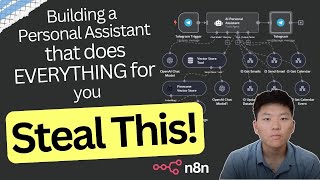
I Built a Personal Assistant AI Agent with No Code in n8n
Nate Herk | AI Automation
Build a No-Code AI Chatbot (Step-by-Step Tutorial)
Nate Herk | AI Automation
I Built an AI Agent that Automated my Inbox with n8n (No Code)
Nate Herk | AI Automation
Step-By-Step: Add 100+ Files to Pinecone for RAG AI Agent with n8n
Nate Herk | AI Automation
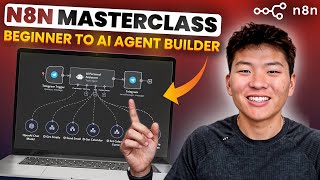
n8n Masterclass: Build AI Agents & Automate Workflows (Beginner to Pro)
Nate Herk | AI Automation
Scrape Google for LinkedIn Profiles in Seconds with n8n
Nate Herk | AI Automation
Step By Step: Automating Lead Nurturing with No Code in n8n
Nate Herk | AI Automation
n8n AI Agent Masterclass | AI Nodes Made Simple
Nate Herk | AI Automation
AI Personal Assistant 2.0 | This Agent Calls Other Agents (No Code) in n8n
Nate Herk | AI Automation
The Best Way to Give AI Agents Tools in n8n
Nate Herk | AI Automation
I Scraped, Researched, and Created Outreach for 16,846 Leads using Godmode HQ
Nate Herk | AI Automation
AI Agent Prompting Masterclass: Beginner to Advanced
Nate Herk | AI Automation
How to Build an AI Slack Assistant in 5 Minutes (Chatbase)
Nate Herk | AI Automation
Step by Step: Scrape UNLIMITED Emails for FREE with n8n
Nate Herk | AI Automation
Chains vs AI Agents in n8n #artificialintelligence #shorts
Nate Herk | AI Automation
Step by Step: RAG AI Agents Got Even Better
Nate Herk | AI Automation
n8n vs Make.com #artificialintelligence #coding #agentgpt #techtok
Nate Herk | AI Automation
How to Build a Personal Assistant AI Agent in n8n (Step-by-Step, No Code)
Nate Herk | AI Automation
Personal Assistant AI Agent in n8n #n8n #coding #agentgpt #artificialintelligence
Nate Herk | AI Automation
Set up Google Credentials in n8n in 5 minutes (2025)
Nate Herk | AI Automation
5 n8n Tips You NEED to Know
Nate Herk | AI Automation
Build this Multi AI Agent System for Research and Content Creation in n8n
Nate Herk | AI Automation
Vector Database Optimization with n8n: Metadata, Text Splitting, & Embeddings
Nate Herk | AI Automation
Are you doing these things to optimize your Vector Database? #artificialintelligence #n8n
Nate Herk | AI Automation
This AI Agent Extracts Text From Images in n8n
Nate Herk | AI Automation
This Invoice Agent Analyzes Images in n8n #techtok #agentgpt #artificialintelligence #n8n
Nate Herk | AI Automation
The Best RAG System On YouTube (Steal This!)
Nate Herk | AI Automation
RAG System 2.0 | Effortless RAG in n8n #artificialintelligence #n8n #aiagent #RAG
Nate Herk | AI Automation
Understanding APIs in n8n (as a beginner)
Nate Herk | AI Automation
Understanding APIs in n8n #n8n #artificialintelligence #api
Nate Herk | AI Automation
How I Built an AI Agent to Automate my Emails in n8n (Step by Step, No Code)
Nate Herk | AI Automation
This AI Agent automates my customer support emails. #n8n #aiagent #artificialintelligence
Nate Herk | AI Automation
Everything I Learned About AI Agents in 2024 in 19 Minutes
Nate Herk | AI Automation
Build AI Agents for $0.014 with DeepSeek V3 in n8n
Nate Herk | AI Automation
Having an Actual Conversation with Data Using an ElevenLabs Voice Agent and n8n
Nate Herk | AI Automation
Having an ACTUAL conversation with my data using ElevenLabs Voice Agent #aiagent #elevenlabs
Nate Herk | AI Automation
ElevenLabs Voice Agents Are So Easy to Build (No Code!)
Nate Herk | AI Automation
How I'd Teach a 10 Year Old to Build AI Agents (No Code, n8n)
Nate Herk | AI Automation
How I Built A Technical Analyst AI Agent in n8n With No Code
Nate Herk | AI Automation
This AI Agent Analyzes Stock Indicators! #n8n #artificialintelligence #coding #agentgpt #techtok
Nate Herk | AI Automation
I Built a Team of Research Agents for Newsletter Automation in n8n (No Code)
Nate Herk | AI Automation
This Team of AI Research Agents Automated My Newsletters! #n8n #artificialintelligence #aiagent
Nate Herk | AI Automation
The Ultimate n8n Starter Kit (2025) (Free)
Nate Herk | AI Automation
Two Ways to Save 96% of Your Money Using DeepSeek R1 in n8n
Nate Herk | AI Automation
How to Actually Build Agents with DeepSeek R1 in n8n (Without OpenRouter)
Nate Herk | AI Automation
This Voice Agent Sends Emails for You #artificialintelligence #n8n #aiagent #coding #agentgpt
Nate Herk | AI Automation
Best Model for RAG? GPT-4o vs Claude 3.5 vs Gemini Flash 2.0 (n8n Experiment Results)
Nate Herk | AI Automation
How to Locally Host DeepSeek R1 for FREE in Under 10 Minutes in n8n
Nate Herk | AI Automation
OpenAI Fires Back at DeepSeek With a New Reasoning Model: o3-mini (n8n AI Agent)
Nate Herk | AI Automation
Run DeepSeek R1 Locally in Under a Minute #coding #artificialintelligence #n8n #deepseek
Nate Herk | AI Automation
I Built the Ultimate Team of AI Agents in n8n With No Code (Free Template)
Nate Herk | AI Automation
I Built the Ultimate Team of Agents in n8n #artificialintelligence #n8n #agentgpt #techtok #coding
Nate Herk | AI Automation
More on: AI Workflow Automation
View skill →






Related Reads
📰
📰
📰
📰
How to Use AI Without Losing Your Writing Voice
Medium · ChatGPT
We Changed How Work Software Works
Medium · Startup
Yazılımcı Arkadaşlarınızı Engellemeden Önce: Yapay Zekâyla Ücretsiz Web Sitenizi Yapın
Medium · ChatGPT
What Workflow Builders Learn When AI Draft Quality Improves but Publishing QA Still Breaks: Practical Notes for Builders
Dev.to AI
Chapters (13)
Demo
1:21
Personal Assistant Trigger & Memory
6:17
Adding Contact Database
8:27
Configuring Telegram Response
10:34
Building Email Agent
23:55
Testing Email Agent
27:05
Building Calendar Agent
36:42
Testing Calendar Agent
39:44
Building Research Agent
44:10
Testing Research Agent
48:15
Setting Up Voice Input/Output
53:40
ElevenLabs HTTP Request
1:03:51
Final Thoughts
🎓
Tutor Explanation
 DeepCamp AI