How to Publish a Python Package to PyPI (pip)
Skills:
AI Tools for PMs90%PM Basics70%Product Metrics60%Project Management Foundations60%Delivery Management50%
Key Takeaways
This video demonstrates how to publish a Python package to PyPI using tools like pip, setup tools, wheel, and Twine, covering project setup, configuration, building, testing, and publishing.
Full Transcript
publishing a python package allows you to share your code with others but also make it easily installable you can use this to make your own python library or CLI application that you'll be able to install with a pip command in this tutorial I'm going to walk you through step bystep on how you can create a basic python project that you can publish to the piie repository once you've published it you and other people will be able to install this package using pip and then you can use it as a library or a CLI command so if that sounds good let's get started first you're going to need a couple of tools in your python environment so run this pip command to install setup tools wheel and Twine which we will be using as part of this project next you're going to need to create the project structure for your package so here's an example of that in this case I'm calling the project pixami hello so that's going to be the root folder and inside I'm going to have another folder with the same name which is going to be the package that I'll actually publish later on um but outside that folder in the root directory I've also got a setup py file and a readme file in the main.py file I'm just going to create a simple function which I'll name hello and it's just going to print this Hello message so it doesn't really do much at this point but I just want to see if I can create a package out of that and then use this function we're also going to need an init file as well in the same directory so go ahead and create that and put this content in there import this hello function we created earlier into this init.py file and just in case you're not familiar with this let me explain what it does the init py file in a python package serves two purposes first of all it tells python that the whole directory here should be treated as a package and second it controls what's actually available when that package is imported by actually importing this hello function to the inet piy file you can allow users to directly access that function straight from the package so this actually looks a lot cleaner and more straightforward when you actually use the package um so this is what it will look like once we've actually published it and we want to use it next we're going to need to configure our setup.py file which will contain the instructions for how to bundle and publish that package here is an example code of how you can structure your setup file it's going to have the name of your package which should match your folder name um and it's going to have a version number as well so you have to make sure that you increment this version number each time you want to publish a new version of this package and finally if you have any dependencies that you want your package to use uh you can put it in this array as well now there's actually a lot more parameters and options you can add to the setup function uh but we'll come back to that later for now if you have this file and this basic config we can move on to the next step which is actually building our package this command will generate two distributions for us a source distribution which is usually just the Python scripts and then a wheel of distribution so this usually also contains binaries uh which are plat form specific and these archives will have all the necessary files for installing and running the package now let's hop over to the code editor and actually give that a shot so here I've got my root project folder and inside I've got my actual package folder which I've called pixami hello uh and here there is my main.py file with my hello function which I am importing in this init.py file like this so this is going to be the package that I will create and distribute and publish now outside of that I've got my setup.py file and my readme file and also my requirements file but you don't need the readme and the requirements file so that's just up to you whether you want to include it or not um but the one that you need is the setup file so here's the code that we saw earlier it just has the name of the package version 0.1 and then no dependencies so it's just going to install on its own now let's go ahead and run that setup and after that's finished you could see it's created a couple of different directories for us there's a build folder and a distribution folder and the important file in here is this wheel file because this is the one that uh we can distribute and other people can install so once you see these files you're ready to move on to the next step now before you actually publish the files to the online repository you might want to try installing and testing it locally first just to make sure it works properly to do that you can run pip install directly on this wheel file that we just produced a moment ago just make sure to replace this command with the actual name and version of your package if you're trying to follow along now if like me you're running this and it's already installed or you just want to refresh the installation you can also use this Force reinstall flag with your pip command after that you should see a message saying that this was installed successfully and if you type pip list you should see this package show up in your python environment as well now with it installed in your environment you can create a new folder or a new file completely and then actually import and use the library that you've just installed so here I'm going to import that hello function that we published as part of the package and then I'm just going to use it here and here it doesn't actually know where the package is we've just installed it into our environment and that's where it lives right now and if you run this um you should be able to see this Hello message that we prepared earlier as part of this package now if this doesn't work for you for any reason Reon just make sure that you are using the python environment that actually has this package so if you type pip list you should see that package show up here and you can also click here as well in vs code to make sure that you really did select that correct environment okay so this is good if you wanted to make a library package but what if you actually wanted to use this in your terminal as a command on its own if you actually want to turn the package into a command line interface or a CLI application you can also do that go back to your setup POI file and specify entry points for your package and you can do it like in this code example here this will let you run a command and it will map it to any function you want inside your package so here I'm going to create a command called pixami Dello um and by the way this name can be anything you want it doesn't have to be related to your package name or your function name at all uh and I'm going to map it to the pixami hello package and the function called hello and again just to repeat myself this works because we've imported that hello function right into the package Nam space here so if you haven't done that you might have trouble finding that function let's go back to our editor and try that out so here I've just added the entry points you might also want to bump the version number so that you know that you've installed the version with this command so I'm going to do that I'm going to bump it to 0.2 and now let's go back to our terminal and build and install the package again now if you did bump the version number make sure you also change the wheel file because the version number is usually baked into the name here so make sure that you're installing the latest version uh that you just published with that installed successfully now let's see if we can actually run this command so here in my terminal I'm just going to type pixami hello and then hit run and now you can see that I've got that output message directly from my terminal so here if you want to create a package that you can run directly from your uh command line This is how you can do it now that your package is ready let's take a look at how we can publish it to pii pii is a python package repository and it's where most of the world's python packages are hosted so when you run pip install this is usually where it gets those packages from first you're going to need to go to p.org and create a pii account so go ahead and do that first if you haven't already once you have that you can run this command to upload anything in your distribution folder directly to pii uh and when you run this it's going to ask for your credentials which you can enter into the terminal directly or you can also provide it as an environment variable this is useful if you want to automate it fully for example run it as part of a cicd workflow you can set it like this um the environment variables are called twine username and Twine password and this works with both API tokens or with username password combinations once you've run the command to publish the package you can click on this link to see it and now you can see it's on the pii repository and here's the command we can use to install it and now anyone all over the world will be able to use this command to install your python package now this description section is a little bit light um so I'm going to show you a trick I like to use to turn the Project's read me document into this description content over here back in my project I actually already have a read me file uh that contains all the information about this project and if you already have that information it really doesn't make sense to copy all of that for the PPI project description when you can just reuse it so let's see how we can do that back in your setup file let's first import all the contents of that readme file I'm storing all the text content of this readme file in this description variable then inside your setup function we're going to set this long description parameter to whatever we read from the readme file we're also going to set the long description type to markdown so it knows how to render this properly with that change let's Now bump our version number up by one and now we can build and publish our package again and now if you go to our latest version you can see that the project description has been updated with the readme file and now that our package has been successfully published to pip let's see if we can actually install it from a fresh environment um using the PIP command directly without referencing our local distribution file so let's copy this pip install command over here and here I've opened up my terminal to a new python environment that doesn't currently have this module so I'm going to run this pip install command um and let's see if our Command actually works okay and that seems to work really well so now you can see how we create a python package publish it to piie and now us or anyone else can install it using pip and then use it directly in our terminal now I probably should mention that if you just want to test your uploads or experiment with this then pii actually has a test end point that you should use I actually recommend doing this instead of uploading to the official public repository because you don't want to start polluting the public repository with experimental projects to do that you'll have to follow these instructions to create a test user create a test API token and then make a couple of changes to your distribution command uh I'll put a link to this page in the project description so you can check it out if you want to try this that's going to be all for this tutorial today check out the description below for the code or for other useful links if you've enjoyed this video and you want to see more stuff like this um then let me know in the comments below what type of projects or tutorials you'd want to see covered next otherwise I hope you found this useful and thank you for watching
Original Description
Learn how to publish your own custom Python package to PyPI.
This tutorial covers setting up the project, configuring the setup.py file, building and testing the package, adding CLI functionality, publishing to PyPI, and installing using pip. Watch this video if you want to share your code and make it easily installable for others.
📚 Chapters
00:00 Introduction
00:34 Project Setup
02:06 Configure and Build Package
04:14 Local Testing
05:53 Adding a CLI Entry Point
07:36 Publish to PyPI
10:01 Wrapping Up
#pixegami #python
Watch on YouTube ↗
(saves to browser)
Sign in to unlock AI tutor explanation · ⚡30
Playlist
Uploads from pixegami · pixegami · 55 of 60
1
 2
2
 3
3
 4
4
 5
5
 6
6
 7
7
 8
8
 9
9
 10
10
 11
11
 12
12
 13
13
 14
14
 15
15
 16
16
 17
17
 18
18
 19
19
 20
20
 21
21
 22
22
 23
23
 24
24
 25
25
 26
26
 27
27
 28
28
 29
29
 30
30
 31
31
 32
32
 33
33
 34
34
 35
35
 36
36
 37
37
 38
38
 39
39
 40
40
 41
41
 42
42
 43
43
 44
44
 45
45
 46
46
 47
47
 48
48
 49
49
 50
50
 51
51
 52
52
 53
53
 54
54
 ▶
▶
 56
56
 57
57
 58
58
 59
59
 60
60
How to Build an AWS Lambda Function in Python in Just 7 Minutes!
pixegami
AWS CDK Tutorial: Deploy a Python Lambda Function using AWS
pixegami
I used GPT-3 to Write Poetry • Is AI the Future of Creative Writing?
pixegami
Create NFT Generative Art with Python! (Full Tutorial)
pixegami
Build an AI-driven SaaS Application: FULLSTACK Tutorial with Python, React, and AWS
pixegami
NextJS and TailwindCSS: How to Build a Portfolio Site from Scratch
pixegami
Python Web Scraping Tutorial • Step by Step Beginner's Guide
pixegami
Build Wordle in Python • Word Game Python Project for Beginners
pixegami
How to create 1000+ unique NFT-style images (like Cryptopunk) | Python Tutorial
pixegami
Top 10 Python Modules 2022
pixegami
How to Send SMS Text Messages with Python & Twilio - Quick and Simple!
pixegami
How To Write Unit Tests in Python • Pytest Tutorial
pixegami
How to Style Your React Landing Page with Tailwind CSS
pixegami
FastAPI Python Tutorial - Learn How to Build a REST API
pixegami
How to Deploy FastAPI on AWS EC2: Quick and Easy Steps!
pixegami
PyScript • How to run Python in a browser
pixegami
My Custom Ubuntu Linux Terminal with Themes and Plug-ins 💻
pixegami
Deploy FastAPI on AWS Lambda ⚡ Serverless hosting!
pixegami
NextJS Firebase Auth Tutorial • How to Authenticate Users for Your App
pixegami
AWS Lambda Python functions with a database (DynamoDB)
pixegami
How To Build a CRUD (TO-DO) App on AWS using FastAPI and Python
pixegami
How to Make a Discord Bot with Python
pixegami
How To Use GitHub Copilot (with Python Examples)
pixegami
PyTest • REST API Integration Testing with Python
pixegami
Python Beginner Project: Build a Caesar Cipher Encryption App
pixegami
Decorators in Python: How to Write Your Own Custom Decorators
pixegami
NextJS 13 Tutorial: Create a Static Blog from Markdown Files
pixegami
Exploring ChatGPT for Coding and Business ✨ 8 Real Examples!
pixegami
How I Would Learn Python (if I had to start over) • A Roadmap for 2023
pixegami
Build an AI Pokemon Generator with Python and Midjourney
pixegami
Why You Should Learn Python in 2023 (as your first programming language)
pixegami
ChatGPI API in Python ✨ How to Build a Custom AI Chat App
pixegami
Learn Python • #1 Installation and Setup • Get Started With Python!
pixegami
Learn Python • #2 Variables and Data Types • Python's Building Blocks
pixegami
Learn Python • #3 Operators • Add, Subtract and More...
pixegami
Learn Python • #4 Conditions • If / Else Statements
pixegami
Learn Python • #5 Lists • Storing Collections of Data
pixegami
Learn Python • #6 Loops • How to Repeat Code Execution
pixegami
Learn Python • #7 Dictionaries • The Most Useful Data Structure?
pixegami
Learn Python • #8 Tuples and Sets • More Ways To Store Data!
pixegami
Learn Python • #9 Functions • Python's Most Important Concept?
pixegami
Learn Python • #10 User Input • 4 Ways To Get Input From Your User
pixegami
Learn Python • #11 Classes • Create and Use Classes in Python
pixegami
Learn Python • #12 Final Project • Build an Expense Tracking App!
pixegami
Stripe & Firebase Tutorial • Add Payments To Your NextJS App
pixegami
How To Use GitHub Actions • Automate Your AWS Deployments
pixegami
How to Run a Python Docker Image on AWS Lambda
pixegami
My MacOS Terminal Setup for HIGH Productivity
pixegami
Host a Python Discord Bot on AWS Lambda (Free and Easy)
pixegami
Python FastAPI Tutorial: Build a REST API in 15 Minutes
pixegami
Pydantic Tutorial • Solving Python's Biggest Problem
pixegami
How to Get Started with AWS • Crash Course
pixegami
Python Requests Tutorial: HTTP Requests and Web Scraping
pixegami
Amazon Bedrock Tutorial: Generative AI on AWS
pixegami
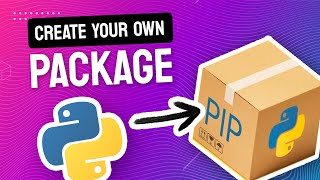
How to Publish a Python Package to PyPI (pip)
pixegami
Langchain: The BEST Library For Building AI Apps In Python?
pixegami
RAG + Langchain Python Project: Easy AI/Chat For Your Docs
pixegami
Python Dataclasses: Here's 7 Ways It Will Improve Your Code
pixegami
Build a Custom AI RPG Game with OpenAI GPTs
pixegami
Create a Custom AI Assistant + API in 10 Mins
pixegami
More on: AI Tools for PMs
View skill →







Related AI Lessons
⚡
⚡
⚡
⚡
How to prepare TIC teacher exams in Spain with AI (oposiciones 2026)
Dev.to AI
Why I built a simple AI provider wrapper (and you might too)
Dev.to · zhongqiyue
This ChatGPT Prompt Replaced 3 Hours of PowerPoint Work
Medium · AI
This ChatGPT Prompt Replaced 3 Hours of PowerPoint Work
Medium · ChatGPT
Chapters (7)
Introduction
0:34
Project Setup
2:06
Configure and Build Package
4:14
Local Testing
5:53
Adding a CLI Entry Point
7:36
Publish to PyPI
10:01
Wrapping Up
🎓
Tutor Explanation

 DeepCamp AI