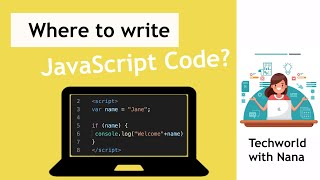
Where to write JavaScript | Where to execute JavaScript Code | JavaScript Tutorial #3
Key Takeaways
The video demonstrates three ways to write and execute JavaScript code, including inline scripts, internal scripts, and external scripts, using tools such as HTML, CSS, and JavaScript editors.
Full Transcript
there are three ways to execute your JavaScript code the simplest way to start writing JavaScript is directly into the browser and this is possible because all modern browsers are able to interpret JavaScript and compare it with so-called developer tools so open either Firefox or Chrome browser if you don't have them you can just download them open a new tab and right-click and choose inspect and this will open this section which is called developer tools and here's the tab called console and if you open that and we can clear that with this button this is a place where you can write JavaScript directly and the browser will interpret and execute your JavaScript code right here so you don't have to setup anything and this is the easiest way to start especially if you want to try out some simple commands so let's actually write some JavaScript code there so you can create variables here or you can do some calculations and you can add number 1 and number 2 etc so you can do many things here however if i refresh the page of course all the code will be gone and also you can execute only one command at a time and usually when you're developing you want to save that code and execute the whole thing at once and not have it disappear every time you refresh the browser so for that you need to write JavaScript in a file and then give that file to browser in order to execute the code inside and the file that browser accepts to execute JavaScript code is HTML you can check out my other video where I explain exactly HTML CSS and JavaScript but since I just want to show JavaScript code execution here I'm gonna create a basic HTML outline so that our browser can execute the JavaScript code so how can I write the HTML file with JavaScript code in an editor so if you are on Windows you may have a notepad a simple text editor or I on make have a text edit and I can create a new document if I open that I can write just normal text here so I'm gonna write some simple HTML tags I'm gonna create a separate video where explain the HTML syntax but here we just leave it at the basics so maybe you're wondering if I'm writing HTML in the same edit or where I would write normal text how does browser know that it's an HTML file well when you save the file instead of text document I'm gonna choose HTML so dot HTML extension and I'm gonna call this Val index which is a standard or common name for the main HTML file so when I save this you also see the icon that has chrome logo in it or maybe some other browser logo that means it's a browser executable and since this is just HTML in order to add JavaScript code I'm gonna add take called script that's where JavaScript goes and and this is a part where we'd write all the JavaScript code so for example here I can create a variable called some name and so on now I said you can write the whole HTML and JavaScript in here but the problem with using the simple editor is that they don't help you in writing code so here you see they don't highlight the keywords they don't tell you you made a syntax error or any other tips so for example in browser when we wrote var name some name you get the highlighting of the keyword of the variable name of the data type for example if you have a number it has a different highlighting etc so you don't have any of that in simple editor and it also looks pretty ugly so instead there's special editors for different programming languages that help you with highlighting and other features to write the code and there's special editors to write HTML and JavaScript code one that I personally recommend is Visual Studio code it's free and you can download it very easily and you'll be set to start coding I'll put the link of Visual Studio code and browser download links in the description so you can quickly access them I already have Visual Studio code downloaded so I can just open it and this is the view so you can either create a new file here or you can open an existing one and edit them here so we're just gonna copy the contents of the index.html and we're gonna paste them here and if I save that and I'm gonna save it in the same destination and in the file name I'm gonna write the extension as well so I'm gonna replace the existing one and here you see the highlighting and you also see that I get my first error that is complaining about the quotes because the quotes from the simple edit or where ron's i'm going to delete them and write like this and this special editors have many different features and shortcuts that help you in programming so especially if you are a beginner you're gonna need that and this is the absolutely minimum required HTML contents in order for the browser to accept this so we can actually get started with it and write javascript already inside of course in reality it's not going to look like this but this is good for starting and to execute that index.html that we just wrote is actually super simple either you go to the file just drag and drop it on to the browser window and it loads it or you can simply go and double click on that index.html file and execute the script now we don't see anything because we haven't created any content in order to make sure that our file is working let's actually add something that we are gonna see which is console.log this is basically a command that prints whatever we provide here in the console the console where I showed you how to write JavaScript directly we can actually print out to it from our script so I'm gonna save this and go back to the browser and I am supposed to that message right here right now when whenever you make changes to your file you don't have to go back and double click or drag and drop it again because your browser already has the location of that file right here so it knows where the file is located so if i refresh this it will go and find that file again go through the contents again and show any changes so it printed our message here so after every change you can just refresh it okay so I showed you two ways to write an execute JavaScript code and the third way is instead of writing the JavaScript here creating its own JavaScript file and then linking that file inside the HTML so how it's gonna work is I'm gonna create a new file here and I'm gonna copy everything inside the script tags to that file so like this and I'm gonna save this as f dot J's so see the extension here is dot J s not HTML so it's gonna be a separate javascript file and F is again just some standard naming for the main JavaScript so I'm gonna save that and again I see my highlighting here and in this editor also I see the type of file that I'm editing so now in order to link the contents in this file inside the HTML you do that using the script tag but instead of writing anything inside that text we actually leave this empty and right here we're gonna write source double quotes and file name of the JavaScript that we want to link so I'm gonna write a dot J's here and this is just the syntax in HTML so now when I save this and go back to my file and refresh this I should see the same message so just to be sure so some message javascript file so save it again refresh and you see the changes so this is a third way to write an execute JavaScript and before I in this video there are two important things to understand the first one is that in real projects you have many files so you have multiple JavaScript files you have multiple CSS files and all these files belong to one project so how it works is usually you create a dedicated folder to group all these files together so for example somewhere on your filesystem you would create a new folder you would create you would call it the project name my project and you would put all your project files inside that folder and here you would have let's say another JavaScript file or a CSS file so when you have a big application obviously your code your HTML and JavaScript code will be much more than what we saw in this simple example so for example you would have a main javascript and then you would have own javascript file for the login code you would have own javascript file for the register code for the profile section etc you end up with multiple files each one containing hundreds of lines of code so inside of a project you create this here key where you group your files logically or per file type or in any other way so for example if I create it here and move another folder in I call it JavaScript I could put all my JavaScript files inside so I have index yep CSS an own JavaScript folder for all the JavaScript files so now that I have restructured or rearranged the locations of the files and go back and refresh it's not gonna work anymore because the file locations are wrong and that's the second point that I wanted to mention is that the locations where the files are living or files exist is very important in programming because everything is so linked you have to make sure the locations are correctly set so for example this location or also called path to the file is wrong because we moved index.html into a my project folder inside the demo project right so either you can again double click this and reopen the correct file or you can also adjust the location right here so we can actually do that my project but this will not work because we also change the location of JavaScript file before it was in the same folder as index.html so we could just provide the name of the file but this value here is actually the location of JavaScript file otherwise how would index.html know where to find that file it could be anywhere in the file system right so we have to tell it exactly where that app J's file is so now if you go back here you see that this is index.html in our JavaScript our app J's is inside JavaScript folder so I'm gonna add that folder path here and with slashes basically you separate the folders so inside JavaScript folder there's M J's file go and find it and note that I don't have to provide the whole path is here I just have to provide the location relative to the index.html file right so starting from this location where is that JavaScript file so if I go back and refresh this it's gonna work again and as I mentioned file locations and linking the files correctly using that location is very important concept in programming and understanding that will help you a lot at the beginning and the location is also important inside the editor because if I go here you see the my editor cannot find FJs deleted from disk because I moved that file so it's also important to update the editor and give it the new location of the file so to do that you can simply close the old one and then reopen the new file so that editor knows the location of the new file so to summarize you can execute JavaScript either directly in the console or you can write it inside the script tags in index.html file or you can link it as an external file again using script tags but defining source which points to the location of where the JavaScript file is located and this is especially important when you have HTML file that has 100 lines and JavaScript that has also hundred 200 lines you want to keep things clearly separated so that you don't end up with one file that has a bunch of code just mixed in from HTML and JavaScript and CSS thank you for watching let me know in the comments if you have any questions and I'll see you in the next video
Original Description
Learn where to write and execute JavaScript Code | How to write JavaScript code?
► Subscribe To Me On Youtube: https://bit.ly/2z5rvTV
In this video I explain and show the 3 ways of how to write and execute your JavaScript code. I give a short demo of each and also explain the disadvantages of each.
👩🏻💻 Where to write and execute JavaScript:
► 1) Writing and executing JavaScript directly in the Browser Console is the simplest way to get started. It's practical when you want to try something out, but not an option for real programming. Find out why in the video.
► 2) The second option writing JavaScript code in the index.html file (called inline script) is better, but has some disadvantages in structuring and keeping HTML/CSS apart from your logic.
► 3) The third and last way to write JavaScript code, is writing the code in a separate JavaScript file and linking this file in the HTML file. This is the way to go, because it is clean and practical when your application gets bigger.
👩🏻💻 Simple Text Editor vs. Special Code Editor:
I also explain and show you the advantages of writing your JavaScript code in a special code editor instead of writing it in a simple text editor. One example is the highlighting of keywords or syntax error detection, which helps a lot in programming.
👩🏻💻 Understand file structure in real projects and file path
__________________________________________________________________________
0:00 - Start
0:05 - Writing JavaScript in the Browser Console
1:33 - Writing JavaScript in HTML file using script tag
3:28 - Advantages and disadvantages of using a simple Text Editor vs. special code editors like VS Code
7:16 - Separate JavaScript file and linking it in HTML file
9:04 - File structure in real projects and file path
► Download Visual Studio Code here: https://code.visualstudio.com/
► Chrome Download: https://www.google.com/chrome/
► Firefox Download: https://www.mozilla.org/en-us/firefox/new/
►► This is a complete JavaScri
Playlist
Uploads from TechWorld with Nana · TechWorld with Nana · 39 of 60
1
 2
2
 3
3
 4
4
 5
5
 6
6
 7
7
 8
8
 9
9
 10
10
 11
11
 12
12
 13
13
 14
14
 15
15
 16
16
 17
17
 18
18
 19
19
 20
20
 21
21
 22
22
 23
23
 24
24
 25
25
 26
26
 27
27
 28
28
 29
29
 30
30
 31
31
 32
32
 33
33
 34
34
 35
35
 36
36
 37
37
 38
38
 ▶
▶
 40
40
 41
41
 42
42
 43
43
 44
44
 45
45
 46
46
 47
47
 48
48
 49
49
 50
50
 51
51
 52
52
 53
53
 54
54
 55
55
 56
56
![Docker Tutorial for Beginners [FULL COURSE in 3 Hours]](https://i.ytimg.com/vi/3c-iBn73dDE/mqdefault.jpg) 57
57
 58
58
![Kubernetes Tutorial for Beginners [FULL COURSE in 4 Hours]](https://i.ytimg.com/vi/X48VuDVv0do/mqdefault.jpg) 59
59
 60
60

What is Docker? Docker container concept explained || Docker Tutorial 1
TechWorld with Nana
What is a Docker Container? Docker Demo || Docker Tutorial 2
TechWorld with Nana
How to install docker? Step by Step || Docker Tutorial 3
TechWorld with Nana
8 Basic Docker Commands || Docker Tutorial 4
TechWorld with Nana
Debugging Docker Containers with docker exec and docker logs || Docker Tutorial 5
TechWorld with Nana
Docker vs Virtual Machine | simply explained || Docker Tutorial 6
TechWorld with Nana
Overview of Workflow with Docker - Docker in Practice || Docker Tutorial 7
TechWorld with Nana
Developing with Docker - Docker in Practice || Docker Tutorial 8
TechWorld with Nana
Docker Compose Tutorial - Docker in Practice || Docker Tutorial 9
TechWorld with Nana
Dockerfile Tutorial - Docker in Practice || Docker Tutorial 10
TechWorld with Nana
Private Repository explained | Registry on AWS - Docker in Practice || Docker Tutorial 11
TechWorld with Nana
Docker Volumes explained in 6 minutes
TechWorld with Nana
Deploying the containerized application with Docker Compose || Docker Tutorial 12
TechWorld with Nana
Docker Volumes Demo || Docker Tutorial 13
TechWorld with Nana
Docker vs Kubernetes vs Docker Swarm | Comparison in 5 mins
TechWorld with Nana
What is Kubernetes | Kubernetes explained in 15 mins
TechWorld with Nana
Kubernetes Components explained! Pods, Services, Secrets, ConfigMap | Kubernetes Tutorial 14
TechWorld with Nana
Kubernetes Architecture explained | Kubernetes Tutorial 15
TechWorld with Nana
Benefits of Kubernetes | Scalability, High Availability, Disaster Recovery | Kubernetes Tutorial 16
TechWorld with Nana
Minikube and Kubectl explained | Setup for Beginners | Kubernetes Tutorial 17
TechWorld with Nana
Top 3 programming languages to learn in 2020 | meta analysis
TechWorld with Nana
Kubectl Basic Commands - Create and Debug Pod in a Minikube cluster | Kubernetes Tutorial 18
TechWorld with Nana
Kubernetes YAML File Explained - Deployment and Service | Kubernetes Tutorial 19
TechWorld with Nana
Run Jenkins in Docker Container - Jenkins Pipeline Tutorial for Beginners 1/4
TechWorld with Nana
Create Multibranch Pipeline with Git - Jenkins Pipeline Tutorial for Beginners 2/4
TechWorld with Nana
Jenkinsfile - Jenkins Pipeline Tutorial for Beginners 3/4
TechWorld with Nana
Trigger Jenkins Build automatically - Jenkins Pipeline Tutorial for Beginners 4/4
TechWorld with Nana
Complete Application Deployment using Kubernetes Components | Kubernetes Tutorial 20
TechWorld with Nana
Kubernetes Namespaces Explained in 15 mins | Kubernetes Tutorial 21
TechWorld with Nana
Configure Build Tools in Jenkins and Jenkinsfile | Jenkins Tutorial
TechWorld with Nana
Complete Jenkins Pipeline Tutorial | Jenkinsfile explained
TechWorld with Nana
Kubernetes Ingress Tutorial for Beginners | simply explained | Kubernetes Tutorial 22
TechWorld with Nana
What is Helm in Kubernetes? Helm and Helm Charts explained | Kubernetes Tutorial 23
TechWorld with Nana
How Websites Work | simply explained with examples
TechWorld with Nana
What is JavaScript? | JavaScript Tutorial #1
TechWorld with Nana
What is Ansible | Ansible Playbook explained | Ansible Tutorial for Beginners
TechWorld with Nana
JavaScript Variables & JavaScript Data Types explained | JavaScript Tutorial #2
TechWorld with Nana
How Prometheus Monitoring works | Prometheus Architecture explained
TechWorld with Nana
Where to write JavaScript | Where to execute JavaScript Code | JavaScript Tutorial #3
TechWorld with Nana
JavaScript Operators & JavaScript Conditionals | JavaScript Tutorial #4
TechWorld with Nana
Pods and Containers - Kubernetes Networking | Container Communication inside the Pod
TechWorld with Nana
Kubernetes Volumes explained | Persistent Volume, Persistent Volume Claim & Storage Class
TechWorld with Nana
Kubernetes ConfigMap and Secret as Kubernetes Volumes | Demo
TechWorld with Nana
Pull Image from Private Docker Registry in Kubernetes cluster | Demo
TechWorld with Nana
Kubernetes StatefulSet simply explained | Deployment vs StatefulSet
TechWorld with Nana
Yaml Tutorial | Learn YAML in 18 mins
TechWorld with Nana
Terraform explained in 15 mins | Terraform Tutorial for Beginners
TechWorld with Nana
Setup Prometheus Monitoring on Kubernetes using Helm and Prometheus Operator | Part 1
TechWorld with Nana
Managed Kubernetes Cluster explained | Kubernetes on Cloud (1/2)
TechWorld with Nana
Step by Step Application Deployment on LKE using Helm | Kubernetes on Cloud (2/2)
TechWorld with Nana
Kubernetes Operator simply explained in 10 mins
TechWorld with Nana
What is Infrastructure as Code? Difference of Infrastructure as Code Tools
TechWorld with Nana
AWS EKS - Create Kubernetes cluster on Amazon EKS | the easy way
TechWorld with Nana
Prometheus Monitoring - Steps to monitor third-party apps using Prometheus Exporter | Part 2
TechWorld with Nana
GitHub Actions Tutorial - Basic Concepts and CI/CD Pipeline with Docker
TechWorld with Nana
Docker Tutorial for Beginners [FULL COURSE in 3 Hours]
TechWorld with Nana
Kubernetes Services explained | ClusterIP vs NodePort vs LoadBalancer vs Headless Service
TechWorld with Nana
Kubernetes Tutorial for Beginners [FULL COURSE in 4 Hours]
TechWorld with Nana
Containers on AWS Overview: ECS | EKS | Fargate | ECR
TechWorld with Nana
Kubernetes is dropping Docker support - What does it mean for YOU?
TechWorld with Nana
More on: JavaScript Fundamentals
View skill →





Related Reads
📰
📰
📰
📰
Frontend Storage: localStorage, sessionStorage & Cookies
Medium · JavaScript
How to add country icons to a React app
Dev.to · Rushan
Multi-Step Forms in Angular: Building Clean, Scalable, and User-Friendly Form Workflows
Medium · Programming
Why Angular Pages Sometimes Load Instantly… And Sometimes Don’t
Medium · JavaScript
Chapters (6)
Start
0:05
Writing JavaScript in the Browser Console
1:33
Writing JavaScript in HTML file using script tag
3:28
Advantages and disadvantages of using a simple Text Editor vs. special code ed
7:16
Separate JavaScript file and linking it in HTML file
9:04
File structure in real projects and file path
🎓
Tutor Explanation

 DeepCamp AI