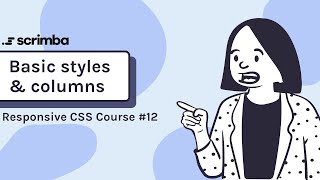
12. Basic Styles and setting up the columns - Responsive CSS Tutorial
Skills:
HTML & CSS80%
Key Takeaways
Applies basic styles and sets up columns using Flexbox and CSS for a responsive web design project
Full Transcript
It's time to make the columns in this layout into actual columns instead of stacking one on top of each other. So, as promised, I've put all the content in here, and I want you to give it a go. So, we have everything we need in place. We have all my paragraphs, all my content is in here. We just need to actually get this to be columns instead of stacking one on top of each other. So, if you want to go ahead and go for it. Uh just as a quick reminder, we want these two parents to be the display flex, and then everything should more or less fall into place a little bit. I've also given you the colors that we're going to be using, and the font sizes. So, I'm going to start this one off by putting in the columns, and then I'll also throw in the colors for my text and setting up the font sizes. Um but first, I'm just going to set up my columns to make sure they're working, to make sure we understand that. Then I'm going to run through and set up all my colors, except for the background color on these two, cuz I'm going to look at that in the next video as a quick refresher, which is going to get us ready to set the different sizes on these two middle columns here. So, you have the right starting point. Do as much as you can on your own before you watch me do it. See if you can get the whole thing done even. But if you get stuck anywhere, of course, come and see how I did it. Or when you're done, come and see if we did it in the same way. All right. So, I'm going to jump over to my CSS file here. And as I said, I'm going to start with my container. Normally, I'd start with my body. But let's just get the layout stuff working first. So, let's actually come up here and make a comment called layout. And I'll come here, and my container, I said I want it to have a maximum width of 980 pixels. Now, if we left it like that, when we come and look at it, if we make our screen big enough, we're going to see that um it's it's nothing's going to grow outside of that space. So, I could set my max width of 980, and then I could come on here and set the margin of zero auto to center it on the screen. And now, it's looking pretty good. And this is one of those rare times, because we don't have a background color that's going anywhere one side to the other, that default margin on the body, maybe it's not such a bad thing, cuz it's preventing our text from touching the side there. It's getting a little bit too close for me. I like keeping things a little bit further off than that. So, I am also going to give this a width of about 90%. So, it will always keep a little bit more distance off the sides um than what we had before. It's not perfect, but I like that a little bit better. So, I'm going to stick with that. Maybe even 95 we could get away with. Let's bump that up to 95 and keep going. Uh the more fun part, and the part that you have been waiting for, is coming on to my dot column, and then on here setting this up. So, on my dot columns here, we do a display of flex. And just like that, we should be able to come into here and see I have three columns. And if I scroll down, I get my two columns there. Now, it doesn't look exactly like the layout that we had, cuz this one is much longer than those two. And it really depends on just how the screen is, and how it is set up. Plus, this column is supposed to be wider than the other ones. So, when we do that, it should fix everything we want. Now, you'll notice there's something weird happening down here, where it's sort of already falling into line, but this one is much smaller or narrower than this one. So, we do have some work to do. Now, we are having a big issue, which is with my image. It is causing some side scrolling. So, the first thing I'm going to ask you to do right now is go ahead and fix that issue with the side scrolling, if you remember how I did it last time. So, I'm going to come here. I'm going to stick under layout, cuz images are part of my layout most of the time. And I'm going to give this a max width of 100%. Now, you probably did a width of 100%, which is perfectly fine, and what you want to be doing anyway. The only difference between giving it a width of 100% or a maximum width of 100% is it means my image can never get bigger than it was supposed to be. So, if my max width here was actually like 1200, and I made this much bigger than what we had before, my image won't stop growing when it gets to its native size of 980 pixels. Whereas, it will still shrink to fit the content if my if its area is smaller than it. Re- The only reason I would do that is if an image goes beyond or bigger than it originally was, it will start losing a little bit of quality. So, because of that, I'm going to stick with a max width of 100% instead of just having a width of 100% and letting it grow. It's not too noticeable now, but if it really does get a lot bigger than it was intended to be, it's going to get really, really blurry and nasty looking. So, I'm going to stick with a max width there, and we'll bring this down to 980 just like that. And we have our nice three columns that are coming into place. So, that is nice and done. So, we are well on the way. The next thing I'm going to do is just to go through and fix up some of these colors, except I'm going to save these two background colors for the next video, like I had already mentioned. So, let's go and do that. I'm going to come up to the top here, and we're going to look at this slide really fast, and I'm just going to be running through all of the things we see here. So, I'm going to set the font size and my colors, and then that's it for now. So, that's all in place when we jump into the next one. So, on the body itself, I'm going to come up here, and we had the font size that I said would be 1.125 rem. The next thing we want is the color, cuz the color throughout the entire design, except for those areas that are on the white background and the H1, um are using that 707070 color. So, I'm going to set that right there. I'm also going to go and put the margin to zero, just cuz I tend to do that on every design, even this one where it's not essential to have. Now, we can get into our typography. And I'll come into here and start writing a little bit. So, we have my H1, which has a font size of three rem, and also has that color of 312614. I'm going to leave the margin alone, I think, for this uh in this case. I don't think we really need to change it. And I'm going to come on my H2 and give that font size of 1.5 rem. And I think that's all we really need to do. Let's go and just take a quick look. Um the one thing I did forget, actually, is that span in the middle. So, let's set that up. I'm going to come into my index. And you know what I'm going to do? I'm going to give you a little mini challenge. I'm going to put a span here, but I'm not going to put a class on it. Now, this isn't something I would normally do, but it's not terribly uncommon, actually, to see this with spans. Because spans are always nested inside of an element. So, a lot of the time, that span will be nested in titles all the time. Say you have a span that's always in an H1, an H2, or an H3, and that span is always doing the exact same thing. Instead of taking time to give it a class, people will make a compound selector. So, using a compound selector, see if you can change the color of that instead of giving it a class. So, what we can do is my H1 span. There we go. Got to spell it right. Um and on that, we can give that one the color to override. So, that would be B7 8 32F. Just like that. And let's go take a look. And there we go. Oh, I just one last thing that I forgot on there is just the text-align: center. Text-align: center that I can put on that as well. So, everything is in place. In the next video, as I said, we're going to give these their dark background color, and then after that, we'll see how we can actually get these columns to start behaving properly.
Original Description
🎓 View our courses: https://scrimba.com/links/all-courses
This tutorial is a part of "The Responsive Web Design Bootcamp" on Scrimba. Explore the full course here: https://rebrand.ly/responsivebootcamp_yt
Remember, to create columns, on the parent, in this case div class="columns", we want to declare display: flex. This turns the children into flex-items, which instead of stacking on top of each other will suddenly become columns, going one next to the other.
Watch on YouTube ↗
(saves to browser)
Sign in to unlock AI tutor explanation · ⚡30
Playlist
Uploads from Scrimba · Scrimba · 49 of 60
1
 2
2
 3
3
 4
4
 5
5
 6
6
 7
7
 8
8
 9
9
 10
10
 11
11
 12
12
 13
13
 14
14
 15
15
 16
16
 17
17
 18
18
 19
19
 20
20
 21
21
 22
22
 23
23
 24
24
 25
25
 26
26
 27
27
 28
28
 29
29
 30
30
 31
31
 32
32
 33
33
 34
34
 35
35
 36
36
 37
37
 38
38
 39
39
 40
40
 41
41
 42
42
 43
43
 44
44
 45
45
 46
46
 47
47
 48
48
 ▶
▶
 50
50
 51
51
 52
52
 53
53
 54
54
 55
55
 56
56
 57
57
 58
58
![Guide To Algorithms in Javascript [Binary Search] - Full Course / Tutorial](https://i.ytimg.com/vi/v684EuCrPAM/mqdefault.jpg) 59
59
![Learn UI Design [7 Fundamentals Tutorial] - Full Course for Beginners](https://i.ytimg.com/vi/vD3B6guUI0o/mqdefault.jpg) 60
60
![Javascript Tutorial for Beginners [From 0 to ES6+] - Full Course](https://i.ytimg.com/vi/m0FJhTVC658/mqdefault.jpg)
CSS Grid Course: Learn the Basics in 3 Minutes
Scrimba
CSS Grid Course: Positioning Items
Scrimba
CSS Grid Course: Why Learn It And How It Compares To Bootstrap
Scrimba
CSS Grid Course: auto-fit & minmax
Scrimba
CSS Grid Course: Implicit Rows
Scrimba
CSS Grid Course: Fraction Units And Repeat
Scrimba
CSS Grid Course: Justify Items and Align Items
Scrimba
CSS Grid Course: An Awesome Image Grid
Scrimba
CSS Grid Course: Named Lines
Scrimba
CSS Grid Course: auto-fit vs auto-fill
Scrimba
CSS Grid Course: Justify Content and Align Content
Scrimba
CSS Grid Course: Template areas
Scrimba
27. Setting up the structure - Responsive CSS Tutorial
Scrimba
25. Making the navigation responsive - Responsive CSS Tutorial
Scrimba
36. Playing with the title's position and negative margins - Responsive CSS Tutorial
Scrimba
31. Starting the CSS for our page - Responsive CSS Tutorial
Scrimba
26. Taking a look at the rest of the project - Responsive CSS Tutorial
Scrimba
15. Spacing out the columns - Responsive CSS Tutorial
Scrimba
33. Starting to think mobile first - Responsive CSS Tutorial
Scrimba
22. Making our navigation look good - Responsive CSS Tutorial
Scrimba
37. Changing image size with object-fit - Responsive CSS Tutorial
Scrimba
44. Module Wrap up - Responsive CSS Tutorial
Scrimba
16. Controlling the vertical position of flex items - Responsive CSS Tutorial
Scrimba
39. Setting up the widgets and talking breakpoints - Responsive CSS Tutorial
Scrimba
42. Setting up the About Me page - Responsive CSS Tutorial
Scrimba
35. Changing the visual order with flexbox - Responsive CSS Tutorial
Scrimba
23. Adding the underline - Responsive CSS Tutorial
Scrimba
21. Using flexbox to start styling our navigation - Responsive CSS Tutorial
Scrimba
20. Creating a navigation - Responsive CSS Tutorial
Scrimba
40. Using a new pseudo class to wrap up the homepage - Responsive CSS Tutorial
Scrimba
43. Fixing up some loose ends - Responsive CSS Tutorial
Scrimba
32. Starting the layout. Looking at the big picture - Responsive CSS Tutorial
Scrimba
24. A more complicated navigation - Responsive CSS Tutorial
Scrimba
28. Feature article structure - Responsive CSS Tutorial
Scrimba
34. Styling the featured article - Responsive CSS Tutorial
Scrimba
18. Making layout responsive with flex direction - Responsive CSS Tutorial
Scrimba
19. flex direction explained - Responsive CSS Tutorial
Scrimba
41. Creating the recent posts page - Responsive CSS Tutorial
Scrimba
17. Media Query basics - Responsive CSS Tutorial
Scrimba
30. Home Page. HTML for the aside - Responsive CSS Tutorial
Scrimba
38. Styling recent articles for large screens - Responsive CSS Tutorial
Scrimba
29. The home page. HTML for the recent articles - Responsive CSS Tutorial
Scrimba
10. ems and rems an example - Responsive CSS Tutorial
Scrimba
1. Starting to think responsively - Responsive CSS Tutorial
Scrimba
4. Controlling the width of images - Responsive CSS Tutorial
Scrimba
5. min width and max width - Responsive CSS Tutorial
Scrimba
3 CSS Units. Percentage - Responsive CSS Tutorial
Scrimba
11. Flexbox refresher and setting up some HTML - Responsive CSS Tutorial
Scrimba
12. Basic Styles and setting up the columns - Responsive CSS Tutorial
Scrimba
8. The Solution Rems - Responsive CSS Tutorial
Scrimba
14. Setting the columns widths - Responsive CSS Tutorial
Scrimba
2 CSS Units - Responsive CSS Tutorial
Scrimba
7. The problem with ems - Responsive CSS Tutorial
Scrimba
6. CSS Units. The em unit - Responsive CSS Tutorial
Scrimba
13. Adding the background color - Responsive CSS Tutorial
Scrimba
9. Picking which unit to use - Responsive CSS Tutorial
Scrimba
Tutorial to Learn Alpine JS - Full Course for Beginners
Scrimba
Guide To Algorithms in Javascript [Binary Search] - Full Course / Tutorial
Scrimba
Learn UI Design [7 Fundamentals Tutorial] - Full Course for Beginners
Scrimba
Javascript Tutorial for Beginners [From 0 to ES6+] - Full Course
Scrimba
More on: HTML & CSS
View skill →







Related AI Lessons
⚡
⚡
⚡
⚡
n8n Automation Repurpose Video Content: The 2025 Production Guide
Dev.to AI
You’re Still Paying $200/Month for AI Tools You Could Replace With a Free Local Setup Tonight
Medium · Data Science
Top 10 AI Tools Every College Student Should Know in 2026
Medium · AI
Answer Calculator: Step-by-Step Math Help
Medium · Machine Learning
🎓
Tutor Explanation
 DeepCamp AI