AI With Python Full Course 2026 [FREE] | Learn Artificial Intelligence With Python | Simplilearn
Key Takeaways
This video covers the fundamentals of Artificial Intelligence with Python, including machine learning basics, supervised and unsupervised learning, and model deployment using popular libraries like scikit-learn and TensorFlow. It provides a comprehensive introduction to AI with Python, covering topics such as data preprocessing, model evaluation, and hyperparameter tuning.
Full Transcript
Hey everyone, welcome to this course on Python for AI by simply learn. Python is one of the most popular programming languages in the world today. And one of the biggest reasons for that is its role in artificial intelligence and machine learning. From chat boards and recommendation systems to data analysis and automation, Python is used almost everywhere in the AI world. And that is why learning Python is not just about learning how to code. It is about building the foundation for some of the most exciting technologies being used today. So in this course, we are going to start from the basics and gradually build your understanding step by step. So even if you're completely new to programming, you can still follow along comfortably. The goal here is to help you understand Python in a very practical and simple way. So you can feel confident using it as you move deeper into AI and data science. So let's talk about the agenda. First, we will begin with the basics of programming and understand what programming languages are, how they work, and why Python is such an important language for AI and machine learning. Next, we will explore the key characteristics of Python, including why it is so widely used and how it works as both a scripting and object-oriented language and how interpreted languages are different from compiled languages. Next, we'll move into Python syntax where you'll be learning important basics like commands, print, function, and keywords that form the foundation of writing Python code. And after that we'll be covering Python data structures like list, tpples, dictionaries and sets and even understand how they help us store, organize and work with data efficiently. We'll also learn control flow using if, else, else statements along with logical operators that will help you add decision making into our programs. Next, we'll look at the loops including for loops, while loops so you can learn how to repeat task and process data more effectively. We'll also explore functions and understand how to create reusable blocks of code using the dev keyword and default arguments. And finally, we will see how all these Python fundamentals prepare you for the next stage of the program where you move into more specialized learning in data science and AI. Also, if you are interested in mastering the future of technology, then the professional certificate course in generative AI and machine learning is the perfect choice for you. This is offered in collaboration with the ENIT Academy IT Kpur and it's an 11-month live interactive program providing you hands-on expertise in cutting edge areas like generative AI machine learning tools like chat GPA to hugging face. You will be gaining practical hands-on experience to 15 plus projects, integrated labs, live master classes delivered by esteemed IT Kpur faculty. Alongside earning a prestigious certificate from IT Kpur, you will receive official Microsoft badges for Azure AI courses and career support through Simpler's job program. So what are you waiting for? Hurry up and enroll now. The course link is mentioned below. Now before getting started, here's a quick quiz question for you. Which of the following Python data structure stores data and key value pairs? Your options are list, tpple, dictionary, set. Let me know your answers in the comment section below. >> All right, so we're ready to start. uh we are going to start with this you know first course which is going to study the basics of Python. Python will be our primary focus for the entire program. Um we will use co-pilot. So there's there will be co-pilot material um later on in the program but like in this first course we're going to be focused on Python and and for most um things we will be using Python. Um even when we use co-pilot it will produce Python code everything we do will be in Python. I think one of the things is by you know by the end of the program if anything else you guys will be in a much better position with Python you'll be better Python coders by the end by the end of the program if you don't learn anything else you'll get better at Python I promise. Uh because that's you know all of our examples all of our demos everything we do will be in Python. So you'll you'll get better at it uh for sure and we'll have a lot of practice to do that. Okay. So this first lesson is all about an introduction to what Python is. So if you're completely unfamiliar with it, totally fine. We will uh get you up to speed and talk about the fundamentals and how to set everything up on your own computer and talk about the various ways to um utilize Python. that some of it will involve a setup you can do on your own computer. Some of it will involve some cloud resources um so that you don't need to set anything up on your computer if you don't want to. Um we'll have options there which will be nice. So I will show us those and walk us through those. But this first lesson all about the basics uh and getting set up. So um what's interesting is like at the beginning of every lesson we usually have this uh kind of um engagement or discussion. Uh but you know we've I kind of already asked you guys about this of uh uh if you're familiar with programming if you're familiar with Python. Um but one thing I want you to think about a little bit is that um especially as we go along and learn about what Python is is why is Python the chosen language for AI? So why is it the one that everyone uses uh to do AI? And I think what you're going to learn is that it has a really amazing ecosystem that has been around for a long time that um supports AI in particular. So, Python is the go-to for anything AI, data science, machine learning, anything in that sort. Uh, because it's been used for so long for that and it has such a uh community and ecosystem around it. That's something we're going to learn. It's also really easy to learn and use, which makes it nice to to be uh kind of an introduction to the field. It doesn't take a lot to get started in it. because it's so easy to work with. Um, I can tell you as someone who's gone through that experience, like I studied mathematics in college and in graduate school and studied like probability and statistics, but I was able to teach myself Python primarily and use that to get into kind of data science and machine learning in the industry. So, and I think that's a common story is people and I've seen that from many learners coming from uh different backgrounds. Uh they've been able to pick up Python pretty easily because it's a very easy language to understand and and syntax of it and there's so many tools within it that make it really easy to work with. So, um I promise it won't be as uh daunting as it may seem even if you're coming at it from zero experience. Uh, I think you'll find this is the perfect way to get into programming and get into data science and and AI and machine learning because it's so easy to pick up and learn and it has such a nice rich community ecosystem. So, just wanted to mention that. Okay. So, some of our objectives for this first lesson will be to talk about programming languages in general and um programming in general. So maybe you know more generic than Python just you know what are what do general programs look like? What are some of the building blocks of programs that are important? What are some of those uh key principles of programming that we will want to follow as well even if we're doing Python for AI purposes? Um so just talk about programming in general and then kind of zoom in on Python as we go along. One of the things we'll be interested in doing is just getting you guys set up. So talk about how we can configure Python for you to use on your own machine. Um but also have some options that don't require installing anything on your own machine. Uh which is nice. Um and then as I said, we'll kind of zoom in on Python, talk about its benefits, uh some of the nice features. I've kind of already mentioned it, really big community around it, easy to learn. We'll just talk about those more in detail. talk about um why it's so popular in the AI world. Um and then we'll get into some very fundamental things specific to Python. So once we talk about the background, get you guys set up, we'll go into uh some of the syntax basics, things like identifiers, things like indentation, comments, um some of the basics of the code that are going to be important for you to kind of get started with. Um and then talk about some of the basic data types that Python offers to manipulate and work with data which of course is important um when you know as we go forward and and do anything with data which of course with AI we will be interested in doing um but that's these are the objectives of just the this first lesson. As we go forward we're going to learn about many other basic topics within Python. So things like how to write functions, how to build objects, how to manipulate our flow of the program with like things like if else statements, things like loops. We'll learn all about that in kind of the next lessons after this one. But this is all the content for this lesson. I anticipate today we will get through all of this today and then get into the second lesson which will um get into those kind of if else and loops. So we we'll get we'll I'm sure by today we'll get into those. All right. Any questions on kind of what we're going to learn in this first lesson? So mainly trying to get you guys set up, give you some background on Python and then towards the end of the lesson um get into some basics of the syntax is kind of the goals I would say. Okay. Okay. So when we talk about programming um what do we mean by programming in general? It's really uh synonymous with instruction. So programming really means giving or writing instructions for a computer to perform tasks. Um so these instructions we write down in what we call code. But those those are just telling the computer what to do. And of course the computer's not going to do anything unless we write down these instructions. So these instructions can do really powerful things. They can power, you know, whole applications, things that we use every day like Microsoft Word, PowerPoint, Excel, those kind of things. Um they can automate tasks. They can um power websites. Um they can do AI, right? So we can have um things like Chat GBT and Alexa and Siri, etc., etc. Um these are all powered by instructions telling computer what to do. One of the things that we will get better at as we go along is figuring out how to write these instructions in Python. Python is going to be the language we write those instructions in. Um and and they will be executed by a Python um program. But we should think of programming in general as just instructing the computer what to do just at a high level. Right? So when we talk about these instructions, they have two ways of being executed by the the computer. Um and roughly these break down into what we call interpreted languages and compiled languages. So that the code that we write which is um representing the instructions that we write can be executed um in one of these two ways. Let me start with the left. So the interpreted languages. This means that the computer is literally executing the the instructions line by line by line when we run the program. So there is no translation of anything. It's just literally taking our instructions and running it line by line, instruction by instruction essentially. Um, now the advantage to doing this is that it's uh easier to debug because the instructions are going to be executed one by one. So it can hit an error pretty quick. If there's a mistake in one instruction, nothing else will run. Um, however, it's also slower because we're going to take it one instruction at a time. Um, and so the the uh this way of running programs tends to be slower, but it's also easier to work with, which is why we're so interested in Python. It's in this bucket of what we call interpreted languages. So, a lot of scripting languages find themselves in this bucket of being executed one line at a time. No translation needed by the machine. It just reads our instructions and executes it. The thing that does the execution is called an interpreter. Um, and Python has an interpreter that we will get you guys set up with on your own machine that can execute Python code. So you need an interpreter. The interpreter just executes your instructions line by line by line. Um, so some examples would be like Python. That's what we're going to study in this um entire program. But there's other languages like JavaScript, Ruby, um Pearl, many others that are uh interpreted. They require an interpreter, but they execute line by line by line and there's no intermediate translation of anything. Um it's kind of executed as is. Now, contrast this with compiled languages, which are uh kind of a different piece. they these these instructions have to be translated into something the machine can understand in order to execute. So there is an intermediate step of what we call compiling the code um into uh basically a translated version of your instructions so that the machine can execute it. Now there's a trade-off there. Doing that can make it more difficult to develop and it can take longer to debug because you have to go through this translation step every single time through the compiler. But when you run the code because it's already been translated into this machine format, it's a lot faster. Um, so some examples of languages like this are C, C++, Java, um, Go, but uh, we won't really be working with those. We'll just be sticking with Python. But if you have experience with those languages, those you're probably familiar with this, you have to compile the program first before you can execute it. But we are going to be in this interpreted world. If you know and it's okay like if none of this makes sense, that's okay. Just understand that um generally interpreted languages are going to be more user friendly because they're they're easier to execute. They don't require as many moving parts as what a compiled language would require. which is nice for us, right? Nice for Python. That's what we're going to be interested in working with. Uh kind of um yeah, they're kind of rel. So, so the question is are JavaScript and Java related? Kind of. Um, JavaScript is kind of like the um the the scripting version of um some of the same concepts we see in Java, but Java is the compiled um it it requires a a special kind of what's called a Java runtime, which is a a compiler to translate the Java code into um machine code that the Java runtime will execute. JavaScript is not like that at all. It can actually be ran in a web browser which is um JavaScript usually powers a lot of like front-end websites are usually powered by JavaScript and Java usually powers more like backend um applications like actual software programs are usually would be coded in Java. JavaScript is going to be used more for like building a website. But, you know, I'm not an expert on that really, but that's kind of my understanding of it. And if anyone is an expert on those differences, feel free to let us know in the chat. But, uh, that's my that's my basic summary of that. Okay. So, we have interpreted languages. That's where Python falls under. So, it just um summarizing that, it's going to be easier to work with those, which is great for us. That's another reason why Python's so easy. It's interpreted, meaning that everything executes. We don't need to worry about compiling things, which is nice. Um, but also in terms of programming, there's also uh categories of how the instructions are written that you can bucket different languages into. So for example um some language are are more um procedural in nature meaning that you write out all the instructions exactly kind of line by line by line. You don't really organize things at all in your instructions. Um so some examples would be like C and Pascal are more like that. Um then on the opposite end of the spectrum is kind of object-oriented in which case you uh build your code and organize it around the idea of everything being an object. And so some uh Python actually falls into this category where um uh most things in Python are objects and you manipulate objects and objects have data to them. They have things they can do and interact with other objects. Um, so think of it just as a way we will organize our instructions. Python allows us to organize it around the concept of an object. We'll learn about what that means as we go along, but just realizing that some programming languages break down along these um kind of buckets here. Um, Python is also a scripted language, meaning you can write out your code in a individual script and you can e that you can have an interpreter that executes that script. Um, so you don't need to organize all your code inside of an object. So for that reason, Python super flexible. That's another reason why it's so nice to use. It actually falls into both of these buckets on the right, which is very convenient. We can have basically this means we can have a lot of organization or very little organization depending on how we want to set it up. Yeah, Roberto. So even though there are different types so Java is compiled and Python is interpreted um they are both object-oriented meaning so think of the this slide as telling you how the instructions are organized. So how they are executed is different. So, Java requires a a compiler to execute things. Python requires an interpreter. This is more about how the instructions are organized. So, Java and Python both allow you to organize your code into objects. Um, but what's nice about Python is it also falls under the bucket of scripting, meaning that it allows you to organize things into scripts, which is less organization than it would be in into objects. We're actually going to learn about objects later on in a future lesson, like how to build objects and what they mean. So yeah, even though they're different, they're both object-oriented, which just means that you can organize your code into objects. Python allows that. So does Java, so does C++. Uh many many languages allow for um organizing your your code into objects. So we're going to learn about that. It's It's not that one's better. They're just um I I would put them at different So, let me draw this. I would put them at different spectrum, different ends of the spectrum on organization. So, scripting is very loose. Basically, you it's more like a an individual um uh set of instructions to do one task. you can just have and you can have many individual scripts to do many small tasks. Um, and then on the other end of the spectrum, think about it as like you've organized your cabinet into many folders and many like uh you know many pieces of organization that are we would call objects. Um so objectoriented programming OOP is kind of on the other end of the spectrum when it comes to like level level of organization. Does that make sense? So scripting very loose. It usually scripting is is um reserved for like one task and it's um you're just writing out your instructions to accomplish that one task. um which is helpful for like automation of things because you're going you're usually automating like a single task. Um so it's very loose. It's not very organized and nothing is organized necessarily into objects. Um very loose organization. Object-oriented is much more structure to it and things being put into objects um in order to manipulate and work with objects throughout the program. Yeah, it's not that one's better. I think it's more just use case dependent. Um there are times where it actually will benefit us from using objects. Um and I think the thing to pay attention to on this slide is that look at where Python falls into. It actually falls into both. Meaning that we can have things very loose and easy to work with because scripting usually will be faster and easier to just write something to to accomplish one task. But we have the flexibility to organize our code into objects if we want to. which will be better for bigger tasks that require more organization like training a neural network or building an LLM. Those bigger tasks would benefit from more organization. And then uh finally on this slide um there are languages that are built on the concept of um their their entire way of writing instructions is more in a functional way meaning everything is based on operating uh functions and variables. Um and so there are some languages like that has and scholar are very popular ones. Um but that is can be very difficult to learn. It's it can be difficult but very nice in some ways because uh it can be very natural to think of um you manipulate like giving instructions to computer in a functional way. Think about it as like applying a function to a variable. Um that makes sense but writing your all of your instructions in that way can be kind of difficult to learn. So for that reason I think these languages are more difficult to learn but they can be very powerful. Um and they find themselves very useful in like operating on big data. Um so if you ever heard of like spark um spark operates with uh scola for instance um but uh we won't really focus on functional it's kind of its own paradigm. Um but uh again like Python is where our focus will be. It allows us to be really organized, loosely organized. Nice flexibility there. So, so far based on these two slides, I'm showing you that Python is interpreted, which is easier and faster to work with. Um, not faster to run, but faster to get up and running because you don't need to compile things. That's nice from our perspective. And it's also has very good flexibility when it comes to organizing our instructions, organizing our code can be very loose in scripts, could be very structured in in objects. Okay. So generally no matter how uh no matter what language it is um when you process those instructions generally things are going to be organized even if it's in a script or if it's object-oriented um you're generally going to have the very beginning of the program um kind of setting up the input then the middle of it really processing that and doing something with that. So that's usually like the bulk of the logic is in the processing phase and then generally you're producing some output. So that could be like a model prediction, that could be um a a graph that you've built from your code. Um whatever that output is, but generally it flows this way. This is this is makes sense, right? Of course there's input, you're manipulating that input in some way and then you're producing some output. I think that all makes sense. That's a very logical way to flow. Um now that's not to say that within this processing step there may not be um iteration like of course there may may be times where we need to as part of the processing kind of iterate and do multiple passes of processing. Um so the processing could be a lot. We could be doing a lot. We could be doing a little. Just depends on what we're actually doing. So, if we're reading in some data as the input um and then we're just doing some simple um slicing and dicing of it, that's some easy processing and maybe producing a graph or producing a metric, something of that sort, that's pretty easy to do. But if we're training a neural network or training a model, the processing step can take a while and it may, you know, be very iterative in nature. So it just depends on what we're doing and those instructions. But no matter what, most of our programs will flow in this way kind of input processing output. It makes sense. It's very logical. So what are some principles that we should abide by when we're writing our code? So this this would really be for any language, but of course for Python that we are interested in. Um so something we're going to be interested in doing is um basically avoiding repetition where we can. So instead of having copy paste everywhere, we will generally favor organizing our code to some degree. Meaning we will utilize functions where it makes sense and objects where it makes sense to organize things. And also instead of um having very repetitive code, we will favor using uh loop structures that can iterate over um things many times instead of us us having to write all those out one by one by one. So we're going to learn about these tools that we have at our disposal, but they will help us organize our code, avoid repetition all over the place. One of the things we want to avoid is having the same code repeated all over the place. If if we find ourselves doing that, we should really put that code into a function or maybe into an object so that we can reuse it. So, we're really going to favor like reusability of things, re recycle, reuse, you know. So, we're going to learn how to do that, how to build functions, how to build objects. But that's something we're going to favor uh when we're when we're programming. It's something you should be on the lookout for. If you find yourself writing the same code over and over just in different spots, um that's probably a clue you should organize that into a function so you can just call that function wherever you need to rather than copying all that code. Okay, so we're going to avoid repetition. Now, the the reason we're going to do that is to uh you know keep everything simple. We want to make sure things are clean, simple, understandable. Um, we don't want to ha we don't want to have overly complex things that are very difficult to follow. So, one of the things that is going to be really nice about Python is it lends itself very well to being simple because it's going to be so easy to actually read and understand um, you know, understand what's going on. But one of the things that falls in line with this is like um for instance naming things appropriately. So instead of just calling everything in our code like X Y and Z if somebody comes along and reads oh I see your code has an X Y and Z that may not make sense. You know we would want to be more thoughtful with the names of our variables and names of our function. So instead of XYZ maybe we would use something like name or place or you know something appropriate to identify this is what this is. So think about that when you're writing your code is try to make it understandable. Name things that somebody else reading it would understand what it is if they see that name. So that's that's a mistake I see a lot of people make when they first start. It's okay like when you're first getting started and practicing to name things like X, Y, and Z. I think that's fine. Or like ABC. Um, but does that make sense? Like if somebody else was reading it, they see XYZ in the program, that may not make sense, you know. So, but if it has a good name to it, you could say, oh, like I see this is somebody's name that this variable is referring to or this is um a particular object that this is referring to. Um, it's not just kind of an abstract X or Y or Z. Yeah, no spaghetti. Yeah, that's that's what uh that's what a lot of people refer to that as. Uh just sloppy, unorganized, um hard to understand code. One of the things that's great about Python is it's naturally very understandable. So like I don't think we will have that issue as much as if we had other languages, but it's still possible. So these are things we'll learn as we go along. I'm just trying to get it into your mind a little early here. Name things appropriately is main one of the main pieces of advice I can give here. Um, so the next tip is to organize things. This goes along with avoiding repetition. So organize um let's put things into functions. Let's put things into objects where it makes sense. If we know we're going to reuse that um let's put it into a function. And so we're going to learn about how to do that. But generally this is good practice if you find yourself writing um uh code to do something and it turns out to be um it turns out to be uh something you know you're going to reuse or it turns out to be more than a handful of lines of code. Generally you want to organize that into a function so that uh it's clear this is what this code is doing. This is what it's responsible for. it's obvious um you know that it's organized into into uh that unit of work essentially. So we are going to practice this. This is something we're going to get good at I think as we go along because we're going to favor organization where it makes sense. Okay. So readability, one of the things is using meaningful names. I kind of already mentioned that. The other thing is using good comments. So, we're going to learn probably today how to make comments in our Python code, which is going to be helpful to orient yourself or another reader of it to, hey, this is what this function does. This is what this line of code is doing. Um, I can't tell you how many times, you know, people write code and then it they themselves come back to it a week later and have no idea what it's doing. That happens all the time. It's even happened to me. So, uh, comments are your friend in that regard. and that um they don't really cost you anything to put comments in there um to say to to kind of highlight this is what this piece of code is doing and you can make a note to yourself right within the code. That's what comments are. They're basically notes to yourself. Um so we're going to learn about that today. How to write comments and and what that looks like in the code. The other thing is indentation. you know, Python supports uh ind like you have to indent. So, that's not really going to be an issue. Some languages don't really support that, especially the compiled ones. They don't enforce strictly indentation. They enforce other things like braces and and semicolons and such, but um our our Python code will be properly indented uh by necessity because otherwise it won't work. So, um, that's something we're going to learn about too today is how we indent things and why that matters. We'll talk about that. Um, I see a question from Sherry. Is Python a program that can be programmed with simple language? Yes, it's very easy to uh it it's Python is a very natural language to program in because um yeah it's very simple uh simple languages used all over the place. I think it's going to be really easy to learn. I think it'll be really easy to pick up. At least that's my hope and I think it from my experience it is. As I said, I was someone who did that and I've worked with many learners who've done the same. So yes, I think it'll be pretty easy to pick up very simple. Um, and then the other thing is we can do uh we can find our errors very quickly. Now because this is an interpreted language, we can run things one line at a time and we we will quickly hit errors uh early on in our code if if we have them. So this will be nice and Python provides really good um error messages um to say hey like this is what's wrong with your code you should fix it this way um essentially like giving you a clue into what needs to be fixed. Um so so this is something uh that we will practice with as we go along is kind of um finding errors and what to do with them. Um, but because it's interpreted, we will run across those very quickly. Unlike with compiled language, which is harder to debug because you basically have to compile everything, hope that it compiles. If it does, then you have to run things. Um, it just takes longer to get through that debugging phase. But with the with Python, it's very quick. You get a very quick feedback loop on if your code's working or not, which is nice. A lot of votes for C. I agree. C is the correct answer here. So the interpreter is the thing that will execute the code line by line. So it doesn't do everything at once. It actually goes line by line, which is why you can stumble onto your errors quickly because if you're going line by line um and you have an error on this first line, you're never going to reach these other lines, right? You're it's just going to show you this is where your error is. it's on line 101 or whatever it is and you know it's going to show you where the error is. So it's going to go one at a time and execute those. Um it's not going to convert the code into machine language. That's what a compiled language would do, not an interpreted one. Um and uh they do require an interpreter. So D is just completely wrong. It's the opposite of that. It does require it. So the interpreter is the thing that is executing the uh code line by line. So what is Python in particular? So it is a as we've already seen an interpreted language meaning that it requires an interpreter to execute it. It's going to be executed line by line by that interpreter. Um it has capability to be object-oriented. It also has capability to be scripted. Um which is just in relation to how it's organized. One of the really nice things is it is what we call dynamically typed or what you would say dynamic semantics. We will see what this means but basically it means that we don't have to declare what every piece of uh what every variable or every piece of data is inside of Python. We can let the interpreter interpret that which is nice. It makes things really easy to work with. We don't need to say okay this is an integer this is a floatingoint number this is an array this is you know with a lot of program especially compiled languages programming languages you have to do that because you have to tell the compiler this is what this piece of data is but with an interpreter the interpreter can as the name suggests interpret that it doesn't need to know what everything is in terms of its data type which is which makes it really easy to code. On the cons of that, it can make it more prone to error because you're not really enforcing types. So, there is somewhat of a trade-off there. But, um, for our purposes, the dynamic semantics may make make it so that, um, the interpreter can dynamically understand what data is um, based on how it's being used, which is great um, for us. like it makes it just quicker to get up and running and started and and working with data. We don't need to declare what its type is which is um static semantics. Um now Python itself amazing programming language that's used across many different applications um such as data science, automation, machine learning, AI. It's also used in to build software even um not sure if you guys know this but there's um some really famous software that's written in Python. Um, one of the most famous is Instagram at Meta is completely coded in Python, which is it's over like 20,000 lines of Python code, which is pretty amazing. But um so of course it's been really um heavily used in AI and machine learning and such but it's also as a programming language been used for other things like more pure software applications which is what makes Python really nice is it's so simple so easy to learn. Um so for that reason uh it is going to be great for us to get started with especially if you're coming in with basically no programming experience. The other thing about Python is it has uh as I said earlier like a really big ecosystem uh meaning that there's many different packages and modules within those package packages that do things already. So we don't what's great about Python is we won't need to reinvent the wheel on so many different things like if we need to build a plot if we need to train a model and and use a specific type of model that likely already exists in a package somewhere. And what's great is they're almost always open source meaning we don't have to pay for anything. You can just use it out of the box which is fantastic. So there's within Python there's so many ways to do things especially in the AI and machine learning world that we'll just borrow those and use them in our own code um which helps uh you know with um getting up and running very quickly. We don't need to reinvent things. We can just use things that already exist um which is fantastic. So that ecosystem really benefits machine learning AI. Um because they they already exist. We don't need to spend our time rewriting all those things. Um and so that's something we're going to learn as we go along is like how to install those, how to import those, how to use those in our own code, those those packages that already do something for us. So we don't need to come up with it on our own. we just need to use it properly. Okay, so there's a little bit of history. Python was first invented in the late 1980s by a guy named Guido Van Rossom in Amsterdam. Um, where it gets its name is after the old comedy series, you guys might be familiar with it, the Montipy Python Flying Circus Show. Um, and so that's where it's got its name. um you know it was first created then but has since taken on a really big role in the especially you know I keep saying in the AI community so much so that it has its own software foundation that kind of is responsible for maintaining it they meet regularly they come up with improvements um they come up with new versions of Python uh for example Python 3.14 just released in October which is a major release. Uh they hadn't had one in a while and that one is uh 3.14. So it's kind of known as Python. Um which was a big milestone. Um but you know they have uh they've had many different versions over the years. It's been maintained and developed by this software foundation. Um and people are actively working on it at many large companies. So for instance, Meta has a big group that is working on um Python improvements. Microsoft as well, um Google, all of those guys have groups kind of working to improve Python because they all use it. And so what they typically do is work on it, open source it, and then the community gets to use those tools, those packages, those tools, those improvements. Um so it's it's actively um utilized across many big companies actively uh maintained by them or contributed to by them. So that's that's really great. Um you know Python was originally derived from other language um other languages uh as kind of a trying to find like a mixture of some of the best of all worlds. But its main like driving force in why Python came to existence from these other languages is it just its ease of use. People really wanted something like super easy to get up and running and something really natural. Um and so we will as we start learning the syntax of it, I think you guys will understand why it's so easy. But um that's that's what led to the inspiration is just people wanted something easier to work with, not as not as uh strenuous to kind of get up and running. What open source license is it? Um that's a good question. I think it's the MIT license, but I could be wrong on that. You could look it up if you go to python.org. Yeah, if you go to python.org, or I think it might talk more about what the uh license structure is there. I want to say it's MIT open license, but I've I'm really not 100% sure on that. Okay, so what are some of the benefits of working with Python? And these are things you will experience as we go along, but just wanted to call them out. Um the flexibility of it as I said it can be really organized into object-oriented or it can be loosely organized into scripts. So that flexibility alone is really awesome. um which has allowed it to power many different things like um APIs, web pages, full-blown applications like Instagram, um chat, GPTs, like actual uh AI, LLMs. Um you know, it has so much flexibility there to power so many different applications. Um probably the biggest benefit, especially to us, is its ease of use. Um uh oh, thank you. Some Tim just posted it. It's the the GNU uh public license. Yes. Oh, never mind. It's a Python software. It has its own. Okay, perfect. Thanks for sharing that. Thanks for sharing that. Yeah, I wasn't completely sure which which license it was, but it is open source. Um, and people do make their own kind of derivations of Python. But as I was saying, one of the benefits of Python is how easy it is to learn. I keep emphasizing that because it's true. Once we get into it, you will see this. I promise it'll be easy to learn, easy to pick up. Um, and it's designed in that way. Designed to be very minimalist as a language, which is great. um it has a lot of things that come with it and it's kind of built into Python, a lot of capability. So we call that the standard library. It's just the things built into Python. It has a lot of capability out of the box. Um you know, not only that, but it has a large community that's developed so many different packages that do things for us, especially in the AI world. So that's another great thing kind of a robust community developing these packages that help us get things done. Um readability. So because the code is so simple, it's also easy to read. So you can usually read other Python code and quickly understand what it's doing, which you know makes for easy um easy understanding of other people's code, easy understanding of code in the community and kind of almost like it's selfdocumenting because it's so easy to read. So that that simplicity, that ease of use lends itself well to being really readable. You can usually just take a look at the code, easily read it, understand what it's doing. which is great, like great for you guys learning, great for taking a look at the demos and examples that we will do. They're very readable. Okay. So why has Python really dominated AI? So this is a valid question like even so it's used for many different things. It's a programming language. So it can build application that I've given you the example of Instagram and there's many others um that are built off of Python code. Why is it so useful for AI in particular? mainly uh some of the reasons we've already talked about mainly how easy it is to use lends itself well for AI because um that has allowed people to kind of quickly get up and running and test out their algorithms, test out their models just really quickly with Python. That's great. The other things listed on here are certainly big reasons as well. So for example, it has so many community libraries, those those packages that um have AI models and AI tools that we can reuse that people have built these up over years and years and years. Um so it's to our benefit to reuse those and not have to reinvent everything and we can get quickly up and running with those which would be great. The other thing is Python. It lends itself very very well to working with data in general. Very easy to work with data, very easy to load it in from external sources, query it, work with it, visualize it. Python is so adept at that. Um, so that's what makes it really nice at doing machine learning and AI because so much of it is manipulating data. So, um, for that reason alone, Python is so popular in the AI community just because of its ability to work with data. It's so easy. This is something we're going to really focus in on like in our next course when we talk about data science. But, um, just the ability and the power of it to work with data makes lends itself well to AI uh, capabilities. Um, the other thing is I mentioned the rapid prototyping. You can quickly build a model in Python because the code is so easy. So, and there's so many libraries already can quickly prototype. Um, it has obviously a big community around it that's building out these packages, writing documentation, maintaining it from an open source level. So, that's another reason it's very popular. Um, Python's also used with other technologies. So, it does have capability to integrate with other languages. So for instance, Python can one of the most popular integrations is Python can work with C and C++. So sometimes that's necessary to integrate with those to do certain things. Um so Python has been extended to work with other languages. So sometimes there's other uh necessary support from other like things in other languages that are necessary to power something in AI. um for example working with GPUs and doing things in deep learning. Um there's been a lot of integration with uh working with um C tools. Now will we do that? No, it's already been done for us and some of these packages. But um the pure ability of Python to do that is really powerful and it gets taken for granted honestly because you don't see that it's underneath the hood and it's abstracted away from you when you work with those Python packages. But there was a lot of work that went into it to integrate it with other kind of other programming languages. Okay. So as an example like I mentioned the Instagram one. So Netflix for instance, all of their recommendation is powered by Python. So when you open up Netflix or really any streaming service for that matter, they're going to use Python to deliver those recommendations and produce those personalized recommendations. Um Spotify as well for like music. Um nearly all recommendation algorithms are written in Python. And in this program, we are actually going to learn about recommendation systems. So that'll be pretty fun. Way down the road when we get into machine learning, we'll talk about how do we build a recommendation engine, but um they're all done through Python for for example. So really cool uh use cases there. So one of the things I wanted to address is how AI itself is changing coding. So you guys may be aware of this, but obviously there's been a huge um kind of explosion in generative AI tools that can help write documents and write emails and write text and all these things. One of the things they can do is write code. So um one of the big areas where AI is changing coding is it's an its ability to generate code for us. And so um throughout this program like we won't shy away from that necessarily and I encourage you guys to use AI tools as you see fit to help your own understanding and help your own productivity. Um you know we still will go through the fundamentals so you can understand it but the AI tools can definitely be a supplement to help. Um it's just that I think you guys will understand it better going through the examples that we do we do together and so that when AI generates code you will be able to understand it and also be able to debug it right because it's not always going to be perfect. So that's always the catch with AI is that you know it doesn't always produce perfect answers. Um but the at the very least we will be able to you know debug things and understand things better so that uh we can catch those errors. Um so obviously like AI is also besides flat out generating it it's also suggesting what should be there. So, uh, some of the code editors really do a good job at that, suggesting things, um, picking up on what you should produce next. That's going to be, um, very interesting as we get into, uh, some of the platforms that you guys will work with to write your Python code. They will have that ability. Um, so, uh, the other thing is like there's some cloud tools that, um, don't require writing much code at all and they can just do things. So, in other words, you can power them by prompts. You're not really writing code. You're just writing natural language and then they do something. Um, they generate the code in the background and they execute something. Um we will learn about those things uh later on in the program especially because we we will cover generative AI in the future um towards the end of our program. So if you're wondering like are we going to cover LLMs? Are we going to cover how these things get generated? Yes. It just will be um later on in the program. Okay. A lot of votes for B. Yeah, pretty unanimous on B. I think I agree with it. Yeah, B is definitely the right answer. So, all of the recommendation systems which we will learn how to build ourselves later on are written in Python and um they uh are machine learning models that make the recommendations and that machine learning is driven by data um and all of that data is manipulated in Python um and used to train uh models that do the recommendations. That's all happening in Python. So, we're going to talk about getting you guys set up on your own machine and talking about uh the different development environments we can use to actually work with Python code. Um before we go into that, any questions about anything we covered so far? Everything's good so far. Yep. And you know again if you have experience in Python I recognize that it is going to be a little slow in the beginning. Um it's mostly to get us really oriented to some background around Python and get us set up and then we will be doing you know uh getting into the syntax and all that uh coming up shortly. So we will actually be learning Python specifics coming up soon. But you know we're going to um get everything set up first. All right. So, let's continue then. Thank you guys for that. So, um it turns out that there are many tools in the community for developing Python code. And so, um you might hear this word ID. It is short for integrated development environment. This is a piece of software that helps you write and test Python code. So, and there's many out there. There's a bunch on this list. We are going to focus on a few options. There's even more than what's on this list, but we're going to focus on a few options. These IDs are designed to really help you write Python. They provide many tools in the background that make your life easier when you're working with Python. So, for example, they can provide syntax highlighting. They can tell you when you have a syntax error. Um almost like a spell check for Python. Um they can help you run Python code right within the window. Um they can help you organize your projects. Uh they can do a lot of different things. Um, and so there's many tools out there that can do it. And it's really a personal preference which one you use, but in this program, we're really going to focus on a few of them to to showcase those options because they're very popular options. Um, and then, uh, allow you guys the flexibility to choose which option makes the most sense for you. So, generally, that's going to be mostly a a preference. um mostly a preference as to which one you're the most comfortable with, but I want to give you guys the option to uh explore the various options that are available. Uh Roberto, is there one that stands out as an industry standard? Um there's a couple that you see like honestly the two of them that we will study uh in this coming up in the next few slides are the industry standard which are going to be VS code Microsoft VS code and then Jupyter notebooks. So these two are going to be uh ones that we will study in particular and use throughout. Um so so yes we will those will be industry standards. PyCharm's also very popular. Um so I don't want to rule out PyCharm. I know a lot of people who use it. So um I would encourage you to explore PyCharm as well if you want to but we are not going to do that uh in in these slides but um I would check it out and see if you like it. Um it's another very I'm putting a an asterisk next to it because I think it's one of the more popular uh yes uh yeah we're going to do descriptions. um requirements. Uh I'll try my best to give those but honestly the requirements will be given when you install them. Um so the other thing I want to say is we will have a couple options that don't require you to install anything. So I'm going to showcase those as well. So there's a couple options that are um we won't have to install anything because they're going to be cloud-based. Okay, I'll show you those. Okay. So, but yeah, VS Code, I think VS Code and Jupyter Notebooks are are probably the industry standard most popular uh idees. Okay. So, what we would recommend in this program and the ones that we will use the most uh throughout are going to be these three. Visual Studio Code, also known as VS Code, Jupyter Notebooks, and Google Coll Collab, which is Google's hosted um Google's hosted version of notebooks essentially. Um so I will showcase each one of these and give you some examples of how to set it up and examples of how to work with it. Um, and that's what we'll do over the course of the next few slides and the next uh bit of time is I'm going to go through each one of these and kind of show you what you would need to do to get it set up. Um, now that being said, excuse me, these two are ones that you will install. These two you would install locally on your on your own machine. And this one is um uh cloud hosted by Google and it's free. Um all of these are free but uh the first two VS code and Jupyter notebook you would install on your own machine. Collab you would just access through your web browser. It is hosted by Google. So that's an advantage. You don't really need to install anything. And for that reason um sometimes we will favor Collab. Uh and for other reasons too. Collab has some really nice features if you've never used it. Um, but notebooks, um, Jupyter Notebook and Collab are very similar. They're very similar. Collab just has its own spin off on on the notebook, um, type of file that Jupyter Notebooks work with. And it's um, like I said, kind of cloud hosted. So, I'm going to I'm going to walk us through each one of these and explain to you what they do, what they look like, and then we will um I'll set up each one of them uh kind of in a live demo so you guys can see. Um but uh we throughout the program, it will really be up to you which one of these you want to use. There's no hard requirement to use any one of them. It's really going to be your preference which one of these tools you want to use to work with Python. Whatever one you feel comfortable working with, that's the one you should use. All three of these are very popular in the industry. So, you're not missing out by using one versus the other. Um, they're all very popular. Even Collab, I know it wasn't on the screen, but it is widely used in in the community and the industry. Uh, no system recommendations for training LLMs. Um, no. Because we don't we won't really focus on that until the end. When we get to when we get into generative AI, we'll talk about that. When we get into generative AI, we'll talk about that. So, yeah, we're not we're not focusing on LM in the beginning. That's that's an advanced topic for us. What is my personal preference? Um, I like Visual Studio Code. Um, personally I that's what I use for my day-to-day work is uh Visual Studio Code. I like Visual Studio Code and I like Collab a lot. Um, so you know, we'll talk about this, but one of the advantages to Collab is that it has free access to GPUs, which is huge for doing things like uh neural nets. Um, so we will lean on collab quite a bit later on uh later on when we um actually get to deep learning and neural nets. We'll because collab has free access to GPUs. I'll show us that. It's it's really nice and when you do anything with neural nets, it usually benefits you to have a GPU access. Um so that'll be nice. But I usually do most Python coding inside of VS Code. It supports Python pretty pretty well. What is more commonly used in the industry? Um, the two most popular are Visual Studio Code and and Notebooks. Jupiter notebooks. They're both like you can't go wrong with either one. Those two are really popular. Jupyter notebooks and Visual Studio Code are really popular. There's there's both of those you would be okay with. Either one. Let me start with Visual Stu Studio Code. So, um now Visual Studio Code is a more general code editor. So, it's actually you can edit lots of different languages inside of VS Code. Um, so you could do Java, you could do C, you could do Scala, you can do Go, you can do all kinds of languages are supported inside of Visual Studio Code. So it's a really fantastic product for programming in general, not just Python. Um, it has built-in terminal support. It has C-Pilot integrated into it, which is nice for AI, like generative AI assistance working with your code, which is nice. Um, of course it supports Python, which is what we are interested in. Um, it has it has Python tools. I will show us which ones we should install as part of VS Code so that we can work with Python files and notebooks. Um, so it's it's a really great code editor in general, which is why I like using it. Um, but in particular, it's pretty good at working with Python. It it supports Python pretty uh deeply. Um so and for that reason VS code is really really popular but just keep in mind you can actually use it for many different types of code that uh that people write uh JavaScript um Java as I said like many languages are supported inside of Visual Studio Code. So it's a more general code editor. It happens to be really great at working with Python though. All right. All right. So, I'm going to show us a demo on setting up VS Code. Now, we are going to do this for each one of these for Jupiter and for Collab. I'm going to I'm going to do similar demos. So, um don't worry, we'll get to those. But I want to start with VS Code to show you kind of how to get that set up and what it looks like. Um, so where you can find this demo is inside of the demos that I mentioned earlier in the reference material. So I'm going to I'm going to jump over to that. Let me show you guys. So I'm back in the LMS. You guys will want to download the demos. I think somebody linked it earlier in case this didn't show up for you, but we're going to be inside of the demos and we're going to do demo one. for lesson one. We do lesson one, demo one, which is going to be the VS Code demo. So, the main steps that we're going to do is just going to be to point you to where to install Visual Studio Code. So, it is a it is an application is a free application you can install on your machine. Um, so, uh, you will want to follow this link that is within the demo file, this code.vvisualudio visualstudio.com/d download and download it for your particular platform. So if you're on Windows, obviously choose the Windows. If you're on a Mac, um, choose Mac and make sure that you choose the right, one of the precautions is to choose the right Mac platform. So if you have like an M1, M2, M3, M4 Mac, choose the Apple Silicon um, button. If you're on an older Mac, um, then you want to use the Intel chip one. Um uh if you're on if you happen to be on Linux which I don't probably most of you are not but if you are um you want to download the right uh distribution uh version but uh follow this link first that's the first step very easy step just go to that site pick your right platform and uh go ahead and download the installer and mostly we will be walking through the steps in installer and then um I will show us what it looks like once it's installed and then show you a couple additional steps that are actually not mentioned in this file that I think are worth doing to get you set up. Uh yes, we will be doing Jupiter next. Yes, we'll we'll we're going to be covering VS Code, Jupiter, and Collab. I'm going to show us examples of all of those. Okay, let me ask you guys. Were you guys able to get to the download page and start that download and installation of VS Code? Able to do that? Any issues with that? Okay. Yeah, it's just like any yet. I love I love the optimism yet. Uh already having both of them installed. Okay. Yeah. No, if you already have it installed, I mean, great. I'll show So, if you if you already have VS Code installed, great. You can sit tight. I will show you um a couple of extensions that you'll want to add for Python support if you have it installed already. I'll show us how you can use it with Python in particular. Okay. If you already have it installed, perfect. Looks like you have it launched. Still working on it. Okay. So, these these instructions um uh show an example of someone that would be on a Microsoft platform um walking through the installation. Uh if you're on a Windows, you probably want to create a desktop icon. You definitely want to add it to your path. And this just shows what's being installed. So this is all the install wizard on Windows. Nothing that exciting there. So this if you follow all these steps, you will have it installed. I hope you have enough disc space. Uh I don't think it's too big. I don't think it's too too massive. I forget how much space it takes. I don't think it's that much. I don't think it's that much. But um yeah, hopefully you have enough it. So if if you don't uh if you do not have enough disc space um don't worry because we're going to do collab which doesn't require you installing anything. So you can always use that option. All right. So if if for some re let me just say that too just even if if it's not a dispace issue if you have an inst any installation issues no worries because we will work with collab and Google that is going to be cloud hosted that you don't need to install anything you just need a Google account okay a free Google account um so no worries at all if you cannot get any of these things installed the which are going to be Jupiter and uh Jupiter and VS Code. Where do we go? I haven't said yet. It just I'm just making sure it's installed for folks. I'm going to I'm going to go over to it in a second. But did we generally get it installed and do you have it open? So, if you once you get it installed, uh once you get it installed, then open it. Yeah, you need to get it installed. Uh, it should be this first. It should be this link here. Follow this link to get it installed. Oops, I pasted the wrong link. No, you fine. I'll copy and paste the link. But yeah, take take a moment to get it open. Once you have it open, just sit tight if you want to. What does it say? Yeah, feel. So, for you guys seeing the co-pilot features, um, click click use AI features. I think that's okay. Yes. Um, you'll you'll likely want co-pilot. Yes. Click click okay on that. That's the link, by the way, for the download in case uh we needed to get to it. Okay. So, I'm going to go over to VS Code and show you what it looks like on uh my end. Okay. So, you should have something that looks roughly like this. I don't have anything open. I don't have any files open. Uh I just kind of have a blank screen here. Um, but if you I would recommend u using the AI features if you can. Um, I think that'll come in handy later on. Um, are we comfortable uh moving forward? I want to show us the extensions that support Python. So, right now when you first when you first install this, it does not work with Python out of the box. We have to install a couple extensions inside of here to get it to work with Python. I'm going to show us how to do that. Don't worry about tuning any settings. No, don't worry about doing any of that at this stage. Don't really need to tune anything. We just need to get Python support. Okay. So you guys with me on this main page? You can use your corporate. Sure. Sure. Yeah, you can use if you have it. If you have co-pilot and want to use your corporate, you can use that. That's fine. But you guys are with me on the main page because I'm about to show us uh I'm about to show us the extensions we need to install to work with Python. Okay. really important because this isn't this is not in the documentation. Um, no need to reinstall. Um, you can I'll show you how to add that through the extensions. No need to reinstall. You can add it as an extension. Yeah. Okay. So, let me ask you guys on the left, do you see this little box icon that if you hover over it says extensions? Do you see that? you. There may be other things here too, but at least that one with the extensions. Okay, so we do see that one. Okay, so what we want to do No, I wouldn't I wouldn't uninstall. That's okay because we're actually going to install Anaconda to get Jupiter. I wouldn't un I wouldn't I would cancel that if you can because you're going to want that for Jupiter as well. I wouldn't uninstall Anaconda. I wouldn't uninstall, but I mean if it's already going if it's already doing it, that's okay. We'll just reinstall it later. All right. So, back to the extensions. So, let's click on the extensions. Okay. So, do we see something like this that has a search bar for extensions? Do we see the search bar for the extensions? Okay. What do you think? We're going to search for Python. Python. We're going to search for Python. Yeah. So, you are going to want to install the official Python extension from Microsoft. It is this one that has the blue check mark next to Python. Uh, so there now there are other ones here, but we just want the one that says Python from Microsoft. Do we see that extension? When you type in Python, do we see that one? So just so it should just say Python. It should be Microsoft. Uh it's really popular. It has a lot of downloads. Over 192 million downloads as an extension. It's from Microsoft. Okay. Click on that. Click on that. And then you should see an install button. It I already have it installed. So it says uninstall. Right here there should be an install button. Install the Python extension. It's out of 192 million installs. Really popular extension. Are you guys able to install it? You want to install that? It should be pretty quick. It should be pretty quick. It's not that big of an extension. So, what this does is just the Python Sherry. It's just a Python one. If you go into the extensions and then search for Python, it is just the one. It's just this one that says Python and it's from Microsoft. Python blue check mark Microsoft. You want that one. And then you want to click on that one and then hit the install. Um, Roberto, is that for a co-pilot? Is that for co-pilot? I maybe try closing it and reopening it. Try closing VS Code, reopening and retrying the install. Um, no, we're not opening any folders right now. We're not opening it. We're just installing the extension. That's all. We're just installing the extension. We're not opening any project folders. just installing the extension. Were we were we able to install that? I know there's a lot by Microsoft, but there should just be one that that says Python there. So, see how the name like this name is this name here is this name is Python debugger. This one is Pilance. Just the one that says Python. Just that one. That's the one we want. Only that one right now. Okay, perfect. Perfect. Okay, great. Okay, so one more extension for you guys. So once you install that one, I have one more for you that you want to install. Are we ready for that one? one more we want to install. Okay, we're ready for the next one. So, the next one you want to install is the Jupiter extension, which is the Jupiter. It's this one. It's the very first one here on my screen. So, it's it says Jupiter and it's from Microsoft. Okay, we want to install that one. Jupiter and it's from Microsoft. Want to install that one. So, this one has 98 million uh installs. You want to install this one. Did you guys find that one? So you want to type in Jupy Ter and it should be the Jupiter extension here that is uh from Microsoft. So install that one. Great. Now what does this one do? This extension will allow you to work with Jupiter notebooks inside of VS Code if you want to. So you Jupyter notebook has its own standalone program which we will look at next. But you can open you can have those files those Jupyter notebook files be compatible with VS Code and open them and edit them and run them inside of VS Code if you want to. So this extension gives you the flexibility to work with notebooks inside of VS Code. So you never have to leave VS Code if you want to work with notebooks. Um so this is a good extension if you really want to work with notebooks and stay inside of VS Code. Yes. Uh when you Yeah. When you install install an extension, it might it might install a couple other dependency extensions. Yes. But that's okay. Those are required. That's okay. That's that's that's okay. All right. How do we feel? Good. Uh did we get those installed? Did we do were we able to get those installed? Okay, here is how we will test that it all worked. So, we're going to do something really simple. Here's how we will test that it worked. Let me go out of here and back to our files. So, out of the extensions, I just went to the top button where it's the little file um icon and um I am going to um go up to the very very top where it um so you guys see on your VS Code window where it says file, edit, selection, view. I'm just gonna create um I'm just gonna create uh a new file. So, do you guys see that where where you say file edit selection view? Click on file and then click on new file. You should see what I see on this screen right here. If you see if you see Python and Jupyter notebook then you know those are installed correctly. Do you guys see these options text Python and Jupyter notebook? Great. So what that means is we we can now create those kind of files in the future. We can create notebooks. you can create Python files and VS Code will be able to work with those. If you don't see Python, that means your Python extension didn't install yet or you didn't install it. So, you want to go back to you want to go back to your extensions and make sure you installed Python. So go go go to this button over here, the extensions, type in Python, and then make sure you install this Python extension. Okay. So, you're going to install the Python extension and you're going to install the Jupiter extension, which is this, and install both of those. Make sure those are installed. If they're installed and you still didn't see that when you went to file um new file, if you don't see those, then um try exiting VS Code and relaunching it. Okay? Try exiting VS Code and reopening it and seeing if you can make a new file. Okay? But it should be under uh at the top file and then new file and then you should see those options Python and Jupiter. Once you have those extension installed, you may need to close out of VS Code and reopen it to see that. Okay, perfect. after you relaunched. Okay, perfect. Yeah, you may need to relaunch so that it can show the it can show the extensions. Yeah, perfect. Okay, perfect. So, that's set up for you guys. So, um Perfect. It's set up for you guys. Uh we will work with it in the future, but just wanted to make sure it was installed and set up once we start working with Python. Um, I will show you guys how to how to work with it. Um, but glad that's set up for now. Uh, what issue you having? Uh, Romero, is it not showing? It's not showing Python or Jupiter for you. When you do file, new file, it's not showing those. You may need to exit VS Code and reopen it. You uh Sil, yeah, you can you can make one. We're not going to do anything with it right now. It's not going to you're not going to do anything with it right now, but um it's make sure you're searching for it with a Y. It's J U P Y T E R. You have to search. You have to So when you go when you click on the extension, search for JUP Y. It should be the first thing that shows up with Jupy Ter. It's this Jupiter one from Microsoft. I kernel I'll so the let me show us let me show us that later. The kernel you have to um you have to have a Python interpreter. So you may need to install a Python interpreter to to be able to run the kernel. So, I need to show us that. Um, but I I don't want to get into that right now. Save what to Oh, wherever you want. Wherever you want on your own machine. It's up to you. It doesn't really matter. Just wherever you want. It doesn't matter. It's up to you. All right. So, what I want to do is uh I want to take a break. Um because now, you know, we I said after two hours, we'll take a longer break. Um so, we will now we'll take a 10-minute break. Now, um if you're still having any issues, um we can try to get you set up at the end of class. Um but we are going to set up. So, coming up after our break, we're going to take a 10-minute break. Coming up after that, we'll we'll go and install Jupyter Notebook. And then after that, we will look at Collab. So, you're going to have multiple options to run Python. Not so if this wasn't working for you, that's okay. We'll try a different route. Okay? we'll try a different route. Um I I know Collab will work for you because that is hosted by Google and really easy to get working with. So at the worst case scenario, Collab will work for you. I know it. Um but we'll try to get Jupyter Notebooks installed for you as well. But if you're having issues with VS Code, let me know at the end of class. We'll try to get you set up, okay? You're still having issues with it. But um what we're going to do right now is take take a 10-minute break. So let's try to be back um in about uh 10 minutes. Let's call it an even um let's call it an even uh what will we be covering? Um installing the other installing the other um Python setups. So Jupyter notebook and working with collab. And then we will get into the basics of Pythons. the syntax. So, we're going to talk about indentation, identifiers, um maybe if we have time, basic variable types, data types. Yep. So, we'll get into Python. We will get into Python today. All right. So, let's jump over to uh Jupiter notebooks. So, um what's so special about Jupiter? Well, it turns out that uh Jupiter is a platform for running what are called notebook files. So obviously we just installed the Jupiter extension in VS Code which will allow us to run notebooks in VS Code. But Jupiter has its own notebook platform and that's what you will install in this setup. Um notebooks are special. They are um really great um Python code files that give us the ability to execute isolated what are called cells of code. So we can run one cell at a time and test and debug the execution of that single cell without affecting any of the other cells. So, um, notebooks are great for, uh, running code live and interactive. When we do a lot of our demos in this program, they're all going to be in notebooks. Um, so that we can kind of run things one cell at a time. Um, uh, no. So without notebooks you either have to run you run like a Python script like a Python file um which is a py file and usually you have to either run that through a debugger or run the entire script at once. You don't really get code isolated into individual cells which is really nice with notebooks. The other thing is notebooks are easily sharable. So you can share a notebook with somebody else and they can open it and see all of your inputs and outputs in the notebook which is really nice. Like all of the outputs get saved into the notebook. Um which is nice. So and notebooks uh especially in the Jupiter platform are going to have all the data science libraries available to them. So, uh, if you're people usually love doing notebooks for working with data, um, really easy to work with data inside of notebooks and and build things like plots. You can display your uh you can display your graphs really easily inside of the notebook and then share your notebook so other people can see your graphs. Um, so notebooks are really awesome like interactive environments for running code. um and we will favor notebooks uh as our primary way of running code throughout the program. Now where you open those notebooks is up to you. You can open them in VS Code. You can open them in the Jupyter notebook platform. Uh you can open them inside of Collab and run notebooks in Collab. Uh notebooks are very very popular. Why isn't running in notebooks the default? It's because uh not all code runs inside of cells like applications are not going to be well suited for notebooks. Like Instagram is not running in a notebook. Uh it's more structured into actual Python files and actual uh more structured programs are going to be not in a notebook. Notebook is more for prototyping and debugging and uh executing small chunks of code to test it out. It's not for writing larger programs like an like a an LLM application like a chatbot would generally be in not in a notebook. It'd be in like a Python file. Uh cells versus class objects. So cells are just small uh think of them as small little environments to execute our code. Um class objects are actual chunks of code that define an object. They're they're different things. Yeah, different things. We'll we'll learn about objects. Um and we will certainly see what cells are as we go through. I'm going to show you an example of a cell coming up when we install Jupiter. But uh let's talk about let's uh go through the installation of Jupyter notebook so you can see what a notebook looks like. I think that'll be helpful to orient. So let's go over to that demo. So this is going to be demo two uh demo two inside of um uh lesson one. So we're going to go over to that. Everybody has this one. Okay, perfect. Okay, so you're going to follow this instruction. Now, what this is going to do is first um No, this has not this is not going to be anything to do with VS Code. This is going to be a different platform. This is going to be Jupiter. Where is this? This is the This is the demos. This is uh demo two inside of that demos folder that we said uh to to uh grab all the demos from your LMS. Does anybody have that uh demo 2 PDF they can upload? I I think somebody uploaded all of them earlier, but if you have demo two, want to upload it real quick? I don't have the PDFs. if somebody wants to share that. So there so they're different. Um VS So what I was saying is you can open notebooks inside of VS Code and the thing that allows you to open notebooks in VS Code is the extension. So yes, if you're going to work with notebooks in VS Code, you need the extension installed. But you can use the standalone Jupiter platform to work with notebooks. It's up to you. If you like using VS Code, um, if you like using VS Code, you can do it that way. If you like uh the Jupiter platform, you can do it that way. It's up to you. It's just a preference. I'm giving you guys options. That's my goal is to give you options and let you guys choose what you're most comfortable with. Okay. And we're and we're taking time to do that now in the beginning of the program, right? Because we're going to be doing a lot of Python examples coming up as we start learning Python. So, it's it's valuable to spend that time now. I know it can seem a little slow, but I promise it'll be worth it so that you guys have options for running your running your code. Yes, thank you guys for uploading those. Appreciate it. Those are the demos you want to uh follow along with. Okay, so the first step here is going to be to install Anaconda. Now, you may be wondering what is Anaconda? I thought we were talking about Jupiter and that's a valid question. Anaconda is a what's called a distribution of Python. So, Anaconda is a program, a software, a collection of software programs that give you a version of Python with a bunch of packages uh with a bunch of packages already installed. Um and then uh one of those is the Jupiter package so that you can run Jupyter notebooks. And what Jupiter notebooks will be is a uh basically a web browser application that will open up a notebook editor in your web browser. So that's ultimately what we're going to do, but we are going to install it via the Anaconda distribution uh via the Anaconda distribution of Python. So that's where we're going to start is with the initial download of Anaconda. Oh, it's no no skipped registration. Okay, let me let me uh open the link. I think there I think there's a way to find it without having to do the registration. There's a way to get to it without having to do that. I'm going to find it real quick. Oh, you can't. Okay. So, if you can't install it, that's okay. We will be able to work with notebooks in collab and you can work with notebooks inside of VS Code. That's fine, too. Yeah, I'm getting I I'm going through the registration process so I can um I can show you that install. Okay, let me share my screen. Did you guys get to once you go through the like setting up your account, do you get to this page? Do you get to this page for those of you going through? Yeah, that looks right for you, Ashish. That looks right. Do you guys get to this page though when you get through your like account setup? Okay, you got to this page. Okay, so then choose your correct Windows or Mac down. You want to be over here on the left. You want to do Anaconda distribution. This is what you want to do. So, choose the right one. If you're on an M1, M2, M3, you're going to do the silicon. If you're on an older Mac, you're going to do the 64. And then obviously, if you're on a Windows, you should be clicking over here to do Windows. But you want to do the Anaconda distribution, not Minionda. Okay. So, click on the installer for Anaconda distribution. Okay. And then let that install. Now while that's installing let me explain something about the difference between uh I think it was asked earlier what's the difference between um Anaconda uh as the default Python. So Anaconda as I was saying earlier is a version of Python that has a bunch of data science and machine learning packages already installed for you. So, uh, it comes with a bunch of packages that are already installed. So, if you use that Python, um, that Python has a bunch of packages built in with it that you don't need to go out and install. So, Anaconda is a very popular version of Python for people to install that are working in data science, AI, ML. very popular version because it already comes with a bunch of packages that you would use for manipulating data for doing machine learning or doing anything in AI. So it's it's a very um popular distribution. It also comes with Jupiter which is why we wanted to use it because it comes with the notebook capability out of the box. Okay. So I'm going to launch. So when this is done installing, you want to launch the program that gets installed called the uh Anaconda Navigator. So it should install a program on your machine called the Anaconda Navigator. Do you guys have that? Did anybody get through and and you have that program? The Anaconda Navigator. You don't need any advanced ones. You don't need any advanced options. Just the just the B defaults. All the defaults should be good. Still downloading. Okay. I'm going to show you I'm going to show you what the navigator looks like once you once you have it. That's okay. If it takes a little bit of time to download, that's okay. Um, basically once you download it, um, you just have to click a couple more buttons and then you can access Jupiter. Okay, let me share my screen and show you what you like. Once it installs, this is what it should look like. It's okay if it's taking a little bit of time. You should have something that kind of looks like this, which is the um dashboard that has the different programs available to you to you. Um do you guys see something like this? If you have the navigator, do you see something like this? Which is the which is the like when you open the navigator program, you should see something like this that has a bunch of different um you do. Okay. It's if it's taking a little bit of time, that's okay. Yes. Anaconda navigator is how you launch. Yes, Anaconda Navigator is how you launch it. So yeah, you want to open that. Now the the whole reason to come here is so we can launch Jupiter notebooks. So we can launch Jupiter notebooks. Um this is the program we ultimately want to launch. This is going to uh allow us to open notebook files, edit them, run code cells. I'll show you what a notebook looks like in a second, but but once you have Anaconda installed, open the navigator and then launch Jupiter notebook. It's just one extra step. Launch the Jupiter notebook. What that should do is launch the the notebook uh it should launch the web browser of your like whatever you have as your default web browser it should open the notebook program in every in your web browser. So if it's Chrome, Firefox, Edge, whatever your default web browser, it's going to launch the notebook program in the browser. Okay. So, I'm going to launch it and then I'll show you what it looks like. Again, if it's taking you a little bit of time, that's okay. Whenever it's done, how did I get to these icons? Just launch. Do you have the Anaconda Navigator program? It should have got It should be installed. Open the Anaconda Navigator program. It should have been installed with the Anaconda installation. All right. Was anybody able to get to this? The Jupiter this So, it should launch in your browser. Anybody able to get to that? Fantastic. Fantastic. I'm glad some of you guys are able to get to it. And if it's it's not yet, that's okay. Remember, when it's done installing, you're going to go to Anaconda Navigator and then uh launch Jupiter notebook. That's That's what you're going to do. That's okay, Roberto. It's okay. All right. I do want to I want to show you guys a notebook. I just want to show you what it looks like. What I'm going to do is I'm going to um open a notebook by going to new and then Python 3 notebook. So you can open a folder, you can open a terminal, you can open a text file. I'm going to open a Python 3 which is a notebook. You so it's it's a a notebook powered by Python. I'm going to click on that which will launch a new notebook in a new tab. And here I am in the notebook editor. So now I am in a notebook editor screen. So if you go when you first launch Jupiter you you can navigate to notice that that notebook got created here where I currently am on my machine. I could navigate to I could navigate to documents and then I could um you know create a new file there or I could make a new folder here and and do it that way. Um but uh I am uh just editing this notebook right here within this um current folder that I'm in. Okay. So, do you guys remember when I said that code gets executed in a in an isolated cell? Do you remember that? Um, this is what a cell looks like. And you can make new cells by hitting this plus button. So, you hit this plus button over here, you can make new cells. So, if you hit plus++, I'm making a bunch of cells. Now, what's really cool about cells? Yeah, Tim just discovered this. What's really cool about cells is you can change them to be text or code. So, if you change it to markdown, I can write markdown text in here to say this is my notebook. And then if I run this, it's going to display as text. So if I run that cell which uh when I'm editing it I can click run and it will render that as text because I changed the cell type to markdown. Markdown is just a flavor of text style. So otherwise we can write some Python code. Now, what I want you guys to type, I'll type this in the chat to verify everything is working is I want you to type print hello world. I want you to type that inside of a cell and then and then hit run. And it should run that code. And you should see you should be able to see uh you should be able to see that Shift enter. Yep. You can whenever you're on a cell, you can hit shift enter. It'll run the cell. You can That's okay. You can always You can go back and watch the video. So, this is being recorded. You can go back and watch the video. I I know it's a little frustrating. It's still installing for you, but go back and watch the video. And I definitely encourage once it's installed to go back and try this, which would be just launching your Anaconda Navigator and then launching Jupiter. If you don't have, by the way, if you don't have Python 3, um you may need to uh exit your navigator and reopen it. Okay, you may need to exit your your navigator, reopen it so that you can launch Jupiter again. Were you guys able to run this in a cell? For those of you that have Jupiter running, were you able to run this? Nice. And it worked for you. Okay, perfect. Perfect. So this is what I meant by this is an isolated cell. So notice that we can run this and it doesn't affect um Sure. Sure. I hear you. I I hear you. Update the doc. Uh I can How about I post it in our um our Slack channel? By the way, do you guys have access to the to the Slack channel? Okay, I can post it there. I can post the instructions to get there. Okay, I can post it in our our uh cohort's uh channel. I hear you. You don't want to search for our video. I I hear you. Uh I don't have the link on hand, but you can get to it through the LMS. So if you go to the LMS and go to uh there should be um there should be a link to get to it within there. It's should be like over here on the right. I don't have the link I don't have the link to it off hand. Yeah, there should be a way to get to it from the LMS. Yeah, there should be a banner here. I don't know why I don't have it, but should be there. Okay, so if you're just getting things installed, how do you get to here? Um, you open the navigator. Open the navigator syntax is hello world. It's just inside of it's just that hello world. Um, open the navigator. Open the navigator which looks like this. Let me share my screen. Okay, open the Anaconda Navigator that got installed. Then click launch on the Jupyter notebook program. So you should have this at least you may have other ones. Click on this launch uh click on this launch and then you can launch the uh Anaconda Navigator. Okay. If it if it's a little stuck, that's okay. We're going to move on. We're going to go to Collab, which can run notebooks as well. So, if it seems a little stuck, that's okay. I will post in our Slack instructions on how to run this. That's okay. All right. But what I wanted to do, what I wanted to do before we move on to collab is I just wanted to show you I wanted to call out a couple things about notebooks um is that uh a couple things about notebooks. One is that notice that these cells are very isolated. Whatever I put here um does not affect what I had before. So I can add numbers like that and it can um compute that and this does not affect this. So so this is why notebooks are so great is you can document the notebooks with with mixing in text and code like we do here. Um you can run code in its own cells. Uh you can run code in its own cells and then you can um have that very isolated. So, I could jump down here and run something and that doesn't matter that there's nothing here. Like, it doesn't need to be in order. I can um you know, I can uh run stuff out of I can overwrite this um and run that and it produces the output. Uh so you know many things we could do uh inside of notebooks that are really fantastic for just quickly prototyping and running Python code inside of cells. So it's very nice that way. So notebooks are notebooks are really nice. You can also like I could share this file. So this produces a file on my machine. Um, if I go back to the navigator, um, Anaconda Navigator, Jerry, Anaconda Navigator, um, can you read value variables from another cell? Uh, you you have to store them into variables. So, I could I could call this uh X and then I could refer to X later. We'll learn about that. We'll learn about that with variables. But yes, you can kind of do that with variables. All right. Um, what do the numbers after? Which numbers? These the ones in the brackets. Oh, th so those are which cells we've uh executed. So I executed this one first. So it it's it's number one. And then I executed um uh this I think I did this second. So it it's text. It doesn't really get one of those. And then I did this one third. And then I did um I think I did this one fourth and then it got overwritten with the fifth. So it just tells you like how many executions you've done and what is which number execution that was. Then I did this one sixth. It just keeps track of your executions. Okay. So somebody asked about a kernel. What is a kernel? So uh the kernel is um the kernel is basically the interpreter. So it's the thing that that the kernel is just a a um a copy of the interpreter that the notebook is attaching to in order to run. So the notebook can't run anything because remember a pi Python needs Python needs an interpreter to run its code. So in notebooks we basically create like a virtual copy of the interpreter called a kernel. Um and you can actually have many kernels based on your um your base interpreter. So what's nice is Anaconda um Anaconda comes with uh an interpreter for you and then you create kernels that are virtual copies of that um that are virtual copies of that uh interpreter so that you can run your Python code against it. Remember you need an interpreter but notebooks attach to kernels. Kernels are like virtual interpreters. Um, and you can have many kernels based on the original interpreter. So the kernel is literally just think of it like the computer that's powering the notebook. That's all. It's just the compute engine that's allowing you to execute your Python code. So every notebook has an associated kernel. And what's interesting is if you restart your kernel, you lose all your data. So all of these outputs that we have um you would lose if you restarted your kernel. So if I restart um now I like since I restarted this is not going to know what X is. So if I try to print X again it's going to say I don't know what X is because I restarted my kernel. I lost all that data. But I can redefine it. And then there it is. And notice that my iterations restart um my iterations restart when I uh restart my kernel. So if if I go back and restart the kernel again and now if I run this, this will be first. So notice how that restarts to first. This will be second. This will be third. Try restarting. I don't know what that is. I don't know why that. Yeah, choose the Anaconda. Either one. Choose. You want to use Anaconda as your But what that's saying is what do you want to use as your interpreter to to build your kernels. So, choose one of those. That's fine. So, yeah, Anaconda requirements, laptop requirements. Um, you need a little bit of you need a little bit of RAM. Uh, you need a little bit of RAM to run the notebooks because you need some memory. Um, you don't need a lot of it though. I'd be surprised if you didn't meet the requirements. It's not that much, but you do need some. I'm not sure the exact. I'd have to look that up on the Anaconda website. Oh, it it must have been full to start with or pretty full. I'd be This doesn't take up that much space, I don't think. Was it pretty full to begin with? I would assume. I don't think this takes up that much space. Uh, what I want to do then, I want to go over to collab. Okay. How do we feel about the notebooks? I maybe if it's still installing for you, give it a little time. Open the open the navigator. Let's try co I guarantee you collab will work for you if you're still having issues with if you're having issues with Jupiter. No worries. Let's just try collab. I promise that will be a lot easier be a million times easier, I think, than than working with Jupiter. Okay, great. So, we will continue then. All right, let me jump over to our final um demo with setting up a collab notebook. So I'm just going to jump into doing that on in the interest of time. Uh so would you be taking up additional sessions too other than uh so we're I'm going to be the instructor for all of the courses in this program. So you're you're stuck with me for all of those. Does that make sense? It's like all of the all of the uh AI engineer program uh courses. Yeah. Yeah. Stuck or be excited. It's going to be one or the other. Probably not an in between feeling. Hopefully. Cool. Hopefully. Hopefully good. Yeah. Like I said, I've taught this many times. Uh, I think it would be uh I think it'll be good. You are stuck. Okay. Well, we're going to get you unstuck with Collab. I would not worry about getting Jupiter set up. If it's not working for you, we're going to ditch it and we're going to use something else that works. I promise it's not a I promise getting Jupiter set up is not that important relative to getting at least one of these options that works. So, if it's not working over on Jupiter, I'm not worried in the slightest about it because there's going to be plenty of options to run Python code. In fact, we're going to do one next which is going to be with um with Collab. So, we'll do that. Um so, let me jump into that. Let me share my screen here. Um, learning a lot already. Great. That's great. Glad to hear that. Thank you. Okay. Thank you guys. Appreciate it. All right. Let me go to the demo. Demo three. All right. So, what you want to do essentially is to go to this website, um, which I have here. I'm going to, uh, paste it in the chat. Um, so what you want to do is go to Google's website for their Collab platform, uh, which is, so Collab is a, um, notebook platform that Google hosts. So, you don't need to install anything. You just go there in your favorite web browser, log in with your Google account. In fact, I don't even think you need to be necessarily logged in. You can in order to save your notebooks to your drive, but um you go there and you basically open up a notebook and start working with it right away. And it's fantastic. Their notebook environment already has a lot of packages installed into it for AI and machine learning. So that's f that's really great. Um uh once you get to the page um you should log in though if you have a Google account. Only reason I say that is because it will save your notebooks to your drive automatically so that you it will automatically save your notebooks just like as if you're working in a Google doc. So that's great. So that um it saves your work automatically. Um, so please, you know, I would recommend getting a Google account if you don't have one for free. Logging in using Collab is completely free. Um, so it's a fantastic platform. Um, when you go to that site, uh, assuming you've logged in, you want to click on that lower left blue button where it says new notebook. You can see it in this screenshot. And I I'll open up one in a moment on on my screen. But do you guys see this screen right here that's in this screenshot that has the new notebook on the bottom in the lower left? No. From that site, what do you see? Oh, so you're already in a notebook. It you're already in a notebook. like it says welcome to Collab. Oh, okay. So, it already opened the notebook for you. Okay, that's that's fine. That's fine. I'll show you uh I'll show you what that looks like. That's no problem. That means you're already inside of it. Okay. Okay. So, then we're pretty much in the notebook environment and we can start running code. Let me let me hop over to Collab and show you guys what it looks like. Let me stop sharing that and jump over to collab here. Okay. So, if you're in the welcome to collab um that's fine or you can start a new notebook. Let me assume that we've opened up welcome to collab. So, you're in this screen. What you want to do if you're in this screen is just go to go up to file and then do new notebook. Just go to file, new notebook and drive. Just do that. File new notebook and this will create a new notebook for you which will start fresh a blank notebook. Okay. Were you able to do that? If you guys were folks able to get here to this uh blank notebook one way or the other, you clicked the blue button to hit a new one or you went up to file and did new notebook. Yes. Okay. So, there we are without doing all the Jupiter install steps. We're in a notebook. Look how easy that was, right? So, why didn't we just start with this? Um, so yeah, so we're in Google's notebook platform, uh, which is a fantastic platform. And, uh, what's great about this is you can export these. Now, these are pyb, which is, which is, uh, if you're curious what that extension means, it's short for interactive Python notebook. Okay? IPB. So, these are the files that you can open in Jupiter. If you have uh if you noticed when you opened up Jupyter notebook earlier it was a IP YMBB um inside of VS code when you work with notebooks they are IP YMBB. So, ipy is a notebook file and it can be opened in any one of these three platforms, right? The jupiter from Anaconda, the uh VS code can open IP YMBB and you can also upload your own notebooks here if you have them on your own machine. You just go to file upload notebook and then and then it will open up a box where you can choose which file on your machine to upload. So, you can upload your own notebooks, which will be uh great when we get into um demos. We have demo notebooks for you guys that we'll work through with our code. You can upload those into Collab and work with them directly inside of here. So, let's try running something. Let's do the print hello world. So, um you want to type that in and I can paste it in the chat for you guys. And then you want to you want to hit either shift enter or this play button right next to the cell. Okay. So that might take a moment because it's booting up your uh your kernel. Uh but then it should run and you should see the output. Now this is going to look very similar to Jupiter just slightly different. We're inside of Collab and we started a new notebook. We're just inside of a blank notebook for now. And we uh are just within this first cell and I I'm doing hello world. Were you guys able to run that? We didn't. But we could we could open a notebook in VS Code because we installed the extension. We did that. Remember we installed the Jupiter extension. So we can open notebooks in VS Code and we can run them there. I just didn't show that to us. Uh we might do that later down the road, but you do have that flexibility to run things there if you want to. Okay. One thing I want to show you guys that's really cool. So, um, one thing I want to show you is if you go up to runtime and then go down to change runtime type. Do you do you guys have that change runtime type? So, if you click on runtime and then change runtime type. Do we have that? Click on that. Click on change runtime type. And look at our options. We can choose a GPU for free. So we can swap over to a GPU kernel which is fantastic for training deep learning models and we can use that GPU for free. This is one of the reasons that uh Collab is so amazing is they give free access to a GPU. So if you don't have one on your own machine um you can use the GPUs from Collab for free. Yeah, go ahead. I mean, there's no nothing wrong with it. So, uh, what it's going to ask you to do is, uh, terminate your current kernel because you're connected to a CPU basic kernel. It wants you to disable that so you can swap over to the GPU. Click okay. That's okay. All right. And then we are now um, we click save. And that will swap us over and connect us to a GPU. So, if you how you know that you're connected to a GPU is if you go over to um if you go over to this box on the right. Do you guys see that one where it says RAM and disk? If we click that, it will show us our resource resource usage. And you should see GPU RAM available of 15 gigs. So, you have 15 gigabytes of GPU RAM available that you can use. So remember, you just click this RAM um you should click this RAM uh uh sorry this RAM and disk. Roberto, did you swap over the runtime to uh Yeah, it should pop up. Okay, then you should be able to click on this Yeah, it might take some time to connect to one because what Google has to allocate one to you um and then it has to like connect it over the cloud. It can take a minute. Yeah, it can take a minute. It has to allocate one to you. So the question is which one is better? Um, so for the vast majority of things, the CPU, the standard CPU runtime, which is the default, is going to be better for the vast majority of things. The only time the GPU is really going to be beneficial is when we start doing deep learning and training neural networks, then the GPU will be really beneficial. It will speed up the training time by a significant amount. I can tell you like I trained a uh neural network for images for image recognition. Uh it took me it took two hours on the CPU and then when I swapped it over to GPU it took less than a minute took less than a minute and it was taking two hours on the CPU. So yeah, training neural nets on a GPU when we get to that is going to be beneficial. So if you're not using Collab right now, that's okay, but in the future when we get into deep learning, you're likely going to want to use Collab to swap over to the GPU for free. Now, they do rate limit you. So, it's free, but you can max it out in a day and then they cool you off for 24 hours, which I have I have done, uh, unfortunately. So, like if you max out that RAM and you use it too much in a 24-h hour period, they will uh not allow you to connect to a free GPU for another 24 hours. So, I doubt you'll run into that situation, but I have before if you're just if you're just using it so much. No. So, unfortunately, uh, no. So, unfortunately, no. You cannot, um, Collab doesn't connect to your local resources. It only it does the cloud Google's cloud resources. So no, you can't use your own through collab. But yes, you could use your own GPU through VS Code. I will show us how to do that later when we get into deep learning. I will show you that later. We we won't need to worry about that now, but later on, yes, that'll be important. Uh it doesn't show GPU. Make sure you swap over the runtime to go to change runtime type and make sure you pick GPU. Make sure you go away from No, you should use Collab. I wouldn't you don't need to buy anything. You just use Collab. Just use Collab for sure. Collab's free. It does everything you're going to need for the class. Yeah, I I highly advocate for Collab. It So, by the way, if you're curious, like Collab came about because Google wanted the the machine learning research community to have access to GPUs for free to um develop like machine learning and uh deep learning models. So, uh it's been around for a while. I remember using Collab um probably almost 10 years ago and it used to be it used to be very lucky if you got a GPU. You used to like you used to have to click and then hope that you would get allocated one and sometimes you wouldn't and I would sit there and have to refresh and try to hope that I would get a GPU but now it's that's like readily available which is fantastic. No, you're But you're joining it at a good time because I'm telling you, the GPU was very difficult to get. I would always try to switch over to that and I would rarely be able to. So, pretty good. But like I said, like if the CPU is perfectly fine for everything we're going to do, except when we get into deep learning, you're going to want to swap that over to GPU. But that's going to be for we have a while till we get to deep learning. We have a lot to learn between now and then. Okay. What do we think? Do we like collab? We're comfortable with it. Feel free to use it. Feel free to use VS Code. Feel free to use Jupiter, whatever you want to use. Okay, there's options, right? I hopefully you have options that work for you. Um, they are all used in the industry. So, you're not missing out on if whatever you use, people use it of these three people use all of them. So, feel free to use whatever is easiest. Yeah, I can show that real quick. Yeah, let me go back over to it. I'm going to be real quick on it though because I want to make sure we get over to our other material. Okay, let me show you how you can run a notebook. Let me show you how to run a notebook. So I'm going to go to file, new file, and open a Jupyter notebook. Okay. So it'll open a new. Now notice, notice the extension of it is pyb. That should be no surprise. That is the universal kind of interactive Python notebook file. Okay. So the biggest thing you have to do when you open a notebook in VS Code is you have to tell it what kernel to connect to. So have to go to select kernel and then what you have to select is the Python environment. And luckily if you installed Anaconda you have a built-in Python environment which is going to be your uh which is going to be um the you know which is going to be the uh Anaconda that you installed. So I have an Anaconda here. Now I have a lot of other ones but the uh Anaconda is here. Say it's this one. Does that So when you when you uh Yeah, you have to install you have to install a Python environment. Yes. So you want to install Anaconda first and then you can run your then you can run your notebooks. And then you just uh run your code as usual and then we can run that. Yeah, it but like it's working as if you know the same kind of notebook that we have inside of collab, the same kind of notebook we have in Jupiter. You you have to have a Python installed for this to work. So you go to you go to Python environments and then choose a Python environment. You could try to create one. I'm not sure if that'll work for you. Create Python environment. You could try that, too. Yeah, that's fine. Any anyone will work. Any Python will work. You just need to pick a python. Anyone will work. Okay. Yeah, if it defaulted to something that's fine, too. And then we can generate more cells and run cells. But yeah, that's the thing is you're gonna want to install um Anaconda most likely because you need a Python version installed on your machine in order to run this. Perfect. Okay. All right. So, what I want to do is jump back over to our notes so we can continue along. Um, again feel free to use whatever platform works for you. Collab, doing notebooks in VS Code, doing Jupiter notebooks, whatever works for you, please feel free to use that. There is no wrong way of using it. Whatever is best suited to you and you're most comfortable with, please use that option. Uh, it's lowercase P. That's why lowerase P. Capital P is not a function in Python. Lowerase. Yeah, go with Collab. Yeah, if you're if you're on a machine, you can't install anything, go with Collab. That's totally fine. That's why it's there. It's for the, you know, convenient kind of cloud aspect to it. Um, feel free to do collab for everything. That's totally fine. I will use collab from time to time as well. All right, let me uh go back to our notes then and pick up from uh syntax. So, I'm going to go back to Let me share my screen. Go back to Can you use Collab on your phone? I've never tried it. I would be surprised. Maybe an iPad. Maybe like a tablet. It could work pretty well. Phone. I'm not so sure. Yeah. Go ahead. Try it and let me know how it works. Try it and let me know. I really don't know. I'm curious now to try that. All right. So, I'm going back over the notes. We're going to finish up today uh what the time we have left to go through some syntax. So really uh really getting into um into Python like the actual code of it so we can get started on that and start working our way through it. Uh the difference so the the difference is um you will be executing py files with the within the terminal. So you'll be running Python files instead of cells in a notebook. you're just you're running a you're running a Python script rather than individual cells. Okay, so there's a difference there. And the reason the reason we choose notebooks is to run individual cells. It's just easier. Same syntax same syntax. It's just the code is not isolated into cells. still Python. All right. Um, let's go forward into the syntax, start learning about it. All right. So, something we need to learn about is how do we properly write Python code? What is the syntax to it? So, some things we're going to need to learn about are how to write proper identifiers, which are names. Identifiers are just names for variables. So, we need to know what's allowed, what's not allowed. We need to talk about what the indentation means and why do we need it in Python. I want to show you guys how to write comments because that's really important to leaving notes to yourself or others about the code. and then talk about um generally how we produce output and how we can accept input um from a user or someone interacting with our code. I want to talk about all these things. We'll see how how much of we get to. But let's start with the identifier. So what is an identifier in programming? This is really for any programming language. An identifier is just a name we give to something inside of our code. So it's a name we give to a variable, a name we give to a function, a name we give to an object. Um so any name we give to something in our code like when we set something equal to x like x= 3 + 3 um that thing the x is the name we are giving or assigning to a result or a variable or an object. So anytime we write down a name in our code of something there are certain rules that those names have to follow. And these are something we will um pick up as we go along but I wanted to call them out here. So um when we name anything in Python generally they have to follow these set of rules meaning they have to be a combo of lowercase or uppercase letters. Either one's allowed. It can be even be a mixture of lowercase and uppercase. Numerical digits are allowed in the name. That's okay. any digit 0 to nine it's okay and underscores are okay. Okay, underscores are okay and there's no uh minimum or maximum length. So names can be really long, they can be really short. Um, of course they should be meaningful. So when we name something it should not remember we want to kind of get away from naming everything X or Y or A or B um because those names may not mean much when we look back at the code. So even though those are valid names from an identifier perspective, we want to be really meaningful when we name something, we name a variable, name a function, name an object. Um here's one catch. the name cannot start with a number. So I can't name something uh just the the number zero or the number one um because I can't start with that. Now it can include that. So if I need to include a number in the name, as long as it doesn't start with it, that's okay. But names cannot start with a digit. That's just one rule of Python. Anything that you're assigning a name to like a variable, function, whatever, cannot start with a number or else it'll be invalid. Okay? So, I'll show us examples of that later. Yes, they can start with underscores. Yes, that's okay. It can start with underscores. Of course, it can be lower, uppercase it can start with. It cannot start with a digit. It can have digits. They just can't be the first character of the name. Yes. Um, now special symbols cannot be used in the name. So you cannot have a percentage, dollar sign, exclamation point, hyphen, pound symbol, at, amperand symbol, at symbol. None of those can be used in the name. So those symbols are not recognized. So if you try to include those in a name of something that will produce an error. So we don't want to do that. The other thing we want to avoid is naming something in the same name as something that already exists internal to Python. So those things are called keywords. So there are certain keywords that have a meaning in Python. They are built into the language. We cannot reuse those. They're basically reserved. Um, so something like class is reserved because it means something. It means you're declaring a class. We'll see what we'll talk about what that means later. Or something like global cannot be used because it declares something as global. Um, so you know, we'll learn what some of those keywords are. There's a list of them that are in the Python documentation, but we want to avoid naming things after builtin uh uh functions or builtin keywords. Um so so in fact we've already used one which is the print function. You know when we printed out hello world, we would want to avoid naming something print because print means something. it exists as a function. We don't want to name something print, right? That would that would produce it because it would produce confusion. The interpreter would see that and say, "Oh, do you mean the function print or you trying to name something print?" It wouldn't know. So, we want to avoid naming something that already exists inside of Python like print or like class global. Um, there's many others. Okay, lastly, and this one always throws people off, is that when we name something uh that is case sensitive. So, if you name something lowercase A, that is a completely different variable or completely different function than if we were to name something capital A, these are different. They're treated differently. So, Python will think that those are two different uh objects or variables or whatever the case is. So, be really careful with case sensitivity. Python is case sensitive. Lowercase A will not be treated the same as capital A. And whenever you're naming something, so if I have a variable and I I I set lowercase A equal to five and then I set um uh capital A equals to 10. Then if I um print A, that would produce five. But if I print capital A, that will produce 10. It's not the same. So it is case sensitive. These would be two different names. lowercase A and capital A. Okay, so we're going to do examples with these, but these are just some rules we have to abide by in the syntax if we're naming anything like naming our variables, naming our functions, naming our objects as we go along in in the course, right? We just cannot. The main one that trips people up is we can't start with a digit and we can't use words that already exist like print. Oh, is my video stuck for people? Was it stuck? Oh, okay. Always let me know because it might it might be. Always let me know because it definitely could be. It's better to know than not to know. Okay. Oh, no worries. Like I said, always always feel free to to let us know because um it would if it is, then it's good to call it out. So, no worries about that. Any questions about these names? Do does it make sense about like how we name things matters? And there just are certain rules that we have to follow. Um, we want to avoid these wacky symbols. Um, you know, we want to avoid naming things that already exist. We want to avoid starting with a digit. Otherwise, it's going to be a pretty standard like lowercase, uppercase mixture, maybe occasionally with an underscore mixed in there. Um, or or digits even. As long as you don't start with one, that's okay. Yeah, Tim, that's a good reference. The PEP. So, PEP are the set of guidelines that um the Python Foundation has kind of agreed upon as um here's what you should use as your style guide. Here's what here's what the community believes is the best style for Python. Those are good to read. Yeah, those are those are uh good references for really like formatting and styling your your Python code uh to be in line with kind of what the community expects. Okay. Okay. So, let me give you some examples. Um so, the ones on the left are going to be valid. So we can name something my class. We can name something var_1. That's okay. Count um that's okay. Uh but if we have um like on the right, if we have something that starts with a digit, that would be bad. So So this one is no good because it starts with this number. That's not good. Um, this name has this wacky at symbol in it. That's no good. So, this would be a bad name for something that would produce an error. Remember, the interpreter is going to see that and reject it essentially and say, you can't name something this. It's not valid. Um, same thing with trying to name something global. This is a keyword that already exists in the language. The interpreter is going to see that and get confused. It's not going to know if you're talking about the keyword that's built in or you're trying to come up with your own name. It's not going to know. So, it's just going to throw an error. Um, so again, we want to we want to keep things simple. We want to use underscores where it makes sense. We don't want to start with numbers. Um, we can use a mixture of lowerase and uppercase. That's fine. um this is a good variable name rather than if I just called something X that again we're trying to avoid that's something I always see in the beginning which I think is okay in the beginning but something we really want to be conscious of is naming our variables very meaningfully like count is going to be more meaningful if we're keeping track of a count of something we would rather call that count than if than if I just called it X cuz if you read the code, which do you guys believe me? Like when you see it, you kind of know exactly what it means, X or count? What do we think? Which one like has more meaning to it when you see it? You know exactly what it's keeping track of, X or count? Yeah, count. I would agree with that. Count. Yep. So it's just an like that's just a single example of trying to keep track of things in a meaningful way. That's a good name to give to a variable. That would be uh you know keeping track of something the count of something rather than if we just called it x or y or a or b. All right. I want to talk to you guys about indentation next. So now we know we have to name things appropriately and the interpreter will give us an error if we don't name things appropriately. What about indentation? So indentation is a way for Python to understand what code gets executed together. Okay. So and it it also indicates that I am breaking the flow of the code from one section to the next. So the indentation is really important to signify to the interpreter there is a new section of code that has to be considered um before I move on. So um you should always use indentation whenever you have a colon like we see a colon here with if else statements. Now we haven't learned about if else statements but we will but notice how we have the colon there and the interpreter would be okay with this. This would work. Okay, which is a simple statement of saying is five greater than two? Yes. So in the case that it is, let's run this code. But we're only able to run it because the interpreter recognizes it's indented. So the indentation is really really critical as it makes the interpreter understand what should be next. The interpreter understands what should be next after this statement. um like an if statement or a loop statement um we will always have indentation. So this would actually uh throw an error because there's this is not indented. This is at the same level and if you have collab open you could try this for yourself. Um if you had collab open it you could try it for yourself is like this would this would throw an error where it says I am expecting indentation but you did not have have any. Does it matter how many spaces? Uh you yes you want to use four spaces. This this should be four spaces here. spaces or tabs. Uh, I'm only laughing because it's a it's a kind of a controversial question in the community. Some people get really upset over one or the other. I'm not one of those people. I don't really care. they so most code editors uh set the tab automatically as four spaces. So a tab will do the same thing as if you manually just did four spaces. It doesn't really matter in that case. So either way, yeah, you're so the IDE will do that for you. The IDs will generally do that for you because they know it should go on the same line. Would it work as on the same line? Yes, in some cases it will, but not all. It depends on how complex it is. But what do you think is easier to read from a readability perspective? Which is easier if it's all in one line or is it more readable and easier to follow if it's indented? Yeah, the that's the purpose. So yes, I I agree. indented makes it easier to read. So that's another reason Python really enforces indentation is to make it easier to read. There's a reason they do that. It's to make it easier to read. Okay? And that's one of the best selling points of Python is how easy it is to read and work with. The indentation really helps. So to summarize this, we are going to have to use indentation. Anytime we have uh a statement with a colon. Anytime we have a statement with a colon, we're going to have to have an indentation immediately follow it. And there are certain statements that have a colon like if, else, else if, and any loop, any looping statement. Now, all of these things we're going to learn about, we'll learn about it in our next lesson. But anytime we have a colon, this is signaling the interpreter, okay, there needs to be a block of code following that, which is Yeah, as you say, Romero, it's like a a hierarchy. Yes, that's a great way of thinking about it. It's saying, okay, I should check this, then do this if that's true. That tells the interpreter this is only going to be executed in the event that this is actually true. Otherwise, I'm going to keep going. Okay. All right. Any questions about the indentation? This is something we're going to learn about more as we go along. When do we use indentation and when do we not? We're going to learn about it when we get into the if else and the loops which we will study. But do we do we let me ask you guys this. Do we understand the idea or the intent behind indentation? Do we roughly get that idea? We don't we don't know yet when to use it. I get that. But more the intent or the purpose of using it is to really like section things off. Yeah. Okay. Good. Good. Good. Good. Glad to hear that. Okay. Okay. Let's wrap up today by talking about comments. So, uh what are comments? These are like annotations or notes to yourself that are completely ignored by the interpreter. So when your code gets executed, the comment does not play any role in what gets executed. The interpreter will actually just completely ignore it. The moment it sees the comment, it will just ignore it and go to the next line. So the purpose of it is for humans to leave a note to other humans reading the code and that is very powerful is to be able to read those to to leave those notes and not have it affect the actual code that's uh that's actually executed. So there's multiple ways to make comments inside of Python. The most basic is to use the pound symbol. So the remember we cannot use pound symbols to name anything. This is why because the pound symbol is res reserved for making comments. So you you when you have a pound symbol like this uh that immediately signals to the interpreter everything else that follows that on this line is a comment. Any other text that follows that on that line is a comment. And usually your editor like VS Code, Jupiter, Collab will color that differently. Maybe like a a like you can see in here, this is a Jupiter example. You can see it's kind of a light gray, greenish gray um to signal that this is a comment. Um now you may be asking why would we have comments? Again, you are going to look back at code weeks later, especially in this program. You're going to look at code in review and be like, what what was I doing there? If you leave a comment, you'll remember what you were doing there, why you had that line. Um, and not only that, like when you share your code with others, which in the real world you would be doing, collaborating with others, right? Adding in those comments can be really beneficial to do. So you will see me throughout the program. I'm going to leave a lot of comments on our demos and our notebooks that we work on together in the live sessions. I will leave comments mainly to call out certain things like I will say this is a really important step or we are doing this because I will leave a lot of comments and I encourage you guys to do the same in your own code. Um, remember they're free. They're they get ignored by the interpreter. They don't affect anything. They are notes to yourself. So, use them accordingly. Um, and you know, there's actually multiple ways to leave comments, but this is I'll show us those as we go along, but this is the uh most basic is you just you you type in a pound symbol and then everything else that follows that is uh is your comment. Okay. All right, guys. That's it for today. Um, what a great first session. Thank you guys. Thank you guys for being patient. Um, going through the setup of some of those tools. I hope you landed on one that worked for you. Um, you know, use that one going forward, please. If it's collab, use that Jupiter, use that VS Code, use that. Whatever you you uh feel most comfortable with, please use that. Um, we have a lot to cover still. You know, we're going to um continue on Wednesday. Uh, we were we will uh continue talking about Python. We're just getting our feet wet a little bit on on Python. A lot more to cover. We're going to get into the the more nitty-gritty of the code. So, it'll be really fun. We'll cover if else loops, um, how to control the flow of our program. Um, we will do that. This is where we left off was writing comments uh in Python code which I I did want to remind us of how to do that. It is going to be using the uh pound symbol to initiate a comment and basically the Python interpreter will ignore everything else on that line. Uh it it treats all of that text as a comment. And again like comments are free. you might as well use them to your advantage to kind of uh leave a note to yourself of hey this is what this code is doing um so that when you come back and read it uh you can understand it better and so I encourage you guys like when we do demos uh and we will do a lot of demos um especially today leave comments you know put comments in there so so you can make a note to yourself what this code is doing Um so you will get I think it'll be good to get in the habit of leaving comments uh to kind of mark up the code to to kind of remind yourself oh this is what it was doing when you look back at it uh in the future. Okay. So we had ended with that. What I wanted to do was move on into the next slide. So talk about um basically how we display output to the screen which we've already seen an example of when we did the hello world which is the print function on the right. So this is a by the way this is a Python function and you know it's a function because of these parentheses. So these parentheses signal that this is a function because it expects some sort of input to go inside of those parentheses. And and the input that would go inside of there is going to be text like some sort of uh some sort of text that belongs inside of quotes. And whatever we put there um will display on the screen. So that's useful for us to like display information. um print we would say we are printing out information to the screen. Um so if we want to know the value of a variable or the value of something that we are doing a calculation with or uh you know sanity check something in our code we we can print it out which would be using the print function and it will display that value onto the screen. So we will use the print function quite a bit. Um you know we haven't learned what functions are but uh functions in Python are you know um designed to be uh chunks of code that execute and do something and they take arguments and you know it takes an argument because of the parenthesis that is um signaling that there should be some something inside of this parenthesis here which is going to be uh text. So whatever text you want to display or maybe some variable you want to display um that would go inside of there. So we'll get the hang of using the print function as we go along but just wanted to call out that's the primary methodology of kind of um displaying something on the screen if we want to print function. Um now the reverse of that is uh asking a user to uh input some data. So that would be this input function and um this is something that uh as you can see an example below is we can put some text inside of this parenthesis. So again a function it has those parentheses that signals it's a it's a function. Um, and we can put some text in there which would be kind of what displays in to the user as kind of a prompt like here, uh, enter your name and that would display on the screen and then there would be a box next to it. I'm going to show us this. I'm gonna actually run this inside of a notebook in a minute. But then there would be a box that displays that that would say um hey, you know, enter your name and then you can type input in uh and and then when you hit enter, it will save that input into into this variable called name. So um and remember name this is a valid identifier because it starts with a lowercase n um which is fine and it it has all valid characters. It doesn't have any wacky you know uh pound symbol or at or anything crazy. So it's it's a decent identifier. Um so name name would be okay. in. So input is whenever you want to get whenever you want to allow the user to input something like it'll bring up a text box and they can enter some data. Um and that will be saved in this whatever variable you name this you set equal to input. Um and then you can see like as soon as we put that in we immediately we can display it. So we we print hello and then comma name which references whatever we stored whatever the user input there. So I'm I'm going to show us an example of that. Um but input is what get is our primary way of getting input from the from the the user in a text box. So we can use that data in our program. Print is our primary way of displaying data that we already have in our code. we can print it which will display it. Um so we're going to see many examples of these as along but just wanted to call out those too. These functions by the way are built into Python. So we don't need to create them ourselves. They already exist. They're already built into Python. Um nothing special we need to do to use them. We can just use them right out of the box. So again, we'll see this in our in our code examples that we're going to do in a minute. um where exactly would an end user be? So maybe we ask them for some input. Um and then we do like so we ask them for some like their name, their email, their uh date of birth, those kind of things we can ask in the input and then we maybe we store them in a database or we do something with it in the Python code. So um whenever you want to accept input from a end user that's when you would use this input. It just depends on the application right on the application like what kind of input data you you want to accept from the from the user. Okay. Okay. So, I'm going to show us this. Um, before we do that demo, um, let me ask you guys, which of the following do do we remember from Monday, which of the following identifier names follows Python's rules and best practices for readability? So not only so you should be looking for the answer choice here that follows the rules but also is a meaningful name. A lot of different choices. Okay. By the way, which let me ask let me I'll come back to the answer to the original question, but let me ask this alternative question. Which one of these is not valid? Meaning it would Python would throw an error. How do you use it? Which one of these is not valid in general? >> Cool. Great. It is C. You guys were right on top of that. Very good. So C is not valid. It names of things cannot start with a number. So So that's um C is completely invalid in general and that would produce uh an error. Right. Starts with a number. Exactly. Which we cannot do. Now starting with an underscore is okay. that's allowed. So that's not an issue. And having a number be second after the underscore is okay as well. So technically A and B would follow the rules. So those definitely follow the rules. Um now are they readable and meaningful is the question. I would argue that possibly not. Var 123 is pretty generic. I would argue that even though it's valid, like Python would not have any errors with that uh variable name, it's not very meaningful. It's too generic. It's almost as if we just called something X. We just call something var 23. That's probably not going to be meaningful to us and we're not going to understand what that really represents. If somebody were to come along and read it and see var 123, that's probably not that great of a name. It's not telling us exactly what that represents. So, I would say A is likely not um A is likely not uh a good choice and C we know is invalid. So, really I think the only two options you could argue are B and D. I think D is a really good answer. It um it it follows the rules. Uh underscores are fine. Everything is lowercase. That's fine. Um so it's valid but it also is meaningful as a name right so final result value um we we should probably like in our code we would have context we would know what that means okay this is our final result um so that's a that's a pretty good name for something um you know this one is okay it's just not that readable 321 customer details DB table it's okay I don't think it's Um, it's not the worst. It It definitely would work, but it's um kind of a clunky name. I'm sure we could come up with something better, but it would work technically. There'd be no issues with it. Okay. So, I think D is probably the best choice, but B is valid, too. I think B could work for this. D and B, I think, are okay. Okay. Good. Good. You guys are right on top of that. You have a good I think you have a good feel for what the allowed names for things are, which is good. Okay. Um I'm going to then swap over to this demo. So you guys should have the uh demos. Um and we kind of went through some of those first few last time to get you set up on COLA and Jupiter and VS Code. Um, I am going to be using Collab for most of these, but feel free to use whatever you want to use. If you want to use Jupiter, if you want to use VS Code and run your notebooks on your own machine, feel free to use whatever you want to use. I'm going to be using Collab just for the simplicity of it. Um, so, so this demo will walk us through, um, opening up a new Collab notebook and then running those input and print. So, some examples with input and print. Um, so we'll do that together. Let me go over to that demo. So, if you're following along, we are going to be doing um demo 4. So, it should be lesson one, demo 4. Um, do you guys have this? Give me a moment to to pull that up. Lesson one, demo 4. You guys have access to this one. So, we did we did one, two, and three on Monday, which were just getting those environments set up. So, this is demo 4. Um, which again, I know step one says open Collab. Feel free to open your own notebook in VS Code or open your own notebook in Jupiter as well, whatever you're most comfortable with. Um, I'm going to be using the collab to to do this, but feel free to use whatever works. You're we really just need a notebook to be able to run this code. So, however you're running notebooks, whether that's in VS Code or Jupiter or Collab, I any of those, either one is uh perfectly fine. So, so step one is to open up a notebook. I'm going to do it in Collab, which is what this says. Um, and then you can make a new notebook and then rename it to my first program. I'm going to do that in a second. And then, um, so I'm going to walk through this live with you, but just showing you some of the steps we're going to do. Um, the first thing we're going to do is is just practice doing the print hello world again so that we can um, execute a print statement. So, we'll practice that. We're going to make a second cell. Um, which we can do in in Collab or VS Code or Jupiter by hitting the plus button. There's usually a plus. Uh, you can see it here. Uh, in multiple places in Collab, you can do it right below an existing cell or there's always a plus code here, which is kind of what you have in Jupiter. Usually in Jupiter, you have a plus button. So, you can just hit hit that plus button, it'll make a new cell. Um, and so we'll make a new cell so we can write some more code. Um, and then in this new one, we are going to practice doing some comments. We're going to practice doing some comments and then um see how we can do uh some more print statements. Okay, so let's do that. Let me jump over to Collab. Let's walk through these first few steps together. Um, and then uh we'll come back to this and finish out the rest of the steps because we're also going to do input. So I'm going to show you how to do these uh input which will you can see here like the input is going to create a text box where you can put input and it will you hit enter it will save it for you. So input allows you to get input from the keyboard and save that into a variable to use for later. Okay. So, let's jump over to um let's jump over to I'll show us I'll show us in a second. How do you rename it? I'll show you. Let me jump over to Collab. Um okay. So, I am over lesson one, demo 4. Yep, that's the one we're doing. Okay. So, I am in Collab. I'm going to start a new notebook. Start a new notebook in Collab. Uh, so now I'm here. I'm just on a fresh notebook. Um, nothing that interesting going on. Here's how you rename it. go up to this box on the left and almost like a Google doc just just uh click into that name and then start typing to erase it. So see how I'm like hovering over that name and then I'm clicking on it and then I can start typing to erase it. So I can we can name this my first program and then hit enter and it will save that. Oh yeah. So if you're in VS Code um do to to rename it do file and then save as and then you can give a new name to it. File save as. Okay, that's how you can rename it in VS Code. All right, let's do let's do the first step. Um, let's do print. So, we're going to do print. So, type in print and we can uh we can do parenthesis. Um, remember this is a function. So, we need the we need the parenthesis to signal that we want to put some text inside of this print function. And then you want to do uh you want to do quotes. You want to do quotes, the double quotes there in order to allow us to put in some text. So, Python will interpret what's inside of the quotes as text and it will display that text. So we can do hello world, my first Python program. Okay. And then we can run it. So feel free to put whatever text in here. It doesn't really matter exactly what it is, but you put some text in there between the parenthesis and then hit run. And the notebook will take a second to connect. And then there it is. Right. So then you see the the text displayed on the screen. Try that out. Are you guys able to run the print in your Jupyter what whether it's collab whether it's uh Jupyter notebook whether it's VS Code. Can you run the print install? Yeah, install the um in VS Code. Yep. Try installing that. Okay, great. You guys were able to run that. Very good. Very good. Okay. No, you don't want to save it as a JSON file. You want to save it as a pyb just like this. See how this one is uh IPY MB? That's the format you want. Remember that is interactive Python notebook. You want that file IPY MB. Uh perfect. Yeah, you get you got it to run. You don't have any extension? No. If you're in VS Code, remember from Monday, you need to install the the Jupiter extension. If you're in VS Code, you got to install the Jupiter extension. You have to manually so manually save it. You can save it as a py. I would do ipy so you can open it in collab. Type it yourself. Type overwrite what's there and type it. Type in um my notebook whatever the name is. Type it out yourself if you can. like save as and then type out the full file name yourself. Now let's practice a comment. Let's practice a comment. So let's build let's do a new code cell. So we made a you can either do it here if you hover over your cell you can hit plus to build a new code cell or you can hit plus here to make a new code cell. So let's do that. You should be saving. Don't worry about the type. Just type in the name MB. I don't think you need to. Or you could just hit what you could do is you could just hit save and then in your file explorer you could just rename it. So if you just save it will save it to the default location and then just and then just rename it. So maybe try that route. Just just do save. Just save it and then it should it should try to save it as IP. Okay. Okay. Let's practice. Um, so the next step in the demo, if you're following along in the demo document, it wants us to do, so we did the print. We want to do um a practice some comments. Okay, perfect. Uh, let's practice some comments. So, um, remember I told you that we can do uh comments with the pound sum. So, this is a comment. So practice writing a comment. Remember you start a comment with a pound symbol. Um it will get ignored by the interpreter interpreter. So feel free to type in whatever text you want. I'm just reminding us that whatever the comment is is going to be ignored and we can have whatever code below that that we want to have and that comment will get completely ignored. So let's do another print. So write a comment, hit enter. Immediately below that in a new line, let's do another print. This code gets executed. So we know this print statement is going to get executed, but this comment is going to be ignored by the interpreter. So let's run that. So this code gets executed. This comment gets completely ignored, right? That comment gets completely ignored, which is great. Try writing a comment. Are you guys able to write comments? So write a comment and then try writing a print statement right after it. And and feel free to put whatever text you want inside the comment. And feel free to uh for the comment, is the space after the pound symbol required? No, it's not. So, we could test that out. So, I removed the space. Doesn't matter. It It's just for readability. I usually like doing that so that I have some space after it. And this is a little It's just a little bit more readable, right? It's not like mixed together. It's just for readability. Great. You guys wrote a comment. Okay. Perfect. Perfect. We're able to write comments. Really great. Okay. Okay. If you put multiple code lines, do we need any separator? Like, no, they just go on new lines. So, do you mean like a second print statement? Let's We could try that. Let's do a secondary print statement. So, we can do print. Um, this one is on the next line. No separator needed. Do you see that? See how it's on its own? I did a print right below this other print. And as long as they're on their own line, that's okay. They just need to be on their own lines. They don't need any separator. If we run this, then this one gets exe. Then see how this is now printed out below it. Right there. Is there any character limit on the comments? Uh, no. There's no character limit. Um, but there's no character limit, but a good practice is to not like you don't want this to be super long and to to take up the whole screen, right? Because then it's not really readable. So, there's no limit, but you don't want to have overly long comments. You want to keep them kind of concise and short. So just so you can read them and they're they don't take up a lot of space. Not able to add print statement below. Why? Why is that? You should be able to should be able to have a print right below this print. Shouldn't be anything that make sure you close this parenthesis. Make sure every print needs to close the parenthesis and they all you also need to close the quotes. So close this quote, close this quote within within the print. That needs to be done. So you should be able to run I'll paste this for you guys in the chat. should be able to run this. All right. One thing I want to show you guys is just like the demo says in the word document, um you can do multi-line comments. So if you need to do a lot of comments, all you need to do is triple quotes. So, triple quote then um triple quote and then everything in between. It's interesting that it did that. Yeah. So, we can do uh pound symbol pound symbol. Pound symbol pound symbol. And that that should all work. So, we can do that. Yeah, I think it's a collab thing, but normally in in like Jupiter or in Python, it will work just fine. But like in collab, I think they don't like the triple quotes. But yeah, do you guys see do you guys see how I just did it like this with the pound symbols? That's okay, too. Everything between these uh pound symbols is a comment and is ignored. So now we should be able to run that. So there we go. Everything gets ignored there. Does that make sense to us? The pound symbol comments does the does the using the pound symbols. So notice how we use that to do multiple lines of comments. So we did one here, we did one here. We can have as many we can have um as many uh comment lines as we want and they will all get ignored. What is those? It's supposed to be multi-line comments but for some reason it's not working. Um, it so the the triple quote is supposed to be like representing that you can have a whole block of comments. I don't know why it's not working in collab for me. It's working for you. Okay. I don't know why it's not working. Single quote. It's still It still displays here, which I don't get why that's happening. It's kind of weird to me. Yeah, I don't get one inconsistency. It usually it usually works for me. I don't get that at all. Still still doesn't work for me. I don't know why that doesn't Yeah. I don't get why that's not really liking those triple quotes. Oh well. I mean, not a big deal. We can just do Okay, we can do We can try single. Still doesn't work. Yeah. Oh, well, we can do a pound symbol. That will always work. Pound symbol is honestly more popular anyway. Most code that you see in the wild will have pound symbols wherever they're doing um wherever they're doing uh comments. So that it's fine. Just use a poundle for now. Uh yeah, that's correct. I don't know why that's that's correct. Um I don't know why Collab doesn't seem to like that. It should be ignored um generally with the triple quotes, but uh that's okay. I'm not too concerned about it for now. I guess we you and when I do comments, you're usually going to see me using a pound symbol anyways. It' be very rare that I would need to do uh quotes. Yeah, it's weird at Collab. It doesn't work very consistently. That's okay. All right. What I want to show us is I want to move on to the input. So, I want to I want you guys to see I want you guys to type in this code here that will take input from a text box and save it into a variable called name. So, the code we're going to do is going to be like this. That's going to be name equals input and then we'll put um please enter your name. Okay, so this by the way I'm going to comment this code here. Um, this code should create a text box for us to put in our name. Okay, so that's what should happen. So when we run this, um, it should pop open a text box right below this and we can type in our name and hit enter. And when we do that, it will store that result in this variable called name, which we can use uh wherever we want to in the code. So if I hit run, there's that text box. Do you guys see that? There's the text box. And see how it says, please enter your name. And so we can type in our name. And we hit enter. And there it's stored in the name. We can even um display name by doing print and then the name which will display uh the name that we stored when we did the input. So try this one out. Try this code out for yourself. Try typing input parenthesis and then you want to have some text there. It doesn't matter exactly what it is, but something like please enter your name or enter your name. Try that out. And then it should store uh you should be able to type in the box that shows up. Hit enter on your keyboard. It should save that. And then you can um print it out. You can print out that name which will um display that whatever we typed in before. What does it look like, Roberto? What does it look like? Were you Were other people able to run this? Oh, yeah. Thank you, Melanie. Yeah, I see that. Perfect. Perfect. That looks good to me. Uh, you don't need a space. um it just looks nice, right? It's so that's a good practice to have the space so that uh this code is um evenly spaced out and it looks nicer on the on the screen. Um name equals input print hello there uh name You need Yeah. So, uh, Roberto, you need a you need a comma after after the quotes. After the quotes, you need a comma after the quotes to signal to Python that you're putting in you have you have some text and then an additional input. So, it need it needs to be more like it needs to be like this. print. Um, hello there. And then you need an extra comma. See how I have an extra comma after the quote. You need you need that. Sorry. Now, Roberto's uh Kiati. Hope I'm pronouncing that right. Okay. So, do we feel good about input and what it does? Perfect. Do we feel good about input and what it does? It it brings up a text box. It did you hit enter, Roberto? To like Were you able to type something in and hit It's going to run until you hit enter. You have to type in the text and then hit enter into the box. So, let me rerun this. So, it See how it's still running? See how this like it's gonna keep running forever until I type something in and then when I hit enter it will stop. What does your code look like? Okay, that looks right. Try try stopping it and rerunning it. Try try hitting the stop button and then rerun it. Um, you should, so yeah, you should put that in a different cell. So if you if you separate your code into individual cells, so you could do like um you could do name. So we could we could separate this. So this code is the only code that's running in this cell. That doesn't make sense. Sh something else is that doesn't make sense because like this collab tab is only taking up 235 megabytes. So something is chewing up your memory that's not really I I can't imagine. Are you using collab? You can see like it's not using that much. Only 240 230ish. Yeah. I don't think I don't think collab is the culprit unless you loaded in some really massive data or something. I can't imagine that's the issue. You did you loaded in data. That's I mean, yeah, then it's going to it's going to take in memory. Oh, okay. Okay. Okay. Uh MJ, what are you on? Are you on Yeah. Could you screenshot it? If it's not working for you, could you try collab? If Could you try collab just for the sake of like getting it running? Things should work in Collab pretty easily. You're using Collab and nothing's working. Uh, are you making sure it's a code cell and not a text cell? It's not a text cell like this, which would be like, this is where it will be blue. Do you have that? You need to make sure it's code. Yeah. And when I run that, it's going to be it's going to display text. Yeah. Okay. Great. Glad that it's working. Great. Okay. Um All right. One more. Uh one more example what I want to show you guys is how to do how to include the name in a print statement. So if we do something like print so um we can include the name in a print statement. So if we do something like print and then we have um hello there and then we have um this and then we have welcome to Python. Um this will uh this will display all of that together. So notice that we can have as many um pieces of information that we want to display kind of one after the other as long as they're separated by these commas. So we have this uh text, this text because text is stored in that variable um then this text and then we print that all out and we can have this whole collection of text displayed to the screen. Try that one out. Oh, they do the same thing. They do the same thing. So the comma and the Sorry. Yeah, I just noticed the demo does a plus. They do the same thing in Python. So we can swap that over to a plus. Both of them work. They have the same I shouldn't say they do the same thing, but they have the same effect. They have the same effect. Actually, there's no, you need a little bit more spacing here. So, the comma gives you a little bit better uh spacing. So, what the Let me break this down. What the So, plus plus um adds together uh text. And so what we're doing here technically is adding all our text together and then displaying it. Um so plus as together text and then the comma um uh prints out multiple pieces of text. So they they have the same effect. But yeah, you can use you can use either one. Okay. Um, one thing I wanted to show you guys too, by the way, in Collab, if you're working inside of Collab, I want you to hover over your name variable. So, if you just take your mouse and hover over that, do you guys see what it says here? Do you see how it says string name and then it has the value of that which is which is my name. So that's something cool about collab is if you hover over variables it will tell you what their type is. Now we haven't learned about types but any text inside of quotes is a string. It's it's what we would call a string. We're going to learn about that. And um we it also displays what data we currently have stored in that variable. So all you have to do is hover over a variable um to to see what the value is. Yeah, that's yeah, that's kind of a limitation of VS Code. That's true. It doesn't show you immediately on hovering. don't see the value on hovering. So, um, click into the cell. You have to click into the cell and then hover over it. Click into the cell and then hover over it. It should it should work. Yeah, you have to click on the cell or whatever cell you're on and then uh hover over that and it should work. Uh Marielle asks, how do we integrate that Python code to a client application for a user to enter a value? Um we would likely have a different set of code to do that. Um there is Python code that can get a UI and uh we we will see that um later on in the in the like way later on towards the end of the program. We'll see that um we can we can write Python code to do a UI essentially to to make like a almost like a a web page for someone to enter some input. We'll see that uh much later on. So we're not going to get to that right now. It's really complex. Um, what is the purpose of having multiple cells? It's so that we can run individual pieces of code within those cells. It allows us to isolate, right? Because I can run I can run code inside of these cells and they don't affect any other cell. So, it's it's just for like debugging and isolation, which is nice, right? I don't need to worry about running all of it at once. I can run one cell at a time. Okay, any other questions? Um, can we execute multiple lines together? Yes, we did that. Here I had multiple. So I'll I'll show you again. I can do um print um this is one statement and then I can come down and do uh print um this is another and then maybe I can do some math. So you can have as many lines as you want. within a cell. Within a cell, you can have as many lines of code as you want. Is there a way to tell it the order the cells execute? Um you no if you if you go up to um if you go up to run all it's going to run them all in order from top to bottom. Uh in order to tell which cells to execute you can rearrange them. You can always like so I could rearrange these cells by the way by I think there's a way to move it down. So I can move it down. So now I'm rearranging. So you can move cells. I think you can even drag and drop them. So notice how I took the one that's at the very top and I'm moving it down. Otherwise, you have to click, right? You just have to like I can run them in any order. If I just click like if I click here, it will run that one first. If I go back up here, it will run that one next. So you just click around which ones you want to run. Does that make sense? I can run them in any order as long as I click on whatever order I want to do it in. Okay. All right, perfect. So, that that wraps up that demo. I hope it was informative. I hope you saw the the print statement. Um, we're going to see that many times. The input statement. Um, that's pretty cool. Um, and you got to run you got to run some Python. So, if it's your first time ever doing programming, congratulations. You ran some Python code. That is really exciting. Um, so glad we got to do that. Um, let's go back to our notes and then we'll um let let me share the screen. Okay. So the next thing on our agenda is to cover variables and data types. So I just said like text is the string data type but let's learn about all the different data types that are going to be available to us inside of Python and let's talk about variables. Um it's going to be a good discussion. So um I think what we'll do is we'll take a fivem minute break now and we come back and we can start this uh discussion about variables and data types. Um, so let's take uh a fivem minute break and so let's try to be back um around uh 8:30. Okay. Try to be back around 8 8:30. Okay. So, what are variables? These are um basically our way of storing data to make it easier to reference them and manipulate uh throughout our program. So, we've actually already used a variable. We we used one in our uh demo we just did where we called the input the name. Uh we stored that input into a variable called name. And so um variables just really are a reference to some data. That's all they are. They allow us to reference that data throughout the program. We can store information into a variable and then access it throughout our code. Um so on this screen are some examples of variables. Now, variables have names, which is why I said usually we want those to be meaningful. Like X is a valid name, but it's not that interesting of a name. It doesn't give us that information much information about what it's what it really means. So, probably not the best name. Um, but we have things like uh we can we can store some text inside of this variable called name. We can store a number inside of this um variable called price. we can store uh a true or a false value inside of this variable called is_active. Um and so variables will show up all over our code and uh they are basically our way to reference some values. Now these things over here are basically different types of data that we need to learn about, right? So we need to learn about what is a 10 versus what is in something inside of quotes. Is it a string versus something that has decimals which is a floatingoint number versus something that is true or false which is a boolean value. We need to learn about those data types. But notice how all of these are being referenced by a um by a variable that has some name to it. Okay. So the variable is this guy. It is our reference to that data. Um and we will use variables throughout um so that we can have you know references to information in our code. So variables are fundamental um to to working with Python. Um now variables can store different kinds of data. So I just alluded to that. And so the different types of data available to us in Python kind of fall in these two different categories. one being single values or what are known as scalar values. So these are things like integers. So the number 10, the number 1, the number 2,323, those are all whole number integers. Um floats, which are anything with a decimal. So 32.3, 3.14, um 1.2, those are all floating point numbers. Um, booleans only have two options. They only have true or false. So, they represent kind of a binary uh value um which we say is true or false. And um then we also have um complex numbers which are which have imaginary uh parts to them. We won't really be dealing with complex numbers too much so I wouldn't worry about them. But in reality, Python supports working with the uh complex numbers and doing complex math. But uh so so complex numbers just have kind of a real part and an imaginary part to them. Um wouldn't worry too much about that. Again, we're not really going to work with those ever throughout throughout the program, but it does exist. Python supports it. So scalar data, single values, think numbers, think single numbers like floats, think integers, um single uh true or false values. So these kinds of data can be stored into variables. On the opposite end of the spectrum are aggregated types that we are storing multiple things. So, we're going to learn about all of those, but um probably the most common and one that we've already dealt with is going to be a string. So, a string is technically an aggregated type because it has multiple characters that form, you know, an overall uh string, which is a string is usually you you know it's a string because it's inside of quotes, right? It's inside of these double quotes or single quotes. Um, Python actually doesn't care about quotes really in terms of if it's single or double as long as you're consistent with it. Like if you if you start with double quotes, you should end with double quotes. If you start with single, you should end with single. And Python doesn't really care either way. Um, so strings are going to represent um collections of characters. Um we are going to talk about sets which are basically like u an array of unique values. Um so we'll talk about sets we'll talk about lists which are a really important structure. It's basically an array that can hold many different types of data. Um so we'll talk about list. We'll talk about tupils. So you if you see that word tuple e that is um people some people pronounce it tuple. I I like to call it tupole, but um that is going to be very similar to an array. It's just going to have slight differences and uh if you can change it or not. Tupils you actually cannot change once you create it. Um versus list you can modify list. You can add things to it. You can remove things from it. Tupils you cannot. So we're going to learn about those differences as we go along and start working with these different types of data. Um but they are designed to hold multiple values, right? So you can see in that example that list has integers, it has strings, it can it can hold multiple types which is if you're coming from other languages is generally not the case. Um like arrays in Java, arrays in C, they can only hold one type of data in the array. They can't hold multiple. Um so uh then finally a dictionary. A dictionary is if you're coming from other languages, it's like a map, a hashmap. Basically it allows you to have uh keys mapped to values. So it's a really dictionaries are highly useful for storing information where we want to reference like this value maps to this value. So for instance in this dictionary the string a maps to one and then the string b maps to uh you know two and or whatever it maps to. And this will allow us to look up values in the dictionary. So we could look up, hey, what is the value stored at key A or what is the value stored at key B? Those kind of things. Dictionaries will be incredibly useful. We're going to explore all of those more as we go along in the lesson, but um for right now, you should be making sense that there are some data types that store multiple values like array or sorry, lists, um dictionary, strings, and then there are some data types that only have a single value like a single number like a float, integer, um boolean. Okay, so more to come on aggregated data. We're going to work with those, learn about the differences, learn about what it looks like in the code to work with the set, a dictionary, tupil, list, but those generally hold multiple values or can hold multiple values whereas um scalar data is only going to hold one. Okay. All right. So uh so as we said earlier um you know integers, floats, booleans, they only hold a single value. By the way, inside of Python, if you ever want to see what the type of a variable is. So let's say we know we have a variable called name. We can always check the what data type it is by by using the built-in type function. So we can use type and then pass in that variable and this will display what data type it is. So um if we stored the value 42 in some variable called int, if we um displayed if we did type um if we did type of this it would uh produce int which would say okay this value is an integer versus 3.14 that's going to be a float versus capital t true that's going to be uh the boolean type bool. Okay. So, uh we have integers, we have floats, we have booleans, all of which we will use throughout and we'll see where we will use those one versus the other. We'll learn about that. Um as I said, complex. So, uh just showing you here that those exist obviously. Um like I said complex has uh a real part and an imaginary part which you can access separately. So if you store a value as a complex you can uh access its real and imaginary parts separately which you may need to do for some type of uh calculations. Um again we won't really work with complex numbers in in this program. So not a big deal for us but it is supported and you know a lot of um mathematical packages in Python will use complex numbers uh if they need to but we won't really do it in this program. There's not really a need to for us. All right. So aggregated data um we have those strings which we've already seen. Those are the things inside of quotes. We have sets which are going to be collections of data um that are unique basically only allowing one uh copy of those elements inside the set. We're going to learn about that. Um list which is going to be a collection of items which we can change, we can add things to it, we can remove. Um lists are really awesome uh structure in Python. Um, what I want you to see right now though is you can start to see the syntax differences, right? So like a set, um, a a set is where we have, uh, this brace. Notice that a set is created with a curly brace versus a list which is created with a bracket. So right away like when you see a brace, you should be thinking either a set or dictionary. Those are the two things that are created with a curly brace. Um, and you know it's a dictionary because a dictionary will have the colon which will map I'll show you that on the next screen. But that will map things from key to value. Um, depending on if you know left and right of the colon. Um, but do you guys see that like the syntax difference of a list? A list has a bracket set has uh a curly brace. Um, that's just one small difference. you know, we're going to learn like what is the actual difference between a set and a list, but that's just one I'm pointing out right now. Um, what does mutable mean? So, mutable uh means that we can change it. It's it's able to be changed. So, immutable would be we cannot change it. Yeah. And and one thing about a list that's really nice is every list has a natural ordering to it which is actually really beneficial. So a list has a notion of the first item, the second item, the third item, the fourth. That's really important for accessing data within the list. Okay. So lists are really powerful. Um yeah. So a a set the reason it shows it's in a different order is because a set does not maintain order. A set never maintains order because um it a set is not you do not access items by by order. So that's just something unique to a set is that it doesn't have a natural order. So every time you print it out, it will display in a different order potentially. It's random. It's random order when you when you display it. A set is just meant to be a general collection. Think of it like a bucket. Like here's this bucket of items that I have. It's just a collection of items. A list actually maintains an order, a consistent order of items. This is different. So we'll talk more about that when we get into those. Okay. All right. So I wanted to show you also the tupole in the dictionary. So a tupole is also a collection of items. Now the tupole is ordered. So it's like a list. It's ordered but it is immutable. Meaning you cannot change a tupole. So once you create a tupole you cannot change it or else you'll get an error. Python will tell you hey this is immutable I can't change this. So if you try changing being if you try to add something to the tupole if you try to modify one of the entries in the tupole like if I try to if I go in and try to change this a um to a d um this would not be allowed. This would this would throw an error. The interpreter would say hey you're trying to change something that cannot be changed. So tupils are immutable but they have a benefit beyond a set of actually being ordered. So there there's a natural ordering to a tupil where this is the first item, this is the second item, this is the third and every time you display a tupil will be in a consistent order. But tupils are not like a list. You can't change it. So tupils are useful for situations where you want ordering, but you don't want anybody to change any of that data that's in the tupil. It's it's not changeable. Mutable meaning it just means changeable like you can modify it. If if something is mutable, you can modify it. Immutable like a tupole is immutable. We cannot modify it once we create it. That's what it is. Okay. Yeah. Okay. So then finally a dictionary. Now you by the way um look at the tupole. See how it's created with a parenthesis. So that's different than the curly brace. That's different than the bracket. Right? So a tupole you know it's a tupil because of the parenthesis and the items are separated by a comma just how just how they are in a set and just how they are in a list. Um so so the the parenthesis gives it away that it's a tupole. Um now look at the dictionary and the dictionary is um a collection of key value pairs. So this is a key value pair. This is a key value pair. Um this is a key value pair and on and on. We can have as many as we want. And one thing I want you to notice about this is there is no restriction on the data types of the keys and the values. So keys can be integers, keys can be strings, values can be integers, values can be strings, values could be floats, values could even be other dictionaries or lists. So value like we could have what's called a nested dictionary where we actually have something mapping over to another dictionary. That's totally possible in Python. So we can have dictionaries that part of the values inside of the dictionary actually have our dictionaries themselves and that would represent kind of a nested structure there. So for instance this name could map to a dictionary with everybody's name in it. Um or it could map to a list um you know could map to a list it could map to whatever it could map to a tupole. Uh so you there's really no restriction in what the keys and values uh are going to be. Uh Brent is it more efficient than the other uh is what more efficient than the other methods? Just want to clarify your question so I so I answer it properly. The tupole versus using an array. Yeah. Yeah. Yeah. So uh these are all good questions. So um the tupole is guaranteed not to be changed. So it is a little faster when we are looking up items like when we are referencing items. It's a little bit faster because uh we know that it's not going to be modified ever. So everything's going to be consistently in the same spot. So like whatever's first is going to stay first, whatever's second is going to stay second and on and on. So tupil is is nice in that sense. A list can be changed. So whatever is first may not guarantee to be first in the future. We can modify it. We can remove things. We can add things to the list. So we can expand. The list is very like dynamic. The list. So the list is less efficient because it's way more dynamic. Does that make sense? Like it can change. You can add you can keep expanding the list by adding things to it. You can shrink the list by removing things from it. So list is way more dynamic, which for a lot of scenarios is useful, right? We want to be able to add and remove and modify things. Um, but a tupole is more rigid in the sense that once you create it, you cannot change anything about it. Yeah. Yeah. So a dictionary is good for Yeah. Like a phone book would be a good example of a dictionary because you with a dictionary you're usually looking up things. So you so like a diction in a phone book you have a name that maps to a phone number. Um so yes you have a you have that a dictionary will map a key to a value just like a name would be mapped to a phone number. So yeah a phone book makes a lot of sense. Um, a list a list is like any is like a normal like like your grocery list. Like you may add things to it, you may remove things from it, you may change things on it. It's very dynamic. Um, a tupole is kind of like a fixed um set of data that's ordered in some way. So maybe like um what you would see on on a on a letter like you have your name, you have your address, you have um your zip code, like you kind of have those and it it should stay that way in order to mail the letter kind of thing. Uh can you convert a tupole to a list? Yes, you can do vice versa. You can convert a tupil to a list and you can convert um you can convert a list to a tupole. Yes, you can convert between them. I'll show us examples of that later. Okay. So, just to recap there, tupil is not changeable, but it has an order. So, it has a natural ordering to it. Whatever is first is first. Whatever second is second, third and third. So, you can access things based on their position within the tupole. That's really nice. But you cannot modify anything about a tupil once you create it. Okay. A list has an ordering to it. You can access things based on their position. But a list is dynamic. It is mutable. Meaning you can change it. You can change values. You can add things to it. You can remove things from it. Okay? So very dynamic. That's what a list is. Um dictionary. It maps keys to values. No restrictions on what those keys and values can be. All right. And then a set. A set is think of it like a bucket. It just has things in it. A set has no order to it. So you cannot access things based on their order. And every time you uh display the set, you can get a different ordering. Um but a a set only is special in that it only allows unique items. So if you try to put multiple copies of a piece of data, it's only going to keep one of them. So a a set is like a bucket with only unique things in it. Okay. So and sometimes that's really useful is to know like what are the unique values? Uh a set would help us maintain that. Any questions about those? You know, we have to we have to work with this and see this in the code and we will. But just any questions right now about these different types of data that we're talking about. Okay. Very good. All right. Let's talk about assignment. So, what that means is um Oops. Let's talk about assignment which means that we will be um taking a variable name and assigning data to it. Now we've already seen this. We already saw it in our demo where we did input. We did name equals input. So the equals symbol is how we assign values to a variable. That makes sense, right? It's very like self-explanatory. But um what we should think about with a variable is really the fact that a variable is is a reference to that data. Okay. So when we say x= 34, we are assigning 34 to the name x. So x becomes a variable which is referencing the data which is an integer 34. Right? What's really interesting about that and this is how you can kind of test your intuition of the fact that this is a reference is if we come along and have another name Y and we set that equal to X. This is just saying that we are creating another reference that is equal to the reference we already have. Now, why would we ever do that? Probably we wouldn't. That's kind of redundant. But this just proves that they're ultimately references because when we display X, we get 34. Of course, that's what we stored the value 34 uh referenced by X. And then when we print Y, we get the same number, right? We get 34. And why does that happen? Because we we literally declared Y equal to X. Meaning Y should reference the same data that X does. Okay. So as variables they are equal meaning that um X is being assigned to Y meaning Y should reference the same data that X does. So they they uh contain the same data. Now what's interesting is if you print out the ID. So the ID is the internal um the internal memory address of of the reference. Um now it usually we don't care about that but this is just to prove the point is that you can see these are the same address. These are the same. That's by design because we're saying, okay, I have this reference X which is referencing this data 34. It's stored at this address. Um, and then when I come along and say, okay, Y equals X, that's just the same reference. You see how it's the same exact address, same reference. So just proving that variables are literally just references to data. They allow us to reference that data, which is really, really, you know, nice. So we can reuse X throughout the code. Um we can reuse name, we can, you know, whatever we create we can reuse. Um if you look over to the right, we have an alternative example which um now resets Y to store a new value. So instead of saying Y equals to X, we actually overwrite Y and reassign it to the integer 78. That's a new piece of data, right? 78. So now if you look at their their uh references, they're different. These are different. And that makes sense because now they're pointing to two different uh pieces of data, right? X is pointing to 34. Y is referencing to 78. So of course they're going to be different uh different addresses. And this is a bit of a typo. This should say ID of Y because we're ref we're talking about Y. It's a bit of a typo there. Okay, so hopefully this now this example is just to reinforce the fact that when we use the equal sign, we're setting equal we're setting a variable name equal to a piece of data, right? And that is creating a reference to that piece of data. That's all we're that's all we're saying with this. So we are assigning a piece of data to that reference X or Y or whatever it is. Okay. All right. Let me ask you guys. Um, what is the default data type of a variable assigned using the input function? This is an interesting question. We didn't actually cover this, so I'm really curious to see what you guys think about this. A lot of votes for for string. Let's get a few more. Perfect. Yeah. So, lot of votes receive it is a string. So that that begs the question like what happens if we input a number like what happens if we put in a two? What happens to that? You know that two will actually be read in as the string two. So it would be So if we use the input and we it pulls up that text box and we put in a number like two um and we set that equal to the variable x whatever we name that name x whatever. What that really means is x is going to be um equal to the the um x is going to be equal to the uh string 2. So that's something to be cautious about with the input is it always assumes the input data is going to be a string. So luckily there's a way to convert between strings and numbers. So if we wanted to turn this into the actual number, what we would do is use the the data type function int, which would convert uh this would convert it over to the numerical two. Would actually convert it from a string to an integer. we just use int. Or we could use like if we if somebody put in a decimal like 2.5 then um we could do a float of 2.5 and that would convert that over to uh the the number. Okay, let me actually show you guys this. Let me go over to Collab real quick and show you guys this. I know it's not in a demo, but I think it'll be better if I just show you what I mean by this because this is an important point with input. So, let me uh stop sharing there. Let me go over to Collab for a second so I can show you literally what this means. So, go back into the notebook here. So what I want to show you is that um when we do input the default type is string. So for instance when I do um when I do uh uh value equals to input and let's try um enter your age. Oops. Enter your age. And then we uh run this. So we enter the age. Now this is going to be read in as a string. So even though I'm putting a number there, it's actually going to be read in as a string. So now look at what the type of value is. It's a string. Do we see that? So string. So this number even though we put in a number it gets it the the input function always converts it to a string no matter what we put there. If we put a decimal if we put a a large number it's always going to assume it's a it's a string. So luckily um we can convert to an integer by using int the int function. So um we can print sorry we can say value uh or we can do int value which which will convert that 32 string because right now if I were to um just display value it's a string 32. You can see it inside of the quotes. But now when I do this uh and I can run that now it's an integer. Do we see that now it's actually a number which is great. It no longer has those quotes. It's actually going to be treated as an actual integer which which may be useful for calculations or storing it or whatever whatever we need to do with it. So that's just one piece of caution with the input is if you're working with numerical data it's going to treat it as a string. We have to convert it. Okay questions on that. Does that make sense to us? like the input's always going to accept the input as a string. So if we want to work with it alternatively um we should convert it. Uh you can yeah so like you could convert um if I did this if I wrapped this around in the int function that would automatically take whatever we put whatever this returns would automatically be um cast over to an int. So we could do that. So let me show you that. So when I run this, I can put in 32 and it it's like automatically going to be casted to an integer. So there now it's an integer. Does that make sense? Like when I wrap this int around the input, it's going to automatically convert Uh, what did you put in the input box? So, yes, you'll get an error if you don't put in a valid integer. So, let's put in like if I put in my name, this is going to be this should be an error because I don't know how to convert this string over to a number. It doesn't make sense to do that, right? So, this should be an error. Right? That will be an error because it's a string. So why did you get an error? Uh input enter your age value int value. Uh did the did the text box show up? Maybe try separating it into a different cell. Try try putting the other two lines in a different cell. Um, you need the text box to show up and then you need to enter something. Yeah. Okay. All right. Does this all make sense? Any questions about this? About the input function. Okay. Good. Okay, let me go over back to the notes then. Okay. All right. So, we have another demo. We'll do that now. Uh I was just kind of doing one, but let's go back over to this will be demo five. Let's do that. So, we're going to practice assigning different values um to variables and displaying them just so you get in the habit of being able to create your own variables and just go through that kind of one more time. We'll do this one relatively quickly um and then uh move on. So, this will be uh demo five. So, let me pull that one up for you guys. Okay, let me share my screen. All right. So, this is going to be demo five. Um, now again, like feel free to use whatever platform you've been using. Collab, Jupyter Notebook. I know this instruction says set up a Jupyter notebook. Feel free to use whatever you want. You can use Collab. Um, whatever's been working for you to build your build your notebooks. So, obviously this this looks a little different than Collab, but it's because it's the Jupiter. Um, so we create a notebook. Now, what I want you to see is this takes the approach of everything we just did. Let me zoom in on this. Uh, I know that's a little small, but this is doing everything we just said we could do where we um essentially take So, I just want to zoom in on this. Um notice that we uh take the um input and this will be saved as a string. Um so this will be saved as a string and this will be saved into this name. And for instance, this will be saved as a string, but we convert it over to an int, which is exactly the kind of example I just did, right? Where we take take an input, we convert it over to to uh int. Does somebody have Yeah. Does somebody have the demos available? Like if if somebody doesn't mind sharing those in the chat, I again I don't have the PDFs. They should be from your LMS. They should be in the reference material. There should be a demos folder that you can download. If somebody has those and doesn't mind sharing them. They have that folder of them, like a zip folder of them. That'd be fantastic. Yeah. Thanks. Thanks. This is This is the demo we're going through currently. Perfect. So, for you guys having trouble navigating the demos, please download this zip folder. Download the zip folder that that these guys are uploading. Thank you so much. Download the zip folder so you have all of them. Please take a moment to do that. Okay. Uh, copied the code and got an error at height value. Use foot, not meter. I mean, it shouldn't matter. It, you know, you should just be the point of that one is to put in a decimal. How to create a new file. Um, what platform are you on? Collab. I don't know what platform you're on. Collab. Uh, just go to file, new notebook. New notebook and drive, I think is what it's called. Do you see that? It should be like it should be at the top. There should be a file and then new notebook. Let me go over to it. Uh, this one. You don't see this file. It's at the top. The top of the notebook. Do file and then new notebook. You don't see new notebook. Uh if you if you don't see that, just go to a new tab. Just go to a new tab and go to um Google Collab. You can always do that. Just go to just start a new um just go to Google Collab and then it will let you like launch a new notebook. So just just do that. Just do a new tab if it doesn't work. Okay. So, by the way, one of those examples was entering a float. So, it looked kind of like this. So we had um our our height is equal to float and then we had uh input and then we had um enter your height and then this was um uh some sort of uh this should be some sort of decimal value. So let's say it is um I don't know uh 5.7 whatever that is uh feet it doesn't it's just some decimal um and then we hit uh if we hit enter that will store the height as a float so that when we um display the height uh it will be rendered as a float appropriately right that's what that that's what should happen that's the point of that It just needs to be some decimal. It should work. All right, let me go back to the demo document. All right, were you guys able to run some of these? Like, were you able to run some of the inputs and change them? So, try these out on your own real quick. like try doing int and then input for enter your age. It should convert that. You should be putting in a number or else you'll get an error and it should convert that over. I by the way I wouldn't worry about this last one uh because we haven't learned about the comparison operator yet which is this equals equals. So we'll learn about that in a in a little bit in a few minutes. So, don't worry about that one too much right now. But at least these first few should make some sense and we should be able to do Were you guys able to run one of those and convert over the the float or int and do the input and convert it? Did that work for you? Give it a try. Let me clear that. Any questions about that? Should look something like this. Good. We're good on that on converting over the input. Okay, perfect. Sounds like Sounds like we're able to run that and uh it was okay. What are you entering for the feet? Like, are you literally entering like quotes? Yeah, that's not going to work when you do that because it's going to um there's a string f, there's a character there. it's not going to be able to convert over to. So if you did if you did 6.4 that would work. Any decimal should work but like the f is a character. So the the float doesn't know how to convert over a character, right? Yeah. So so that's not going to work. You need to put in a decimal to to be able to convert over to the number. Okay. Very good. Very good. Let's go back over to our notes so we can continue along 1.7. Yeah. If you have any if you have any character, it's not going to work. It's not going to work. You need to put in you need to put in a decimal. All right, let's talk about operators. So, these are going to be really important. Um, let's talk about operators so that we can uh uh be able to compare things and work with things. Um so let's let's talk about Python operators. So what are operators? What do we mean by that? In Python, operators are special symbols or keywords that perform operations. So as the name suggests, it's performing some level of operation. Um which means that the interpreter should do some sort of logical operation, mathematical operation, relational operation to produce a result. Um, so usually that means there's going to be multiple variables that are going to be used to do some operation between. So an example of an operation would be like adding, subtracting, multiplying. That's an operation. But we can have logical operations like taking the um logical and or logical or of things. We'll see what that means. But um in Python, there's many situations where we want we want to be able to do operations between variables. Whether that's simple mathematical or maybe some type of relational like testing if a value is in a list. That's an important operation. Is 10 in my list? Is five in my list? Um those are important operations. So we want to learn about these operators and they're going to be really important for us going forward is because these will be very standard um things we will use as we uh go along. So, we're going to spend some time talking about operators. Um, so it turns out in Python, um, you can kind of group operators into many different categories. Um, there's going to be standard arithmetic operators. Those are your everyday things like plus, minus, um, division, multiplication. Um, assignment operators, which we've already seen, is things like equals, where we're setting a reference equal to something. We've already seen that. That's an assignment. comparison which is things like greater than or less than. Those are important for comparing values, comparing variables. Um logical operators are going to be something like and and or which will um do a logical operation between two two boolean values. That'll be important. And then we have a collection of miscellaneous operators. Um those will be things like is something in a collection like is five in a list? That's an operator. So we'll talk we're going to talk about all of these but just pointing out that there's many different categories of operators in Python. Okay, let's first talk about the arithmetic operators. So these are going to be your standard everyday um uh operations between numbers. So if we have numerical values like integers or floats, we can do math between them. That makes sense. Like that should be a capability of Python and it certainly is. We can add things, we can subtract things, we can multiply things, we can divide things. So um here are all those operators. We have plus minus the asterisk is the multiplication. So x asterisk y will multiply those together. So if we have two variables, one of them is 50, one of them is four, we do x asteris y, that's going to multiply them together to get 200. Pretty pretty straightforward. Um division is one that we should be careful of. Of course, like we don't want to divide by zero. So if you I if the uh this secondary value that we end up dividing by is zero, that'll give us an error. Um the interpreter will say, hey, you're trying to divide by zero. We can't do that. It'll it'll produce an error. So that's the only thing we have to be on the lookout for with division. Don't want to divide by zero. Um, so all these are pretty standard. I think they all make sense. Hopefully they do to you. I think they're all pretty standard. You know, the kinds of things you'd see on a on a basic calculator. They all make sense. They should exist. Now, here's some more exotic ones. Um, I don't know if you guys have ever seen the the modulus operator, also known as modulo. This is one that returns the remainder of a division. Okay? So the the percentage sign is a mathematical operation between two numbers that returns not the quotient like not the actual division result but the remainder. So 50 divided by four um you know four goes into 50 um it goes in there uh uh 12 times evenly but it has two left over right. So there the remainder there is two. So the result of x mod we would read this as x mod y or modulo y um returns two. So if you're if you're unfamiliar with the modulo operation that seems a little bizarre that you take these two numbers um oops it seems a little bizarre that you take these two numbers and you like do this operation and you get a remainder result but it's actually a very powerful operation. Um the reason being is that sometimes we want to know what the remainder is more than we want to know what the quotient is. For instance, things that are very like cyclic in nature. Um so maybe we cycle through a collection and we want to know like how many times do we cycle through and then we have something left over which is the remainder. Um so the modulo operation is pretty useful. You can also check like if a number is even or odd using this like so if you modulo by two and it returns zero that means it's even right because that means there's there's nothing left over when I divide by two. So modulo is kind of a nice way to check if a number is even or odd. Um so modulo is a pretty nice uh operation. We'll use it from time to time. Uh but that is the percent operator. So x percent y will look for that remainder of the division. Um now there is also a double slash operator which is the integer division operator. This is kind of the reverse of modulo. It takes the largest integer quotient that that uh we can do from a division perspective. So remember I said 50 / 4. We can divide 4 into 50 12 times evenly and we have two left over. So the integer division will just return to us an integer always which will be that quotient. So this is the quotient um and this is the uh remainder of 50 / 4. So the integer division returns to you that whole number like the largest number of times that that number goes into the other. So 12 times evenly obviously there's a remainder there but um but but yeah so integer division that one's useful if we want to know like how many times can I fit a value into another value a whole number of times and that happens from from time to time we may need to know that. Okay last operation here is exponent. So the exponent is the asterisk asterisk operator. Um so that raises a number to a power. Um so for instance like x star y or asteris asteris y would mean that we are doing an operation like 5 to the
Original Description
🔥Microsoft AI Engineer Program - https://www.simplilearn.com/ai-engineer-course?utm_campaign=N2GNHsRwcq4&utm_medium=Lives&utm_source=Youtube
🔥Partnership is with E&ICT of IIT Kanpur - Professional Certificate Course in Generative AI and Machine Learning - https://www.simplilearn.com/iitk-professional-certificate-course-ai-machine-learning?utm_campaign=N2GNHsRwcq4&utm_medium=Lives&utm_source=Youtube
This video on AI With Python Full Course 2026 by Simplilearn will help you learn artificial intelligence using Python from beginner to advanced level and understand how to build intelligent systems and applications. The course begins with an introduction to artificial intelligence and explains how AI is used in real-world applications. You will learn the fundamentals of Python programming along with important libraries used in AI such as NumPy, Pandas, and Matplotlib. The tutorial covers key AI concepts such as machine learning, deep learning basics, and data preprocessing. You will understand how to build AI models, train them on datasets, and evaluate their performance. The course also explains algorithms like regression, classification, and clustering. You will learn how AI is applied in areas like automation, recommendation systems, and predictive analytics. The tutorial also includes practical examples and real-world use cases of AI with Python. By the end of this AI tutorial for beginners, you will clearly understand AI concepts, Python tools, and skills needed to start your journey in artificial intelligence and machine learning.
✅Subscribe to our Channel to learn more about the top Technologies: https://bit.ly/2VT4WtH
⏩ Check out More Videos In This Category By Simplilearn: https://www.youtube.com/playlist?list=PLEiEAq2VkUULyr_ftxpHB6DumOq1Zz2hq
#aiwithpython #learnaiwithpython #pythonforai #artificialintelligencecourse #artificialintelligencefullcourse #artificialintelligencewithpython #artificialintelligencewithpythonfullcourse #artificialintelligencetuto
Playlist
Uploads from Simplilearn · Simplilearn · 0 of 60
← Previous
Next →
1
 2
2
 3
3
 4
4
 5
5
 6
6
 7
7
 8
8
 9
9
 10
10
 11
11
 12
12
 13
13
 14
14
 15
15
 16
16
 17
17
 18
18
 19
19
 20
20
 21
21
 22
22
 23
23
 24
24
 25
25
 26
26
 27
27
 28
28
 29
29
 30
30
 31
31
 32
32
 33
33
 34
34
 35
35
 36
36
 37
37
 38
38
 39
39
 40
40
 41
41
 42
42
 43
43
 44
44
 45
45
 46
46
 47
47
 48
48
 49
49
 50
50
 51
51
 52
52
 53
53
 54
54
 55
55
 56
56
 57
57
 58
58
 59
59
 60
60

Ethical Hacking Full Course 2026 | Ethical Hacking Course for Beginners | Simplilearn
Simplilearn
AWS Full Course 2026 | AWS Cloud Computing Tutorial for Beginners | AWS Training | Simplilearn
Simplilearn
Data Structures And Algorithms Full Course | Data Structures and Algorithms Tutorial | Simplilearn
Simplilearn
SQL Full Course 2026 | SQL Tutorial for Beginners | SQL Beginner to Advanced Training | Simplilearn
Simplilearn
Microsoft Azure Full Course 2026 | Azure Tutorial for Beginners | Azure Training | Simplilearn
Simplilearn
Shopify Tutorial For Beginners 2026 | Shopify Course | shopify dropshipping | Simplilearn
Simplilearn
Six Sigma Full Course 2026 | Six Sigma Green Belt Training | Six Sigma Training | Simplilearn
Simplilearn
🔥Feeling Stuck? How Upskilling Can Boost Your Career! #shorts #simplilearn
Simplilearn
Growth Hacking In Marketing | Learn Growth Hacking Marketing Strategies | Simplilearn
Simplilearn
🔥Cracked 3 Job Offers with One AIML Course! | 20–30% Salary Hike #shorts #simplilearn
Simplilearn
Top 10 Must-Have Figma Plugins for UI/UX Designers in 2026 | Figma Plugins | Simplilearn
Simplilearn
Business Analytics Full Course 2026 | Business Analytics Tutorial For Beginners | Simplilearn
Simplilearn
Simplilearn Reviews | Getting future-ready with course in Artificial Intelligence | Roopam’s story
Simplilearn
Generative AI Full Course 2026 | Gen AI Tutorial for Beginners | Gen AI Explained | Simplilearn
Simplilearn
Full Stack Developer Course 2026 | Full Stack Java Developer Tutorial for Beginners | Simplilearn
Simplilearn
Simplilearn Reviews | How David Went From Seasoned Engineer to AI Innovator #GetCertifiedGetAhead
Simplilearn
Complete Social Media Marketing Strategy for 2026 | Social Media Marketing Strategy | Simplilearn
Simplilearn
🔥Top 4 Cybersecurity Certifications You Need! #simplilearn #shorts
Simplilearn
🔥Cloud Engineer Salary in India 2026 | City-Wise Breakdown #shorts #simplilearn
Simplilearn
Digital Marketing Full Course 2026 | Digital Marketing Tutorial For Beginners | Simplilearn
Simplilearn
Full Stack Java Developer Course | Full Stack Java Developer Tutorial for Beginners | Simplilearn
Simplilearn
Social Media Marketing Full Course | Social Media Marketing Tutorial For Beginners | Simplilearn
Simplilearn
How To Create LLM Chatbot Demo 2026 | Build a LLM Chatbot From Scratch | Simplilearn
Simplilearn
Digital Supply Chain Management Certification | Supply Chain Management Course | Simplilearn
Simplilearn
AI Agents Full Course 2026 | AI Agents Tutorial for Beginners | How to Build AI Agents | Simplilearn
Simplilearn
ITIL Full Course 2026 | ITIL 4 Foundation Course | ITIL Tutorial For Beginners | Simplilearn
Simplilearn
Generative AI Full Course 2026 | Gen AI Tutorial for Beginners | Gen AI Explained | Simplilearn
Simplilearn
ITIL Full Course 2026 | ITIL 4 Foundation Course | ITIL Tutorial For Beginners | Simplilearn
Simplilearn
Simplilearn Reviews | Integrating AI & Music | Diego's Story
Simplilearn
Digital Marketing Full Course 2026 | Digital Marketing Tutorial For Beginners | Simplilearn
Simplilearn
SEO Full Course 2026 | SEO Tutorial for Beginners | SEO Training | SEO Explained | Simplilearn
Simplilearn
PMP Vs CAPM: Which Certification Should You Choose? | PMP Vs CAPM | Simplilearn
Simplilearn
Complete Data Analyst Roadmap 2026 | How To Become A Data Analayst In 2026 | Simplilearn
Simplilearn
Generative AI Full Course 2026 | Gen AI Tutorial for Beginners | Gen AI Explained | Simplilearn
Simplilearn
🔥5 Jobs That Are Most Likely Safe from Layoffs in Today’s Market #shorts #simplilearn
Simplilearn
🔥Git vs GitHub – What's the Difference?
Simplilearn
What Goes Behind Building the Likes of Uber and Netflix? | Product Management Tutorial | Simplilearn
Simplilearn
AI Agents Full Course 2026 | AI Agents Tutorial for Beginners | How to Build AI Agents | Simplilearn
Simplilearn
Full Stack Developer Course 2026 | Full Stack Java Developer Tutorial for Beginners | Simplilearn
Simplilearn
Product Life Cycle 2025 | Stages Of Product Life Cycle | Product Life Cycle Tutorial | Simplilearn
Simplilearn
Project Management Full Course 2026 | Project Management Tutorial | PMP Course | Simplilearn
Simplilearn
PCB Design Course 2025 | PCB Designing Explained | How To Make PCBs | Simplilearn
Simplilearn
Python Full Course 2026 | Python Data Analytics Tutorial For Beginners | Simplilearn
Simplilearn
🔥Top Product Management Skills You Need to Succeed in 2026 #shorts #simplilearn
Simplilearn
SQL For Data Analytics 2026 | Essential SQL Commands | SQL Tutorial For Beginners | Simplilearn
Simplilearn
Simplilearn Reviews | Paving Way To Success With AI & ML Course | Soumik’s Upskilling Journey
Simplilearn
Six Sigma Full Course 2026 | Six Sigma Green Belt Training | Six Sigma Training | Simplilearn
Simplilearn
Learn Snowflake In 45 Mins | Snowflake Tutorial | What Is Snowflake | Snowflake Explained
Simplilearn
🔥ML Career Tip – How to Start Learning Machine Learning in 60 Seconds! #shorts#simplilearn
Simplilearn
🔥Agile vs Waterfall in 60 Seconds #shorts #simplilearn
Simplilearn
Excel Full Course 2026 | Excel Tutorial For Beginners | Microsoft Excel Course | Simplilearn
Simplilearn
What Are AI Agents? | Types Of AI Agents | AI Agents Explained | AI Agents Tutorial | Simplilearn
Simplilearn
How To Create a Product Roadmap In 2026 | Product Roadmap | What Is Product Roadmap | Simplilearn
Simplilearn
SQL Full Course 2026 | SQL Tutorial for Beginners | SQL Beginner to Advanced Training | Simplilearn
Simplilearn
🔥What Is Phishing? #shorts #simplilearn
Simplilearn
Cloud Computing Full Course 2026 | Cloud Computing Tutorial | Cloud Computing Course | Simplilearn
Simplilearn
Simplilearn Reviews | Overcoming Rejection & career plateau to finding a New Job : Bhaskar Banerji
Simplilearn
Six Sigma Full Course 2026 | Six Sigma Green Belt Training | Six Sigma Training | Simplilearn
Simplilearn
Generative AI Full Course 2026 | Gen AI Tutorial for Beginners | Gen AI Explained | Simplilearn
Simplilearn
VLSI Design Course 2026 | VLSI Tutorial For Beginners | VLSI Physical Design | Simplilearn
Simplilearn
More on: ML Maths Basics
View skill →


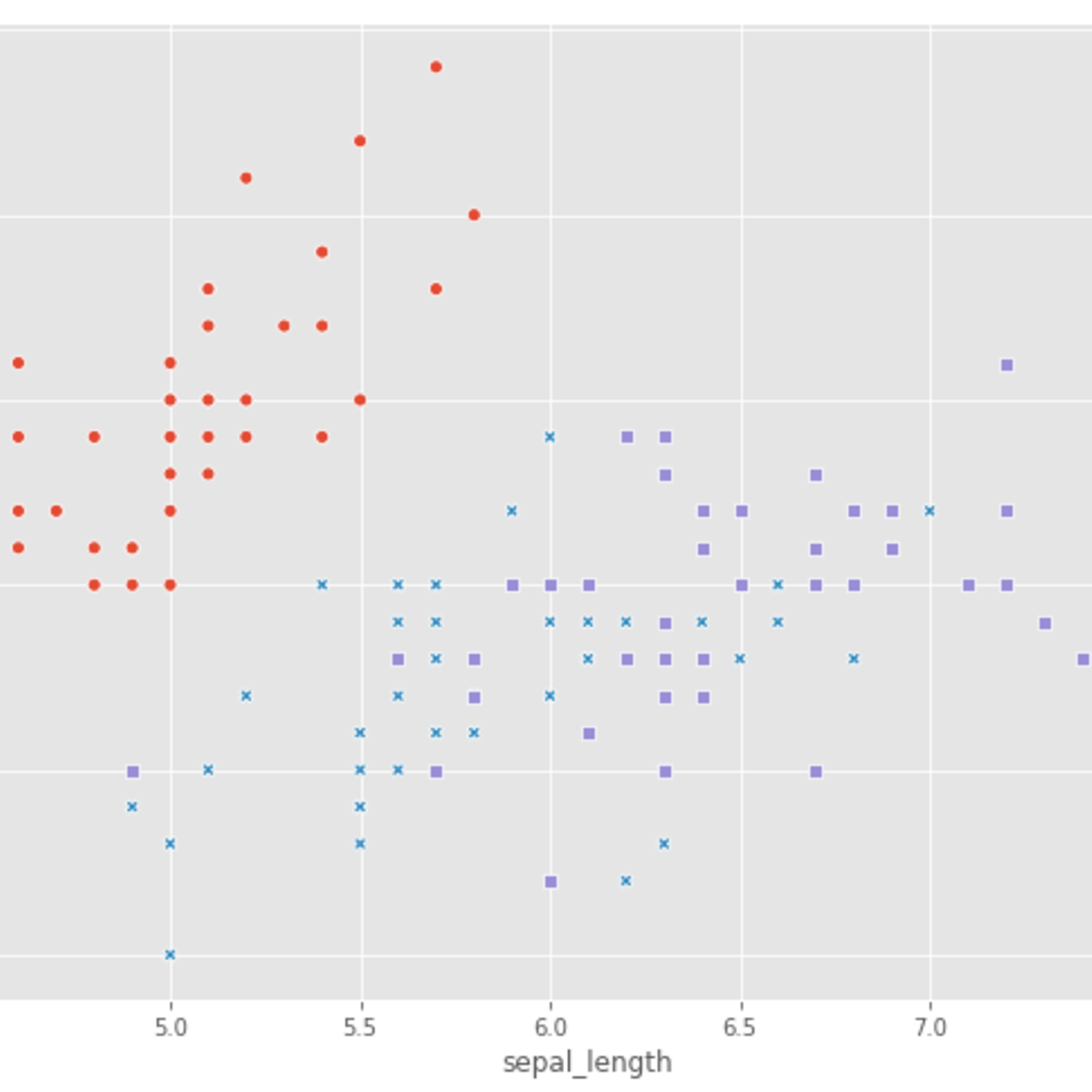
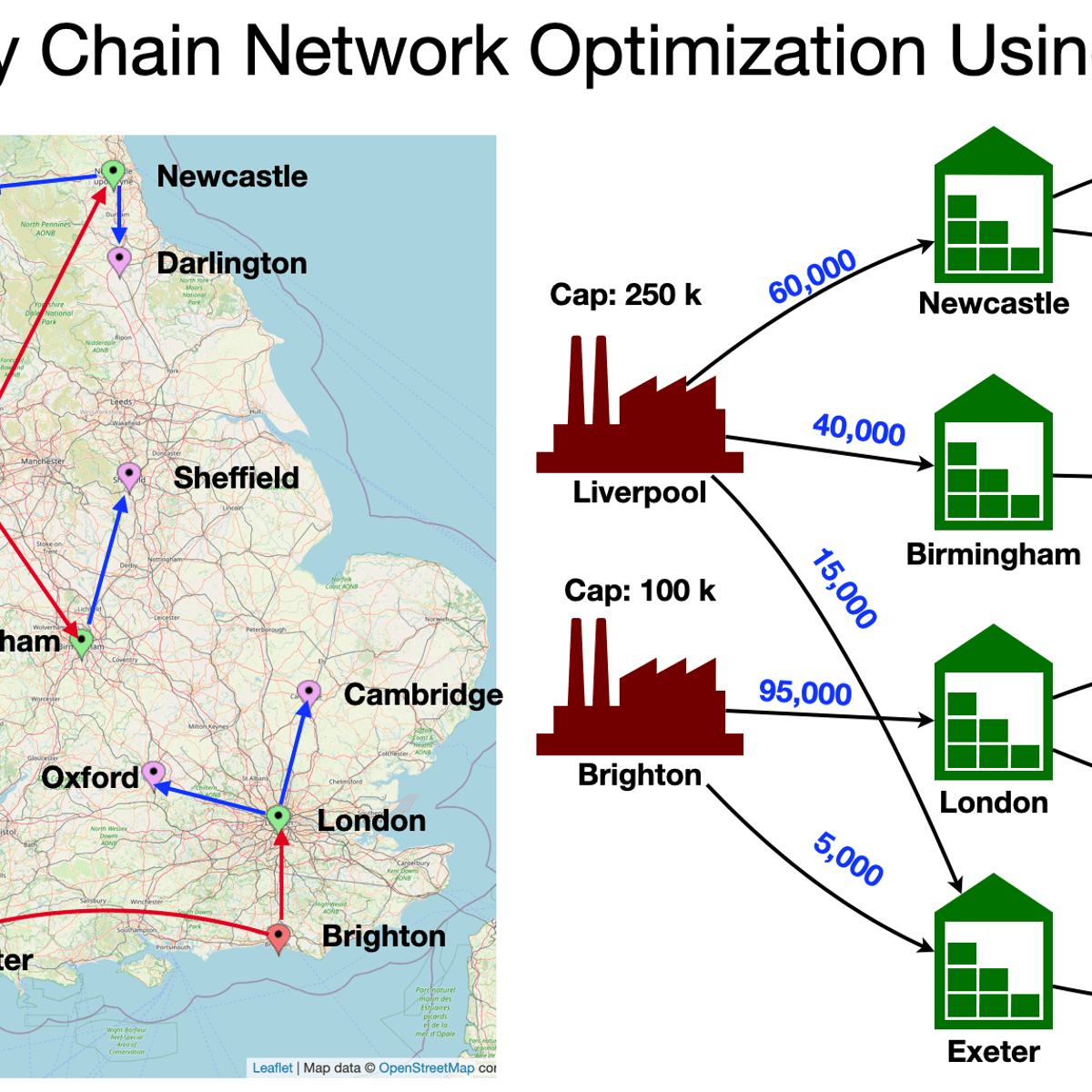
![AI With Python Full Course 2026 [FREE] | Learn Artificial Intelligence With Python | Simplilearn](https://img.youtube.com/vi/IvFW-r_S6UI/mqdefault.jpg)

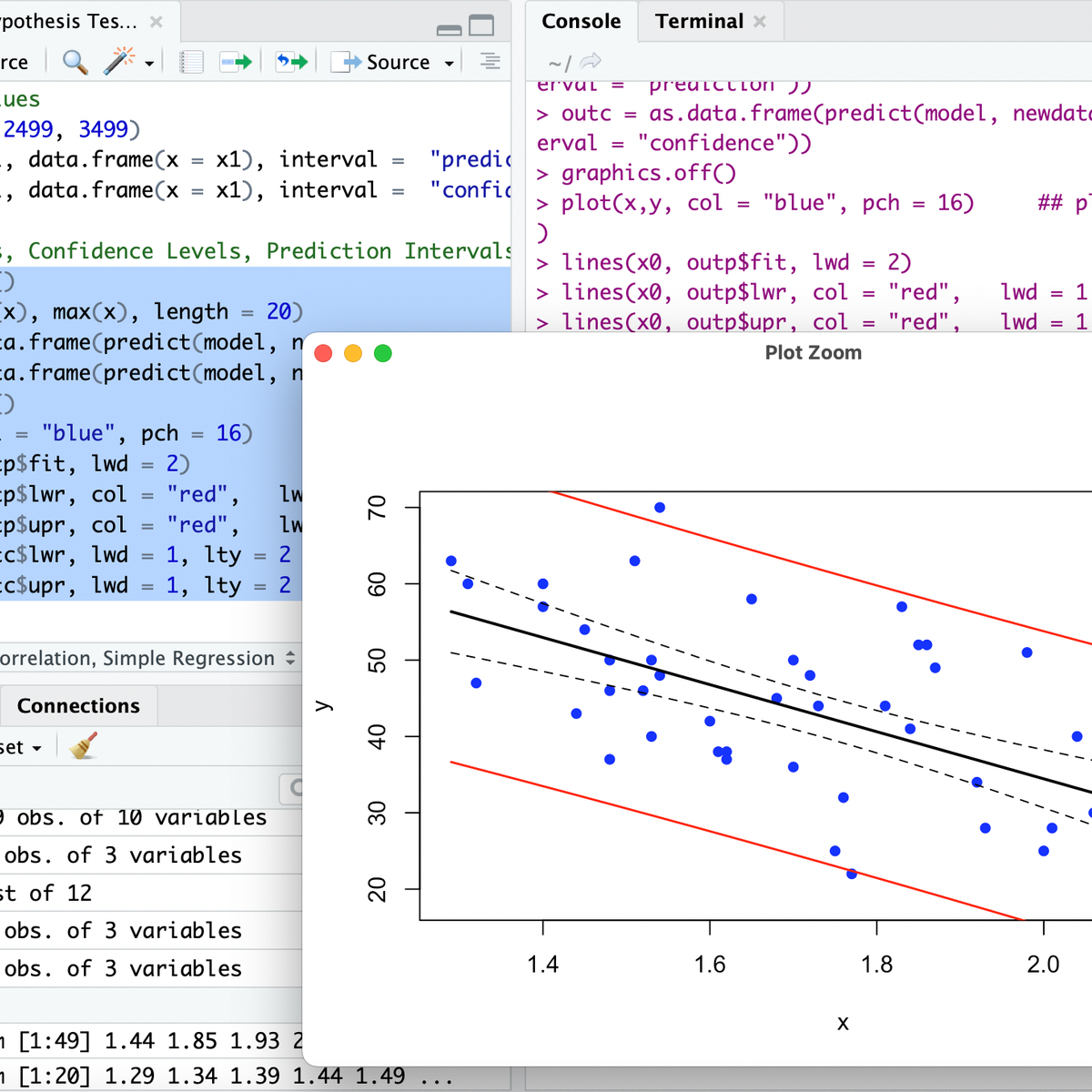

🎓
Tutor Explanation
 DeepCamp AI