Raspberry Pi Part 11: Remote Desktop
Key Takeaways
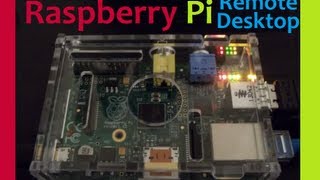
This video tutorial demonstrates how to set up remote desktop on a Raspberry Pi using XRDP and connect to it from a Windows machine using the default remote desktop client.
Full Transcript
what is going on everybody welcome to another Raspberry Pi tutorial in this tutorial we're going to be covering how to remote access the desktop so you won't have to have a dedicated monitor yet you're not required to use something like SSH if you're not yet comfortable with it I will just say like a lot of things with this Raspberry Pi of it this is kind of like a transition into getting used to using a lot of these uh tools instead so this is kind of a way to remote access yet not really uh have a monitor and all that but eventually you should really learn SSH and how to you know use SSH um it's a good skill to have if you ever plan on having um like running a website on like a VPS or some sort of web server uh just it's just a good idea to get used to and comfortable with using SSH but um for now that that's probably for a later tutorial we did cover some of the stuff I believe in earlier tutorials but maybe eventually I'll do like a full SSH um tutorial especially like connecting to your pot so with that um and probably it'll go along with uh the web server tutorial I'll probably expand on those eventually however this tutorial probably be the last software only tutorial with the p for at least a little bit I'm going to be getting into the hard hardware and electronics uh stuff in the next few tutorials uh you know the pi can act like a server and all this kind of fun stuff and you can do some cool software stuff but really what gets even more cool is the electronics and Hardware uh portion of it and I believe that's one of the reasons the makers of pie made pie you know get people excited and interested in the electronics aspect also another interesting thing that I'll probably do once I get a little bit more money and can buy a few more pies is you can learn a lot about supercomputing and uh networking with the Raspberry Pi and it's a lot cheaper than the normal route which is to buy a bunch of computers so pretty cool stuff in the future the Raspberry Pi is pretty awesome machine but for now let's talk up about a remote desktop another reason you might want to be or do remote desktop is in case you want to be one of those cool cats that does Raspberry Pi tutorials this is a good way to do it you remote desktop in and then you can use your desk your your main computer screen recorder and record the screen and you can you know get a decent frames per second out of it and uh all that so with that let's go ahead and hop right on in uh to get uh we're going to use um XDP um the reason we're going to use this is It's or I'm sorry it's xrdp uh the reason we're going to use this is it's pretty lightweight remote connection right um there is you could um get the source for team viewer probably and put team viewer up here uh but uh that would just I mean the resources that team viewer takes is pretty high so anyway we're going to use this besides um you know we're just we're making a land connection so we don't really need a whole lot of uh Power to transfer so open up your terminal longest intro ever by the way so open up your terminal and let me go ahead and make this slightly bigger so everybody can see it monop space can't remember what I used to do I think it was 16 though I think we went with a big boy 16 okay that's good enough so now if uh to actually get um xrdp what you're going to want to type in is pseudo app- get install xrdp now uh and then hit enter now I've already installed it so it's going to be like H idiot you actually have this app G no it's at get anyway it's going to tell me that I already have it but for you it should actually install it for you um so yes he says I already have it and it's the newest version um so anyway but for you you should be running through it and install at the moment so while it's installing um I guess pause the video because now I'm going showing you the next few steps so pause it and then whenever uh it's done installing resume alrighty welcome back hopefully you got your uh stuff installed now the next thing we want to do is get our local IP address because that's what we're going to use to connect so to do that um you just need it's kind of like ip config from a Windows machine and um but here it is I oops type in here if config so not ip config if config If someone knows why it's if if config feel free to uh post it below I'm kind of curious so anyway you'll hit enter and you'll get all your IP addresses you'll get your broadcast your mask and finally right here is where what you're going to be mainly looking for and that is your um local IP address so um now that we see that it is a 12 for me since it's my 12th computer continuing on once you have uh that information uh the next thing we'll want to do is on your Windows machine you have remote desktop so go over here and you want to type in uh just type in remote that'll probably take you there and right here you've got remote desktop connection so go ahead and hit that and here we go I've already done it a few times I'm connected at the moment so um my IP is already in there but yeah you'll just take that local IP right there slap it on in there and if you want the other thing you can do sometimes like the display is a little Funkadelic and so the way to get around that is go to your options display and you can choose like what uh display you want to have I believe it comes normal like at least when I did it my display was massive it was bigger than my it was bigger than 1920 x 1080 like I have a 1920 x 1080 Monitor and when I connected in it was like it was just huge so anyway just keep that in mind uh the other thing I'll just mention is uh the way it works even though you're logging like when you hit connect it's going to ask you for your login information and so that's going to be your you know your login information for your your Pi so if you haven't changed your password that means username is pi password is raspberry however if youve changed your password like we did we changed our password in the um the web server tutorial so if you followed that web server tutorial and did change your password you know whatever your password was uh put that in there and then you'll connect and it'll take you right here um so the next thing I just want to mention is if you the way it works even though yeah you've got like a user account and like if you're from a Windows machine when you log into your user account well you you log into your user account right so everything you do if someone else was on that user account well it just wouldn't even happen it'd be like this user is already logged in but you in theory if you remote desk topped your own Windows machine you would be sharing that desktop so if you move the mouse on one computer it move the mouse on the other computer it's not the case on a Linux system so for example what I'm going to do is just show you like down here this is your little process monitor as you can see we're we're not doing anything so it's it's well relatively low and stable but let me show you I'm going to go to my main because I do have a dedicated monitor for my uh Pi so I'm going to come over here and I'm going to open up some stuff on my pi and you should see the pro I'm just like clicking around on the desktop and you can already see the processes going up but anyway uh you should see it you know Skyrocket like it normally does so I opened up a few idols and uh so as you can see we didn't do anything over here but yet the processes for this specific you know one went up and you didn't see me doing anything right like we're not actually opening anything and you might be like ha you're an idiot because this has like two desktops right because you can look here like this is your main desktop you can switch to desktop 2 so to speak it's still not here right I have three Idols open but we're not seeing them so anyway just kind of an aside like you can't share the desktop with this um there might be a way you can do it I just don't know it so anyway that's going to conclude uh the sharing or the remote desktop just got done saying we can't share the desktop anyway that's going to conclude uh the uh remote desktop tutorial stay tuned for my uh hardware and electronics tutorials I've been pretty busy lately but I'm pretty excited to put those out it's a lot of fun stuff maybe eventually I see a lot of tutorials on uh or not tutorials I see a lot of videos on YouTube people building like robots and stuff with their Raspberry Pi but they're not they don't they don't tell you like how they did it they just show you it like hey cool check this out and nobody actually has like a tutorial on how to do it probably because it's a whole lot of information so maybe that's why but I I might try and tackle that so anyway as always thank you for watching thanks for your support your subscriptions and until next time
Original Description
In this Raspberry Pi tutorial, we cover how you can remote desktop into your Pi using the default remote desktop on Windows and XRDP for the Pi.
Raspberry Pi basics playlist: http://youtu.be/hiwv-Rt85E4?list=PLQVvvaa0QuDeazo-AqrVk8BGUej9NCHrQ
Sentdex.com
Facebook.com/sentdex
Twitter.com/sentdex
http://www.raspberrypi.org/
Playlist
Uploads from sentdex · sentdex · 57 of 60
1
 2
2
 3
3
 4
4
 5
5
 6
6
 7
7
 8
8
 9
9
 10
10
 11
11
 12
12
 13
13
 14
14
 15
15
 16
16
 17
17
 18
18
 19
19
 20
20
 21
21
 22
22
 23
23
 24
24
 25
25
 26
26
 27
27
 28
28
 29
29
 30
30
 31
31
 32
32
 33
33
 34
34
 35
35
 36
36
 37
37
 38
38
 39
39
 40
40
 41
41
 42
42
 43
43
 44
44
 45
45
 46
46
 47
47
 48
48
 49
49
 50
50
 51
51
 52
52
 53
53
 54
54
 55
55
 56
56
 ▶
▶
 58
58
 59
59
 60
60
Matplotlib Python Tutorial Part 1: Basics and your first Graph!
sentdex
Python Encryption Tutorial with PyCrypto
sentdex
Python's Logging Function
sentdex
wxPython Tutorials 1: Making Windows GUIs with Python : Installing + 1st window!
sentdex
wxPython Tutorials 2: Making Windows GUIs with Python: Customizing Window Parameters
sentdex
wxPython Programming Tutorial 3: Menu Bar and Menu Button
sentdex
wxPython Programming Tutorial 4: Panels
sentdex
wxPython Programming Tutorial 5: User Input Saved To Variables
sentdex
wxPython Programming Tutorial 6: Multiple Choice Input
sentdex
wxPython Programming Tutorial 7: Adding Static Text and Colors
sentdex
wxPython Programming Tutorial 8: Custom Button Images
sentdex
wxPython Programming Tutorial 9: Tool Bar Items and Sub Menus!
sentdex
Basic PHP Tutorial 13: Multi-dimensional Array
sentdex
Basic PHP Tutorial 15: Functions and Global Variables
sentdex
Basic PHP Tutorial 12: Associative Array
sentdex
Basic PHP Tutorial 14: Foreach loop
sentdex
Basic PHP Tutorial 16: Include and Require
sentdex
Basic PHP Tutorial 7: Assignment, comparison and Logical operators
sentdex
Basic PHP Tutorial 4: Variables and Comments
sentdex
Basic PHP Tutorial 11: Arrays part 1, basic array
sentdex
Basic PHP Tutorial 6: If else and else if conditionals cont'd
sentdex
Basic PHP Tutorial 1: Intro to PHP
sentdex
Basic PHP Tutorial 3: HTML with PHP
sentdex
Basic PHP Tutorial 9: While Loop
sentdex
Basic PHP Tutorial 10: Switch Statement
sentdex
Basic PHP Tutorial 2: Print and Echo
sentdex
Basic PHP Tutorial 5: If else and else if conditional statements
sentdex
Basic PHP Tutorial 8: Arithmatic Operators: Doing math with php
sentdex
Basic PHP Tutorial 17: User Input Form Example / String Manipulation
sentdex
Basic PHP Tutorial 18: HTML Entities and forms cont'd
sentdex
Basic PHP Tutorial 19: Finding words in strings
sentdex
Basic PHP Programming Tutorial 20: Saving to a File / writing and appending
sentdex
Basic PHP Programming Tutorial 22: Hashing part 2: salting
sentdex
Basic PHP Programming Tutorial 23: Variables in Strings and tokenizing
sentdex
Basic PHP Programming Tutorial 21: MD5 Hashing For Security
sentdex
Basic PHP Programming Tutorial 24: String similarity
sentdex
Basic PHP Programming Tutorial 25: Time and Time stamps
sentdex
Basic PHP Programming Tutorial 26: Die and Exit
sentdex
Basic PHP Programming Tutorial 27: MySQL Databases Part 1
sentdex
Basic PHP Programming Tutorial 28: MySQL Database Part 2: Reading From Database
sentdex
Basic PHP Programming Tutorial 29: MySQL Database Part 3: Inputting Data
sentdex
Basic PHP Programming Tutorial 30: MySQL database in Use
sentdex
Django Tutorial Web Development with Python Part 1: Installing Django
sentdex
Python Tutorial: File Deletion and Folder Deletion / directory deletion
sentdex
Python Tutorial: How to Rename Files and Move Files with Python
sentdex
3D Graphs in Matplotlib for Python: Basic 3D Line
sentdex
3D Plotting in Matplotlib for Python: 3D Scatter Plot
sentdex
3D Charts in Matplotlib for Python: Multiple datasets scatter plot
sentdex
Sikuli Tutorial 1: Visually programming in python!
sentdex
Sikuli Tutorial 2: Program visually in python!
sentdex
Sikuli Tutorial 3: Program visually in python!
sentdex
3D Bar Charts in Python and Matplotlib
sentdex
3D Plane wire frame Graph Chart in Python
sentdex
Raspberry Pi Part 1 Introduction
sentdex
Raspberry Pi Part 8: First Download and Update! (Firmware)
sentdex
Raspberry Pi Part 10: How to set up a Linux Web Server on your Pi
sentdex
Raspberry Pi Part 11: Remote Desktop
sentdex
Twitter Analysis: How to rank a user's influence
sentdex
GPIO Tutorial for Pi Part 2 - Programming the GPIO
sentdex
GPIO Tutorial for Raspberry Pi Part 1 - Setting up
sentdex
More on: AI Workflow Automation
View skill →







Related Reads
🎓
Tutor Explanation

 DeepCamp AI