R Programming Tutorial - Learn the Basics of Statistical Computing
Key Takeaways
This video tutorial provides a hands-on overview of the R programming language, covering the basics of statistical computing and data science. The course is designed for beginners and includes practical exercises and examples to help learners understand the concepts.
Full Transcript
welcome to our an introduction i'm barton poulson and my goal in this course is to introduce you to r this is r but also this is r and then finally this is r it's arguably the language of data science and just so you don't think i'm making stuff up off the top of my head i have some actual data this is a ranking from a survey of data mining experts on the software that they use most often in their work and take a look here at the top r is first in fact it's 50 percent more than python which is another major tool in data science and so both of them are important but you can see why i personally am fond of r and why it's the one that i want to start with in introducing you to data science now there's a few reasons that r is especially important number one it's free and it's open source compared to other software packages can be thousands of dollars per year also r is optimized for vector operations which means it can go through an entire row or an entire table of data without you having to explicitly write for loops if you've ever had to do that then you know it's a pain and so this is a nice thing also r has an amazing community behind it where you can find supportive people and you can get examples of whatever it is you need to do and you can get new developments all the time plus r has over 9 000 contributed or third party packages available that make it possible to basically do anything or if you want to put it in the words of yoda you can say this this is r there is no if only how and in this case i'm quoting our user simon blomberg so very briefly in sum here's why i want to introduce you to r number one because r is the language of data science because it's free and it's open source and because of the free packages that you can download install r makes it possible to do nearly anything when you're working with data so i'm really glad you're here and then i'll have this chance to show you how you can use r to do your own work with data in a more productive more interesting and more effective way thanks for joining me the first thing that we need to do for our introduction is to get set up more specifically we need to talk about installing r the way you do this is you can download it you just need to go to the home page for the r project for statistical computing and that's at r dash project dot org when you get there you can click on this link in the first paragraph that says download r and that'll bring you to this page that lists all the places that you can download it now i find the easiest is to simply go to this top one that says cloud because that'll automatically direct you to whichever of the below mirrors is best for your location when you click on that you'll end up at this page the comprehensive r archive network or cran which we'll see again in this course you need to come here and click on your operating system if you're on a mac it'll take you to this page and the version you're going to want to click on is just right here it's a package file that's a zipped application installation file click on that download it and follow the standard installation directions if you're on a windows pc then you're probably going to want this one base again click on it download it and go through the standard installation procedure and if you're on a linux computer you're probably already familiar with what you need to do so i'm not going to run through that now before we get a look at what it's actually like when you open it there's one other thing you need to do and that is to get the files that we're going to be using in this course on the page that you found this video there's a link that says download files if you click on that then you'll download a zipped folder called r01 underscore intro underscore files download that unzip it and if you want to put it on your desktop when you open it you're going to see something like this a single folder that's on your desktop and if you click on it then it opens up a collection of scripts the dot r extension is for an r source or script file i also have a folder with a few data files that we'll be using in one of these videos if you simply double click on this first file whose full name is this that'll open up nr and let me show you what that looks like when you open up the application r you will probably get a setup of windows that look like this on the left is the source window or the script window where you actually do your programming on the right is the console window that shows you the output and right now it's got a bunch of boilerplate text now coming over here again on the left any line that begins with a pound sign or hashtag or octathorp is a commented line that's not run but these other lines are code that can be run by the way you may notice a red warning just popped up on the right side that's just telling us about something that has to do with changes in r and it doesn't affect us what i'm going to do right here is i'm going to put the cursor in this line and then i'm going to hit command or control and then enter which will run that line and you can see now that it's opened up over here and what i've done is i've made available to the program a collection of data sets now i'm going to pick one of those data sets it's the iris data sets very well known it's a measurements of three species of the iris flower and we're going to do head to see the first six lines and there we have the sepal length sepal width petal length and petal width of in this case it's all setosa but if you want to see a summary of the variables get some quick descriptive statistics we can run this next line over here and now i get the quartiles the mean as well as the frequency of the three different species of iris on the other hand it's really nice to get things visually so i'm going to run this basic plot command for the entire data set and it opens up a small window i'm going to make it bigger and it's a scatter plot of the measurements or the three kinds of viruses as well as a funny one where it's included in the three different categories there i'm going to close that window and so that is basically what r looks like and how r works in its simplest possible version now before we leave i'm actually going to take a moment to clean up the application in the memory i'm going to detach or remove the datasets package that i added i already closed the plot so i don't need to do this one separately but what i can do is come over here to clear the console i'm actually going to come up to edit and come down to clear console and that cleans it out and this is a very quick run through of what r looks like in its native environment but in the next movie i'm going to show you another application we can install called rstudio that lays on top of this and makes interacting with r a lot easier and a lot more organized and really a lot more fun to work with the next step in r introduction and setting up is about something called r studio now this is our studio and what it is is a piece of software that you can download in addition to r what you've already installed and its purpose is really simple it makes working with r easier now there's a few different ways that it does this number one is it has consistent commands what's funny is the different operating systems have slightly different keyboard commands for the same operations in r r studio fixes that it makes it the same whether you're on mac windows or linux also there's a unified interface instead of having 2 3 or 17 windows open you have one window with the information organized it also makes it really easy to navigate with the keyboards and to manage the information that you have in r and let me show you how to do this but first we have to install it what you're going to need to do is go to rstudio's website which is at rstudio.com [Music] from there click on download rstudio that'll bring it to this page or something like it and you're going to want to choose the desktop version now when you get there you're going to want to download the free sort of community version as opposed to the thousand dollar a year version and so click here on the left and then you're going to come to the list of installers for supported platforms it's down here on the left this is where you get to choose your operating system click the top one if you have windows the next one if you have mac and then we have lots of different versions of linux whichever one you get click on it download it and go through the standard installation process then open it up and then let me show you what it's like working in rstudio to do this open up this file and we'll see what it's like in our studio when you open up rstudio you get this one window that has several different panes in it at the top we have the script or the source window and this is where you do your actual programming and you'll see that it looks really similar to what we did when i opened up the r application the coloring's a little different but that's something that you can change in preferences or options the console is down here at the bottom and that's where you get the text output over here is the environment that saves the variables if you're using any and then plots and other information show up here in the bottom right now you have the option of rearranging things and changing what's there as much as you want rstudio is a flexible environment and you can resize things by simply dragging the divider between the areas so let me show you a quick example using the exact same code that i did in my previous example so you can see how it works in rstudio as opposed to the regular r app that we use first time first i'm going to load some data that's by using the data sets package i'm going to do a command or control and enter to load that one and you can see right here it's run the command then i'm going to do the quick summary of data i'm going to do head iris shows the first six lines and then here it is down here i can make that a little bit bigger if i want then i can do a summary by just coming back here and clicking command or control enter and actually i'm going to do a keyboard command to make the console bigger now and then we can see all of that i have the same basic descriptive statistics and the same frequencies there i'm going to go back to how it was before and make this bring this one down a little and now we can do the plot now this time you see it shows up in this window here on the side which is nice it's not a standalone window let me make that one bigger it takes a moment to adjust and there we have the same information that we had in the r app but here it's more organized in a cohesive environment and you see that i'm using keyboard shortcuts to move around and it makes life really easy for dealing with the information that i have in r i'm going to do the same cleanup i'm going to detach the package that i had this is actually a little command to clear the plots and then here in rstudio i can run a funny little command that'll do the same as doing control l to clear the console for me and that is a quick run through of how you can do some very basic coding in rstudio again which makes working with r more organized more efficient and easier to do overall in our very basic introduction to r and setting up there's one more thing i want to mention that makes working with r really amazing and that's the packages that you can download and install basically you can think of them as giving you super powers when you're doing your analysis because you can basically do anything with the packages that are available specifically packages are bundles of code so it's more software that adds new function to r makes it so it can do new things now there are two kinds of package two general categories there are base packages these are packages that are installed with r so they're already there but they're not loaded by default that way r doesn't use maybe as much memory as it might otherwise but more significant than that are the contributed or third-party packages these are packages that need to be downloaded installed and then loaded separately and when you get those it makes things extraordinary and so you may ask yourself where to get these marvelous packages that make things so super duper well you have a few choices number one you can go to cran that's the comprehensive r archive network that's an official r site that has things listed with the official documentation two you can go to a site called crantastic which really is just a way of listing these things and when you click on the links it redirects you back to crayon and then third you can also get our packages from github which is an entirely different process if you're familiar with github it's not a big deal otherwise you don't usually need to deal with it but let's start with this first one the comprehensive r archive network or cran now we saw this previously when we were just downloading r this time we're going to cran.r dashproject.org and we're specifically looking for this one the cran packages that's going to be right here on the left click on packages and when you open that you're going to have an interesting option and that's to go to task views and that breaks it down by topic so we have here packages that deal with bayesian inference packages that deal with chemometrics and computational physics so on and so forth if you click on any one of those it'll give you a short description of the packages that are available and what they're designed to do now another place to get packages i said is crantastic crantastic.org and this is one that lists the most recently updated the most popular packages and it's a nice way of getting some sort of information about what people use most frequently although it does redirect you back to cran to do the actual downloading and then finally at github.com if you go to slash trending slash r you'll see the most common or most frequently downloaded packages on github for use in r now regardless of how you get it let me show you the ones that i use most often and i find these make working with are really a lot more effective and a lot easier now they have kind of cryptic names the first one is d plier which is for manipulating data frames then there's tidier for cleaning up information stringer for working with strings or text information lubridate for manipulating date information httr for working with website data gg viz where the gg stands for grammar of graphics this is for interactive visualizations ggplot2 is probably the most common package for creating graphics or data visualizations in r shiny is another one that allows you to create interactive applications that you can install on websites rio is for r input output it's for importing and exporting data and then our markdown allows you to create what are called interactive notebooks or rich documents for sharing your information now there are others but there's one in particular that thinks useful i call it the one package to load them all and it's pacman which not surprisingly stands for package manager and i'm going to demonstrate all of these in another course that we have here but let me show you very quickly how to get them working you just try it in r if you open up this file from the course files let me show you what it looks like what we have here in rstudio is the file for this particular video and i say that i use pacman if you don't have it installed already then run this one installation line this is the standard installation command in r and then i'll add pacman and then it will show up here in packages now i already have it installed and so you can see it right there but it's not currently loaded see because installing means making it available on your hard drive but loading means actually making it accessible to your current routines so then i need to load it or import it and i can do it with one of two ways i can use the require which gives a confirmation message i can do it like this and you see it's got that little sentence there or i can do library which simply loads it without saying anything you can see now by the way that it's checked off so we know it's there now if you have pac-man installed even if it's not loaded then you can actually use pac-man to install other packages so what i actually do is because i have pac-man installed i just go straight to this one you do pac-man and then the two colons it says use this command even though this package isn't loaded and then i load an entire collection all the things that i showed you starting with pac-man itself so now i'm going to run this command and what's nice about pacman is if you don't have the package it will actually install it make it available and load it and i got to tell you this is a much easier way to do it than the standard r routine and then for base packages that means the ones that come with r natively like the datasets package you still want to do it this way you load and unload them separately so now i've got that one available and then i can do the work that i want to do now i'm actually not going to do it right now because i'm going to show it to you in future videos but now i have a whole collection of packages available they're going to give me a lot more functionality and make my work more effective i'm going to finish by simply unloading what i have here now if you want to with pacman you can unload specific packages or the easiest way is to do p underscore unload all and what that does is it unloads all of the add-on or contributed third-party packages and you can see i've got the full list there of what it's unloaded however for the base packages like datasets you need to use the standard r command detach which i'll use right here and then i'll clear my console and that's a very quick run through of how packages can be found online installed into r and loaded to make your code more available and i'll demonstrate how those work and basically every video from here on out so you'll be able to see how to exploit their functionality to make your work a lot faster and a lot easier probably the best place to start when you're working with any statistics program is basic graphics so you can get a quick visual impression of what you're dealing with and the command in r that makes the simplest of all is the default plot command it's also known as basic x y plotting for the x and y axes on a graph and what's neat about r's plot command is that it adapts to data types and to the number of variables that you're dealing with now it's going to be a lot easier for me to simply show you how this works so let's try it in r just open up the script file and we'll see how we can do some basic visualizations in r the first thing that we're going to do is load some data sets from the data sets package that comes with our we simply do library data sets and that loads it up we're going to use the iris data which i've showed you before and you'll get to see many more times let's look at the first few lines i'll zoom in on that and what this is is the measurement of the sepal and petal length and width for three species of viruses it's a very famous data set it's about 100 years old and it's a great way of getting a quick feel for what we're able to do in r i'll come back to the full window here and what we're going to do is first get a little information about the plot command to get help on something in r just do the question mark and the thing you want help for now we're in rstudio so this opens up right here in the help window and you see we've got the whole set of information here all the parameters and additional links you can click on and then examples here at the bottom i'm going to come over here and i'm going to use the command for a categorical variable first and that's the most basic kind of data that we have and so species which is three different species is what i want to use right here so i'm going to do plot and then in the parentheses you put what it is you want to plot and what i'm doing here is i'm saying it's in the data set iris that's our data frame actually and then the dollar sign says use this variable that's in that data so that's how you specify the whole thing and then we get an extremely simple three bar chart i'll zoom in on it and what it tells you is that we have three species of virus setosa versicolor and virginica and then we have 50 of each and so it's nice to know that we have balance group that we have three groups because that might affect some of the analyses that you do and it's an extremely quick and easy way to begin looking at the data i'll zoom back out now let's look at a quantitative variable so one that's on an interval or nominal level of measurement for this one i'll do pedal length and you see i do the same thing plot and then iris and then pedal length please note i'm not telling r that this is now a quantitative variable on the other hand it's able to figure that one out by itself now this one's a little bit funny because it's a scatter plot i'm going to zoom in on it but the x-axis is the index number or the row number in the data set so that one's really not helpful it's the variable that's going on the y that's the pedal length that you get to see the distribution on the other hand you know that we have 50 of each species and we have the setosa and then we have the versa color and then we have the virginica and so you can see that there are group differences on these three things now what i'm going to do is i'm going to ask for a specific kind of plot to break it down more explicitly between the two categories that is i'm going to put in two variables now where i have my categorical species and then a comma and then the petal length which is my quantitative measurement i'm going to run that again you just hit controller command and enter and this is one that i'm looking for here let's zoom in on that again you see that it's adapted and it knows for instance that the first variable i gave it is categorical the second one is quantitative and the most common chart for that is a box plot and so that's what it automatically chooses to do and you can see it's a good plot here we can see very strong separation between the groups on this particular measurement i'll zoom back out and then let's try a quantitative pair so now i'll do pedal length and pedal width so it's going to be a little bit different i'll run that command and now this one is a proper scatter plot where we have a measurement across the bottom and a measurement up the side but you can see that there's a really strong positive association between these two so not surprisingly as a pedal gets longer it generally also gets wider so it just gets bigger overall and then finally if i want to run the plot command on the entire data set the entire data frame this is what happens we do plot and then iris now we've seen this one in previous examples but let me zoom in on it and what it is is an entire matrix of scatter plots of the four quantitative variables and then we have species which is kind of funny because it's not labeling them but it shows us a dot plot for the measurements of each species and this is a really nice way if you don't have too many variables of getting a very quick holistic impression of what's going on in your data and so the point of this is that the default plot command is able to adapt to the number of variables i gave it and to the kind of variables i give it and it makes life really easy now i want you to know that it's possible to change the way that these look i'm going to specify some options i'm going to do the plot again the scatter plot where i say plot and then in parentheses i give these two arguments or saying what i want in it i'm going to say do the petal length and do the petal width and then i'm going to go to another line i'm just separating with comma now if you want to you can write this all as one really long line i break it up because i think it makes it a little more readable i'm going to specify the color i'm going to do with call for color and then i use a hex code and that code is actually for the red that is used on the datalab homepage and then pch is for point character and that is a 19 is a solid circle then put a main title on it then i'm going to put a label on the x-axis and a label on the y-axis so i'm actually going to run those now by doing command or control enter for each line and you can see it builds up and when we finish we get the whole thing i'll zoom in on it again and this is the kind of plot that you could actually use in a presentation or possibly in a publication and so even with the bass command we're able to get really good looking informative clean graphs now what's interesting is that the plot command can do more than just show data we can actually feed it in formulas if you want for instance to get a cosine i do plot and then cos is for cosine and then i give the limit i go from 0 to 2 times pi because that's relevant for cosine i click on that and you can see the graph there it's doing our little cosine curve i can do an exponential distribution from one to five and there it is curving up and i can do d norm which is for a density of a normal distribution from minus three to plus three and there's the good old bell curve there on the bottom right and then we can use the same kind of options that we used earlier for our scatter plot here i'm going to say do a plot of d norm so the bell curve from minus 3 to plus 3 on the x axis but now we're going to change the color to red lwd is for line width make it thicker give it a title on the top a label on the x-axis and a label on the y-axis we'll zoom in on that and so there is my new and improved prettier and presentation ready bell curve that i got with the default plot command and r and so this is a really flexible and powerful command also it's the base package and you'll see that we have a lot of other commands that can do even more elaborate things but this is a great way to start and get a quick impression of your data see what you're dealing with and shape the analyses that you do subsequently the next step in our introduction and our discussion of basic graphics is bar charts and the reason i like to talk about bar charts is this because simple is good and when it comes to bar charts bar charts are the most basic graphic for the most basic data and so they're a wonderful place to start in your analysis let me show you how this works just try it in r open up the script and let's run through and see how it works when you open up the file in rstudio the first thing we're going to want to do is come down here and open up the datasets package and then we're going to scroll down a little bit and we're going to use a data set called mt cars let's get a little bit of information about this do the question mark in the name of the data set this is motor trend that's a magazine car road test from 1974. so you know they're 42 years old let's take a look at the first few rows of what's in mt cars by doing head and i'm going to zoom in on this and what you can see is that we have a list of cars the mazda rx-4 and the wagon the datsun 710 the amc hornet and i actually remember these cars and we have several variables on each of them we have the mpg miles per gallon we have the number of cylinders the displacement in cubic inches the horsepower the final drive ratio which has to do with the axle and then we have the weight in tons the quarter mile time in seconds and these are a bunch of really really slow cars vs is for whether the cylinders are in a v or whether they are in a straight or inline and then the am is for automatic or manual then we go down to the next line we have gear which is the number of gears in the transmission and carb for how many carburetor barrels they have which is we don't even use carburetors anymore anyhow so that's what's in the data set i'll zoom back out now if we want to do a really basic bar chart you might think that the most obvious thing to do would be to use r's bar plot command that's its name for the bar chart and then to specify the data set md cars and then the dollar sign and then the variables that we want cylinders so you think that would work but unfortunately it doesn't instead what we get is this which is just kind of going through all the cases on a one by one by one row and telling us how many cylinders are in that case that's not a good one that's not what we want and so what we need to do is we actually need to reformat the data a little bit by the way you would have to do the exact same thing if you wanted to make a bar chart in a spreadsheet like excel or google sheets you can't do it with the raw data you first need to create a summary table and so what we're going to do here is we're going to use the command table we're going to say take this variable from this data set and make a table of it and feed it into an object you know a data thing data container called cylinders i'm going to run that one and then you see that just showed up in the top left let me zoom in on that one so now i have in my environment a data object called cylinders it's a table it's got a length of three it's got a size of 1000 bytes and it gives us a little bit more information let's go back to where we were but now i've saved that information into cylinders which just has the number of cylinders i can run the bar plot command and now i get the kind of plot i expected to see from this we see that we have a fair number of cars with four cylinders a smaller number with six and because this is in 74 we've got a lot of eight cylinder cars in this particular data set now we can also use the default plot command which i showed you previously on the same data but it's going to do something a little different it's actually going to make a line chart where the lines are the same length of each bars i'd probably use the bar plot instead because it's easier to tell what's going on but this is a way of making a default chart that gives you the information you need for the categorical variables remember simple is good and that's a great way to start in our last video on basic graphics we talked about bar charts if you have a quantitative variable then the most basic kind of chart is a histogram and this is for data that is quantitative or scaled or measured or interval or ratio level all of those are referring to basically the same thing and in all of those you want to get an idea of what you have and a histogram allows you to see what you have now there's a few things you're going to be looking for with a histogram number one you're going to be looking for the shape of the distribution is it symmetrical is it skewed is it unimodal bimodal you're going to look for gaps or big empty spaces in the distribution you're also going to look for outliers unusual scores because those can distort any of your subsequent analyses you'll look for symmetry to see whether you have the same number of high and lowest scores or whether you have to do some sort of adjustment to the distribution but this is going to be easier if we just try it in r so open up this r script file and let's take a look at how we can do histograms in r when you open up the file the first thing we need to do is come down here and load the data sets we'll do this by running the library command i just do control or command enter and then we can do the iris data set again we've looked at it before but let's get a little bit of information from it by asking for help on iris and there we have edgar anderson's iris data also known as fisher's iris data because he published an article on it and here's the full set of information available on it from 1936 so that's 80 years old let's take a look at the first few rows and again we've seen this before sepal and petal length and width for three species of iris we're going to do a basic histogram on the four quantitative variables that are in here and so i'm going to use just the hist command so hist and then the data set iris and then the dollar sign to say which variable and then siebel dot length when i run that i get my first histogram let's zoom in on a little bit and what happens here is of course it's a basic sort of black line on white background which is fine for exploratory graphics and it gives us a default title that says histogram of the variable and it gives us the the clunky name which is also on the x-axis on the bottom it automatically adjusts the x-axis and it chooses about seven or nine bars which is usually the best choice for a histogram and then on the left it gives us the frequency or the count of how many observations are in that group so for instance we have only five irises whose sepal length is between four and four and a half centimeters i think it is let's zoom back out and let's do another one now this time for a sepal width you can see that's almost a perfect bell curve if we do petal length we get something different let me zoom in on that one and this is where we see a big gap we've got a really strong bar there at the low end in fact it goes above the frequency axis and then we have a gap and then sort of a bell curve that lets us know that there's something interesting going on with the data that we're going to want to explore a little more fully and then we'll do another one for petal width i'll just run this command and you can see the same kind of pattern here where there's a big clump at the low end there's a gap and then there's sort of a bell curve beyond that now another way to do this is to do the histograms by groups and that would be an obvious thing to do here because we have three different species of iris so what we're going to do here is we're going to put the graphs into three rows one above another in one column i'm going to do this by changing a parameter pars for parameter and i'm giving it the number of rows that i want to have in my output and i need to give it a combination of numbers i do the c which is for concatenate it means treat these two numbers as one unit where three is the number of rows and then the one is the number of columns so i run that it doesn't show anything just yet and then i'm going to come down and i'm going to do this more elaborate command i'm going to do hist that's the histogram that we've been doing i'm going to do petal length except this time in square brackets i'm going to put a selector it's this means use only these rows and the way i do this is by saying i want to do it for the setosa irises so i say iris that's the data set and then dollar sign and then species is the variable and then 2 equals because in computers that means is equivalent to and then in quotes and i have to spell it exactly the same with the same capitalization i do setosa so this is the variable and the row selection i'm also going to put in some limits for the x because i want to manually make sure that all three of the histograms i have have the same x scale so i'm going to specify that breaks is for how many bars i want in the histogram and and actually what's funny about this is it's really only a suggestion that you give to the computer then i'm going to put a title above that one i'm going to have no x label and i'm going to make it red so i'm going to do all of that right now i'll just run each line and then you see i have a very skinny chart let's zoom in on it and so it's very short but that's because i'm going to have multiple charts and it's going to make more sense when we look at them all together but you can see by the way that the pedal width for the setosa irises is on the low end now let's do the same thing for versa color i'm going to run through all that it's all going to be the same except we're going to make it purple there's versa color and then let's do virginica last and we'll make those blue and now i can zoom in on that and now what we have are three histograms it's the same variable pedal width but now i'm doing it separately for each of the three species and it's really easy to see what's going on here now setosa is really low color and virginica overlap but there are still distinct distributions this approach by the way is referred to as small multiples making many versions of the same chart on the same scale so it's really easy to compare across groups or across conditions which is what we're able to do right here now by the way anytime you change the graphical parameters you want to make sure to change them back to what they were before so here i'm going par and then going back to one column and one row and that's a good way of doing histograms for examining quantitative variables and even for exploring some of the complications that can arise when you have different categories with different scores on those variables in our two previous videos we looked at some basic graphics for one variable at a time we looked at bar charts for categorical variables and we looked at histograms for quantitative variables while there's a lot more you can do with univariate distributions you also might want to look at bivariate distributions we're going to look at scatter plots as the most common version of that you do a scatter plot when what you want to do is visualize the association between two quantitative variables now i actually know it's more flexible than that but this is the canonical case for a scatter plot and when you do that what sorts of things do you want to look for in your scatterplot i mean there's a purpose in it well number one you want to see if the association between your two variables is linear or if it can be described by a straight line because most of the procedures that we do assume linearity you also want to check if you have consistent spread across the scores as you go from one end to the x axis to another because if things fan out considerably then you have what's called heteroscedasticity and it can really complicate some of the other analyses as always you want to look for outliers because an unusual score or especially an unusual combination of scores can drastically throw off some of your other interpretations and then you want to look for the correlation is there an association between these two variables so that's what we're looking for let's try it in r simply open up this file and let's see how it works the first thing we need to do in r is come down and open up the data sets package just do command or control and enter and we'll load the data sets we're going to use mt cars we looked at that before let's get a little bit of information it's road test data from 1974 and let's look at the first few cases i'll zoom in on that again we have miles per gallon cylinders so on and so forth now anytime you're going to do an association it's a really good idea to look at the univariate or one variable at a time distributions as well we're going to look at the association between weight and miles per gallon so let's look at the distribution for each of those separately i'll do that with a histogram i do hist and then in parentheses i specify the data set mt cars in this case and then the dollar sign to say which variable in that data set so there's the histogram for weight and you know it's not horrible though it looks like we got a few on the high end there and here's the histogram for miles per gallon again mostly kind of normal but a few on the high end but let's look at the plot of the two of them together now what's interesting is i just use the generic block command i feed that in and r is able to tell that i'm giving it two quantitative variables and that a scatter plot is the best kind of plot for that so we're going to do weight in miles per gallon and then let me zoom in on that and what you see here is one circle for each car at the joint position of its weight and its miles per gallon and it's a strong downhill pattern not surprisingly the more a car weighs and we have some in this data set that are 5 tons the lower its miles per gallon we have get down to about 10 miles per gallon here the smallest cars which appear to weigh substantially under 2 tons get about 30 miles per gallon now this is probably adequate for most purposes but there's a few other things that we can do so for instance i'm going to add some colors here i'm going to take the same plot and then add on additional arguments or say use a solid circle pch is for point character 19 as a solid circle cex has to do with the size of things and i'm going to make it a 1.5 means make them 150 larger call is for color and i'm specifying a particular red the one for datalab in hex code i'm going to give a title i'm going to give an x label and a y label and then we'll zoom in on that and now we have a more polished chart but also because of the solid red circles makes it easier to see the pattern that's going in there where we got some really heavy cars with really bad gas and mileage and an almost perfect linear association up to the lighter cars with much better gas mileage and so a scatter plot is the easiest way of looking at the association between two variables especially when those two variables are quantitative so they're on a scaled or measured outcome and that's something that you want to do anytime you're doing your analysis to first visualize it and then use that as the introduction to any numerical or statistical work you do after that as we go through our necessarily very short presentations on basic graphics i want to finish by saying one more thing and that is you have the possibility of overlaying plots and that means putting one plot directly on top of or superimposing it on another now you may ask yourself why you want to do this well i can give you an artistic version on this this of course is pablo picasso's le demoiselle d'avignon and it's one of the early masterpieces in cubism and the idea of cubism is it gives you many views or it gives you simultaneously several different perspectives on the same thing and we're going to try to do a similar thing with data and so we can say very quickly thanks pablo now why would you overlay plots really if you want the technical explanation is because you get increased information density you get more information and hopefully more insight in the same amount of space and hopefully the same amount of time now there is a potential risk here you might be saying to yourself at this point well you want dents guess what i can do dance and then we end up with something vaguely like this the garden of earthly delights and it's completely overwhelming and it's just makes you kind of shut down cognitively anyhow thank you hieronymus bosch no i instead while i like random spash's work i'm going to tell you when it comes to data graphics use restraint just because you can do something doesn't mean that you should do that thing when it comes to graphics and overlay and plots the general rule is this use views that complement and support one another that don't compete but that give greater information in a coherent and consistent way this is going to make a lot more sense if we just take a look at how it works in r so open up this script and we'll see how we can overlay plots for greater information density and greater insight the first thing that we're going to need to do is open up the data sets package and we're going to be using a data set we haven't used before about lynxes that's the animal this is about canadian links trappings from 1821 to 1934. if you want the actual information on the data set there it is now let's take a look at the first few lines of data this one is a time series and so what's unusual about it is it's just one line of numbers and you have to know that it starts at 18 21 it goes through so let's make a default chart with a histogram as a way of seeing were links trappings consistent or how much variability was there we'll do hist which is the default histogram and we'll simply put links in we don't have to specify variables because there's only one variable in it and when we do that i'll zoom in on that we get really a skewed distribution most of the observations are down at the low end and then it tapers off to it's actually it's measured in thousands and so we can tell that there is a very common value it's at the low end and then on the other hand we don't know what years those were so we're ignoring that for just a moment and taking a look at the overall distribution of trappings regardless of years let me zoom back out and we can do some options on this one to make it a little more intricate we can do a histogram and then if in parentheses i specify the data i also can tell it how many bins i want and again it sort of is suggesting it because r is going to do what it wants anyhow i can say make it a density instead of frequency so it'll give proportions of the total distribution we'll change the color to called thistle one because you can use color names in r we'll give it a title here by the way i'm using the paste command because it's a long title and i want it to show up on one line but i need to spread my command across two lines you can go longer i have to use a short command line so you can actually see what we do when we're zoomed in here so there's that one and then we're going to give it a label that says number of links trapped and now we have a more elaborate chart i'll zoom in on it it's a kind of little thistle purple lilac color and we have divided the number of bins differently previously it was one bar for every one thousand now it's one bar for 500. but that's just one chart we're here to see how we can overlay charts and a really good one anytime you're dealing with a histogram is a normal distribution so you want to see are the data distributed normally now we can tell they're skewed here but let's get an idea of how far they are from normal to do this we use the command curve and then d norm is for density of the normal distribution and then here i tell it x is you know just a generic variable name but i tell it use the mean of the links data use the standard deviation of the links data we'll make it a slightly different thistle color number four we'll make it two pixels wide the line width is two pixels and then add says stick it on the previous graph and so now i'll zoom in on that and you can see if we had a normal distribution with the same mean and standard deviation as this data it would look like that obviously that's not what we have because we have this great big spike here on the low end then i can do a couple of other things i can put in what are called kernel density estimators and those are sort of like a bell curve except they're not parametric instead they follow the distribution of the data that means they can have a lot more curves in them they still add up to one like a normal distribution so let's see what those would look like here we're going to do lines that's what we use for this one and then we say density that's going to be the standard kernel density estimator we'll make it blue and there it is on top i'm going to do one more then we'll zoom in i can change a parameter of the kernel density estimator here i'm using adjust to say average across it's sort of like a moving average average across a little more and now let me zoom in on that and you can see for instance the blue line follows the spike at the low end a lot more closely and then it dips down on the other hand the purple line is a lot more slow to change because of the way i gave it its instructions with the adjust equals three and then i'm going to add one more thing something called a rug plot it's a little vertical lines underneath the plot for each individual data point and i do that with rug and i say just use links and then we're going to make it a line width or a pixel width of 2 and then we'll make it gray and that when i zoom in is our final plot you can see now that we have the individual observations marked and you can see why each bar is as tall as it is and why the kernel density estimator follows the distribution that it does this is our final histogram with several different views of the same data it's not cubism but it's a great way of getting a richer view of even a single variable that can then inform the subsequent analyses you do to get more meaning and more utility out of your data continuing and are an introduction the next thing we need to talk about is basic statistics and we'll begin by discussing the basic summary function in r the idea here is that once you have done the pictures that you've done the basic visualizations then you're going to want to get some precision by getting numerical or statistical information depending on the kinds of variables you have you're going to want different things so for instance you're going to want counts or frequencies for categories and they're going to want things like quartiles and the mean for quantitative variables we can try this in r and you'll see that it's a very very simple thing to do just open up the script and follow along what we're going to do is load the data sets package controller command and then enter and we're actually going to look at some data and do an analysis that we've seen several times already we're going to load the iris data and let's take a look at the first few lines and again this is four quantitative measurements on the sepal and petal length and width of three species of iris flowers and what we're going to do is we're going to get summary in three different ways first we're going to do summary for a categorical variable and the way we do this is we use the summary function and then we say iris because that's the data set and then a dollar sign and then the name of the variable that we want so in this case it's species we'll run that command and you can see it just says setosa 50 versicolor 50 and virginica 50. and those are the frequencies or the counts for each of those three categories in the species variable now we're going to get something more elaborate for the quantitative variable we'll use sepal length for that one and i'll just run that next line and now you can see it lays it out horizontally we have the minimum value of 4.3 then we have the first quartile the 5.1 the median then the mean then the third quartile and then the maximum score of 7.9 and so this is a really nice way of getting a quick impression of the spread of scores and also by comparing the median and the mean sometimes you can tell whether it's symmetrical or their skewness going on and then you have one more option and that is getting a summary for the entire data frame or data set at once and what i do is i simply do summary and then in the parentheses for the argument i just give the name of the data set iris and this one i need to zoom in a little bit because now it arranges it vertically where we do sepal length so that's our first variable and we get the quartiles and we get the median then we do simple width pedal length pedal width and then it switches over at the last one species where it gives us the counts or frequencies of each of those three categories and so that's the most basic version of what you're able to do with the default summary variable in r gives you quick descriptives gives you the precision to follow up on some of the graphics that we did previously and it gets you ready for your further analyses as you're starting to work with r and you're getting basic statistics you may find you want a little more information than the base summary function gives you in that case you can use something called describe and this purpose is really easy it gets more detail now this is not included in rs base functionality instead this comes from a contributed package it comes from the psyc package and when you run described from psych this is what you're going to get you'll get n that's the sample size the mean the standard deviation the median the 10 trimmed mean the median absolute deviation the minimum and maximum values the range skewness and kurtosis and standard errors now don't forget you still want to do this after you do your graphical summaries pictures first numbers later but let's see how this works in r simply open up this script and we'll run through it step by step when you open up our the first thing we're going to need to do is we're going to need to install the package now i'm actually going to go through my default installation of packages because i'm going to use one of these pacman and this just makes things a little bit easier so we're going to load all of these packages and this assumes of course that you have pacman installed already and we're going to get the data sets and then we'll load our iris data we've done that lots of times before sepal and petal length and width and the species but now we're going to do something a little different we're going to load a package i'm using p load from the pacman package that's why i loaded it already and this will download it if you don't have it already it might take a moment and it downloads a few dependencies generally other packages that need to come along with it now if you want to get some help on it you can do p anytime you have p and underscore that's something from pacman p help psych now when you do that it's going to open up a web browser and it's going to get the pdf help i've got it open already because it's really big in fact it's 367 pages here of documentation about the functions in cycle obviously we're not going to do the whole thing here what we are going to do is we can look at some of it in the r viewer if you simply add this argument here web equals f for false you can spell out the word false as long as you do it in all caps then it opens up here on the right and here is actually this is a web browser this is a web page we're looking at and each of these you can click on and get information about the individual bits and pieces now let's use describe that comes from this package it's for quantitative variables only so you don't want to use it for categories what we're going to do here is we're going to pick one quantitative variable right now and that is iris and then sepal length when we run that one here's what we get now we get a list here a line the first number the one simply indicates the row number we only have one row so that's what we have anyhow and it gives us the n of 150 the mean of 5.84 the standard deviation the median so on and so forth out to the standard error there at the end now that's for one quantitative variable if you want to do more than that or especially if you want to do an entire data frame just give the name of the data frame in describe so here we go describe iris and i'm going to zoom in on that one because now we have a lot of stuff now it lists all the variables down the side simple length and it gives the variables numbers 1 2 3 4 5 and it gives us the information for each one of them please note it's given us numerical information for species but it shouldn't be doing that because that's a categorical variable so you can ignore that last line that's why i put an asterisk right there but otherwise this gives you more detailed information including things like the standard deviation and the skewness that you might need to get a more complete picture of what you have in your data i use describe a lot it's a great way to complement histograms and other charts like box plots to give you a more precise image of your data and prepare you for your other analyses to finish up our section and r and introduction on basic statistics let's take a short look at selecting cases what this does is it allows you to focus your analysis choose particular cases and look at them more closely now in art you can do this a couple of different ways you can select by category if you have the name of a category or you can select by value on a scaled variable or you can select by both let me show you how this works in r just open up the script and we'll take a look at how it works as with most of our other examples we'll begin by loading the data sets package and by using library just control or command enter to run that command that's now loaded and we'll use the iris data set so we'll look at the first few cases head iris is how we do that zoom in on it for a second there's the iris data we've already seen it several times then we'll come down and we'll make a histogram of the petal length for all of the irises and the data set so iris is the name of the data set and then pedal length there's our histogram off to the right i'll zoom in on it for a second so you see of course that we've got this group stuck way at the left and then we have a gap right here then we have a pretty much normal distribution the rest of it i'll zoom back out we can also get some summary statistics i'll do that right here for petal length there we have the minimum value the quartiles and the mean now let's do one more thing and let's get the name of the species that's going to be our categorical variable and the number of cases for of each species so i do summary and then it knows that this is a categorical variable so we run it through and we have 50 of each that's good the first thing we're going to do is we're going to select cases by their category in this case by the species of iris we'll do this three times we'll do it once for versa color so i'm going to do histogram where i say use the iris data and then dollar sign means use this variable pedal length and then in square brackets i put this to indicate select these rows or select these cases and i say select when this variable species is equals you got to use the two equal signs to versus color make sure you spell it and capitalize it exactly as it appears in the data then we'll put a title on it that says petal length versacolor so here we go and there is our selected cases this is just 50 cases going into the histogram now on the bottom right we'll do a similar thing for virginica where we simply change our selection criteria from versacolor to virginica we get a new title there and then finally we can do it for setosa also so great that's three different histograms by selecting values on a categorical variable where you just type them in quotes exactly as they appear in the data now another way to do this is to select by value on a quantitative or scaled variable we want to do that what you do is in the square brackets to indicate you're selecting rows you put the variable i'm specifying that it's in the iris data set and then say what value you're selecting i'm looking for values less than 2 and i have the title change to reflect that now what's interesting is this selects the satosis it's the exact same group and so the diagram doesn't change but the titles and the method of selecting the cases did probably a more interesting one is when you want to use multiple selectors let's look for virginica that'll be our species and we want short petals only so this says what variable we're using petal length and this is how we select we say iris dollar sign species so that tells us which variable is equal to with the two equals virginica and then i just put an ampersand and then say iris pedal length is less than 5.5 then i can run that i get my new title and i'll zoom in on it and so what we have here are just virginica but the shorter ones and so this is a pair of selectors used simultaneously now another way to do this by the way is if you know you're going to be using the same subsample many times you might as well create a new data set that has just those cases and the way you do that is you specify the data that you're selecting from then in square brackets the rows and the columns and then you use the assignment operator that's the less than and dash here which you can read as gatso so i'm going to create one called i dot setosa for iris setosa and i'm going to do it by going to the iris data and in species reading just setosa i then put a comma because this one selects the rows i need to tell it which columns if i want all of them you just leave it blank so i'm going to do that and now you see up here in the top right i'll zoom in on it i now have a new object new data object in the environment it's a data frame called isotosa and we can look at that subsample that i've just created we'll get the head of just those cases now you see it looks just the same as the other ones except it only has 50 cases as opposed to 150. i can get a summary for those cases this time i'm doing just the pedal length and i can also get a histogram for the pedal length and it's going to be just the statosis and so that's several ways of dealing with subsamples and again saving the selection if you're going to be using it multiple times it allows you to drill down on the data and get a more focused picture of what's going on and helps inform your analyses that you carry on from this point the next step in our introduction is to talk about accessing data and to get that started we need to say a little bit about data formats and the reason for that is sometimes your data is like talking about apples and oranges you have fundamentally different kinds of things now there are two ways in particular that this can happen the first one is you can have data of different types different data types and then regardless of the type you can have your data in different structures and it's important to understand each of these we'll start by talking about data types this is like the level of measurement of a variable you can have numeric variables which usually come in integer whole number or single precision or double precision you can have character variables with text in them we don't have string variables in our they're all character you can have logical which are true false or otherwise called boolean you can have complex numbers and you can have a data type raw but regardless of which kind that you have you can arrange them into different data structures the most common structures are vector matrix or array data frame and list we'll take a look at each of these a vector is one or more numbers in a one-dimensional array imagine them all in a straight line now what's interesting here is that in other situations if it's a single number it would be called a scalar but in r it's still a vector it's just a vector of length one the important thing about vectors is that the data are all of the same data type so for instance all character or all integer and you can think of this as r's basic data object and that most of the things are a variation of the vector going one step up from this is a matrix a matrix has rows and columns it's two dimensional data on the other hand they all need to be of the same length the columns all need to be the same length and all the data needs to be of the same class interestingly the columns are not named they're referred to by index numbers which can make them a little weird to work with and then you can step up from that into an array this is identical to a matrix but it's for three or more dimensions on the other hand probably the most common form is a data frame this is a two-dimensional collection that can have vectors of multiple types you can have character variables in one you can have integer variables in another you can have logical and a third the trick is they all need to be the same length and you can think of this as the closest thing that r has that's analogous to a spreadsheet and in fact if you import a spreadsheet it's going to go into a data frame typically now the neat thing is that r has special functions for working with data frames things that you can do with those you can't do with others and we'll see how those work as we go through this course and through others and then finally there's the list this is r's most flexible data format you can put basically anything in the list it's an ordered collection of elements and you can have any class any length any structure and interestingly lists can include lists include lists and so on and so forth so it gets like the russian nesting dolls you have one inside the other one inside the other now the trick is that may sound very flexible and very good it's actually kind of hard to work with lists and so a data frame really sort of the optimal level of complexity for a data structure and then let me talk about something else here the idea of coercion now in the world of ethics coercion is a bad thing in the world of data science coercion is good what it means here is coercion is changing a data object from one type to another it's changing the level of measurement or the nature of the variable that you're dealing with so for example you can change a character to a logical you can change a matrix to a data frame you can change double precision to integer you can do any of these it's going to be easiest to see how it works if we go to r and give it a whirl so open up this script and let's see how it works in our studio now for this demonstration of data types we don't need to load any packages we're just going to run through things all on their own we'll start with numeric data and what i'm going to do is i'm going to create a data object a variable called n1 my first numeric variable and then i use the assignment operator that's this the little left arrow and it's read as n1 gets 15. now r does double precision by default let me do this n1 then you can see that it showed up here on the top right if i call the name of that object it'll show its contents in the console so i just type n1 and run that and there you can see in the console at the bottom left it brought up a 1 in square brackets that's an index number for the first object in an array and this is an array of one number but there it is and we get the value of 15. also we can use the r command type of to get a confirmation of what type of variable this is and it's double precision by default we can also do another one where we do 1.5 we can get its contents 1.5 and then we see that it also is double precision if we want to come down and do character i'm calling that c1 for my first character variable you see that i do c1 the name of the object i want to create i put the assignment operator the less than and dash which is read as gets and then i have in double quotes in other languages you would do single quotes for a single character and you would use double quotes for strings they're the same thing in r and i put in double quotes the lowercase c that's just something i chose so i feed that in you can see that it showed up in the global environment there on the right we can call it forward and you see it shows up with the double quotes on it we get the type of and it's a character that's good if we want to do an entire string of text i can feed that into c2 just by having it all in the double quotes and we pull it out and we see that it also is listed as a character even though in other languages it would be called a string we can do logical this is l1 for logical first and i'm feeding in true when you write true or false they have to be all caps or you can do just the capital t or the capital f and then i call that one out and it says true notice by the way there's no quotes around it that's one way you can tell that it's a logical and not a character if we put quotes into it it would be a character variable we've got the type of and there we go it's logical i said you can also use abbreviations so for my second logical variable l2 i'll just use f i feed that in and now you see that it when i ask it to tell me what it is it prints out the whole word false and then we get the type of again also logical then we can come down to data structures i'm going to create a vector which is a collection a one-dimensional collection and i'm doing it by creating v1 for vector 1 and then i use the c here which stands for concatenate you can also think of it as like combine or collect and i'm going to put five numbers in there you need to use a comma between the values and then i call out the object and there's my five numbers notice it shows them without the commas but i had to have the columns going in and then i ask are is it a vector is period vector and then ask about it and it's just going to say true yes it is i can also make a vector of characters i do that right here i get the characters and it's also a vector and i can make a vector of logical values true and false call that and it's a vector also now a matrix you may remember is in going in more than one dimension in this case i'm going to call it m1 for matrix 1 and i'm using the matrix function so i'm saying matrix and then combine these values t f f t f and then i'm saying how many rows i want in it and it can figure out the number of columns by doing some math so i'm going to put that into m1 and then i'll ask for it and see now it displays it in the rows and columns and it writes out the full true or false now i can do another one where i'm going to do a second matrix and this is where i explicitly shape it in the rows and columns now that's for my convenience r doesn't care that i broke it up to make the rows and columns but it's a way of working with it and if i want to tell it to organize it to go by rows i can specify that with the by row equals t or true command i do that and now i have the abcd and you see by the way that i have the index numbers on the left are the row index numbers that's row one and row two and on the top are the column index numbers and they come second which is why it's blank and then one for the first column and then blank and then two for the second column then we can make an array what i'm going to do here is i'm going to create data and i'm going to use the colon operator which says give me the numbers 1 through 24 i still have to use the concatenate to combine them and then i give the dimensions of my array and it goes rows columns and then tables because i'm using three dimensions here i'm going to feed that into an object called array1 and there's my array right there you can see that i have two tables in fact let me zoom in on that one and so it starts at the last level which is the table and then we have the rows and the columns listed separately for each of them a data frame allows me to combine vectors of the same length but of different types now what i'm doing here is i'm creating a vector of numeric values of character values and logical values so these are three different vectors but then what i'm going to do is i'm going to use this function c bind for a column bind to combine them into a single data frame i'm calling it dfa for data frame a or all now the trick here is that we had some unintentional coercion by just using c bind what it did is it coerced it all to the most general format i had numeric variables i had character variables and logical and the most general is character and so it turned everything into a character variable that's a problem it's not what i wanted i have to add another function to this i have to tell it specifically make it a data frame by using as.data.frame when i do that i can combine it and now you see it's maintained the data types of each of the variables that's the way i want it and then finally i can do a list i'm going to create three objects here object one which is numeric with three values object two which is character with four and object three which is logical with five and then i'm going to combine them into a list using the list function i'll put them into list one and now we can see the contents of list one and you can see it's kind of a funky structure and it can be hard to read but there's all the information there and then we're going to do something that's kind of you know hard to get around logically because i'm going to create a new list that has list one in it so i have the same three objects plus i'm adding on to it list one so list two i'm going to zoom in on that one and you can see it's a lot longer and we've got a lot of index numbers there in the brackets they're the three integers the four character values and the five logical values and then here they are repeated but that's because they're all parts of list one which i included in this list and so those are some of the different ways that you can structure data of different types but you want to know also that we can coerce them into different types to serve our different purposes the next thing we need to talk about is coercing types now there's automatic coercion we've seen a little bit of that where the data automatically goes to the least restrictive data type so for instance if we do this where we have a 1 which is numeric a b in quotes which is character and a logical value and we feed them all into this idea coerce1 and by the way by putting parentheses around it it automatically saves it and shows us the response now you can see that what it's done is it's taken all of them and made all of them character because that's the least specific most general format and so that'll happen but you got to watch out because you don't want things getting coerced when you're not paying attention on the other hand you can coerce things specifically if you want to have them go in a particular way so i can take this variable right here coerce2 and we'll put a 5 into that and we can get its type and we see that it's double okay that's fine what if i want to make an integer then what i do is i use this command as dot integer i run that feed into coerce 3 and it looks the same when we see the output but now it is an integer that's how it's represented in the memory i can also take a character variable and here i have one two and three in quotes which make them characters i can get those and you can see that they're all character but now i can feed them in with this as dot numeric and it's able to see that they are numerical numbers in there and coerce them to numeric now you see that it's lost the quotes and it goes to the default double precision probably the one you'll do the most often is taking a matrix and that's just let's take a look i'll make a matrix of nine numbers in three rows and three columns there they are and what we're going to do is we're going to coerce it to a data frame now that doesn't change the way it looks it's going to look the same but there's a lot of functions you can only do with data frames that you can't do with matrices this one by the way we'll ask is it a matrix and the answer is true but now let's do this we'll do the same thing and just add on as dot data.frame and now we tell it to make it a data frame and you see it basically looks the same it's listed a little differently this one had its index numbers here for the rows and the columns this one is a row index and then we have variable names across the top and it's just automatically giving them variables 1 2 and 3. but the numbers in it look exactly the same on the other hand if we come back here and ask is it a data frame we get true and so it's a very long discussion here but the point here is data comes in different types and in different structures and you're able to manipulate those so you can get them in the format and the type and the arrangement that you need for doing your analyses in r to continue our introduction and accessing data we want to talk about factors and depending on the kind of work that you do this may be a really important topic factors have to do with categories and names of those categories specifically a factor is an attribute of a vector that specifies the possible values and their order it's going to be a lot easier to see if we just try it in r and let me demonstrate some of the variations just open up the script and we can run through it together what we're going to do here is create a bunch of artificial data and then we're going to see how it works first what i'm going to do is i'm going to create a variable x1 with the numbers 1 through 3 and by putting it in parentheses here it'll both store it in the environment and it will display it in the console so there we have three numbers one two and three i'm going to create another variable y that's the numbers one through 9. so there that is now what i want to do is i want to combine these two and i'm going to use the c binder column bind data frame so it's going to put them together and it's going to make them a data frame and it's going to save them into a new object i'm creating called df for data frame one and we'll get to see the results of that let me zoom in on it a little bit and there you can see we have nine rows of data we have one variable x1 that's from the one that i created and then we have y and then we have the nine indexes or the row ids that are down the side please note that the first one x1 only had three values and so what it did is it repeated it so you see it happening three different times one two three one two three and what we want to find out is now what kind of variable is x1 in this data frame well it's an integer and we want to get the structure it shows that it's still an integer if we're looking at this line right here okay but we can change it to a factor by using as dot factor and it's going to react differently then so i'm going to create a new one called x2 that again is just the numbers 1 2 and 3 but now i'm telling r that those specifically represent factors then i'll create a new data frame using this x2 that i saved as a factor and the 1 through 9 that we had in y now at this point it looks the same but if we come back to where we were and we get the type of it's still an integer that's fine but we get the structure of df2 now it tells us that x2 instead of being integer is a factor with three levels and it gives us the three levels in quotes one two and three and then it lists the data now if we want to take an existing variable and define it as a factor we can do that too here i'll create yet another variable with three values in it and then we'll bind it to y in a data frame and then i'm going to use this one factor right here and i'm going to tell it to reclassify this variable x3 as a factor and feed it into the same place and that these are the levels of the factor and because i put in parentheses it'll show it to us in the console and there we have it let's get the type it's an integer but the structure shows it again as a factor so that's one where we could take an existing variable and turn it into a factor if you want to do labels we can do it this way we'll do x4 again that's the one through three and we'll bind it to nine to make a data frame and here i'm going to take the existing variable df4 and then the variable is x4 i'm going to tell it the labels and then i'm going to give them text labels i'm going to say that there are mac os windows and linux three operating systems and please note i need to put those in the same order that i want them to line up to those numbers so one will be mac os two will be windows and three will be linux i run that through we can pull it up here and now you can see how it goes through and it changes that factor to the text variables even though i entered it numerically if i want the type of to see what it is it still calls it integer even though it's showing me words and the structure this is an important one let's zoom in on that just for a second the structure here at the bottom is it says it's a factor with three levels and it starts giving me the labels but then it shows us that those are actually numbers one two and three underneath if you're used to working with a program like spss where you can have values and then you can have value labels on top of them it's the same kind of concept here then i want to show you how we can switch the order of things and this gets a little confusing so try it a couple of times and see if you can follow the logic here we'll create another variable x5 that's just the one two and three we'll bind it to y and there's our data frame just like we've had in the other examples now what i'm going to do is i'm going to take that new variable x5 in the data frame 5 df5 and notice here i'm listing the levels but i'm listing them in a different order i'm changing the order that i put them in there and then i'm lining up these labels when i run that through now you can see the labels here maybe yes no baby yes no it is showing us the nine values and then this is an interesting one because they're ordered it puts them with the less than sign at each point to indicate which one comes first which one comes later we can take a look at the actual data frame that i made i'll zoom in on that and you can see we know that the first one's a one because when i created this it was one two three and so the maybe is a one you see because it's the second thing here in each one so one equals maybe but by putting it in this order it falls in the middle of this one there may be situations in which you want to do that i just want you know that you have this flexibility in creating your factor labels in r and finally we can check the type of that and it's still an integer because it's still coded numerically underneath but we can get this structure and see how that works and so factors give you the opportunity to assign labels to your variables and then use them as factors in various analyses if you do experimental research then this sort of thing becomes really important and so this gives you an additional possibility for your analyses in are as you define your numerical variables as factors for using your own analyses our next step in rn introduction and accessing data is entering data so this is where you're typing it in manually and i like to think of this as a version of ad hoc data because under most circumstances you would import a data set but there are situations in which you need just a small amount of data right away and you can type it in this way now there are many different methods that are available for this there's something called the colon operator there's seq which is for sequence there's c which is short for concatenate there's scan and there's rep and i'm going to show you how each of these work i will also mention this little one the less than and a dash that is the assignment operator in r let's take a look at it in r and i'll explain how all of it works just open up this script and we'll give it a whirl what we're going to do here is just begin with a little discussion of the assignment operator the less than dash is used to assign values to a variable that's why it's called an assignment operator now a lot of other programs would use an equal sign but we use this one that's like an arrow and you read it as it gets so x gets 5. it can go in the other direction pointing to the right that would be very unusual and you can use an equal sign r knows what you mean but those are generally considered poor form and that's not just arbitrary if you look at the google style guide for r it's specific about that in rstudio you have a shortcut for this if you do option dash it inserts the assignment operator and a space so i'll come down here right now do option dash and there you see so that's a nice little shortcut that you can use in rstudio when you're doing your ad hoc data entry let's start by looking at the colon operator and most of this you would have seen already and what this means is you simply stick a colon between two numbers and it goes through them sequentially so i'm doing x1 as a variable that i'm creating and then i have the assignment operator it gets 0 colon 10 and that means it gets the numbers 0 through 10 and there they all are i'm going to delete my colon operator that's waiting for me to do something here now if we want to go in descending order just put the higher number first so i'll put 10 colon 0 there it goes the other way seq or sec is short for sequence and it's a way of being a little more specific about what you want now if you want to we can call up the help on sequence it's right over here for sequence generation there's the information and we can do ascending values so sec10 duplicates 1 through 10. doesn't start at 0 starts at one but you can also specify how much you want things to jump by so if you want to count down in threes you do 30 to zero by negative three means step down threes we'll run that one and because it's in parentheses it'll both save it to the environment and it'll show it on the console right away so those are ways of doing sequential numbers and that can be really helpful now if you want to enter an arbitrary collection of numbers in different order you can use c that stands for concatenate you can also think of it as combine or collect we can call it the help on that one there it is and let's just take these numbers and use c to combine them into the data object x5 and we can pull it and there you see it just went right through an interesting one is scan and this is for entering data live so we'll do scan here get some help on that one you can see it read data values and this one takes a little bit of explanation i'm going to create an object x6 and then i'm feeding into it scan with opening and closing parentheses because i'm running that command so here's what happens i run that one and then down here in the console you see that it now has one and a colon and i can just start typing numbers and after each one i hit enter and i can type in however many i want and then when you're done just hit enter twice and it reads them all and if you want to see what's in there come back up here and just call the name of that object there are the numbers that i entered and so there may be situations in which that makes it a lot easier to enter data especially if you're using a 10 key now rep you can guess is for repetition we'll call the help on that one replicate elements and here's what we're going to do we're going to say x7 we're going to repeat or replicate true and we're going to do it five times so x7 and then if you want to see there are our five trues all in a row if you want to repeat more than one value it depends on how you think set things up a little bit here i'm going to do replicator repeat for true and false but by doing it as a set where i'm doing the c concatenate to collect this set what it's going to do is repeat that set in order five times so true false true false true false and so on that's fine but if you want to do the first one five times and then the second one five times i mean think of it as like collating on a photocopier if you don't want it collated you do each and that's going to do true true true true false false false false false and so these are various ways that you can set up data get it in really for an ad hoc or an as needed analysis and it's a way of checking how functions work as i've used in a lot of examples here and you can explore some of its possibilities and see how you can use it in your own work the next step in our introduction and accessing data is talking about importing data which will probably be the most common way of getting data into r now the goal here is you want to try to make it easy get the data in there get a large amount get it in quickly and get processing as soon as you can now there are a few kinds of data files you might want to import there are csv files that stands for comma separated values and a sort of the plain text version of a spreadsheet any spreadsheet program can export data as a csv and nearly any data program at all can read them there are also straight text files txt those can actually be opened up in text editors and word processing documents then there are xlsx and those are excel spreadsheets as well as the xls version and then finally if you're going to get fancy you have the opportunity to import json that's javascript object notation and if you're using web data you might be dealing with that kind of data now r has built-in functions for importing data in many formats including the ones i just mentioned but if you really want to make your life easy you can use just one a package that i load every time i use r is rio which is short for r import output and what rio does is it combines all of ours import functions into one simple utility with consistent syntax and functionality that makes life so much easier let's see how this all works in r just open up this script and we'll run through the examples all the way through but there is one thing you're going to want to do first and that is you're going to want to go to the course files that we downloaded at the beginning of this course these are the individual r scripts but it's this folder right here that's significant this is a collection of three data sets i'm going to click on that and they're all called mbb and the reason they're called that is because they contain google trends information about searches for mozart beethoven m buck three major classical music composers and it's all about the relative popularity of these three search terms over a period of several years and i have it here in csv or comma separated value format and as a text file dot txt and then even as an excel spreadsheet now let's go to r and we'll open up each one of these the first thing we're going to need to do is make sure that you have rio now i've done this before that rio is one of the things i download every time so i'm going to use pacman and do my standard importing or loading of packages surreal is available now i do want to tell you one thing significant about excel files and we're going to go to the official r documentation for this if you click on this it will open up your web browser and this is a shortcut web page to the r documentation and here's what it says i'm actually read this verbatim reading excel spreadsheets the most common are data import export question seems to be how do i read an excel spreadsheet this chapter collects together advice and options given earlier note that most of the advice is for pre-excel 2007 spreadsheets and not the later xlsx format the first piece of advice is to avoid doing so if possible if you have access to excel export the data you want from excel in a tab delimited or comma separated form and use read.delim or read.csv to import it into r you may need to use read.dlm2 or read.csv2 in a locale that uses comma as the decimal point exporting a diff file and reading it using read.diff is another possibility okay so really what they're saying is don't do it well let's go back to r and i'm just going to say right here you have been warned but let's make life easy by using rio now if you've saved these three files to your desktop then it's really easy to import them this way we'll start with the csv we use rio underscore csv is the name of the object that i'm going to be using to import stuff into and all we need is this command import we don't have to specify that as a csv or say that it has headers or anything we just use import and then in quotes and in parentheses we put the name and location of the file so on a mac it shows up this way to your desktop i'm going to run that and you can see that it just showed up in my environment on the top right i'll expand that a little bit i now have a data frame i'll come back out let's take a look at the first few rows of that data frame i'll zoom up and you can see we have months listed and then the relative popularity of search for mozart beethoven mboc during those months now if i want to read the text file what's really nice is i can use the exact same command import and i just give the location and the name of the file i have to add the dot txt but i run that and we look at the head and you'll see it's exactly the same no difference piece of cake what's nice about rio is i can even do the xlsx file now it helps that there's only one tab in that file and that it's set up to look exactly the same as the others but when i do that we run through and you see that once again it's the same thing rio is able to read all of these automatically makes life very easy another neat thing is that r has something called a data viewer now i'll get a little bit of information on that through help and you invoke the data viewer let's do this one we do it with a capital v for view and then we say what it is we want to see and we'll do rio underscore csv when we do that command it opens up a new tab here and it's like a spreadsheet right here and in fact it's sortable we can click on this go from the lowest to the highest and vice versa and you see that mozart actually is setting the range here and that's one way to do it you can also come over to here and just click on this little it looks like a calendar but it is in fact the same thing we can double click on that and now you see we get a viewer of that file as well i'm going to close both of those and i'm just going to show you the built-in r commands for reading files now these are ones that rio uses on its own and we don't have to go through all this but you may encounter these in a lot of existing code because not everybody uses rio and i want you to see how they work if you have a text file and it's saved in tab delimited format you need the complete address and you might try to do something like this read.table is normally the command and you need to say that you have a header that there's variable names across the top but when you read this it's going to get an error message and it's you know it's frustrating that's because they're missing values in there um in the top left corner and so what we need to do is we just need to be a little more specific about what the separator is and so i do the same thing where i say read.table there's the name of the file in this location we have a header and this is where i say the separator is a tab the back score says that indicate this is a tab so if i run that one then it shows up it reads it properly we can also do csv the nice thing here is you don't have to specify the delimiter because csv means that it's comma separated so we know what it is and i can read that one in the exact same way and if i want to i can come over here and i can just click on the viewer here and i see the data that way also and so it's really easy to import data especially if you use the package rio which is able to automatically read the format and get it in properly and get you started on your analyses as soon as possible now the part of our introduction that maybe most of you were waiting for is modeling data on the other hand because this is a very short introductory course i'm really just giving a tiny little overview of a handful of common procedures and in another course here at datalab.cc we'll have much more thorough investigations of common statistical modeling and machine learning algorithms but right now i just want to give you a flavor of what can be done in r and we'll start by looking at a common procedure hierarchical clustering or ways of finding which cases or observations in your data belong with each other more specifically you can think of it as the idea of like with like which cases are like other ones now the thing is of course this depends on your criteria how you measure similarity how you measure distance and there's a few decisions you have to make you can do for instance what's called a hierarchical approach which is what we're going to do or you can do it where you're trying to get a set number of groups or that's called k the number of groups you also have many choices for measures of distance and you also have a choice between what's called divisive clustering where you start with everything in one group and then you split them apart or agglomerative which is where they all start separately and you selectively put them together but we're going to try to make our life simple here and so we're going to do the single most common kind of clustering we're going to use a measure of euclidean distance we're going to use hierarchical clustering so we don't have to set the number of groups in advance and we're going to use a divisive method we start with them all together and gradually split them let me show you how this works in r and what you'll find is even though this may sound like a very sophisticated technique and a lot of the mathematics is sophisticated it's really not hard to do in reality so what we're going to do here is we're going to use a data set that we use frequently i'm going to load my default packages to get some of this ready and then i'll bring in the data sets we're going to use mt cars which if you recall is motor trend car road tests data from 1974 and there are 32 cars in there and we're going to see how they group what cars are similar to which other ones now let's take a look at the first few rows of data to see what variables we have in here you see we have miles per gallon cylinders displacement so on and so forth not all of these are going to be really influential or useful variables and so i'm going to drop a few of them and create a new data set that includes just the ones i want if you want to see how i do that i'm going to come back here and i'm going to create a new object a new data frame called cars and this says it gets the data from mt cars by putting the blank and the space here that means use all of the rows but here i'm selecting the columns c for concatenate means i want columns one through four skip five six and seven skip eight and then nine through eleven that's a way of selecting my variables so i'm going to do that and you see that cars has now shown up in my environment there at the top right let's take a look at the head of that data set we'll zoom in on that one and they can see it's a little bit smaller we have miles per gallon cylinders displacement weight horsepower quarter mile seconds and so on now we're going to do the cluster analysis and we're going to find is that if we're using the defaults it's super super easy in fact i'm going to be using something called pipes which is from the package d plier which is why i loaded it is this thing right here and what it allows you to do is to take the results of one step and feed it directly in as the input data into the next step otherwise this would be several different steps but i can run it really quickly i'm going to create an object called hc for hierarchical clusters we're going to read the car's data that i just created we're going to get the distance or the dissimilarity matrix which says how far each observation is in euclidean space from each of the others and then we feed that through the hierarchical cluster routine h quest so that saves it into an object and now we need to do is plot the results we're going to do plot hc my hierarchical cluster object and then we get this very busy chart over here but if i zoom in on it and wait a second you can see that it's this nice little it's called a dendrogram because it's branches in the trees it looks more like roots here you can see they all start up together and then they split and then they split and they split now if you know your cars from 1974 and you can see that some of these things make sense so for instance here we have the honda civic and the toyota corolla which are still in production are right next to each other the fiat 128 and the fiat x19 were various well they were both small italian sports cars they were different in many ways but you can see that they're right next to each other the ferrari dino and the lotus europa they make sense to put next to each other if we come over here the lincoln continental and the cadillac fleetwood and the chrysler imperial it's no surprise they're next to each other what is interesting is this one here the maserati bora it's totally separate from everything else because it's a very unusual different kind of car at the time now one really important thing to remember is that the clustering is only valid for these data points based on the data that i gave it i only gave it a handful of variables and so it has to use those ones to make the clusters if i gave it different variables or different observations we could end up with a very different kind of clustering but i want to show you one more thing we can do here with this cluster to make it even easier to read let me zoom back out and what we're going to do is draw some boxes around the clusters we're going to start by drawing two boxes that have gray borders now i'm going to run that one and you can see that it showed up and then we're going to make three blue ones four green ones and five dark red ones and then let me come and zoom in on this again and now it's easier to see what the groups are in this particular data set so we have here for instance the hornet 4 drive the valiant the mercedes-benz 450 slc dodge challenger and javelin all clumping together in one general group and then we have these other really big v8 american cars what's interesting is again is that the maserati borer is off by itself almost immediately it's kind of surprising because the ford pantera has a lot in common with it but this is a way of seeing based on the information that i gave it how things are clustered and if you're doing market analysis if you're trying to find out who's in your audience if you're trying to find out what groups of people think in similar ways this is an approach that you're probably going to use and you can see that it's really simple to set it up at least using the defaults in r as a way of seeing how you have regularities and consistencies and groupings in your data as we go through our very brief introduction to modeling data in our another common procedure that we might want to look at briefly is called principal components and the idea here is that in certain situations less is more that is less noise and fewer unhelpful variables in your data can translate to more meaning and that's what we're after in any case now this approach is also known as dimensionality reduction and i like to think of it by an analogy you look at this photo and what you see are these big black outlines of people you can tell basically how tall they are what they're wearing where they're going and it takes a moment to realize you're actually looking at a photograph that goes straight down and you can see the people there on the bottom and you're looking at their shadows and we're trying to do a similar thing even though these are shadows you can still tell a lot about the people people are three-dimensional shadows are two-dimensional but we've retained almost all of the important information if you want to do this with data the most common method is called principal component analysis or pca and let me give you an example of the steps metaphorically in pca you begin with two variables and so here's a scatter plot we've got x across the bottom y at the side and this is just artificial data and you can see that there's a strong linear association between these two well what we're going to do is we're going to draw a regression line through the data set and you know it's there about 45 degrees and then we're going to measure the perpendicular distance of each data point to the regression line now not the vertical distance that's what we would do if we were looking for regression residuals but the perpendicular distance and that's what those red lines are then what we're going to do is we're going to collapse the data by sliding each point down the red line to the regression line and that's what we have there and then finally we have the option of rotating it so it's not on diagonal anymore but it's flat and that there is the pc the principal component now let's recap what we've accomplished here we went from a two-dimensional data set to a one-dimensional data set but maintained some of the information in the data but i like to think that we maintain most of the information and hopefully we maintain the most important information in our data set and the reason we're doing this is we've made the analysis and interpretation easier and more reliable by going from something that was more complex two-dimensional higher dimensions down to something that's simpler to deal with fewer dimensions it means easier to make sense of in general let me show you how this works in r open up this script and we'll go through an example in rstudio to do this we'll first need to load our packages because i'm going to use a few of these i'll load those and we'll load the data sets now i'm going to use the mt cars data set we've seen it a lot and i'm going to create a little subset of variables let's look at the entire list of variables and i don't want all of those in my particular data set so the same way i did with hierarchical clustering i'm going to create a subset by dropping a few of those variables and we'll take a look at that subset let's zoom in on that and so there's the first six cases in my slightly reduced data set and we're going to use that to see what dimensions we can get to that we have fewer than the one two three four five six seven eight nine variables we hear let's try to get to something a little less and see if we still maintain some of the important information in this data set now what we're going to do is we're going to start by computing the pca the principal component analysis we'll use the entire data frame here i'm going to feed it into an object called pc for principal components and there's more than one way to do this in r but i'm going to use pr comp and this specifies the data set that i'm going to use and i'm going to do two optional arguments one is called centering the data which means moving them so the means of all the variables are zero and then the second one is scaling the data which sort of compresses or expands the range of the data so it's unit or variance of one for each of them that puts all of them on the same scale and it keeps any one variable from sort of overwhelming the analysis so let me run through that and now we have a new object that showed up on the right and if you want to you can also specify variables by specifically including them the tilde here means that i'm making my prediction based on all the rest of these and i can give the variable names all the way through and then i say what data set it's coming from i say data equals md cars and i can do the centering and the scaling there also it produces exactly the same thing as just two different ways of saying the same command to examine the results we can come down and get a summary of the object pc that i created so i'll click on that and then we'll zoom in on this and here's the summary it talks about creating nine components pc1 for principal component 1 to pc 9 for printable component 9. you get the same number of components that you had as original variables but the question is whether it divvies up the variation separately now you can take a look here at principal component one it is a standard deviation of 2.3391 what that means is if each variable began with a standard deviation of one this one has as much as 2.4 of the original variables the second one has one five nine and the others have less than one unit of standard deviation which means they're probably not very important in the analysis we can get a scree plot for the number of components and get an idea on how much each one of them explains of the original variance and we see right here i'll zoom in on that that our first component seems to be really big and important our second one is smaller but it still seems to be you know above zero and then we kind of grind out down to that one now there's several different criteria for choosing how many components are important what you want to do with them right now we're just eyeballing it and we see that number one is really big number two sort of a minor axis in our data now if you want to you can get the standard deviations and something called the rotation here i'm going to just call pc and then we'll zoom in on that in the console to scroll back up a little bit and it's a lot of numbers the standard deviations here are the same as what we got from this first row right here so that just repeats that the first one's really big the second one's smaller and then what this right here does with the rotation is it says is what's the association between each of the individual variables and the nine different components so you can read these like correlations i'm going to come back and let's see how individual cases load on the pcs what i do that is i use predict run through pcs and then i feed those results using the pipe and i round them off so they're a little more readable i'll zoom in on that and here we've got nine components listed and we got all of our cars but the first two are probably the ones that are most important so we have here the pc one and two you see we got a giant value there two point four nine two seven three three five four and so on but probably the easiest way to deal with all of this is to make a plot and what we're going to do is go with something with a funny name a biplot what that means is a two-dimensional plot really all it says is it's going to chart the first two components but that's good because based on our analysis it's really only the first two that seem to matter anyhow so let's do the byplot which is a very busy chart but if we zoom on it we might be able to see a little better what's going on here and what we have is the first principal component across the bottom and the second one up the side and then the red lines indicate approximately the direction of each individual variable's contribution to these and then we have each case we show its name about where it would go now if you remember from the hierarchical clustering the maserati bora was really unusual and you can see it's up there all by itself and then really what we seem to have here is displacement and weight and cylinders and horsepower this appears to be big heavy cars going in this direction then we have the honda civic the porsche 911 lotus europa these are small cars with smaller engines more efficient these are fast cars up here and these are slow cars down here and so it's pretty easy to see what's going on with each of these as in terms of clustering the variables with the hierarchical clustering we clustered cases now we're looking at clusters of variables and we see that it might work to talk about big versus small and slow versus fast as the important dimensions in our data as a way of getting inside to what's happening and directing us in our subsequent analyses let's finish our very short introduction to modeling data in our with a brief discussion of regression probably one of the most common and powerful methods for analyzing data i like to think of it as the analytical version of e pluribus unum that is out of many one or in the data science sense out of many variables one variable or you want to put it one more way out of many scores one score the idea with regression is that you use many different variables simultaneously to predict scores on one particular outcome variable and there's so much going on here they'd like to think that there's something for everyone there are many versions and many adaptations of regression that really make it flexible and powerful for almost no matter what you're trying to do we'll take a look at some of these in r so let's try it in r and just open up this script and let's see how you can adapt regression to a number of different tasks and use different versions of it when we come here to our script we're going to scroll down here a little bit and install some packages we're going to be using several packages in this one i'll load those ones as well as the data sets package because we're going to use a data set from that called us judge ratings let's get some information on it it is lawyers ratings of state judges in the u.s superior court and let's take a look at the first few cases with head i'll zoom in on that and what we have here are six judges listed by name and we have scores on a number of different variables like diligence and demeanor and whether it finishes with whether they're worthy of retention that's the rten retention we'll scroll back out and what we might want to do is use all these different judgments to predict whether lawyers think that these judges should be retained on the bench now we're going to use a couple of shortcuts that can actually make working with regression situations kind of nice first we're going to take our data set we're going to feed it into an object called data so that shows up now in our environment on the top right and then we're going to define variable groups you don't have to do this but it makes the code really really easy to use plus you find if you do this then you can actually just use the same code without having to redo it every time you do an analysis so what we're going to do is we're going to create an object called x it's actually going to be a matrix and it's going to consist of all of our predictor variables simultaneously and the way i'm going to do this is i'm going to use as matrix and then i'm going to say read data which is what we defined right here and read all of the columns except number 12. that's the one called retention that's our outcome so the minus means don't include that but do all the others so i do that and now i have an object called x and then the second one i say go to data and then this you know blank means use all of the rows but only read the 12th column that's the one that has retention our outcome so following standard methods x those are all our variables and why that's our single outcome variable now the easiest version of regression is called simultaneous entry you use all of the x variables at once throw them in one big equation to try to predict your single outcome and in r we use lm which is for linear model and what we have here is y that's our outcome variable and then the tilde means is predicted by or is a function of x and then x is all of our variables together being used as predictors so this is the simplest possible version and we'll save it into an object called reg for regression one and now if you want to be a little more explicit you can give the individual variables you can say that r10 retention is a function of or is predicted by all of these other variables and then i say that they come from the data set u.s judge ratings that way i don't have to do the data and then dollar sign before each of these that'll give me the exact same thing so i don't need to do that one explicitly if you want to see the results we just call on the object that we created from the linear model and i'm going to zoom in on that and what we have are the coefficients this is the intercept start with -2 and then for each step up on this one at 0.1 0.36 so on and so forth you'll see by the way that it's changed the name of each of the variables to add the x because they're in the data set x now that's fine we can do inferential tests on these individual coefficients by asking for a summary we click on that and we'll zoom in and now you can see there's the value that we had previously but now there's a standard error and then this is the t-test and then over here is the probability value and the asterisks indicate values that are below the standard probability cut off of 0.05 now we expect the intercept to be below that but you see for instance this one integrity has a lot to do with people's judgments of whether a person should be retained and this one physical really you know are they sick and we have some others that are kind of on their way and this is a nice one overall and if you come down here you can see the multiple r squared it's super high and what it means is that these variables collectively predict very very well whether the lawyers felt that the judge should be retained let's go back now to our script you can get some more summary data here if you want we can get the analysis of variance table the anova table and if we click on that zoom in there you can see that we have our residuals and the y come back out we do the coefficients here are the regression coefficients we saw those previously this is just a different way of getting at the same information we can get confidence intervals we'll zoom in on that and now we have a 95 confidence interval so the two and a half percent on the low end the 97 and a half on the top end in terms of what each of the coefficients would be we can get the residuals on a case-by-case basis let's do this one and when we zoom in on that now this is a little hard to read in and of itself because they're just numbers but an easier way to deal with that is to get a histogram of the residuals from the model so to do that let me just run this command and then i'll zoom in on this and you can see that it's a little bit skewed mostly around zero we've got one person way up on the high end but mostly these are pretty good predictions i'll come back out now i want to show you something a little more complicated we're going to do different kinds of regression i'm going to use two additional libraries for this one is called lars that stands for least angle regression and carrot which stands for classification and regression training we'll do that by loading those two and then we're going to do a conventional stepwise regression which you know a lot of people say there's problems with this but i'm just going to show that i'm going to do it really fast there's our stepwise regression then we're going to do something from lars called stagewise it's similar to step wise but it has better generalizability we run that through we can also do least angle regression and then really one of my favorites is the lasso that's the least absolute shrinkage and selection operator now i'm running through just the absolute bare minimum versions of these there's a lot more that we would want to explore these but what i'm going to do is compare the predictive ability of each of them and i'm going to feed into an object called r to comp for comparison of the r squared values and here i specify where it is in each of them i have to give a little index number then i'm going to round off the values and i'm going to give them the name say the first one step wise and forward then lower than lasso and we can see the values and what this shows us here at the bottom is that all of them were able to predict it super well but we knew that because when we did just the standard simultaneous entry there was amazingly high predictive ability within this data set but you will find situations in which each of these can vary a little bit maybe sometimes they vary a lot but the point here is there are many different ways of doing regression and r makes those available to whatever you want to do so explore your possibilities and see what seems to fit in other courses we will talk much more about what each of these mean how they can be applied and how it can be interpreted but for right now i simply want you note that these exist and they can be done at least in theory in a very simple way in r and so that brings us to the end of our an introduction and i want to make a brief conclusion primarily to give you some next steps other things that you can do as you learn to work more with r now we have a lot of resources available here number one we have additional courses on r in datalab.cc and i encourage you to explore each of them if you like art you might also like working with python another very popular language for working in data science which has the advantage of also being a general purpose programming language the things that we do in r we can do almost all the same things in python and it's nice to do compare and contrast between the two with the courses we have at datalab.cc i'd also recommend you spend some time simply on the concepts and practice of data visualization r has fabulous packages for data visualization but understanding what you're trying to get and designing quality ones is sort of a separate issue and so i encourage you to get the design training from our other courses on visualization and then finally a major topic is machine learning or methods for processing large amounts of data and getting predictions from one set of data that can be applied usefully to others we do that for both r and python and other mechanisms here in datalab take a look at all of them and see how well you think you can use them in your own work now another thing you can do is you can try looking at the annual r user conference which is user with a capital r and an exclamation point there are also local r user groups or rugs and i have to say unfortunately there is not yet an official r day but if you think about september 19th it's international talk like a pirate day and we like to think pirates say r and so that could be our unofficial day for celebrating the statistical programming language are any case i'd like to thank you for joining me for this and i wish you happy computing
Original Description
Learn the R programming language in this tutorial course. This is a hands-on overview of the statistical programming language R, one of the most important tools in data science.
💻Course Files: https://drive.google.com/drive/folders/15U8WjVKbYXaq6N6Wb_6bCr9QZ1DwCkAO
💻 Course created by Barton Poulson from datalab.cc.
🔗 Check out the datalab.cc YouTube channel: https://www.youtube.com/user/datalabcc
🔗 Watch more free data science courses at http://datalab.cc/
❤️ Support for this channel comes from our friends at Scrimba – the coding platform that's reinvented interactive learning: https://scrimba.com/freecodecamp
⭐️ Course Contents ⭐️
⌨️ (0:00:00) Welcome
⌨️ (0:02:20) Installing R
⌨️ (0:07:17) RStudio
⌨️ (0:11:52) Packages
⌨️ (0:19:16) plot()
⌨️ (0:27:49) Bar Charts
⌨️ (0:32:10) Histograms
⌨️ (0:39:44) Scatterplots
⌨️ (0:44:39) Overlaying Plots
⌨️ (0:52:30) summary()
⌨️ (0:55:49) describe()
⌨️ (1:00:17) Selecting Cases
⌨️ (1:06:14) Data Formats
⌨️ (1:21:39) Factors
⌨️ (1:28:34) Entering Data
⌨️ (1:34:18) Importing Data
⌨️ (1:42:29) Hierarchical Clustering
⌨️ (1:49:35) Principal Components
⌨️ (1:59:16) Regression
⌨️ (2:08:36) Next Steps
--
Learn to code for free and get a developer job: https://www.freecodecamp.org
Read hundreds of articles on programming: https://www.freecodecamp.org/news
Playlist
Uploads from freeCodeCamp.org · freeCodeCamp.org · 0 of 60
← Previous
Next →
1
 2
2
 3
3
 4
4
 5
5
 6
6
 7
7
 8
8
 9
9
 10
10
 11
11
 12
12
 13
13
 14
14
 15
15
 16
16
 17
17
 18
18
 19
19
 20
20
 21
21
 22
22
 23
23
 24
24
 25
25
 26
26
 27
27
 28
28
 29
29
 30
30
 31
31
 32
32
 33
33
 34
34
 35
35
 36
36
 37
37
 38
38
 39
39
 40
40
 41
41
 42
42
 43
43
 44
44
 45
45
 46
46
 47
47
 48
48
 49
49
 50
50
 51
51
 52
52
 53
53
 54
54
 55
55
 56
56
 57
57
 58
58
 59
59
 60
60

React: Production Server Setup Part 2 - Live Coding with Jesse
freeCodeCamp.org
cookies vs localStorage vs sessionStorage - Beau teaches JavaScript
freeCodeCamp.org
Browser history tutorial - Beau teaches JavaScript
freeCodeCamp.org
Graph Data Structure Intro (inc. adjacency list, adjacency matrix, incidence matrix)
freeCodeCamp.org
React: Parameterized Routing with Next.js - Live Coding with Jesse
freeCodeCamp.org
React: Dealing with jQuery Issues - Live Coding with Jesse
freeCodeCamp.org
setInterval and setTimeout: timing events - Beau teaches JavaScript
freeCodeCamp.org
Browser and Device Testing - Live Coding with Jesse
freeCodeCamp.org
Last Minute Updates - Live Coding with Jesse
freeCodeCamp.org
Post Launch Updates - Live Coding with Jesse
freeCodeCamp.org
React: Setting Up Google Analytics - Live Coding with Jesse
freeCodeCamp.org
React: Masonry Layout - Live Coding with Jesse
freeCodeCamp.org
Load Balancing Digital Ocean Droplets - Live Coding with Jesse
freeCodeCamp.org
try, catch, finally, throw - error handling in JavaScript
freeCodeCamp.org
Load Balancing: SSL Passthrough Setup - Live Coding with Jesse
freeCodeCamp.org
Graphs: breadth-first search - Beau teaches JavaScript
freeCodeCamp.org
React: Masonry Layout Part 2 - Live Coding with Jesse
freeCodeCamp.org
React: WordPress API Live Search - Live Coding with Jesse
freeCodeCamp.org
Creating WordPress Custom Post Types - Live Coding With Jesse
freeCodeCamp.org
Dates - Beau teaches JavaScript
freeCodeCamp.org
Miscellaneous Front End Updates - Live Coding with Jesse
freeCodeCamp.org
Merging a Pull Request from GitHub - Live Coding with Jesse
freeCodeCamp.org
React + Prettier + Standard JS - Live Coding with Jesse
freeCodeCamp.org
React: Sortable Responsive Table - Live Coding with Jesse
freeCodeCamp.org
Geolocation Sorting by Distance - Live Coding with Jesse
freeCodeCamp.org
Tradeoff Matrix - Agile Software Development
freeCodeCamp.org
The Definition of Ready - Agile Software Development
freeCodeCamp.org
Getting first React job without experience - Ask Preethi
freeCodeCamp.org
React: Google Analytics Click Tracking - Live Coding with Jesse
freeCodeCamp.org
Submitting a PR to an Open Source Project - Live Coding with Jesse
freeCodeCamp.org
Should I go back to school to get CS degree? - Ask Preethi
freeCodeCamp.org
Hero Section CSS Changes - Live Coding with Jesse
freeCodeCamp.org
Working Agreement - Agile Software Development
freeCodeCamp.org
A day at Pennybox with Co-Founder Reji Eapen
freeCodeCamp.org
React: Sorting and Filtering Data - Live Coding with Jesse
freeCodeCamp.org
React: Sorting and Filtering Data Part 2 - Live Coding with Jesse
freeCodeCamp.org
React: Building a New UI - Live Coding with Jesse
freeCodeCamp.org
Definition of Done - Agile Software Development
freeCodeCamp.org
Getting started with jQuery (tutorial) - Beau teaches JavaScript
freeCodeCamp.org
Making a React Blog with WordPress Content - Live Coding with Jesse
freeCodeCamp.org
React, NextJS, CSS - Live Coding with Jesse
freeCodeCamp.org
jQuery events - Beau teaches JavaScript
freeCodeCamp.org
React/NextJS Routing and WordPress API Custom Types - Live Coding with Jesse
freeCodeCamp.org
React: Working with API Data - Live Coding with Jesse
freeCodeCamp.org
React: Refactoring Components - Live Streaming with Jesse
freeCodeCamp.org
jQuery effects - Beau teaches JavaScript
freeCodeCamp.org
More React Refactoring - Live Coding with Jesse
freeCodeCamp.org
animate in jQuery - Beau teaches JavaScript
freeCodeCamp.org
"Finishing" My React Site - Live Coding with Jesse
freeCodeCamp.org
Starting a New React Project (P2D1) - Live Coding with Jesse
freeCodeCamp.org
React Project 2 Day 2: Learning Material UI - Live Coding with Jesse
freeCodeCamp.org
The Agile Manifesto - Agile Software Development
freeCodeCamp.org
jQuery: get and set with http, text, val, and attr - Beau teaches JavaScript
freeCodeCamp.org
React Project 2 Day 3 - Live Coding with Jesse
freeCodeCamp.org
The INVEST approach to product backlog items
freeCodeCamp.org
React Project 2 Day 4 - Live Coding with Jesse
freeCodeCamp.org
Chickens and Pigs - Agile Software Development
freeCodeCamp.org
React Project 2 Day 5 - Live Coding with Jesse
freeCodeCamp.org
jQuery: add and remove DOM elements - Beau teaches JavaScript
freeCodeCamp.org
React Project 2 Day 6 - Live Coding with Jesse
freeCodeCamp.org
More on: ML Maths Basics
View skill →
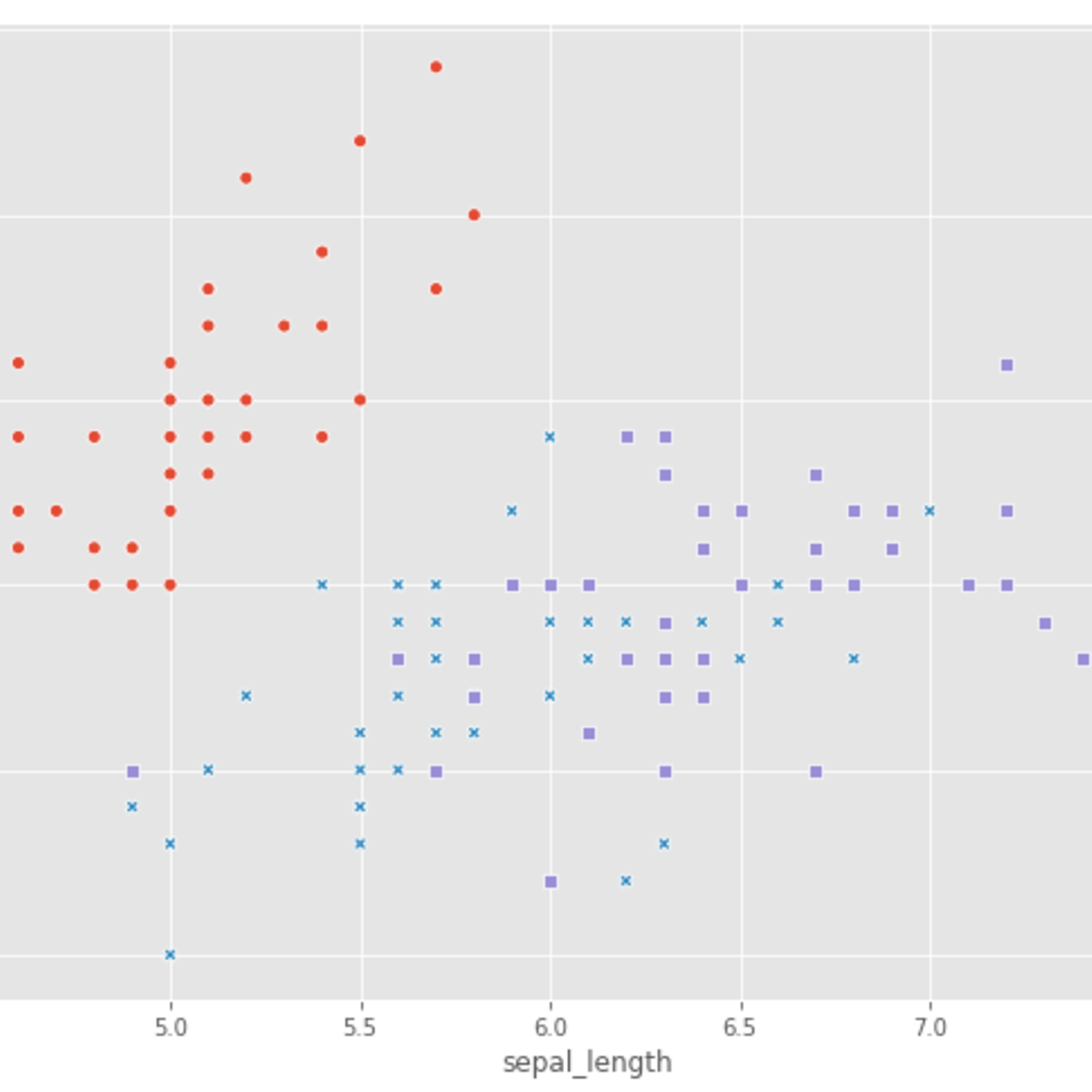

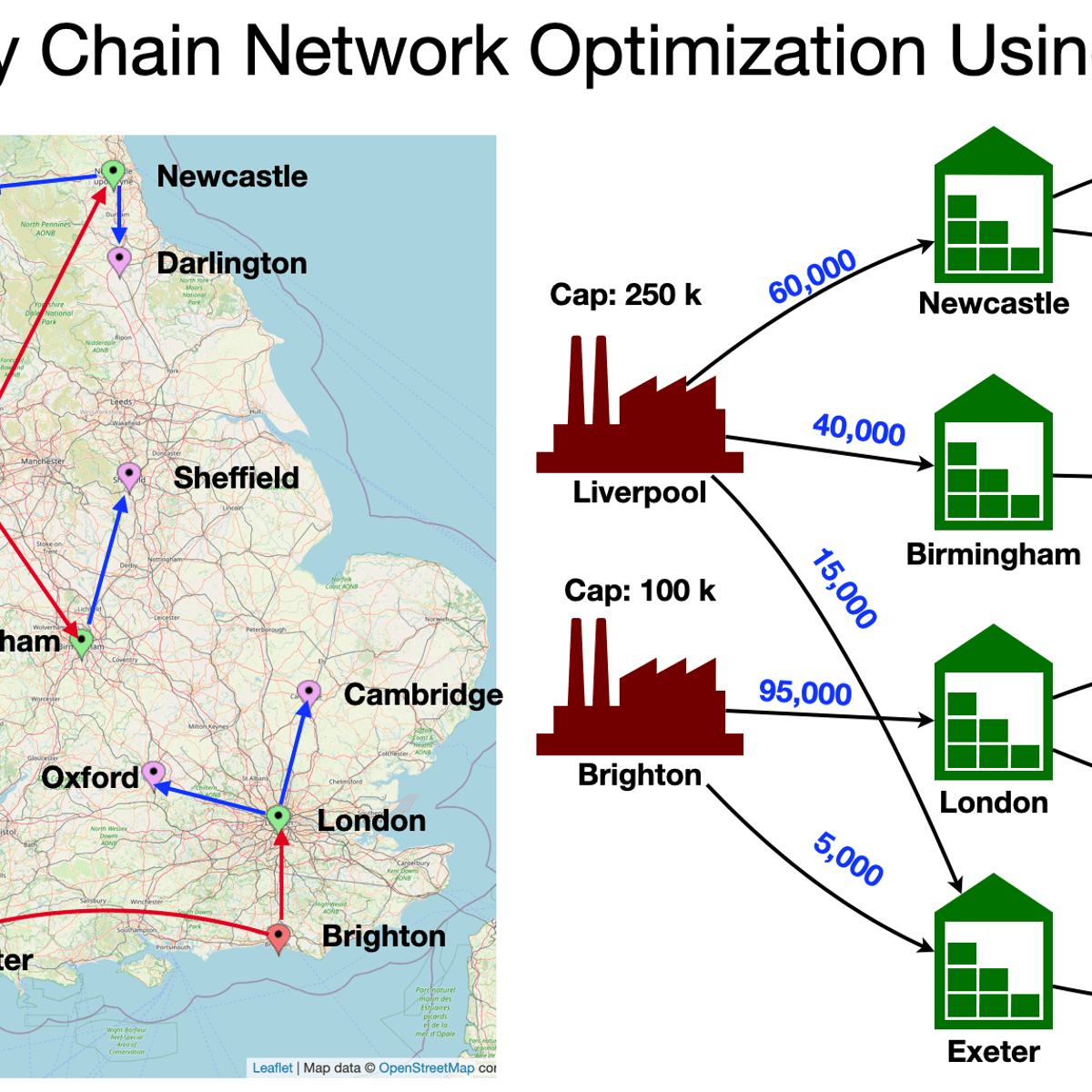
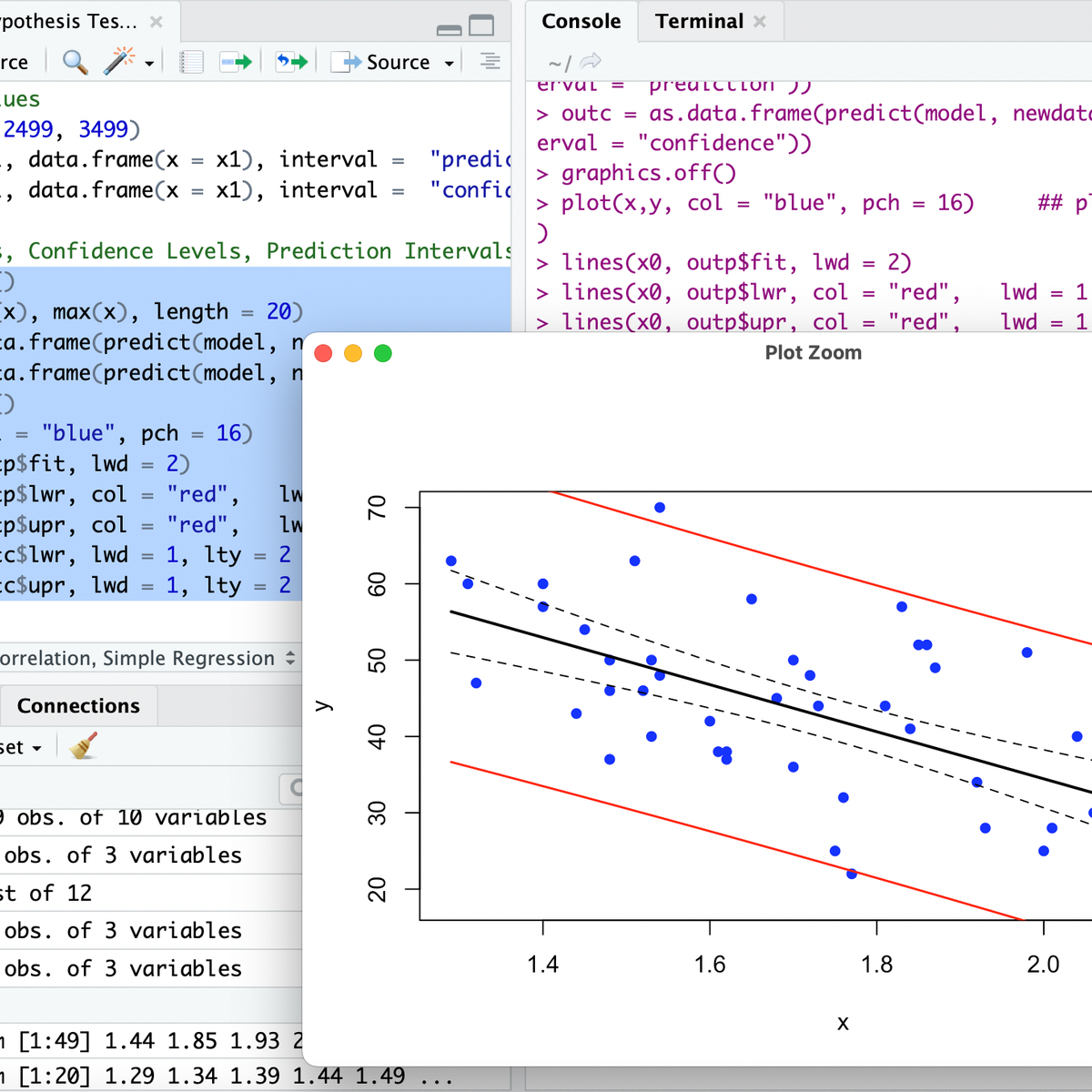

![AI With Python Full Course 2026 [FREE] | Learn Artificial Intelligence With Python | Simplilearn](https://img.youtube.com/vi/IvFW-r_S6UI/mqdefault.jpg)

Related Reads
📰
📰
📰
📰
How to Break Down Market Stress with Options Data in Python
Medium · Programming
How to Break Down Market Stress with Options Data in Python
Medium · Python
From 8 hours to 5 minutes: Building Better Maintenance Reporting in Aviation
Medium · Data Science
Cero apariciones de ‘AI-native’ en un CSV lleno de ‘AI-native’: así encontré el bug
Medium · Startup
🎓
Tutor Explanation
 DeepCamp AI