Introduction and Parts - Raspberry Pi and Python tutorials p.1
Key Takeaways
The video introduces the Raspberry Pi, a mini computer capable of running various applications, and covers the necessary tools and components for getting started, including the Raspberry Pi, breadboard, power supply, Micro SD card, jumper wires, and LED lights. It also touches on installing the Raspberry Pi OS on an SD card and setting up the device using a computer.
Full Transcript
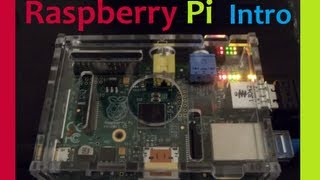
what is going on everybody and welcome to a new tutorial Series this tutorial series is with the Raspberry Pi which is a credit card Siz it's very thick credit card but a credit card sized mini computer so what this can do is basically anything a computer can do for you but obviously has two things going for it one is the size of course and two is the readily accessible gpio pins which we can use to do all kinds of things like control other robotics typ of stuff either like turn on and off lights move servos um we can also just take in sensor data all kinds of stuff that we can do with that and that's what makes this device super powerful it also just doesn't take that much um electricity and obviously just due to its size you can kind of stuff it in all kinds of cool places so that's the Raspberry Pi now the first thing it's kind of a weird situation where when you first get the raspberry pie the question on your mind is like what do I even do with this as if there's nothing you can even think of to do with it and then as time goes on it's actually a paralyzingly large number of things that you can do with a Raspberry Pi um so for me I've done a whole bunch of stuff I've put um a computer in my car I've done robotic stuff um I've clustered them together you can even actually see the cluster in the back there that's a bunch of raspberry pies I've got a ton of these things I've used them for um cameras like security cameras around the house and I've used them just for simple kind of just head L machines that just do operations for me that I want to be like always running because here's the thing you can you know obviously you can compute in the cloud but you can also compute locally and the only thing that stops local computer Computing normally and the reason why I use the cloud is when you have things like a power outage or something like that whereas a Raspberry Pi you can run it on backup power where like a computer on the most backup power will last maybe 5 minutes maybe usually more like 10 to 30 seconds uh whereas Raspberry Pi can actually last about 30 minutes or so on on backup power so anyway it just draws such a small amount of power so anyways that's the Raspberry p that's some stuff that you can do with it let's talk about the Raspberry Pi itself and then some of the things that you're going to need for this tutorial Series so what we have here this is Raspberry Pi model B um it's actually Raspberry Pi 2 model B so um and actually no this is actually this one's a three I think this is the latest version yeah this is actually a three most of what I have are actually twos but this is the latest one this will probably be the latest model for a while I think they came out and said that they were not really thinking of making another one yet so anyway this should be it for a while but you can have any of the different versions of the model B uh the only things that change sometimes some of the peripheral stuff changes but the most important thing is that these gpio pins and gpio stands for general purpose input output these gpio pins the order they might add more like down the line although they they are running out of space um they do not change in the order or the ID so they're always going to be the exact same ID except for the bottom ones might be new and um that the other model B's don't have um I don't think I have an really old Raspberry Pi model B that doesn't have as many pins this one has 40 it's also got like 1 gig of RAM um it's got this one has a quad core processor most of them just have like a single arm processor um but yeah so that's the Raspberry Pi now let's talk about some of the additional things that you're going to need so I'm just going to move this over um so the main thing that we're going to need additionally will be a breadboard so a breadboard is just a really quick way to kind of um test and develop things with uh circuits so we're going to be using that with the GPI op pins so try to get one of those although really the essentials for the Raspberry Pi I mean just getting it setting it up you're just going to need the the Raspberry Pi obviously itself you're going to need at least a like a 1 amp or 1,000 milliamp power supply this is like a cell phone charger it's a micro USB so the actual power is uh this right here so that's your actual power supply to the Raspberry Pi you actually can supp also Supply Power via the uh GPO pins as well but we're not really going to deal with that for now um so the Raspberry Pi power supply and then uh um an SD card generally it's going to be a Micro SD this is a regular SD card but this is actually an adapter so the micro SD card goes inside it so this one is um and I'm not even 100 I'm pretty sure you could use a 128 gab micro SD card but I'm not 100% certain but I don't see why not but some older I bet maybe the older pies wouldn't let you anyway regardless um yeah so you'll want a Micro SD card this one is 128 I'm not actually going to be using it I just grabbed one that was around but at least 8 GB but if you ask me really 16 GB is what you should use or 16 or larger um but yeah so make sure you have a micro SD card or a full SD card it depends on which Raspberry Pi you have um the later versions the SD card goes in this right here and um that's obviously only going to accept a Micro SD card that's not going to accept the full one but the older Raspberry Pi model be's actually want a full-sized SD card okay so for the Raspberry Pi basically you just need those things you're also going to need like a keyboard a mouse and a monitor and these those three things you'll only need temporarily you're not always going to need those things so you can just borrow them from a computer around your house um now let's talk about some of the things we're going to need later in the series so initially you just need the P power supply and a Micro SD card um but then later we're going to be getting into the gpio pins which is really the value of the Raspberry Pi um so you you probably should just go ahead and buy the other things that we're going to be using so like I said before the RedBoard um we'll talk more about how a breadboard Works uh they might look somewhat different from this one um but generally they're going to look like this where they got a row here a row here um actually officially this would be more like a column I suppose anyway um something there something there and then a bunch in them kind of middles separated usually but not always and these will be separated as well so anyways um get a red board other than that we're also going to need quite a few other things so for example um this these are jumper wires and these are I'm going to try to stay out of my light there so you can see but these are male to female or female to male jumper wires you really can't see the uh pin one of them has a pin the other one it like that's the male part and then so for example this is your male this is your female end so the male end goes in the female end so get about at least 10 of them but usually you can just buy like a kit or something that has like a hundred of these things and while you're at it you could also just get one that has female to female female to male male to male just get a bunch of them for this tutorial series um at least as far out as I've kind of planned um you'll only need the male to female because basically the male end goes in the breadboard the female end goes onto the gpio pins themselves and you're good to go so get about 10 of those um next we need um we're going to use an LED lights so in this series we're going to use three we're going to use a green yellow and red you don't have to use those colors you can get different ones it doesn't really matter um but get some LED lights you should probably get more than three cuz not always do they work um and they're just a varing quality they're like a super cheap mass-produced product that doesn't always meet standards um next we're going to need about is six resistors kind of like the male to female um jumper wires though you probably should just get a kit of varying sizes cuz you're going to needs uh resistors fairly frequently um for this tutorial series basically you could get by with six 1K ohm resistors um basically what we absolutely need you're going to need at least one 1K one 2K and then three somewhere between 300 and 1K ohm resistance um the reason why we need those is just either for the sensor we're going to use a distance sensor or the LED bulbs themselves because they like to draw more power than the Raspberry Pi wants to um take so those are your resistors um let me think here finally we've got the distance sensor this is officially the HC sro4 if I flip it around you can actually read it on there it's noted there breaking stuff anyway the HC sro4 uh you're only going to need one of those but I would recommend you just go ahead and get at least two because generally the thing that you're going to use this distance sensor for is for like a a robotic car so it's useful to have one in the front one in the rear uh we're not going to do that in this series but as we get further on I'm going to link to a series that I've already done that uses that um so it could be wise to go ahead and just get two of those um other than that you should be good to go one last thing though just because sometimes computers come and they don't have SD slots at least my computer doesn't if you custom build you probably didn't get an SD card reader cuz why um anyway um you can buy these like little USB ones so this is just like a USB SD card reader and you can actually stick um the SD cards in there and then plug it in so if you don't have an SD card reader uh you'll probably want to get one of these cuz it's super handy to have around if you don't have an SD card reader but seems like most consumer bought computers still nowadays do come with SD cards but just be careful also I forgot to mention that we'll also be briefly using the raspberry pi camera module it's not absolutely essential for this series that you have it uh but if you want it you can get it also we use it in a lot of the other projects that I've already done on the um on YouTube and also on pythonprogramming.net so if you want to follow along with that uh you can get it it's just really like the easiest sensor to use with the Raspberry Pi just because it's got its own special port and everything's kind of already set up for you anyway just wanted to throw that in there cuz I forgot to mention it on the original recording so anyway um that's that that's the introduction to the Raspberry Pi all the parts that you're going to need and all that and now what we're going to go ahead and do is run through the actual setup of the Raspberry Pi on your um on your computer and then also the SD card for your Raspberry Pi
Original Description
Welcome to a series on the Raspberry Pi. One of the most common questions I see about the Raspberry Pi is "What do I do with this?"
The Raspberry Pi is a fully-fledged mini computer, capable of doing whatever you might do with a computer. It comes with 4x USB, HDMI, LAN, built-in Bluetooth/WiFi support, 1GB RAM, 1.2GHz quad-core ARM CPU, 40 GPIO (General Purpose Input Output) pins, audio and composite video output, and more. Rather than not having many choices, instead, your options are staggeringly large!
This tutorial series will introduce you to the Raspberry Pi and some of the things you can do with it!
Parts list: https://pythonprogramming.net/introduction-raspberry-pi-tutorials/
Text-based version of this series: https://pythonprogramming.net/introduction-raspberry-pi-tutorials/
https://twitter.com/sentdex
https://www.facebook.com/pythonprogramming.net/
https://plus.google.com/+sentdex
Watch on YouTube ↗
(saves to browser)
Sign in to unlock AI tutor explanation · ⚡30
Playlist
Uploads from sentdex · sentdex · 0 of 60
← Previous
Next →
1
 2
2
 3
3
 4
4
 5
5
 6
6
 7
7
 8
8
 9
9
 10
10
 11
11
 12
12
 13
13
 14
14
 15
15
 16
16
 17
17
 18
18
 19
19
 20
20
 21
21
 22
22
 23
23
 24
24
 25
25
 26
26
 27
27
 28
28
 29
29
 30
30
 31
31
 32
32
 33
33
 34
34
 35
35
 36
36
 37
37
 38
38
 39
39
 40
40
 41
41
 42
42
 43
43
 44
44
 45
45
 46
46
 47
47
 48
48
 49
49
 50
50
 51
51
 52
52
 53
53
 54
54
 55
55
 56
56
 57
57
 58
58
 59
59
 60
60
Matplotlib Python Tutorial Part 1: Basics and your first Graph!
sentdex
Python Encryption Tutorial with PyCrypto
sentdex
Python's Logging Function
sentdex
wxPython Tutorials 1: Making Windows GUIs with Python : Installing + 1st window!
sentdex
wxPython Tutorials 2: Making Windows GUIs with Python: Customizing Window Parameters
sentdex
wxPython Programming Tutorial 3: Menu Bar and Menu Button
sentdex
wxPython Programming Tutorial 4: Panels
sentdex
wxPython Programming Tutorial 5: User Input Saved To Variables
sentdex
wxPython Programming Tutorial 6: Multiple Choice Input
sentdex
wxPython Programming Tutorial 7: Adding Static Text and Colors
sentdex
wxPython Programming Tutorial 8: Custom Button Images
sentdex
wxPython Programming Tutorial 9: Tool Bar Items and Sub Menus!
sentdex
Basic PHP Tutorial 13: Multi-dimensional Array
sentdex
Basic PHP Tutorial 15: Functions and Global Variables
sentdex
Basic PHP Tutorial 12: Associative Array
sentdex
Basic PHP Tutorial 14: Foreach loop
sentdex
Basic PHP Tutorial 16: Include and Require
sentdex
Basic PHP Tutorial 7: Assignment, comparison and Logical operators
sentdex
Basic PHP Tutorial 4: Variables and Comments
sentdex
Basic PHP Tutorial 11: Arrays part 1, basic array
sentdex
Basic PHP Tutorial 6: If else and else if conditionals cont'd
sentdex
Basic PHP Tutorial 1: Intro to PHP
sentdex
Basic PHP Tutorial 3: HTML with PHP
sentdex
Basic PHP Tutorial 9: While Loop
sentdex
Basic PHP Tutorial 10: Switch Statement
sentdex
Basic PHP Tutorial 2: Print and Echo
sentdex
Basic PHP Tutorial 5: If else and else if conditional statements
sentdex
Basic PHP Tutorial 8: Arithmatic Operators: Doing math with php
sentdex
Basic PHP Tutorial 17: User Input Form Example / String Manipulation
sentdex
Basic PHP Tutorial 18: HTML Entities and forms cont'd
sentdex
Basic PHP Tutorial 19: Finding words in strings
sentdex
Basic PHP Programming Tutorial 20: Saving to a File / writing and appending
sentdex
Basic PHP Programming Tutorial 22: Hashing part 2: salting
sentdex
Basic PHP Programming Tutorial 23: Variables in Strings and tokenizing
sentdex
Basic PHP Programming Tutorial 21: MD5 Hashing For Security
sentdex
Basic PHP Programming Tutorial 24: String similarity
sentdex
Basic PHP Programming Tutorial 25: Time and Time stamps
sentdex
Basic PHP Programming Tutorial 26: Die and Exit
sentdex
Basic PHP Programming Tutorial 27: MySQL Databases Part 1
sentdex
Basic PHP Programming Tutorial 28: MySQL Database Part 2: Reading From Database
sentdex
Basic PHP Programming Tutorial 29: MySQL Database Part 3: Inputting Data
sentdex
Basic PHP Programming Tutorial 30: MySQL database in Use
sentdex
Django Tutorial Web Development with Python Part 1: Installing Django
sentdex
Python Tutorial: File Deletion and Folder Deletion / directory deletion
sentdex
Python Tutorial: How to Rename Files and Move Files with Python
sentdex
3D Graphs in Matplotlib for Python: Basic 3D Line
sentdex
3D Plotting in Matplotlib for Python: 3D Scatter Plot
sentdex
3D Charts in Matplotlib for Python: Multiple datasets scatter plot
sentdex
Sikuli Tutorial 1: Visually programming in python!
sentdex
Sikuli Tutorial 2: Program visually in python!
sentdex
Sikuli Tutorial 3: Program visually in python!
sentdex
3D Bar Charts in Python and Matplotlib
sentdex
3D Plane wire frame Graph Chart in Python
sentdex
Raspberry Pi Part 1 Introduction
sentdex
Raspberry Pi Part 8: First Download and Update! (Firmware)
sentdex
Raspberry Pi Part 10: How to set up a Linux Web Server on your Pi
sentdex
Raspberry Pi Part 11: Remote Desktop
sentdex
Twitter Analysis: How to rank a user's influence
sentdex
GPIO Tutorial for Pi Part 2 - Programming the GPIO
sentdex
GPIO Tutorial for Raspberry Pi Part 1 - Setting up
sentdex
More on: Tool Use & Function Calling
View skill →









Related AI Lessons
⚡
⚡
⚡
⚡
How to prepare TIC teacher exams in Spain with AI (oposiciones 2026)
Dev.to AI
Why I built a simple AI provider wrapper (and you might too)
Dev.to · zhongqiyue
This ChatGPT Prompt Replaced 3 Hours of PowerPoint Work
Medium · AI
This ChatGPT Prompt Replaced 3 Hours of PowerPoint Work
Medium · ChatGPT
🎓
Tutor Explanation

 DeepCamp AI