How To Configure Contra Tabs | LEXZUR
Key Takeaways
Configures Contra tabs in Lexzur's Contra module to organize contract data
Full Transcript
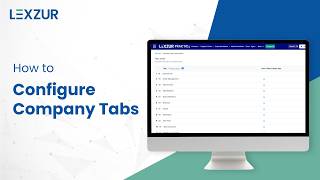
[Music] Hi, in this video we will show you how to customize Contra tabs and tailoring your workspace by displaying only the relevant tabs and organizing them to suit your workflow. To show or hide tabs in contracts, open system settings and navigate to the tabs configuration under contracts and document section. You can edit or delete any existing configuration from this page. To create a new configuration, click the configure tabs link at the top. Select the relevant type or subtype for this configuration. On the right, you'll find a list of all available tabs. The I icon indicates that the tab is visible on the contract page. To hide it, simply click the I icon to disable it. You can repeat this action for any tabs you wish to show or hide. Changes are applied immediately, ensuring a workspace that matches your type and workflow. You can also reorder tabs to match your preferred workflow. Click and hold the tab you wish to move. Drag it to the desired position. For example, placing attachments right under approval center. Release the tab and the system will automatically save your changes. If you need to revert to the original tab arrangement, click the reset order button. These updates will be applied to all contract pages with the selected tab configuration. [Music]
Original Description
Set up your Contra tabs to reflect the way your team works.
This tutorial walks you through how to configure tabs in Lexzur’s Contra module—so you can organize contract data by relevance, simplify navigation, and improve team visibility.
🔹 Customize tab layout
🔹 Prioritize key information
🔹 Align tabs with your workflow
🔹 Create a more intuitive contract view
Perfect for legal, procurement, and business teams looking to tailor their contract lifecycle experience.
📩 For support, contact help@lexzur.com
📌 Learn more: www.lexzur.com
#Lexzur #ContractManagement #Contra #LegalTech #WorkflowTools #Productivity
Watch on YouTube ↗
(saves to browser)
Sign in to unlock AI tutor explanation · ⚡30




Related Reads
🎓
Tutor Explanation

 DeepCamp AI