Application types in Microsoft Identity
Key Takeaways
The video demonstrates how to build different types of applications using the Microsoft Identity platform, including single-page applications, web apps, mobile or native apps, and services or daemon apps, using OAuth 2.0 standard authentication protocols and tools like Azure AD, Microsoft Authentication Library for JavaScript (MSAL.js), and Microsoft Graph.
Full Transcript
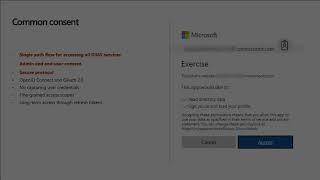
hi i'm andrew connell and i'm a microsoft mvp in the area of microsoft 365 development and i have a lot of experience with sharepoint development including all the different development models that we've had microsoft graph development microsoft teams development and developing add-ins for microsoft office as well as working with microsoft identity including azure ad the microsoft identity platform enables developers to build many different types of applications to satisfy diverse business requirements in different scenarios by supplying multiple oauth 2 standard authentication protocols developers can create different types of applications that meet business needs including single page applications web apps mobile or native apps and services or daemon apps in this module we're going to learn how you can implement different oauth2 protocol grant types in popular application types such as single page applications web apps that call apis in daemon or service apps and specifically in this module or in this section we're going to focus on single page applications web standards in modern browsers have advanced considerably in recent years to the point that web developers can create sophisticated client-side applications these client-side applications also referred to as single-page applications or spas can enable users to authenticate and obtain tokens from microsoft identity platform that can be used to call secured apis many modern web applications are built as client-side spas written using javascript or a single page app framework such as angular or view or react these applications have traditionally used the oauth 2 implicit flow to authenticate and obtain an access token to connect to protected services the pattern used to implement the implicit flow in spas included the use of iframes and cookies for silent single sign-on in the browser however many modern browsers now block third-party cookies which breaks that implementation that fact along with concerns about the visibility of access tokens when using the implicit grant flow led to the decision to move to using the oauth 2 authorization code flow for single page apps as well the easiest way to use microsoft identity for authentication and obtain access tokens to authorize requests to secured endpoints in spas is to use the microsoft authentication library for javascript or msal js msl js v1 only supports the use of the implicit flow however in july of 2020 microsoft released msl js 2.0 which supports the use of authorization code flow the remainder of this unit and the following exercise is going to focus on using m cell js2 and the use of the authorization code flow in order for a spa to use microsoft identity to enable users to authenticate and obtain access tokens for use with services such as microsoft graph you must register a new app with azure ad you can do this using the azure id admin center at aad.portal.azure.com after the application has been created configure it to use the single page application platform next ensure that the redirect uri of the app points the url of the spa this url must match the redirect url provided by the spa when the authentication process is initiated now load the msl.js 2.0 library from the microsoft hosted content delivery network or cdn you don't see that here on the slide but it's just a script reference after adding the script reference to the page add the following code that you see here to obtain an instance of the application the app id and directory id tokens in the code are placeholders for values that are going to come from the azure ad app and we'll see that when we do the demo in a minute now one thing that's important to take note of here is that the preferred experience when using mso when signing in and obtaining access tokens is to use a pop-up window that's what we're showing here however some browsers have known issues with pop-up windows and in these cases you can choose to use msl's equivalent methods that will use broad browser redirects now with the application configured the next step is for the user to sign in do this by calling the login pop-up function and pass in an object with the wanted permissions defined the code will open a pop-up that loads the azure ad sign-in experience and if the user hasn't signed in previously and granted the app the specific permissions after successful sign in azure id will present the user with the consent experience after completing the signing experience msl.js will close the sign in pop-up and execute the success path of the login popup method after the user has signed in the next step is obtaining an access token to use in the authorization header of the request there are two methods on the msa.js api that you can use for this task acquire token silent and acquire token pop-up acquired token silent is used if the user is already signed in in an interactive sign in is not going to be required this method is going to return a response that includes the access token the other method acquire token pop-up this is useful if the previous method acquired token silent fails and or an interactive sign in is required such as if you need new permissions granted you can use this method the acquire token pop-up it will combine the request to sign in and obtain an access token all in one step and then once your spa has an access token you can use it to call a secured endpoint such as microsoft graph so you see here a function called get messages from microsoft graph we're specifying the end point that we want to go to and then the important piece of this is the second to last line that you see there where it says set the request header the request header being set is the authorization header with the value of bearer space and then the access token that's going to be sent to authorize us to be able to use our application and to access the microsoft graph with our access token now in this demo you're going to see how to create and configure a single page application that uses an azure ad application to issue an authenticated request to microsoft graph using the oauth2 authorization code flow so the first step to do this in a single page application is typically to you're going to create a dynamic web application that runs entirely client-side in the browser usually in a single web page now to do this your single page app must be served up as a routable page within a web server which is what we're going to do from our local developer environment so the first step usually is to create the web app and the web server for the spa but what i'm going to start with is i'm going to take a look at azure ad first so what i'm done here is i've logged into my azure portal which i can get to from aad.portal.azure.com and if i come over here to azure active directory and i select a list of all of my applications that i've created i'm going to find an application that i've created ahead of time called identity spa now this is the one that you would create in your in the exercise so what this is this is what you're going to use to obtain an access token and to register an app to have permissions uh to talk to the microsoft graph so what i would do is i would first go in and let's just jump back real quick what i would do is go to app registrations and click new registration but let's look at the one that i've already created here when i created this application i gave it a name of identity spa and some of the other things that i set up here under the authentication piece is that i went and i clicked on add a platform and i selected i wanted to do a single page application now when i did that i specified a redirect uri of the url of where my application lives now this url is what i'm using in development if i was switching this over to production i would want to come back and actually update this value to point to my routable endpoint this is where the user is going to be redirected to after they sign in so i've set this value right here now the important thing that we're going to need from this once we've created our application and i'm going to come over here to the overview and you see here that i've got an application id or it's also known as a client id and a directory id which is also known as my tenant id let's go ahead and switch over to my application i'm going to go and grab the client id because i know i'm going to need this in just a minute so here's my web application so my web application let's take a look at a few things that we've done i first have added in a reference to this bluebird library and what this is is a very popular promise implementation this is great to use for browsers that don't have a version of javascript that's supported that that supports promises which is are useful for making asynchronous requests so i've gone ahead and added that here to make my life a little bit easier i've also added in a reference to the mso.js v2 implementation and this is what we need to use to call the to call the uh azure id to obtain an access token so the first thing we have here is i've got this uh sign in button that's going to call a function called sign in and then i've got a place where i'm going to display my messages now in this sample what we're going to do is we're going to grab all of the most recent email addresses or emails that i that my user that's signed in has received so what i've done is i've defined a configuration object and in my configuration object i'm going to specify a few things where's the redirect uri for my application this has to match the redirect uri that i entered in for the azure ad app i need to specify the client id well we copied that just a minute ago so i'll put that in right here and then i need to specify the authority now what this the authority is this is the uh the ten like the tenant id um of my application so what i need to do here is i need i need to specify the endpoint for where someone is going to log in and who and what the the um the authority is that we trust for issuing the access tokens so that's going to be https dot com login.microsoftonline.com and then i need the the id of my tenant so if i come back to my application or to my web app excuse me my browser i go to the application and i can look at my tenant id so i'm gonna go ahead and copy that id out i'm going to paste that into my authority right now if we look at the rest of the code here and look at what this does that's all we had to do to add to get this to work i've got my graph configuration object all this is is really just i'm passing in the endpoint that we want to go to and the permissions that we're going to need access to i'm then using msl.js to create a new instance of a public client application using the configuration object that we passed in i then am going to start with a username of nothing and i'm going to also set up my login type so this is checking to see am i currently in using internet explorer and if i am then i need to do a redirect login so remember earlier i said that the pop-up is the ideal way of doing authentication but some browsers don't support that for example like internet explorer so what we're doing here is i'm going to set it up to where we're going to do a redirect instead of a pop-up otherwise if we're using a different kind of browser like the latest version of edge then we will use the pop-up option i then have this handler here for handling a redirect and then i also have a function here for updating the user interface when we actually get our request and then also how to acquire the token and get all the emails so let's see what happens here when acquire token and getting emails so from this i'm going to look at my graph configuration object and get the request object so if you recall that request object is the one that contains all the properties or the permissions which are also known as scopes that we'll need access to so i have my request object i'm specifying the account that we want to use to log in equal to the account of the user that just logged in so i went to my msl application and used their sign in now in this case we haven't signed in yet we'll see that in a minute but i just wanted you to see what that looked like then over here i'm going to say i'm going to acquire a token silently so we're going to try to get a token silently that's the ideal way of doing this if that fails which you can see here in the catch we're ultimately going to come down and we're going to use the pop-up request to try and log in but if the login type is not pop-up we're going to use a redirect option instead and so from here with that request that's coming in that we're passing a request in when i acquire the token redirect it's going to pass that request in which will handle the response and then same here when i acquire the token pop-up it's handling that request in as well and when that finishes i'm going to get the token response that's going to give me it's going to have the access token in it and the callback for where i want to call for when this graph request completed so now scroll down farther here is where we are going to go get um the messages from microsoft graph and we saw this code in the slides a minute ago so i'm not going to spend too much time on it here then we have our graph api callback so what does this do well what this is doing is this is my callback function when it gets some data which is all the email messages what i'm going to do is i'm going to walk through all the email messages i get back and just write out a bunch of list items and then add those to an unordered list that we're going to add to the div on the page to where we can display all of our messages and then finally the important part is down here on the sign in process so what happens on the sign in well we're checking to see what the login type is remember this was defined up above where we were checking to see if we're using internet explorer if we are using if we are not using internet explorer then we can do the login popup option where we're going to pass in the graph request object and then when we get our response back we'll call our handle response handler and that's the one that is going to ultimately call the process of calling the graph to get our email messages and updating the the display otherwise i'm going to do the exact same here on login redirect and when that completes that will get the request coming back from a post request and it will know how to handle that and process the response all right so let's take a look at this in action uh all right so now our application is now running so let me go back to the browser and let's open up http localhost 3007. right so here's our web application so we're not currently signed in when i click sign in it's going to sign me in as my as the current user so i'm signed in as megan i was already signed in as meg and because i've already used uh in this application it didn't prompt me for the authentication for the interactive authentication request had i not already been signed in it would have prompted me to grant permissions to this application and then once that happened i would then come back to my web app and you can see here it's getting a list of all of my emails that i've recently received it's a test account so that's why you see the same email over and over it's because we've been getting that my analytics and the identity protection weekly digest we get that every week so these are the last 10 or so emails that i've received so in this demo what you saw was how to create and configure a single page application that uses an azure ad app to issue an authenticated request to microsoft graph using the oauth 2 authorization code flow one type of the permissions supported by the microsoft identity platform is the delegated permission which is also referred to as the on behalf permission delegated permissions are granted by a user or an administrator to an app to allow the app to act on behalf of a specified user that's what we're going to look at in this section so in this section we're going to learn how to request delegated permissions to enable users to grant them to an application with either static consent or dynamic consent the microsoft identity platform supports two types of permissions delegated permissions and application permissions delegated permissions are used by apps that have assigned an user present and for those apps for these apps either the user or administrator content consents to these permissions that the app requests and the app is delegated permission to act on behalf of the signed in user when making calls to the target resource some delegated permissions can be consented to by non-administrative users but some higher privileged permissions require administrator consent for example a user can grant an app the delegated permissions user.read that enables the user of the app to sign in and read this user's profile and user.readbasic.all that allows the user to of the app to read basic profile information about all users within the organization now only an administrator can grant the user.read.all permission that allows the user of the app to read the full profile information of all users in the organization if the user has not previously granted the permission to the app or the administrator hasn't consented on behalf of all the users in the organization when a user signs in to the to an app they're then prompted with the consent dialog like you see here on the slide when a user selects the accept button the consent settings are saved and the user won't be prompted again there are two ways to define the permissions and app needs that drives what permissions are listed in the consent dialog these two approaches are called static and dynamic consent now with static consent the permissions are defined in the app's registration within the azure id admin center the static consent approach is how microsoft identity 1.0 authorized endpoint used to work it still works all permissions in an application needed to be specified ahead of time and when users signed in they would have to consent to all the permission requests this approach also enables an administrator to consent on behalf of all users within the organization today now for developers migrating apps from the microsoft identity v1 endpoint to the v2 endpoint microsoft introduced something called the default scope this is a built-in scope for every application that refers to the static list of permissions configured on the application registration the scope of this default of this default functionality is the same as in v1 endpoints and the scope requests an access token with the scopes on a microsoft graph or whatever resource they've that has been granted to that the application is registered within the azure 80 admin portal the default scope should be used with apps that use the authorize the oauth 2 client credentials flow and you do this by putting the app id in the scope you put the app id slash dot default the other option to static consent is called dynamic consent and this was introduced in the microsoft identity v2 endpoint with this option permissions don't need to be specified in the app registration in the azure id admin center each time an app requests an access token it specifies the permissions it needs in the scope property if the user hasn't already consented to these permissions they'll go through the consent experience for the additional permissions dynamic consent enables developers to only ask users for the permissions the app needs at that time for example at sign in the app can request minimal profile information but later request additional permissions to do more advanced tasks now in this section you're going to learn how to create a server-side web app that will allow users to sign in and grant the app permission to act on the user's behalf and once the user has authenticated and granted the app consent to act on their behalf the web app will use data returned from microsoft graph by using the oauth 2 auth code grant flow so specifically in this section we're going to look at the web apps that call apis including the authorization code grant flow for oauth 2. the azure id app registration the msl code and configuration the sign in and how to obtain an access token and how to call apis so in this first section we're going to look at the web apps that sign in and call web apis adding authentication enables your web app to access limited profile information and customize the experience offered to your end users web apps authenticate a user in a web browser and in this scenario the web application directs the user to sign in to microsoft identity microsoft identity then returns a sign in response through the user's browser which contains claims tokens about the user in an identity token a second phase as a second phase you can also enable your application to call web apis on behalf of the signed end user the auth two authorization code grant flow is a is common when websites or custom apps leverage azure id as a federated authentication provider when the application needs a user to sign in or it needs an access token to act on their behalf it redirects the user over to azure ads authorization endpoint to authenticate the user signs in using their email and password and in turn azure ad redirects the user upon successful sign in back to a specific url within the app when the azure id redirects the user back to the web app it includes an authorization code the authorization code is an encoded string that only azure id can read the web app takes this authorization code which is a is valid for a very short amount of time and includes it in a request to the azure id token endpoint and in addition the author to the authorization code the request to the token endpoint includes a grant type parameter that tells the endpoint is exchanging the authorization code to obtain an access token on your behalf the benefit of this grant flow is that the web app never sees your username or password all the authentication happens over on azure id and the application just gets the authorization code that's a result of the sign in process this aspect to the auth code grant flow makes it very secure in order for a web app to use microsoft identity to enable users to authenticate and obtain an access token for use with services such as microsoft graph you must register a new app with azure id and this can be done in the azure id admin center when registering the app in azure id ensure that the redirect uri of the app points to the callback uri of the web app this url must match the redirect url provided by the app when the authentication process is started the authorization code will be sent to this endpoint which means that you need to configure any authentication libraries and or middleware to listen on this endpoint to receive the authorization code a sign out url should also be specified so that the authentication libraries in our middleware deletes any cache tokens or other data that are only needed for signed in users the web app will also need a client secret to sign in with azure id to exchange the authorization code for an access token there are three things that you'll need from azure id app registration the tenant id which is the id of your azure ad directory a client id which is unique in an auto generated id for the app that is also referred to as the app id and a client secret that you generated during the app registration but in a production app microsoft would recommend that you use a certificate instead of using a client secret and pull it from something say the azure key vault the web app startup process to configure the support for signing in uh azure id and obtaining an azure id an app id token is the next step in an asp.net core web app add code to the configure services method that will complete the azure ad configuration by doing some of the following steps set the authority for azure id to be the oauth 2 azure id endpoint request both an authorization code and an id token when a user signs in and associate the usernames property and asp.net to the preferred username claim returned in the token and then finally you're also going to create a callback when the authorization code is received to add all claims from the id token to the current signed in user's claims the sign in process is handled by redirecting the user to the azure id sign in page and this is set by default for when for you when you create a new asp.net core web app the sign in process uses values from the appsettings.json file and the configuration defined in the previous setup to create the azure id url to send the user to for sign in this url specifies things like the azure id applications id the tenant id and the scopes required by the web application when a user signs in to azure ad and is redirected back to the web application the web app can use the msl.net library to obtain access tokens the account is retrieved from the currently signed in user and the token can then be used to call a secured endpoint the last part of the process is to use the access token to issue a request to a secured endpoint one way to do this is to create an instance of the microsoft graph client and add it as a singleton to an asp.net core dependency injection system the instance of the service can then be used from a controller within the web application in this demo we're going to learn how to create a server-side web app that allows users to sign in and grant the app permissions to act on the user's behalf once the user has authenticated and granted the app consent to act on their behalf the web app will use the data that's returned from the microsoft graph by using the oauth 2 auth code grant flow to obtain an access token so what i have is a web app or an asp.net core web application that i've created previously if you want to see the steps of how to create this there is a lab exercise associated with this module that walks you through all of the steps to do this now before we get started with this the one thing i want you to take notice of is that we have this app settings section and what this is going to be used for here is to define the different settings we're going to use for the application so before we do go start walking through the code for this we should probably go create our azure ad application because that is something that we're going to need in order to have our web app actually work so what i'm going to do is i'm going to go ahead and launch a browser in private mode and we're going to log into the azure ad portal so i'm going to log in as an administrator who's got access to create a new app and we're going to go create a new app so i'm going to select azure id from the left-hand menu and then select app registrations and then select new to create a new app registrations we'll call this our identity web app now in this case here you see that i have the i'm going to use a single tenant web app in this case so i'm just going to leave it as is and we'll go ahead and select register so here we've got our app id and our directory id so let's go and grab these values so i'll grab the directory id and we'll come back over to our web app and i'll put that in the tenant id tenant id and directory id are somewhat synonymous i'm going to grab our application id and i'll do the same thing for the client id that you see here the domain i'll grab that as well so let's come back over to our app and the domain you can get that if you go to the root of your azure ad you'll find it listed right here at the bottom so i'll go ahead and select this you can also get it from a properties panel as well but i'll just grab it from this and we'll come back over to here into our app settings and i'll go ahead and paste that in so another thing we're going to need is our client secret so i'm going to come back over to azure id and let's come over here into our app registrations let's go to the app we just created and let's create a secret so i'll come over here to see certificates and secrets i'll create a new client certificate and we'll just call this a temp certificate that's good for a year and let's grab the value that was created we need to grab that now because it will only be shown one time it'll never be shown again so i'll save my changes which you'll see if i come back over to azure id if i leave the page and then come back to our client certificates you can see here that the client certificate is not being shown so i can't see what it is again i'd have to create a brand new one if i wanted to uh create another instance of that now the next thing we need to do is we need to set up some redirect uris and what this is if i come over here to our authentication tab um what redirect uris are is that when the app goes to red to log in it's going to tell azure id that once the user authenticates where to send them back to and i need to give it a list of allowed urls that it can support and this is just an extra security feature to keep someone from saying go log in and send them in a different direction so these have to match whatever i end up use using in my when i configure my application so i'll go ahead and say localhost uh 3007. we'll do that for this one and then we're also going to use uh our slash sign in dot o i d c and what that is is that is the um open id connect the owen middleware that asp.net uses and it has this special url that it's going to be listening on so let's grab i'm going to go and grab that value as well and then i'm going to scroll down here under the advanced settings and have a logout url because we also have a sign in and we have a sign out url we have two urls set here so go ahead and save these changes okay so we have those all those values are now set uh and if i go back over here to my back over here to my app you'll see that i even have the callback path is set to this sign in oidc which is going to take us back to the root of the current url of the application so another thing i'm going to do is come over here into our launch settings and i'm going to set make sure that the application url and ssl port are both set to 3007 because that's what we said was it was going to be listening on for our application to listen to on that port so now let's see how this application works so one of the things that i've done is let's just jump straight to the actual code and see where this is being used over here in the user controller all i want to do is i want to use the microsoft graph to get the current user's uh name from their me endpoint and i'm going to display that on the page so here's a request where we're making we're making that request so i'm using the asp.net dependency injection to have it inject in a graph service client we'll see where this gets configured in just a minute now there's lots of ways to do this just showing you how we've done it here in this case here when you go to the user controller the default view notice you have to be authenticated the default view is first going to go create a request and it's going to get the actual request message and we need that because we need to get the current user that is logged in so i'm going to grab the current logged in user and i'm going to add him to the the property bag for the current http request and when i use the graph client i'm going to send the request into the http provider and then i'm going to issue the request which is i have my request right here that i've defined with my handler so i'm going to say handler.handle the handle the response for a user object that i'm going to get back and that's my response so here's my object or that that's the response that you see that i defined up here on line 26 that's tied to the actual request i get the user back and i'm going to go add them to the view and then if i take a look at the view for that controller it's just really straightforward i'm just going to use the model and grab the display name out because the model is the actual user object so i'm just grabbing the display name out from that user all right so the interesting part here that we need to look at is everything is going to be inside of this startup.cs file and what this startup file is is this is going to run when the application loads for to be able to work with and configure the the authentication uh to use azure id and the open id connect and uh msl uh libraries to handle all the authentication so here by default when i created the app i said we're using single auth which is tied to azure id so it set this up as adding the authentication equal to the azure ad authentication scheme and then it's going to pass in all of the azure ad options that are defined inside of app settings and so if you see here backup settings.json we have azure ad and we've told it all the stuff about azure ad and our azure ad app that we registered so once that's been set up i'm now going to go define the different permissions that we need so we need the permission of offline access and user.read so now i need to go get a reference to these app settings and so what i did is i created an object here called the azure ad options and then i'm doing a configuration.bind specifying the azure ad option here and passing in all the different uh settings now the next thing that we're going to do is we're going to create an instance of an msow client a confidential client and what this is is a confidential client is one where i can use a username or an app id uh an app secret or certificate to authenticate the application and so here i'm creating a new instance of that so using this id for my azure id app i'm defining the authority which is the end point we're going to log in with and i'm saying we're going to use the v2 endpoint for azure id the redirect uri is equal to my current url of my site which is 5001. that was defined in my local settings and i'm specifying the callback path which if you recall that's that openid connect sign in middleware endpoint is what we're putting on the end of that i'm also saying i'm going to be authenticating using a client secret and then i'm going to build out the confidential client now the next thing we need to do is i'm also going to create an instance of the microsoft graph client and so here i'm creating a new graph service client and i'm passing in a delegated authentication provider now this right here is going to have the http request passed in and we saw that from the user controller when that was being passed in when we have a request i'm going to use that request that was passed in to get that user object out to create an instance of a graph user account that graph user account is going to be used here so when i say the confidential client acquire tokens silently because the user will have already been logged in at this point you'll see why in just a minute that here they're going to go to i'm passing in the scopes for what permissions i'm going to need inside of the access token and then i'm also going to be passing in the graph user account as well and then so go ahead and execute that asynchronously and then when there's a request i'm going to add to the header an authorization header value with bearer and then the value of the actual access token and that's where i'm going to add in the now configured graph service client i'm going to add it down to the as a singleton to the app now let's take a look at this configure uh section here so there's a whole bunch of stuff in here in this configure section that has mostly been set up for you um and what this is is that it's configuring the openid connect middleware to tell it how i want uh to um to handle the authentication uh with azure id so in here you can see that when there's a request i'm looking for a code id and a a code and an id token so code is the authorization code um using the auth code flow and the id token is what you also get with the authorization code that's got some identity information about the current user i'm also specifying the permissions that we're looking for we defined those earlier but this is where this is i want this to happen prior to we're doing all the graph stuff right that we saw earlier because this is the part where we are logging in the graph stuff we saw a minute ago that happens after they've already logged in where i'm going to go get an access token and configure the graph client in this case here on the token validation parameters i want to set the name claim type equal to the claim that comes in as the preferred username so i'm specifying when you get an id token back that property on the id token or that claim for a preferred username that's the name that i want to use for the current user i'm going to specify also when authorization code is received we're going to have this handler that's going to be defined you can see down here where that's actually going to run i'm going to take the handler pass into context and i'm going to await um configure and wait to say i want to wait for this to to go ahead and authenticate a little bit farther down when i get an authorization code back it's going to pass in the context i'm going to redeem the authorization code and then i'm also going to go in and grab the current user and i'm going to add in the claims that we got back from that authentication to the current user's identity and then i'm also going to say let's go get a token with the authorization code and that's where i'm specifying in all the permissions and i'm specifying in the authorization code that we got back to get an access token over here all right so now let's take a look and see how this thing works so i'm going to come back to our application and i'm going to say net run that's going to spin up our asp.net core application and we're going to navigate to the url that's defined so let's come over here to our app so now let's come over to our web app and let's actually go load our application so i haven't trusted the dev cert that's not a big deal in this case here on my local machine and our application is immediately asking me to go ahead and log in so what i'm going to do is i'll come over here and we'll log in as megan d don't need the at sign there and then we'll put in megan's password and what we're seeing here is an error that says unsupported response type and it says the response type of id token is not enabled for the app so this is actually a very easy fix here and it's just one i wanted to show you what happens when you run into this let's go back to our azure ad application and let's log in as an administrator and there's one step that we didn't do remember we're asking for an id token that is not something that is normally returned back we have to tell our tell azure id that we do support it when it's requested so let's find that app that we created here's our web app right here and let's go to the authentication tab and if i scroll down you'll see this section here where it talks about the id tokens so i want to select this to say that we will return an id token back with this implicit grant so i'm going to go ahead and save my changes and let's kill the browser and let's start this login process again so i'll log in again to https localhost 5001 and let's try and log in again with megan so i'll do megan b nope that's not right there we go and we'll put megan's password in now here is asking us saying that it's asking for some information about uh from megan it's saying that you've never logged into this app before and no one's consented for you so in order for you to use this app or in other words in order for this app to be able to get stuff on behalf of you to get information on behalf of you you have to consent to this app consent to these permission requests so i'm specifying in these two permissions maintain and access data that you've given access to and sign in and read your profile and those are both defined during the sign in process because i defined those two permission scopes as things that this app needs so what i'm going to do is come back over here and i'll click accept and now if i go over to my if i go to my user controller you can see here where it's actually reporting back the current user which is megan brown and megan bowen because megan bowen her name is coming from the microsoft graph request that we made so in this demonstration you saw how to create a server-side web app that allows users to sign in and grant the app permissions to act on that user's behalf and in this case it was to act on megan's behalf to go request information about her from the graph me endpoint the microsoft graph me endpoint and once uh megan authenticated and granted the app consent to act on on on their behalf the web app is going to use the information returned from microsoft graph and it's doing that by making a call to graph and it's able to do that because it's able to get an access token because we employed the oauth 2 auth code grant flow in this section you're going to learn how to create apps that obtain tokens without user interaction that can either act on behalf of a user to do tasks as the app's identity so we're specifically going to focus on daemon or service apps that deal with the oauth 2 client credential flow and what the app registration the msl code the configuration and the sign in process looks like to call and obtain an access token so in this section we're first going to look at the daemon and non-interactive apps your application can acquire a token to call web api on behalf of itself not on behalf of a user and this scenario is typically used when an app needs an access token but doesn't want to work under the context of a user plus app permission and instead the app needs its own permission to work independently of a user these types of permissions are called application permissions application permissions are common in a service or daemon related apps the way this works is that the application has its own credentials that are used to authenticate and obtain an access token from a token issuer here are some of the examples of use cases for daemon apps web apps that are used to provision or administer users or do a batch process in a directory directory application or sorry desktop applications such as windows services on windows or daemon process on linux these would do batch jobs or an operating system service running in the background web apis that need to manipulate directories not for specific users and another common case where a non-daemon applications use the client credentials flow is when they need elevated privileges that a user doesn't have for example even when apps can behave that act on behalf of users they need access they need to access a web api or a resource with their identity and not the user's identity such as accessing secrets and azure key vault or an azure sql database for a cache applications that require a token for their own identities these are confidential client applications these apps are given uh given that they access resources independently of a user they need to provi to prove their identity they're also rather sensitive apps which they need to be approved by the azure active directory tenant admins having registered a secret an application password or certificate with azure id is another characteristic of these kind of apps and this secret is then passed during the call to azure id to obtain a token now in order for a service or a daemon app to use microsoft identity to enable users to authenticate and obtain access tokens for use with services such as microsoft graph you must register a new app with azure ad this can be done using the azure id admin center unlike the previous examples covered in this module you don't need to specify a redirect uri or a sign out uri in addition you don't need to enable an id token or an access token for the implicit glo for for the implicit grant flow these don't apply to the client credentials grant flow one unique aspect to apps that use client credentials grant flow is that their permissions must be defined ahead of time these are also referred to as static permissions daemon applications can only request application permissions to apis not delegated permissions app permissions are defined in the api permission page for the application registration in the azure ad admin center daemon apps require to have are required to have a tenant admin pre-consent to the application calling the web api and this consent is provided in the same api permission page now the configuration of an app that leverages the client credentials flow is similar to a web app or a console app you're first going to create an instance of the client of the confidential client using the microsoft authentication library msl library and in this case here you can see i'm doing it either with a secret or with a certificate now note that the scopes specify we're requesting an access token in other scenarios the code specified has the exact permission the application needs but the scope to request for a client credential flow is the app id followed by the dot default endpoint this tells azure id to use the application level permissions declared statically during the application registration process finally you can use the configured confidential client to call a secured endpoint such as microsoft graph now when using microsoftgraph.net sdk first create an instance of the mso authentication provider and then use the m cell authentication provider in creating a new instance of the graph service client from the microsoft graph.net sdk and then finally use the graph service client to submit your request to microsoft graph in this demo we're going to learn about application permissions and how to define them and how to grant them using a different type of consent flow within your applications so the first thing we're going to do is we're going to go ahead and create a brand new azure ad application so i'm inside of my azure ad admin center i'm going to come over here and i'm going to create a brand new app registration so i'm going to go ahead and select new registration and this one's going to be called the identity damon now for this one he's going to be a single tenant and because he's going to have a non-interactive login we don't really care what the redirect uri is it's not really going to apply here so go ahead and select register and it's going to create the app now we've got our application id and our tenant id we're going to come back and grab those in a few minutes we don't need them right now but instead what i am going to do is i'm going to come over here to our authentication tab and what i'm going to do is i'm going to select this suggested redirect uri for public clients so a public client is differs from a confidential client a confidential client can have both his id and secret be secured whereas a public client it's not not necessarily so i'm not going to have that that redirect uri and in this case here what i'm going to do is i'm going to select this first option here as the msl [Music] imcel suggested redirect in addition one of the ways that we're going to have our user login is they're going to log in using a with this public client and so what i have to do is i have to manually turn this on to say that this is okay because we're using a flow called the resource owner password credential and effectively we're simply just asking the user for their username and password and we're logging in on their behalf it's not the best option it is an option and it's just working for this demo instead you might want to look at other options when you create an application and prefer production that maybe is using something called the device code flow is a better option for you but we're going to keep things simple and just use the resource owner password credential in this case so i go ahead and save my changes and now the next thing that i'm going to do is i'm going to go ahead and create a new application permission so i'm going to do is come over here to api permissions and i'm going to go add a brand new permission it's going to be for the microsoft graph so i'm going to select application permissions and in this case here we're going to get all the mail for a particular user so i'll go ahead and select mail.read and then select add permissions now in a previous demo you saw me use the admin consent endpoint and you also saw me use the application logging in as an administrator and then having that administrator get that extra checkbox when they go to consent to say do they want to consent for everybody in the tenant so in this case here what i'm going to do is you can see here that this requires an administrative consent and it shows it's not currently granted for contoso so what i can do is this this button will will what i can do here is i have this button here that eventually will will display and what i'm going to do with this this is going to trigger the admin consent endpoint to show up so if i go select grant admin consent you can see there that's actually taking me to the admin consent endpoint that we were looking at earlier in a previous demo so go ahead and select that and now it's going to ask me to go ahead and do an administrative consent so i'll go ahead and select accept and what we should see is in a moment it'll grant that permission consent and the status will show that this that consent has now been granted for this application there we go so now we can see but both these permissions have now been granted so now what i need to do is the next thing that we'll do is i need to create a uh i need to go update our application so if i go back we take a look at our application this is a net console application and i've got a few configurat
Original Description
The Microsoft Identity platform enables developers to build many different types of applications to satisfy diverse business requirements and different scenarios. By supporting multiple OAuth 2.0 standard authentication protocols, developers can create different types of applications that meet business needs including single page applications, web apps, mobile or native apps and services or daemon apps. In this module, you’ll learn how you can implement different OAuth 2.0 protocol grant types (flows) in popular application types.
At the end of this module, you should be able to:
Compare and contrast different grant types (flows) in the OAuth 2.0 protocol
Evaluate which authentication protocol to use based on the app scenario
Implement different authentication protocols in different application types
For more information go to this link: https://docs.microsoft.com/en-us/azure/active-directory/develop/v2-app-types
Watch on YouTube ↗
(saves to browser)
Sign in to unlock AI tutor explanation · ⚡30
Playlist
Uploads from Microsoft 365 Developer · Microsoft 365 Developer · 0 of 60
← Previous
Next →
1
 2
2
 3
3
 4
4
 5
5
 6
6
 7
7
 8
8
 9
9
 10
10
 11
11
 12
12
 13
13
 14
14
 15
15
 16
16
 17
17
 18
18
 19
19
 20
20
 21
21
 22
22
 23
23
 24
24
 25
25
 26
26
 27
27
 28
28
 29
29
 30
30
 31
31
 32
32
 33
33
 34
34
 35
35
 36
36
 37
37
 38
38
 39
39
 40
40
 41
41
 42
42
 43
43
 44
44
 45
45
 46
46
 47
47
 48
48
 49
49
 50
50
 51
51
 52
52
 53
53
 54
54
 55
55
 56
56
 57
57
 58
58
 59
59
 60
60

Adaptive Cards community call-February 2019
Microsoft 365 Developer
PowerApps community call-February 2019
Microsoft 365 Developer
Microsoft Graph community call-March 2019
Microsoft 365 Developer
Office Add ins community call-March 2019
Microsoft 365 Developer
PowerApps community call-March 2019
Microsoft 365 Developer
Microsoft Teams community call-March 2019
Microsoft 365 Developer
Using React and Office UI Fabric React Components
Microsoft 365 Developer
Build Microsoft Teams customization using SharePoint Framework
Microsoft 365 Developer
Microsoft Graph community call-April 2019
Microsoft 365 Developer
Using Change Notifications and Track Changes with Microsoft Graph
Microsoft 365 Developer
Office Add Ins community call-April 2019
Microsoft 365 Developer
Adaptive Cards community call-April 2019
Microsoft 365 Developer
Microsoft Teams community call-April 2019
Microsoft 365 Developer
Getting Started with Microsoft Graph and Application Registration
Microsoft 365 Developer
Getting Started with Microsoft Graph and the Directory API
Microsoft 365 Developer
Getting Started with Microsoft Graph and Microsoft Teams
Microsoft 365 Developer
Getting Started with Microsoft Graph Explorer
Microsoft 365 Developer
Getting Started with Microsoft Graph
Microsoft 365 Developer
Getting Started with Microsoft Graph and Mail API
Microsoft 365 Developer
Getting Started with Microsoft Graph and Office 365 Groups
Microsoft 365 Developer
Getting Started with Microsoft Graph and the Calendar API
Microsoft 365 Developer
Getting Started with the Microsoft Graph Toolkit
Microsoft 365 Developer
Getting Started with Microsoft Graph and JavaScript SDKs
Microsoft 365 Developer
Getting Started with Microsoft Graph and .NET SDKs
Microsoft 365 Developer
Discover how businesses can be more productive with Microsoft 365 integrations
Microsoft 365 Developer
Adaptive Cards community call-May 2019
Microsoft 365 Developer
Office Add-ins community call-May 2019
Microsoft 365 Developer
Why We Built on Microsoft Teams
Microsoft 365 Developer
Microsoft Teams community call-May 2019
Microsoft 365 Developer
Microsoft Graph community call-June 2019
Microsoft 365 Developer
Build Angular SPA's with Microsoft Graph - June 2019
Microsoft 365 Developer
Office Add -ins community call-June 2019
Microsoft 365 Developer
Build Android native apps with the Microsoft Graph Android SDK - June 2019
Microsoft 365 Developer
Build MVC apps with Microsoft Graph - June 2019
Microsoft 365 Developer
Authenticate and connect with Microsoft Graph - June 2019
Microsoft 365 Developer
Microsoft Graph data connect - June 2019
Microsoft 365 Developer
Change notifications with Microsoft Graph - June 2019
Microsoft 365 Developer
Build iOS native apps with the Microsoft Graph REST API - June 2019
Microsoft 365 Developer
Build Node.js Express apps with Microsoft Graph - June 2019
Microsoft 365 Developer
Smart UI with Microsoft Graph - June 2019
Microsoft 365 Developer
Leveraging the Microsoft Graph API from the SharePoint Framework - June 2019
Microsoft 365 Developer
Build UWP apps with Microsoft Graph - June 2019
Microsoft 365 Developer
Build React SPA's with Microsoft Graph - June 2019
Microsoft 365 Developer
Getting Started with Microsoft Graph and Batching
Microsoft 365 Developer
Getting Started with Microsoft Graph and Change Notifications
Microsoft 365 Developer
Getting Started with Microsoft Graph and Consent Permissions
Microsoft 365 Developer
Getting Started with Microsoft Graph and Education
Microsoft 365 Developer
Getting Started with Microsoft Graph and Financials
Microsoft 365 Developer
Getting Started with Microsoft Graph and Excel
Microsoft 365 Developer
Getting Started with Microsoft Graph and Data Connect
Microsoft 365 Developer
Getting Started with Microsoft Graph and Intune
Microsoft 365 Developer
Getting Started with Microsoft Graph and Notifications
Microsoft 365 Developer
Getting Started with Microsoft Graph and OneNote
Microsoft 365 Developer
Getting Started with Microsoft Graph and OneDrive
Microsoft 365 Developer
Getting Started with Microsoft Graph and Open Extensions
Microsoft 365 Developer
Getting Started with Microsoft Graph and Paging
Microsoft 365 Developer
Getting Started with Microsoft Graph and Schema Extensions
Microsoft 365 Developer
Getting Started with Microsoft Graph and Security API
Microsoft 365 Developer
Getting Started with Microsoft Graph and Query Parameters
Microsoft 365 Developer
Getting Started with Microsoft Graph and Reporting API
Microsoft 365 Developer
More on: LLM Foundations
View skill →






![Run Any AI LOCALLY for FREE Forever! [100% Beginner Tutorial]](https://i.ytimg.com/vi/8GFPZRgtEn8/mqdefault.jpg)


Related AI Lessons
⚡
⚡
⚡
⚡
Common Next.js Errors (and How I Solved Them)
Dev.to · gary killen
Applying Scalability in Backend (CodeBuddy)
Medium · LLM
Why Every Backend Developer Should Learn Nginx Before Going to Production
Medium · DevOps
Connecting Frontend to Backend: A Backend Engineer’s Reality Check
Medium · Programming
🎓
Tutor Explanation

 DeepCamp AI