7 Creative Ways to use Canva!
Key Takeaways
This video shows viewers 7 creative ways to use Canva for graphic design and visual content creation
Full Transcript
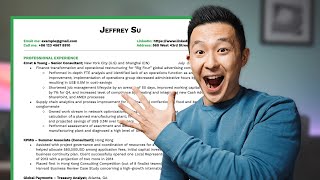
so this is my brand new linkedin profile picture and background banner this is an event poster i made in the sales team when i had no marketing support or budget this is a very realistic mock-up of a landing page for ipad that's clearly better than the original and this is the cover image i'm using for my weekly agenda page on notion i created all these assets for free on a website called camera.com let's get started hi friends welcome back to the second episode of think outside the box where i show you creative ways to stand out at work this series is all about using non-traditional methods to excel in the traditional professional workplace and in this video i go over seven ways canva has helped me do just that starting with number one easily import and edit pdfs for presentations so on the camera homepage you can literally drag and drop entire pdf files on here and canva will output a document you can actually edit from the background all the way to the words on the slides can you imagine what i would have paid for something like this when i was a first-year consultant making all those pitch decks referencing pdfs i couldn't edit that was such anyways this is extremely useful when you're responsible for your manager or director's presentation and you just need to use two to three slides from a 50 page pdf file keep some of the original information add your own thoughts and analysis slap on your company's branding and do not forget to give credit to the source material the best part is that you can export this as a powerpoint file or save this within your google drive to edit in google slides speaking of presentations tip number two is to use a frames feature to really make your ideas pop on screen let's say you're designing a dynamic website that needs to look good on desktop mobile and ipad now i can obviously just have the screenshots on the slide like this like this how it looks on a desktop and this on ipad right but i can go to the elements tab here type in frames like so and select a smartphone frame for example make this slightly larger for now um choose an image i've already uploaded ahead of time and with this selected slot it in double click and make some small adjustments perhaps make the iphone 13 right in the middle like so press enter enlarge this a little bit like that and there you go and this really just makes your mock-ups it brings your mock-ups to life a bit more right trust me when i tell you your audience will really appreciate small adjustments like this and this holds true for the other frames on here as well right here's the ipad one here's the desktop one if i go back to elements you'll see there are frames for book covers book pages uh photos collages this feature is just a great way to help others envision what you have in your mind moving on to the third thing to use canva for and that is to update your linkedin profile picture this was my original uh linkedin profile picture i know it's extremely difficult to improve upon perfection to improve upon perfection but we have to try first head on over to removebg.com or removebackground.com and upload a photo of yourself this tool helps you remove the background for free but you only get one try to download a hd high definition picture so make it count then coming back to canva click create a design custom size input 1600 by 1600 pixels and create new design and then you want to upload the profile picture with the transparent background here now the fun begins if you want to go with a safe option you can just go to elements and type in gradient and filter by free here and apply filters choose a grading color something like this i'm just going to enlarge this all the way here first to minimize the white background color and click position and send backward like so now i can just choose colors i like for example blue and green can't really go wrong with this if you want something a bit more fancy here's something i came up with and i'm super proud of this check this out so in the search bar uh type in something like nature and then make sure the free filter is still on click this one this picture right here but you can select any of them i'm just going to use this as an example enlarge this and with this image selected i click edit image in the adjust portion here click see all turn down the brightness a little bit uh turn the vignette up all the way and for blur type in 10. okay now you have a nice blurry background copy and paste your picture onto this background and now you have a very natural looking uh profile picture with a blurred background this looks pretty cool right and i'm not just talking about my face obviously you can search for other categories of background like ocean sky or like office if you're feeling particularly productive play around with it make it your own and download it here as a png when you're done and if you want to take this a step even further go back to elements search for frames and go down and find a circle frame with an outline like this one um and then under uploads you have to upload the downloaded picture for this to work i've already have one here select this and again drag this into the frame uh enlarge this until it hits the sides and now you can actually change the color of the circle frame like so like that something like this and this might help you stand out on linkedin just a bit more let me know if you're using camera already if yes what you're using it for and whether you want like a top 10 tips or something because there are loads more fun stuff we could do with this and we're not done with linkedin yet because the fourth tip is to create a linkedin background banner this is an easy one because all you gotta do is search for linkedin banner up top here and uh canva will output all the templates they have i've already created design as you can see in my original background banner i just have my initials on a blank computer screen here to customize it a tiny bit or you can do go with something a bit more fancy uh change up the colors in the background like so just play around with it and see what uh design style you like for me i like to keep it simple and consistent so i just basically use my youtube channel banner and change the tagline here huge shout out to suzanne if she's watching this video because she designed this icon and i absolutely love it so this is the before and this is the after uh pro tip uh because the profile picture is on the left on linkedin if you add any sort of supplemental text or images on your banner make sure they're like towards the right like i have here and by the way if you're updating your linkedin profile make sure to check out my linkedin playlist because i share a lot of best practices on there i'll link it down below use case number five design an easily shareable event invitation so back when i was in the sales team we didn't have any marketing support a budget so we basically had to run entire events by ourselves so to get a professional looking event invitation i basically went on cava and created a 480 so you can see here in the file portion 480 by 672 pixel uh event poster i found a template that i liked as you can see this one is this one and just customized it a few pro tips here let me just zoom in really quick so you can see you can add a qr code like so by going to more and clicking qr code and you can input your google form or sign up form link on here right so after you generate it people can just scan it and sign up directly and you might have noticed down here i'm just using the circle frame i talked about before uh as the speaker headshot you know graphic design here they are so lucky to be invited as speakers to my event i found this format to be a lot more effective than sending invitations via email because one visually it looks a lot better and two it's so shareable it's super easy for one invitee to take this and quickly send this to a bunch of people uh who might find this event relevant via messaging apps versus forwarding this one by one over email obviously this specific poster is a joke but when i did do this for actual events uh when i didn't have any resources i received a lot of recognition for it at work because no one else had thought about something like this before if you like this design i'll actually share a link to the template you can make a copy of down in the description below so you can use it for any type of event from large-scale webinars all the way to like planning a birthday party right i actually have an event management 101 video where i'll walk you through how i go through the event planning process so i'll link that down below somewhere as well idea number six is another quickie and that is use canva to create a resume and or cover letter first you can search for resume up top here and you'll get a bunch of fancy nice looking templates but if you have watched my resume and cover letter videos you know that i like to stick with simple designs for good reason so i recommend you find a template without a headshot and with very simple accent colors if i keep looking down here like this one of patricia brown and this is free as well and i mainly like canva for the formatting accuracy right for example the date the day can be perfectly right align and middle line like so all the way up and down and the role and company names can be perfectly left in line since this could be a nightmare to get right on microsoft word or google docs so my advice for the content watch my resume and cover letter videos type it all out on google docs then transfer what you have onto a camera template to ensure the formatting is flawless then finally obviously download it as a pdf for distribution and to land that dream job tip number seven is use dimensions to create any design you want so so far i've gone through six examples right but obviously there are endless possibilities to what you can design here so if there's a graphic you want to make you want to first search for the dimensions of the graphic then come back click create a design here custom size and input the width and height by pixel inches millimeters or centimeters for example if you use notion we can search for notion cover page size dimensions and we see that's 1500 pixels by 600 pixels uh come back to canva create a design that's 1500x600 put together something i like here or just use the template portion here for inspiration uh download this as a png and then upload it uh as my cover image you can sign up to canva for free using the link down below they're not sponsoring this video it just helps if you end up purchasing the premium subscription if you're enjoying the thing outside the box series i'll link the full playlist right over here see you on the next video and the meantime have a great one
Original Description
🎨 Create a free Canva account here: https://partner.canva.com/jeffsu
🎆 Use my Event template (for free): https://partner.canva.com/P0VJ1X
Whether you're a student or working professional, you'll be sure to find some inspiration after seeing the 7 creative ways I use this free tool - Canva! In this video I go over 7 ways I use Canva.com as a professional that has helped me stand out at work.
First, you're able to import entire PDFs into Canva and Canva will let you edit the entire file - from the background to the words on the slides. This is extremely helpful if you only need to use part of the content from the PDF.
Speaking of presentations, you're able to use the "Frames" feature to create mockups of basically anything you want; from book covers to website design. These small adjustments will really help your audience visualize the ideas in your head.
I also use Canva to create professional LinkedIn profile pictures and background banners. Not only are there existing templates you can use immediately, Canva provides you with a lot of tools to make your images look just right
And that's just the tip of the iceberg! I share a lot more Canva tips and tricks within the video itself, enjoy 😁
TIMESTAMPS
00:00 Intro
00:28 TOTB Episode 2
00:47 Import and Edit PDFs on Canva
01:45 Use Frames in Canva
02:56 Create LinkedIn Profile Picture
06:05 Create LinkedIn Background Banner
07:18 Design Event Poster on Canva
09:14 Create Resume or Cover Letter
10:23 Create any Design you want on Canva
RESOURCES I MENTION IN THE VIDEO
Event template: https://www.canva.com/design/DAEs2JBSIOM/wdToFpyvRMzEqbM2uWV00g/view?utm_content=DAEs2JBSIOM&utm_campaign=designshare&utm_medium=link&utm_source=sharebutton&mode=preview
LinkedIn Best Practices - https://www.youtube.com/watch?v=BcfGWi8Qywk&list=PLo-kPya_Ww2zqOZVXMNQCJeTNAaan8GcW
Event Management 101 - https://youtu.be/b3B24wl3gCQ
Write an Amazing Resume - https://youtu.be/Tt08KmFfIYQ
Write an Outstanding Cover Letter - https://yo
Watch on YouTube ↗
(saves to browser)
Sign in to unlock AI tutor explanation · ⚡30
Playlist
Uploads from Jeff Su · Jeff Su · 0 of 60
← Previous
Next →
1
 2
2
 3
3
 4
4
 5
5
 6
6
 7
7
 8
8
 9
9
 10
10
 11
11
 12
12
 13
13
 14
14
 15
15
 16
16
 17
17
 18
18
 19
19
 20
20
 21
21
 22
22
 23
23
 24
24
 25
25
 26
26
 27
27
 28
28
 29
29
 30
30
 31
31
 32
32
 33
33
 34
34
 35
35
 36
36
 37
37
 38
38
 39
39
 40
40
 41
41
 42
42
 43
43
 44
44
 45
45
 46
46
 47
47
 48
48
 49
49
 50
50
 51
51
 52
52
 53
53
 54
54
 55
55
 56
56
 57
57
 58
58
 59
59
 60
60

Preparing for Interviews: 3 Practical Tips!
Jeff Su
Q & A - 1,000 Subscribers!
Jeff Su
Tell Me About Yourself - Structure a Strong Answer
Jeff Su
Why Are You a Good Fit for this Role - How to Answer
Jeff Su
Top 5 LinkedIn Profile Tips!
Jeff Su
LinkedIn: How to Connect Like a Pro
Jeff Su
Reach out to Recruiters on LinkedIn (the right way!)
Jeff Su
Why Do You Want to Work Here? (Answer this Tricky Question)
Jeff Su
How to Research Before an Interview (3 Practical Tools)
Jeff Su
Explain an Employment Gap in a Job Interview
Jeff Su
Informational Interviews: Best Questions to Ask
Jeff Su
Where Do You See Yourself in 5 Years - How to Answer
Jeff Su
Don't Use STAR in Your Next Interview (Do This Instead)!
Jeff Su
Career and Interview Tips - Lightening Round! #shorts
Jeff Su
What are Your Greatest Strengths - 3 Mistakes to Avoid!
Jeff Su
How to Negotiate Salary after Job Offer | 5 Practical Tips
Jeff Su
5 Informational Interview Mistakes to Avoid!
Jeff Su
3 Mistakes to AVOID at Work!
Jeff Su
Top 3 Tips to STAND OUT on LinkedIn!
Jeff Su
The Introvert's Guide to Networking (for Business)
Jeff Su
6 Months on YouTube | What I've Learned
Jeff Su
Why Are You Leaving Your Current Job? How to Answer Correctly
Jeff Su
Tell me a time You Handled a Difficult Situation (Interview Question)
Jeff Su
8 Google Calendar Settings Everyone Must Turn ON!
Jeff Su
A Day in the Life of a Product Marketer (Work From Home Edition)
Jeff Su
Tell Me About a Time You Failed (Sample Answer included)
Jeff Su
Write an Incredible Resume: 5 Golden Rules!
Jeff Su
Productive TWO DAYS In The Life: Chinese New Year Edition
Jeff Su
Top 7 Gmail Tips for Productivity 📧
Jeff Su
Top 6 Gmail Filters for Productivity!
Jeff Su
Plan a Productive Day using Notion (Free Template)!
Jeff Su
Top 9 Google Drive Tips for Productivity!
Jeff Su
Best MacBook Keyboard Shortcuts for Productivity!
Jeff Su
A Productive Business Trip to Beijing (as a Product Marketer)
Jeff Su
Top 10 Google Doc Tips for Productivity!
Jeff Su
TOP 12 Google Slides Tips for Productivity!
Jeff Su
How to Take Notes Productively (Notion Template Included)
Jeff Su
Top 10 Google Sheets Tips for Productive Professionals!
Jeff Su
How to Take Notes for Work | Note-taking Tutorial for Professionals
Jeff Su
How I Never Forget a Single Task (Todoist + Notion Workflow)
Jeff Su
8 Tips to KEEP Track of Things Productively!
Jeff Su
The 1 Tip to Improve Your Communication Skills at Work
Jeff Su
Thank you, for watching
Jeff Su
7 Productivity Secrets for Watching YouTube Videos!
Jeff Su
Write an Amazing Cover Letter: 3 Golden Rules (Template included)
Jeff Su
Top 8 Productivity Tips for Google Chrome
Jeff Su
5 Things I Wish I Knew Before Joining FAANG!
Jeff Su
Top 15 Google Photos Tips for Productivity!
Jeff Su
7 Effective Tips for Presenting Data at Work!
Jeff Su
Top 14 Notion Tips for Productivity!
Jeff Su
A Simple Book Notes Template (for Notion)!
Jeff Su
Write an OUTSTANDING LinkedIn Summary (with Examples)!
Jeff Su
Personal Finance Tracker for Beginners (template included)!
Jeff Su
15 Spreadsheet Formulas Working Professionals Should Know!
Jeff Su
Dating, FOMO, Perfectionism: 100K Q&A
Jeff Su
I Built a Personal CRM on Notion (template included)!
Jeff Su
4 FREE Tools to Improve Your Next Presentation!
Jeff Su
Job Search on LinkedIn: The 1 Tip You Need to Know!
Jeff Su
6 Tips for Productive 1:1 Meetings with Your Manager
Jeff Su
Intro to Event Planning & Management (with Google Sheets)
Jeff Su
Related Reads
Chapters (9)
Intro
0:28
TOTB Episode 2
0:47
Import and Edit PDFs on Canva
1:45
Use Frames in Canva
2:56
Create LinkedIn Profile Picture
6:05
Create LinkedIn Background Banner
7:18
Design Event Poster on Canva
9:14
Create Resume or Cover Letter
10:23
Create any Design you want on Canva
🎓
Tutor Explanation

 DeepCamp AI